A product video sells in the viewer's language, and translating one takes more than dubbing the voiceover. The on-screen callouts, the subtitles, and the text printed on the product all tell the story too. This guide covers what to translate, three ways to dub the audio (YouTube's auto dubbing, TikTok's Symphony, and an AI dubbing tool), what to check before you publish, and what we found when we tested one of them on three product videos.
Disclosure: Vosko AI is our product. We ran the Vosko test on November 4, 2026, on the Creator plan. Platform specs come from the platforms' own help pages, and we did not test any seller back end.
Start with a clean master video and a list of terms that must not change. Dub or subtitle the speech with the method that fits where you publish: YouTube's auto dubbing, TikTok's Symphony, or an AI dubbing tool if you need to edit the script and reuse the files. Fix text in the picture separately, have a speaker of each language check names and claims, then export a file that fits the platform.
A product video has several layers, and a dubbing tool doesn't treat them all the same way.
| Layer | What to do | What a dubbing tool usually does |
|---|---|---|
| Spoken audio | Dub it, or add translated subtitles | Replaces the speech with a translated voice |
| Burned-in subtitles | Erase the originals and add translated ones, or start from a clean master | Leaves them, unless the tool can erase them |
| On-screen callouts | Edit them in a video editor | Leaves them as they are |
| Text on the product or packaging | Leave it as printed, or reshoot | Leaves it as printed |
| Music and sound effects | Keep them, so the product sounds the same | Keeps or replaces them, depending on the tool |
Before you start, do three things:
| Method | Best when | Cost | Watch for |
|---|---|---|---|
| Translated subtitles | The speech is simple, or viewers watch muted | Low | Reading time and screen space |
| Platform dubbing (YouTube auto dubbing, TikTok Symphony) | You publish on that one platform | No charge seen for YouTube in our test; TikTok says Symphony's Translate & dub uses no credits | The dub plays only there, and edits are limited |
| AI dubbing tool | You have existing videos and several languages, and you need to edit the script and export files | Credits or a subscription | Terms and claims still need review |
| Voice actors or a localization team | Performance matters most, or you need certified translation | Highest | The longest turnaround |
| Reshoot or edit the picture | Callouts, packaging, or the product doesn't fit the market | Varies | The most planning and production work |
The next three sections cover the methods you can start today. Voice actors and reshoots need a production team. A few quick picks:
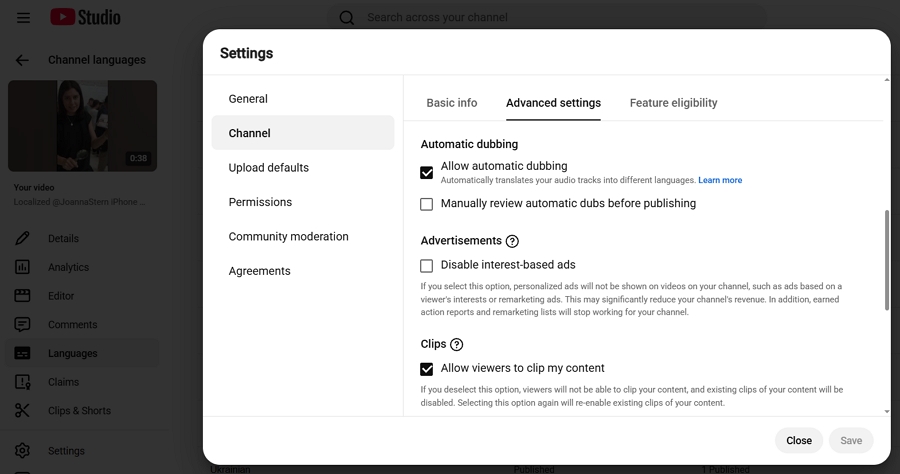
YouTube's February 2026 blog post says auto dubbing is available to everyone in 27 languages, and its help page says it's on by default for eligible creators.
You can't edit the dubs, most language pairs have English on one side, videos over 120 minutes are ineligible, and the dub plays only on YouTube. Text in the picture stays as it is. In our separate test on other videos, no charge appeared, the Spanish dub sounded similar to the speaker, and the Japanese one didn't. The details are in our YouTube comparison.
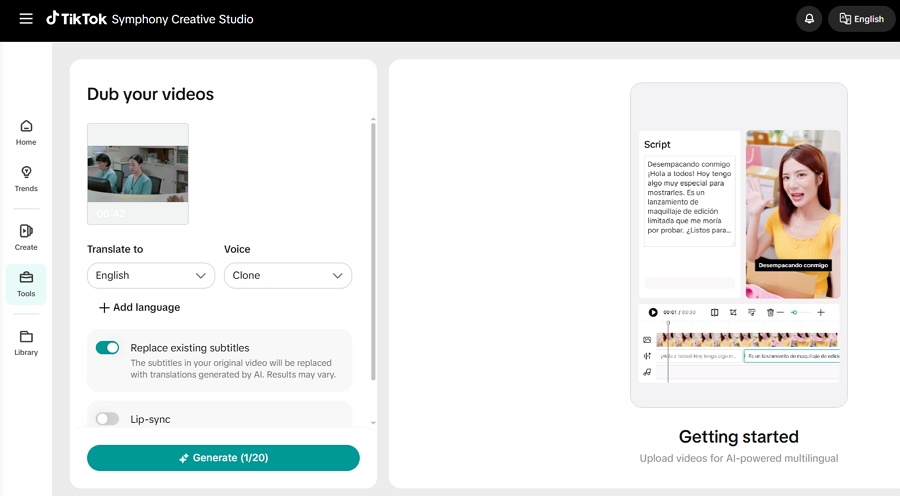
Symphony's Translate & dub feature needs a TikTok for Business account and a desktop browser, and it isn't available in Texas and Illinois. TikTok says the feature doesn't use Symphony credits. These steps follow TikTok's help page:
Script edits are limited to minor corrections, lip sync doesn't work with multiple speakers or a covered mouth, and every export carries an AI-generated label.
In our earlier test on one clip, the dub kept the speaker's voice but lost the original background audio, and the subtitle replacement didn't clear the old text cleanly. For a product video with sound effects, that matters. Our TikTok dubbing guide has the details.
An AI dubbing tool fits when you have existing videos and need to edit the script, keep the speaker's voice, and export files for any platform. Here is what to look for, and how it works in Vosko AI Dubbing, the tool we use.
| What to look for | Why it matters for product videos | In Vosko |
|---|---|---|
| The speaker's voice kept | The presenter's voice is part of the brand | Clones the voice, so the dub is designed to sound like the same person. It needs the speaker's permission |
| Music and effects kept | Product sounds, like clicks and pours, help sell the product | Replaces only the dialogue |
| An editable script | Product names and terms must be right | Edit a line and re-dub only that line, fix terms with Word Replace, and adjust timing |
| Burned-in subtitle handling | Old subtitles clash with the new language | An erase option, plus translated subtitles |
| File export | Amazon and Shopify need files, not links | Video, mixed audio, voiceover only, background audio, and .SRT subtitles |
| Languages and volume | Catalogs span many videos and markets | 99 source and 94 target languages, up to 8 languages per task, and Batch Upload of up to 150 videos of up to six minutes each (Creator plan and above) |
| Know the gaps | Avoid surprises before you commit | No lip sync, and callouts and packaging text in the picture stay as they are |
Credits are charged per started minute, per language: 70 in Original voice dubbing & subtitles mode (60 for dubbing plus 10 for subtitles) and 10 in Subtitles only. In our test, a 47-second video into three languages cost 210 credits. The pricing page lists plans and the free trial. Our help guide has the full walkthrough.
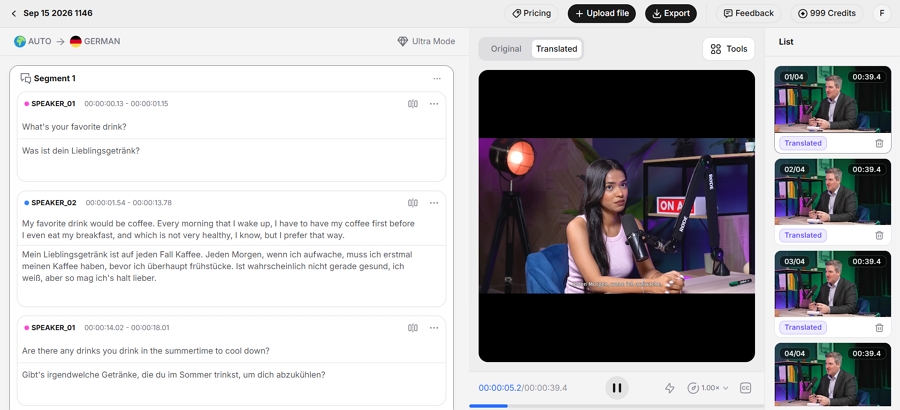
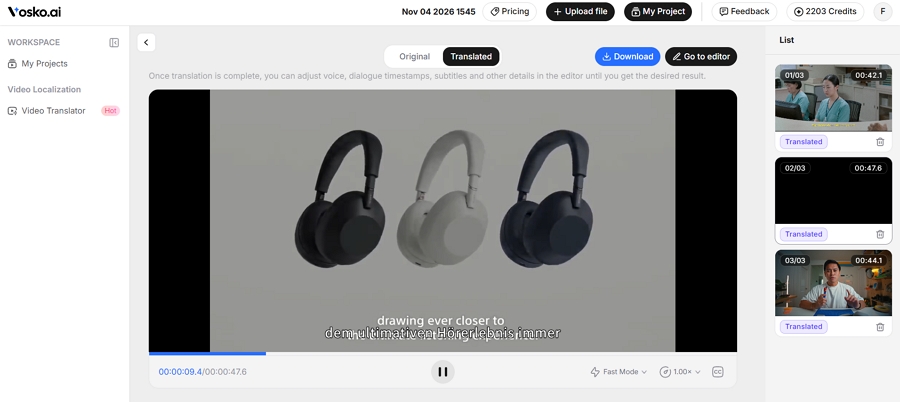
We translated two Sony WF-1000XM6 videos (clips A and B) into German, Spanish, and Chinese in Original voice dubbing & subtitles mode, and ran all three clips into Chinese in one batch.
Clip A was a 47-second official product demo with sound effects, on-screen callouts, burned-in subtitles, and a real-person narrator. Clip B was a 44-second review of the same earbuds by an independent creator, on camera. Clip C was a 42-second commercial, "Krungsri First Choice."
| What we checked | Result |
|---|---|
| Voice similarity | Two raters scored 4.4 in German, 4.3 in Spanish, and 4.5 in Chinese out of 5 (subjective; each figure is the average of two videos) |
| Product and model names | Pronounced accurately in all three languages. The Chinese version kept the English names; German and Spanish adapted some wording without changing what the name or model meant. A wrong term was fixed with Word Replace and re-dubbing |
| Burned-in subtitles | Erased cleanly |
| Callouts and text on the product | Stayed as they were |
| Music and sound effects | Retained |
| Pacing | The last few seconds of the German version of A were spoken fast |
| Review | Matt Foster, our lead QA engineer, checked the German version and James Chiu, our technical expert, checked the Chinese version. Neither found anything to change. The Spanish dub wasn't checked by a Spanish speaker |
| Export | The Original quality export looked identical to the source to the eye; we didn't compare file sizes |
| Batch | Three videos into Chinese took about 15 minutes from upload until the translation finished |
A was used for internal testing only, and we aren't publishing its output. B is a review by Cedlom on YouTube, and C is "Krungsri First Choice" on YouTube. Both are licensed CC BY.
The YouTube and TikTok notes above come from our earlier tests on other videos. The Sony clips had no units, prices, or dates, so we didn't test unit or currency conversion. We also didn't test seller back ends or a multi-language batch.
Whatever method you use, check these before you export.
Check the specs of your destination before you export. These come from the platforms' own pages.
| Platform | What the platform says |
|---|---|
| Shopify | Uploaded videos can be up to 10 minutes and 1 GB, up to 4K. Accepted formats are .mp4, .mov, and .webm. You can also embed a YouTube or Vimeo link, per Shopify's help page |
| Amazon | Shoppable videos are .mov or .mp4, up to 1080p and 5 GB, and 1 to 12 minutes long. The upload form has a Language of video field, so set it to match your version, per Amazon's seller page |
| TikTok Shop | Limits vary by region and by source. Use your Seller Center's current requirements |
Amazon also recommends adding simple on-screen text, because some shoppers watch without sound. YouTube's dubs play only on YouTube, so a file for Amazon or Shopify needs a tool that exports.
Often, yes. Dubbing and subtitles cover the spoken parts, and text in the picture needs a separate fix. Reshoot only if the packaging text matters.
Dubbing tools change the audio. In our test, callouts and packaging text stayed as they were. Some tools say they can translate text in the picture. We haven't tested them, so check any such claim on your own footage, including fonts and layout.
We couldn't tell, because our Sony clips had no units, prices, or dates. Check every figure by hand and adapt units and currency for each market.
It depends on where you publish and what you need to control. YouTube's auto dubbing and TikTok's Symphony are built in and limited to their platforms and to light edits. An AI dubbing tool lets you edit the script and export files. For tool-by-tool tests, see our comparisons with Rask AI, HeyGen, Maestra, and Perso AI.
In Vosko's Original voice dubbing & subtitles mode, each language costs 70 credits per started minute. TikTok says Symphony's Translate & dub doesn't use credits, and YouTube's auto dubbing showed no charge in our test.
Translating a product video comes down to knowing which layers a tool changes and which it leaves alone. For online stores, our e-commerce page shows how the workflow fits. To try an AI dubbing tool, upload one product video to Vosko AI Dubbing, check the result against the checklist above, and see how it works before you translate your catalog. For ads, see our guide to localizing video ads.