On TikTok, "dubbing" can mean recording your own voiceover, replacing a video's speech with another language, or lip-syncing to a trending sound. This guide covers the first two. You'll see what TikTok's own tools can do in 2026, how to dub a TikTok video into another language with AI, and what to check before you post.
To add your own voice, open TikTok's editor and use the voiceover tool. To dub a video into another language, you have three routes: Symphony Creative Studio on desktop with a TikTok for Business account, TikTok Shop's Lipsync Dubbing for eligible U.S. creators, or an AI dubbing tool followed by an upload.
Whichever you use, review the translation and audio before you post, and turn on TikTok's AI-generated content label if the voice sounds realistic.
| Your goal | Best method | What to know |
|---|---|---|
| Add your own narration or commentary | In-app voiceover | Records your voice in the editor; doesn't translate |
| Dub a video with TikTok's own tool | Symphony Creative Studio | Desktop; TikTok for Business account; weekly credits; clone or stock voice; optional lip-sync; background audio may not carry over (our test) |
| Dub a U.S. shoppable video | TikTok Shop Lipsync Dubbing | English, Spanish, French, or German; 15 to 60 seconds |
| Dub existing videos into more languages, in the speaker's voice | An AI dubbing tool, then upload | Works with any video you own; you handle review and labeling |
| Help viewers follow along without a dub | Translated subtitles | Text only; see our subtitle guide |
Not sure how dubbing differs from a voiceover? See dubbing vs. voice-over.
TikTok's voiceover tool lives in the editor, and its menu path differs between app versions. The steps below use the Sound menu. If your version shows a Voice icon on the side panel instead, use that in step 4, which is the route TikTok's Help Center describes.
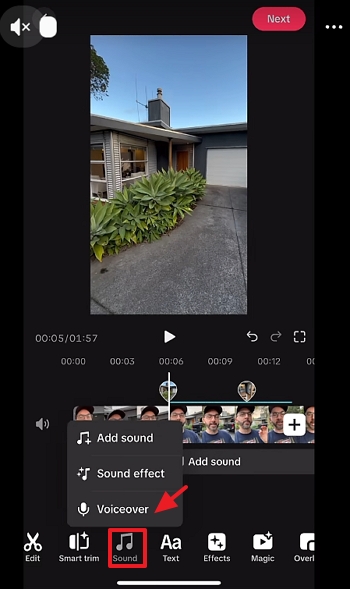
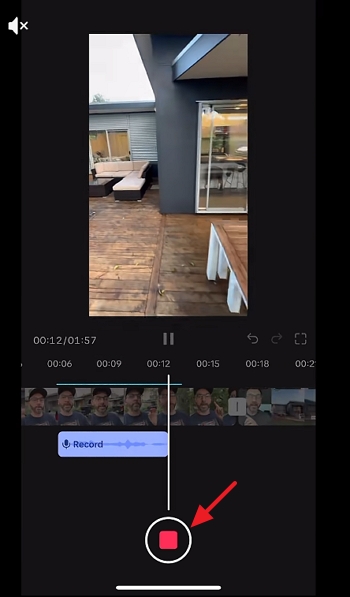
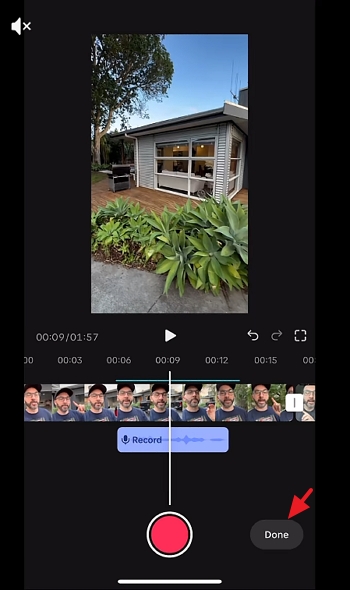
A quiet room and a short script make for a cleaner take.
If you can't find the tool. Availability changes with the app version, region, and how you open the editor, and TikTok's help pages don't list every variation. Try these checks:
If the tool still isn't there, record the voiceover in a video editor, export the video, and upload it. If you'd rather not record at all, TikTok's text-to-speech reads typed text, but it doesn't translate anything.
Record your voice last. TikTok's Sounds help warns that changing the music replaces earlier background music and voices. The voiceover tool works in the editor, so a change after posting generally means editing and reposting.
TikTok describes Symphony Creative Studio as a free creation tool for organic and paid content. Its Translate & dub videos feature needs a TikTok for Business account and a desktop browser, and it isn't available in Texas and Illinois. TikTok documents the process in its help page, last updated in June 2026.
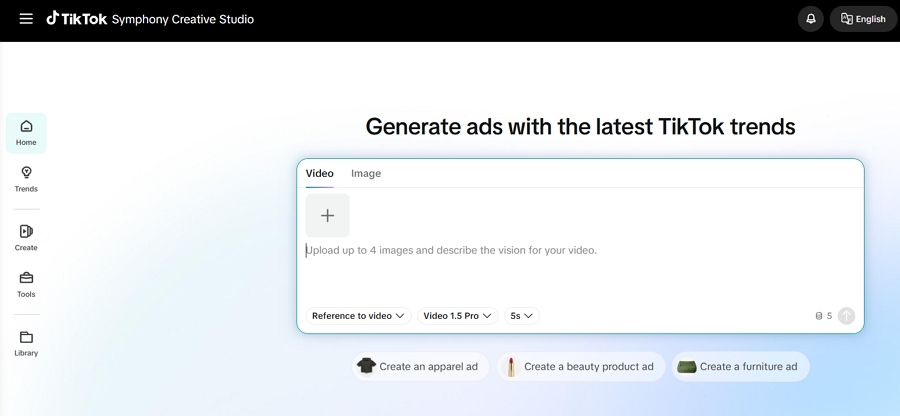
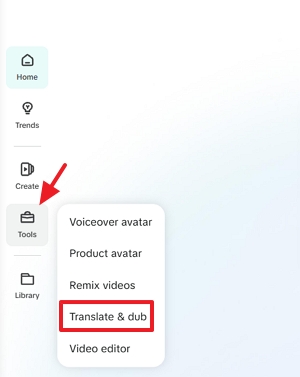
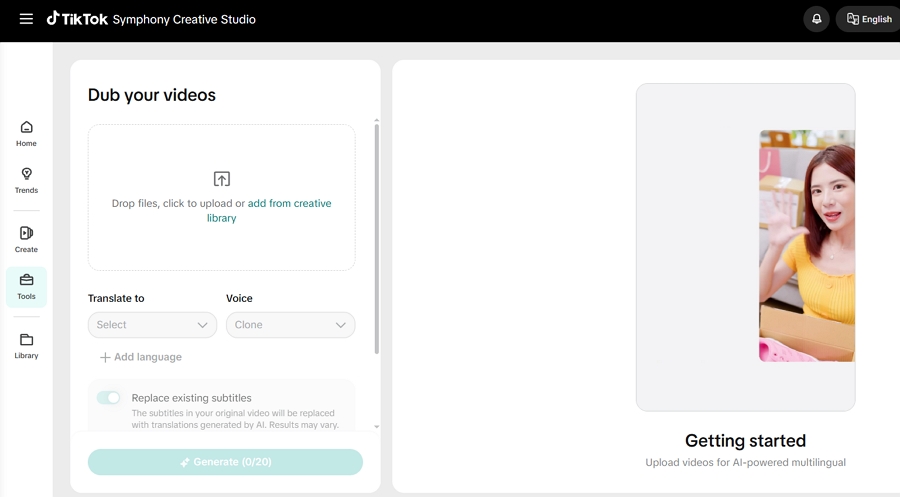
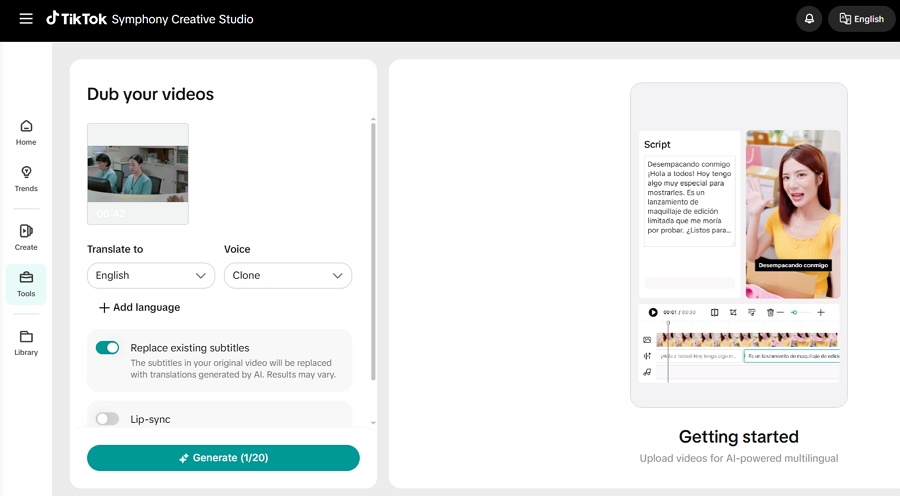
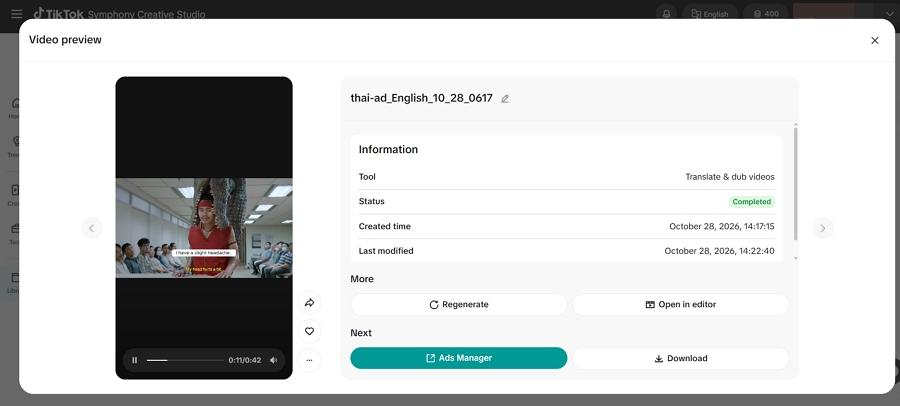
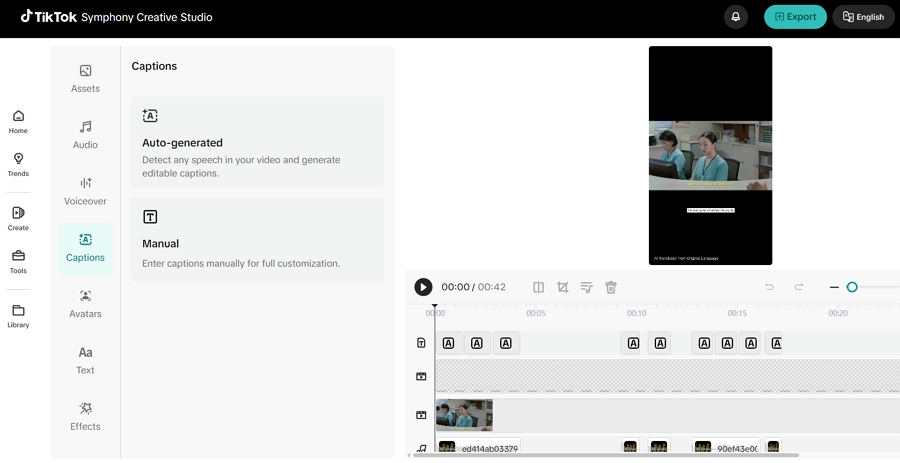
TikTok sets a few conditions. Script edits are limited to minor corrections such as typos, and changes that alter the substance of the message aren't permitted. Lip-sync doesn't work with multiple speakers, a covered mouth, poor lighting, or background noise. Every exported video gets an AI-generated label.
In late October 2026, our account showed 400 Symphony credits for the week, all unused. The counter listed November 2 as the next refresh and noted that unused credits don't roll over. After we uploaded a 42-second video, Symphony asked us to check back in 5 to 7 minutes, so expect a short wait rather than an instant result. Credits and limits may differ by account and change over time.
The Translate to menu listed 15 languages: English, Japanese, Korean, French, Spanish, Portuguese, German, Indonesian, Italian, Turkish, Arabic, Thai, Vietnamese, Chinese, and Romanian. TikTok's help page doesn't publish a language list, so confirm what your account offers.
The output had trade-offs. On our test clip, the Clone option kept the original speaker's voice, but the dubbed video lost the original background audio, so the music and ambient sound didn't carry over. If your video relies on a music bed or sound effects, add a music track back in the editor, or use a tool that keeps the background audio separate.
The Replace existing subtitles option didn't remove the old text cleanly either. For the best result, start from a version of the video without burned-in subtitles, and zoom in on the exported file to check for leftover text. These notes come from one test clip, so results may differ with other footage.
If you sell through TikTok Shop in the United States, Creator Center has a built-in tool that dubs a product video into another language. TikTok says it also matches the dub to your lip movements.
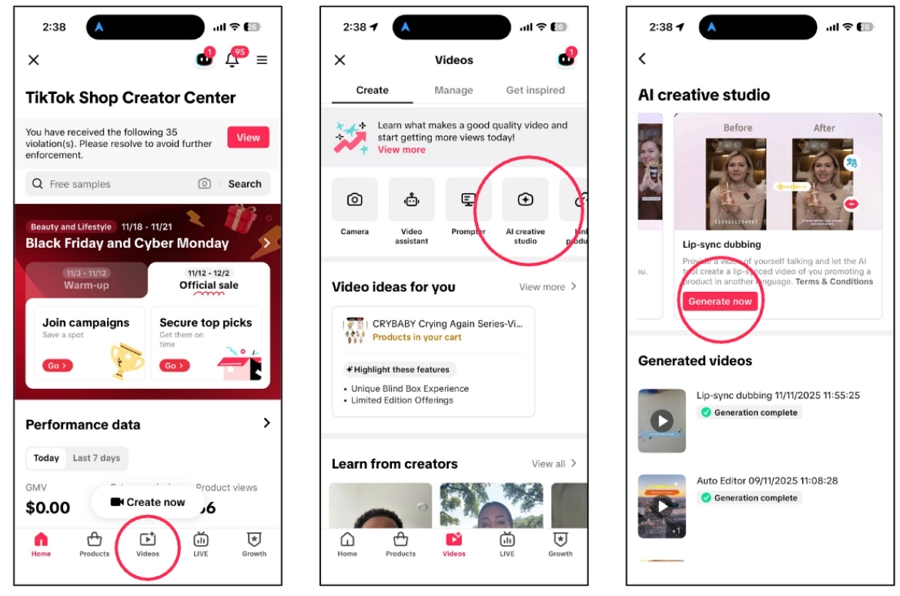
According to TikTok's Shop Academy guide, updated August 27, 2026, more languages will be added over time. The tool is built for shoppable videos, so it won't cover every kind of post.
Disclosure: Vosko AI is our product. These steps follow the official help guide for Vosko AI Dubbing.
TikTok's own tools cover specific accounts, languages, or video types, and in our Symphony test the original background audio didn't carry over. If you want to dub existing videos of any kind into more languages and keep the music and effects, a dedicated tool may be the better fit.
Sound matters on TikTok. TikTok-commissioned research from 2021 found that 88% of surveyed users call sound essential to the platform. It's self-reported, but it suggests a voice in the viewer's language can make a difference.
Vosko dubs from 99 source languages into 94 target languages, per our tech specs. Its Original voice dubbing mode clones the speaker's voice into the new language, so the dub is designed to sound like the same person. It replaces only the dialogue, so the music and effects stay. Only dub videos you own or have permission to localize.
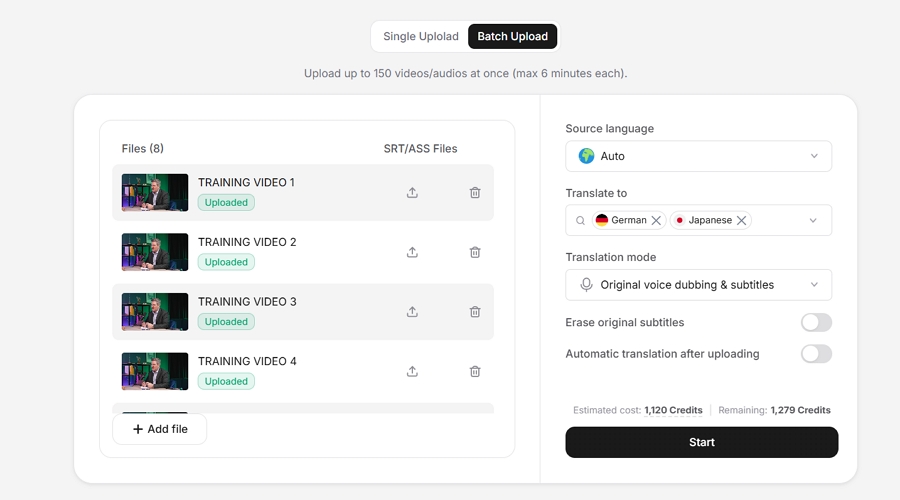
Use the original file from your editor if you have it. Upload it to Vosko, choose the source and target languages, and set Translation Mode to Original voice dubbing & subtitles. If your video has burned-in captions, switch on Erase original Subtitles. Then click Translate.
Short clips suit batching. Batch Upload, a Pro feature, takes up to 150 videos of up to six minutes each.
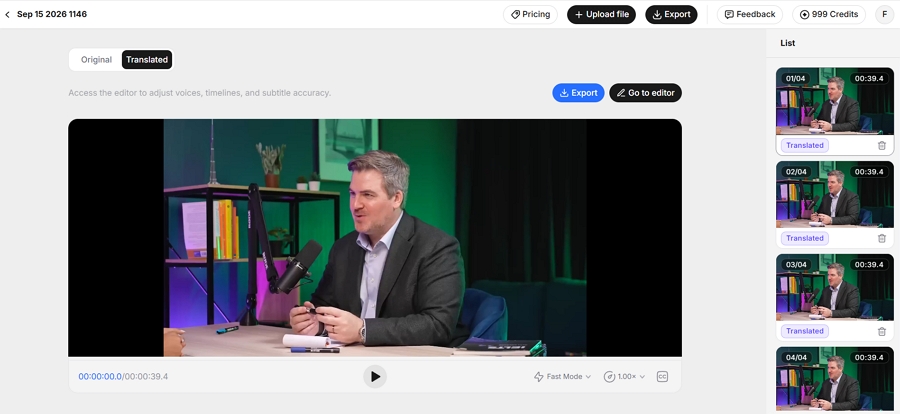
Wait for the translation to finish, then click the Translated tab and press play. Listen for voice quality, pacing, and emotional delivery, and check the opening line most closely, since it's the first thing viewers hear.
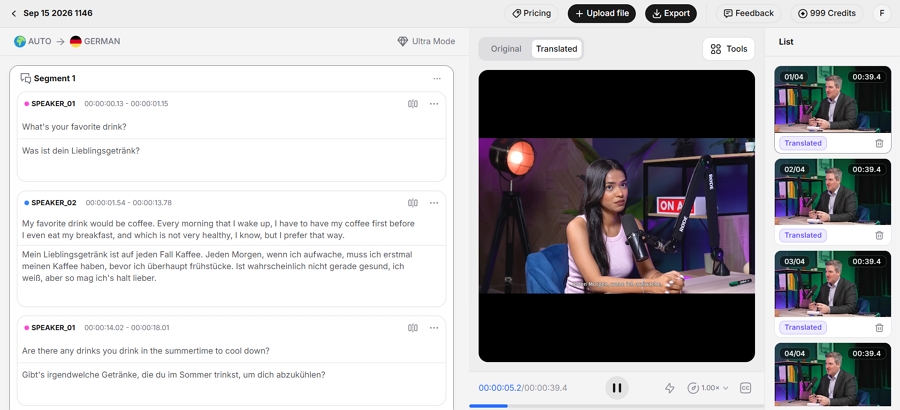
Click any translated line to edit it. Use Word Replace to fix a name or brand term across the whole script. You can merge or split segments, and drag or stretch a clip on the timeline so the speech lines up with your cuts.
Translated lines often run longer or shorter than the original. For videos with several speakers, check that each voice is assigned correctly.
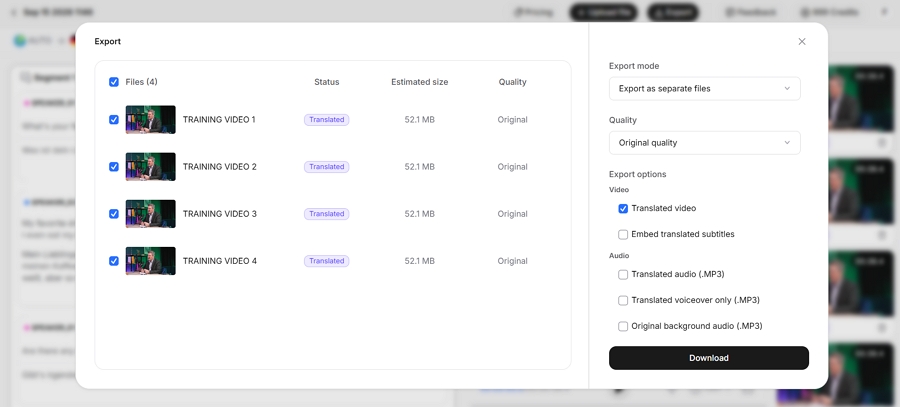
Click Generate Video, then Export. Choose to merge everything into one video, pick the video quality, and download. If you'd rather finish in a video editor, export separate files: the voiceover only, the background audio, and subtitle files.
On your phone, tap Add post (+), choose Upload, and select the dubbed file. On a computer, click Upload in TikTok Studio. Then work through the checks below.
Vosko doesn't change on-screen mouth movements, so close-up talking-head videos won't be lip-synced. If visible lip matching matters, use a tool that offers it, such as Symphony or TikTok Shop's.
For regular posts, the documentation we found covers text translation, not audio dubbing. TikTok does offer dubbing in Symphony Creative Studio and, for eligible U.S. creators, TikTok Shop's Lipsync Dubbing. TikTok changes its tools often, so check your app.
Voiceover is an editor tool, so a change after posting generally means editing and reposting. Settle the sound first and record your voice last.
Only with permission. Dubbing reuses someone's footage and voice. For reactions or commentary, Duet and Stitch are built for reusing other people's videos when they allow it.
TikTok requires a label on realistic AI-generated audio, so a cloned or synthetic voice that sounds real likely needs one. Turn on the AI-generated content setting under More options before you post.
Pick the method by the job. Use TikTok's editor for your own voiceover, Symphony or TikTok Shop's tool when you qualify, and a dedicated dubbing tool when you want existing videos in more languages in the speaker's own voice.
To try that route, upload a short clip to Vosko AI Dubbing and run it through the checks above before you scale. See how it fits for content creators and e-commerce sellers.