Adding translated subtitles to a video comes down to three jobs: getting an accurate translation, timing it to the dialogue, and putting it into the video in the right form.
If you already have a subtitle file, you can translate the file. If you only have the video, a tool that transcribes, translates, and syncs can handle all three in one workflow. This guide covers both routes.
Decide whether you need a separate subtitle file or subtitles burned into the picture. Then translate the text while keeping the timing, deal with any subtitles already on the video, add the result, and review it before publishing.
You can upload a translated file to a platform such as YouTube, or use a video translator that transcribes, translates, syncs, and exports in one workflow. If the original subtitles are burned in, remove them first, or the new ones will sit on top of the old.
| Output | How it works | Best for | Watch for |
|---|---|---|---|
| Separate subtitle file (SRT, VTT, ASS) | A text file with timestamps that a player or platform loads | Platforms with subtitle tracks, several languages on one video, later edits | The platform must support the format |
| Burned-in subtitles | Text rendered into the video frames | Social posts, players without subtitle support, controlled styling | Can't be switched off or edited without re-exporting |
W3C's draft guidance uses similar terms. Closed captions can be turned on and off, while open captions can't, for example when the text is embedded in the video. It also notes that "subtitles" often refers to captions that present a translation. Many teams publish both: a subtitle file for YouTube and a burned-in version for social platforms.
Check whether the existing subtitles are a separate track or part of the picture. A separate track or file can usually be exported, edited, and translated. Burned-in subtitles are different.
They are pixels in every frame, so adding a new subtitle track doesn't remove them, and viewers see two layers of text. Your options are to start from a clean version of the video, remove the old text with a tool that supports it, or crop or cover it, which costs you part of the frame.
Once you have a translated subtitle file, there are two ways to get it into the video: upload it to a platform as a separate track, or burn it into the picture with a video editor.
Which one you use depends on where the video will be published. If you don't have translated text yet, skip ahead to the AI workflow below, which translates the subtitles for you.
Step 1. Sign in to YouTube Studio.
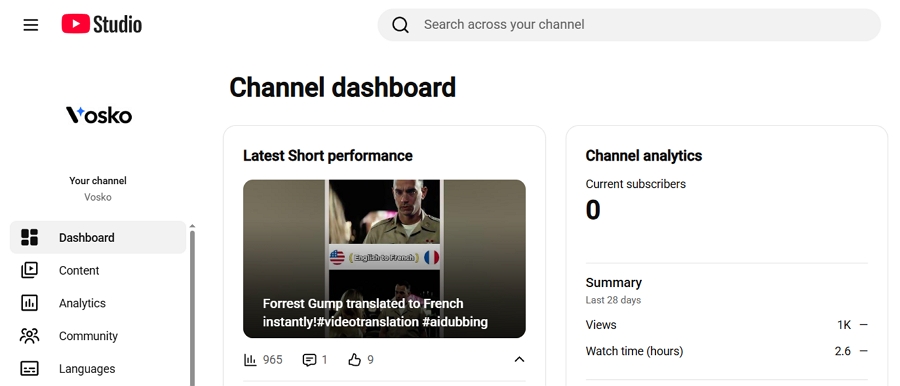
Step 2. Select Languages from the left menu. Then select the video you want to add translated subtitles to.
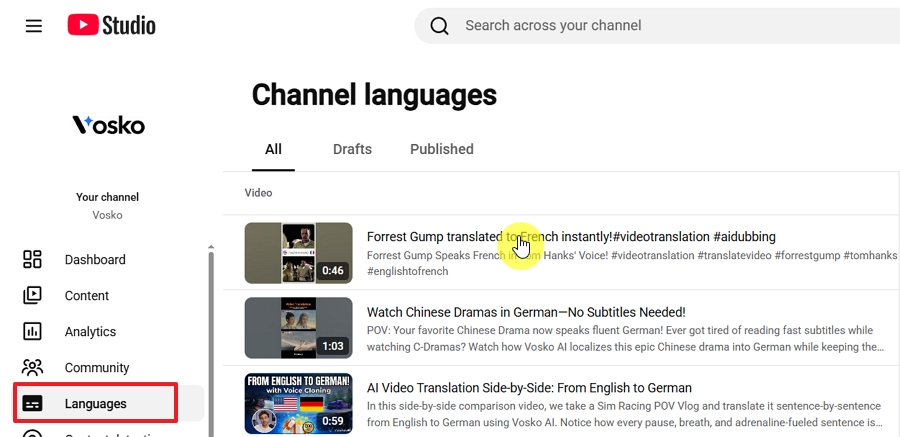
Step 3. Click Add language.
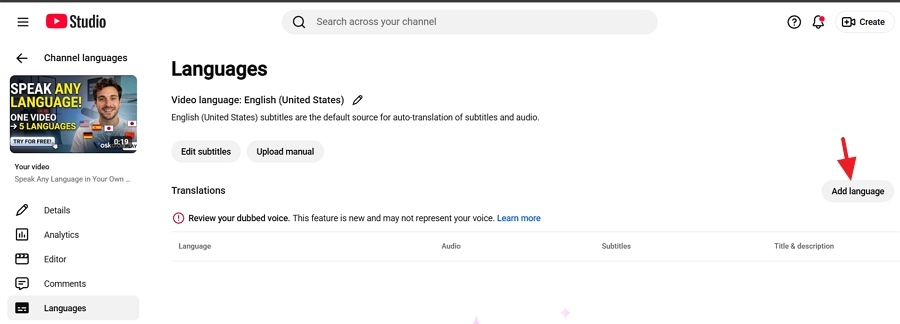
Step 4. Choose the language of your translation from the list.
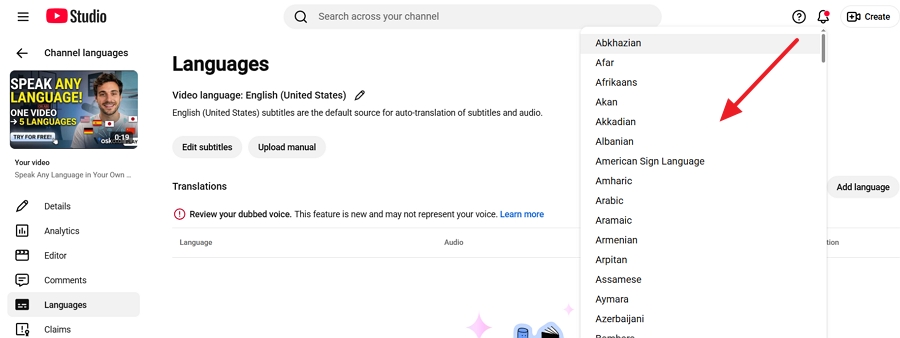
Step 5. Under Manual Subtitles, click Add.
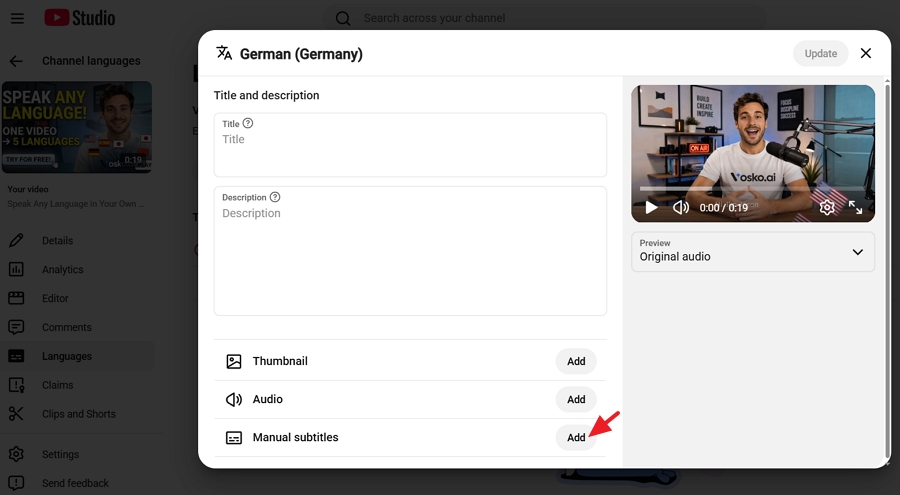
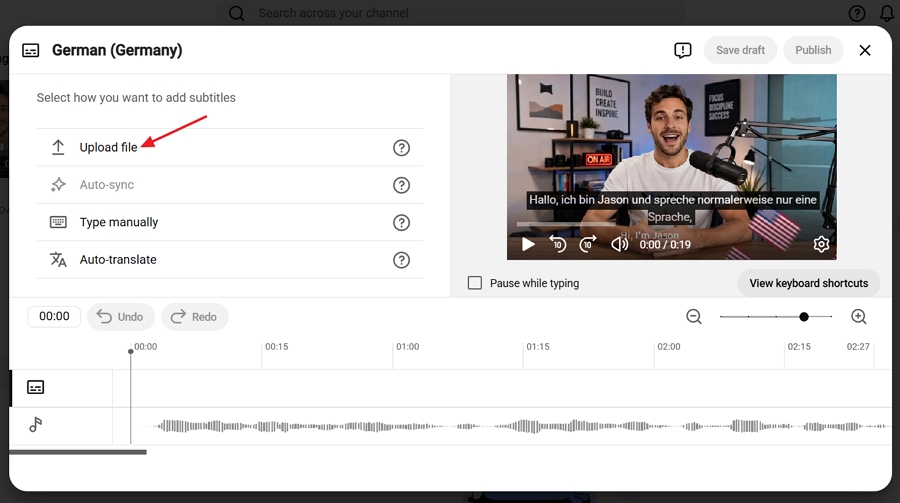
Step 6. Then select Upload file.
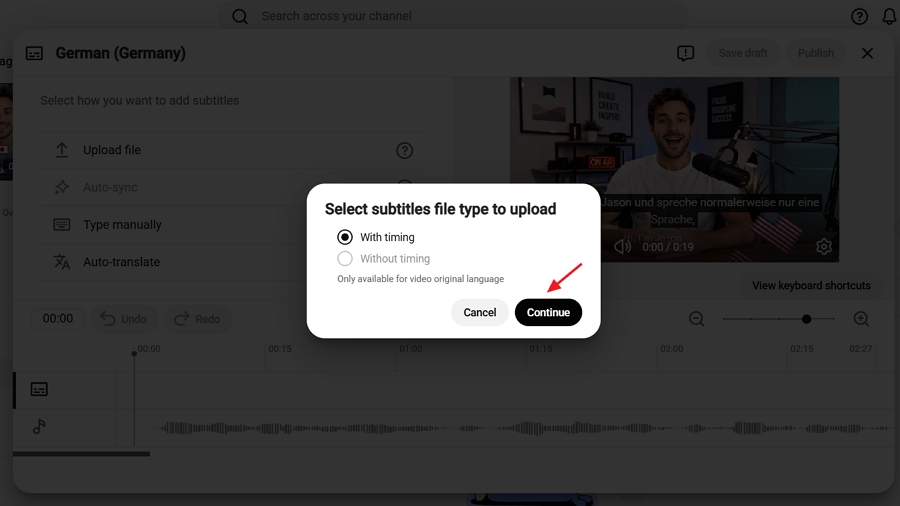
Step 7. Choose With timing, then select Continue.
Step 8. Pick your file, check the lines against the video, and publish.
The file must be one of YouTube's supported types, and basic SubRip (.srt) files must be plain UTF-8. Repeat the steps for each language, and each one becomes a separate track viewers can choose. Menu labels may vary slightly as YouTube updates Studio. YouTube treats translated audio as a separate feature, covered in our guide to multi-language audio.
Meta's ad help page covers ads separately from regular videos. For a regular video on a profile or Page, the steps are:
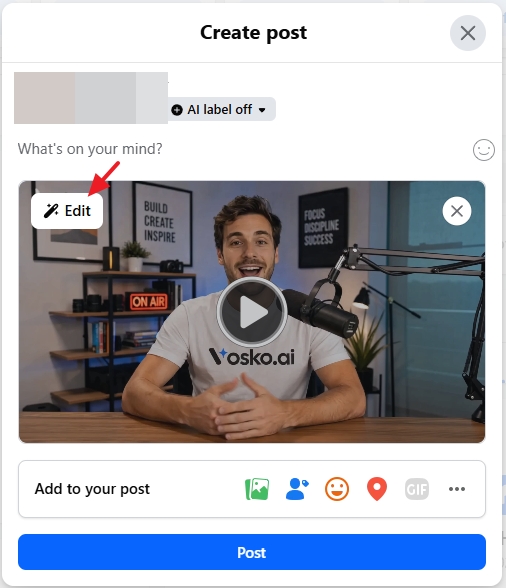
Step 1. Start a post, select Photo/Video, and upload your video.
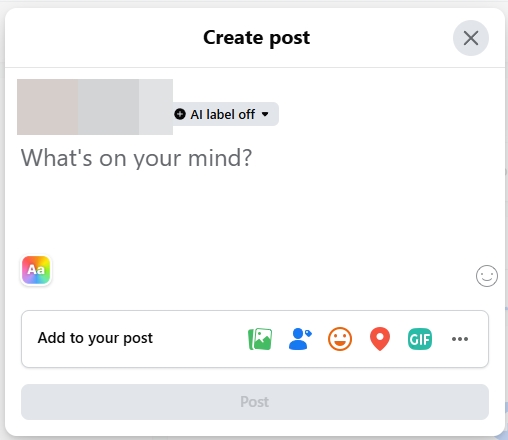
Step 2. Click Edit.
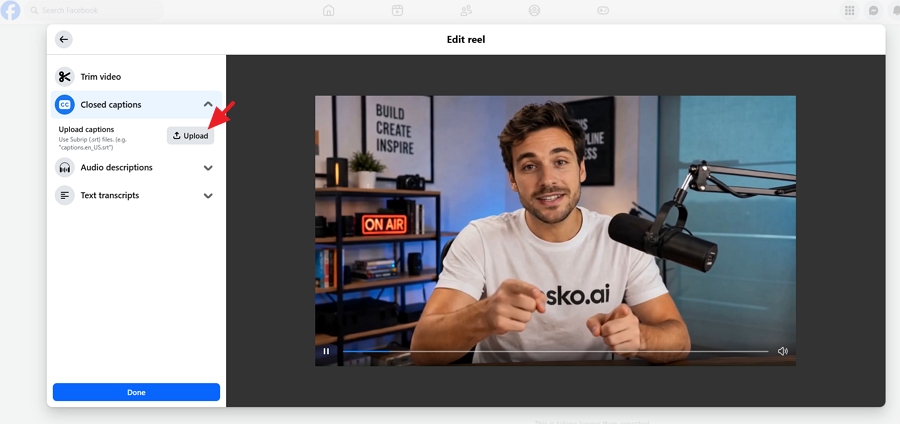
Step 3. Select Captions (labeled Closed Captions in some versions).
Step 4. Choose Upload and select your SRT file.
Step 5. Save, then publish the post.
Name the file with a language and country code, as in Meta's ad example: filename.[language code]_[country code].srt, such as myvideo.es_ES.srt. Facebook requires the file name to end with the language code.
To offer several languages, upload one correctly named file per language. Page admins can also add captions in Meta Business Suite. Facebook updates its menus often, so labels may differ slightly.
Meta's guidance for video ads on Facebook and Instagram says the file name must follow filename.[language code]_[country code].srt, for example ice_cream_ad.en_US.srt. If the name or codes are wrong, the captions won't upload.
Other platforms differ. LinkedIn accepts uploaded SRT files, but Instagram doesn't accept caption file uploads for regular posts, Reels, or Stories, according to CU Boulder's accessibility team. For those, burn the subtitles in before you upload. Platform options change, so check the current rules.
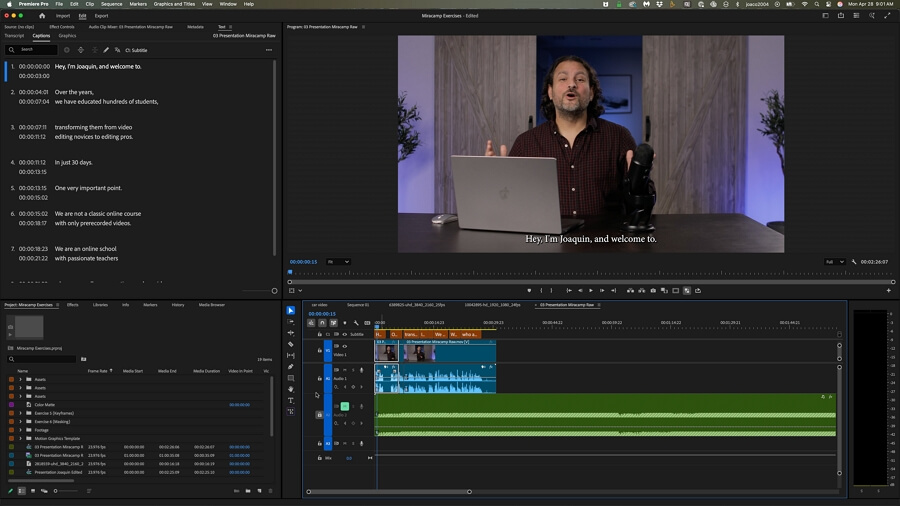
Use an editor when a platform doesn't take caption files, or when you want the text always visible. In Adobe Premiere Pro, following Adobe's steps:
An AI video translator starts from the video itself. It transcribes the speech, translates it, aligns the lines, and lets you edit and export in one project. Features vary by tool, so confirm what yours supports before you rely on it.
| Traditional workflow | AI video translator |
|---|---|
| Transcription and translation in separate steps | Handled in one project |
| Timing managed by hand | Translated lines aligned automatically, then reviewed |
| Burned-in text handled separately | Some tools erase and replace it |
| Subtitle file and video timeline edited separately | One editor for text and timing |
| Export through separate steps | Video and, where supported, subtitle files exported from the same project |
Disclosure: Vosko AI is our product. The steps below follow the official help guide for our Subtitle Translator.
Vosko AI video translator handles the whole job in one workflow. With it, you can:
Upload your video to Vosko AI. A single upload can run up to 200 minutes, per our tech specs. Then choose your source and target languages and one of two modes:
For the workflow in this guide, choose Subtitles only. If you're weighing the two, see what AI video dubbing is.
Note: If your video already has subtitles in the picture, switch on the erase option before you click Translate. Vosko rebuilds the background where the old text was.
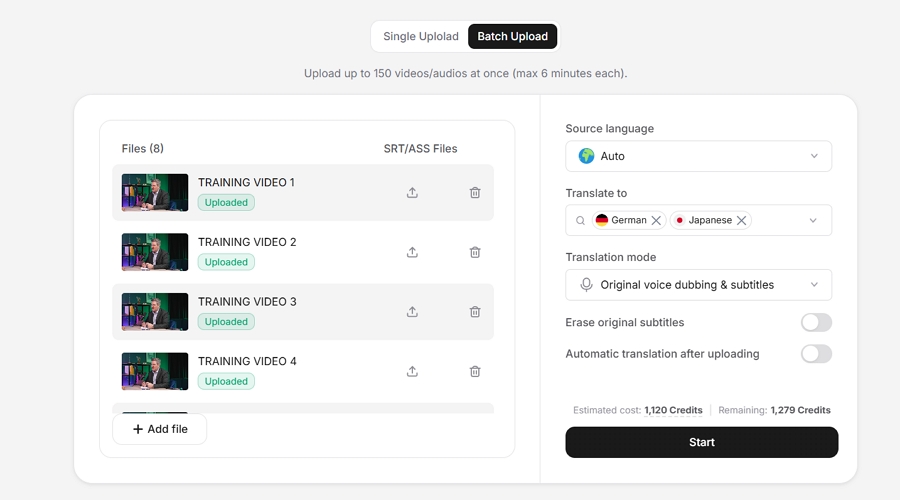
Vosko transcribes, translates, and automatically aligns your subtitles. Open the Translated tab and press play. Although alignment is automatic, watch the full video for timing problems such as early, late, or overlapping lines.
If you erased the original subtitles, also check the result for ghosting or smearing, especially on busy backgrounds, moving shots, and text near faces.
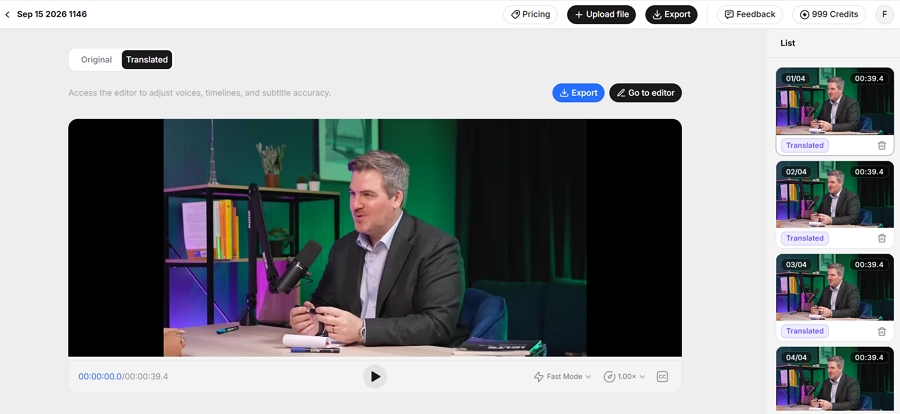
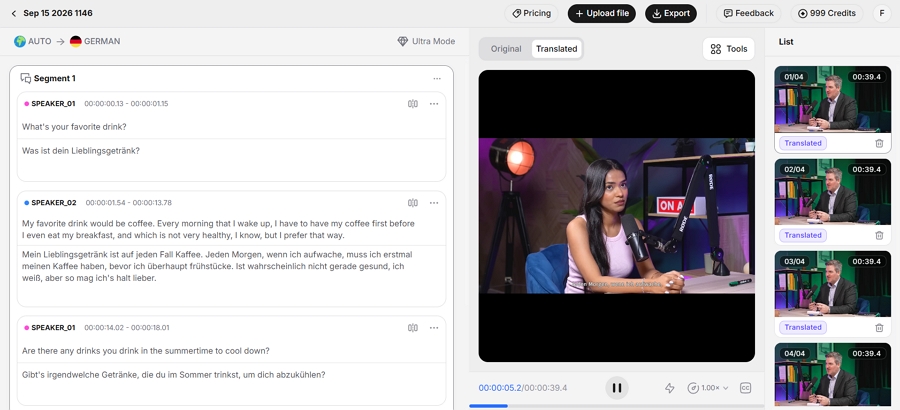
Click Go to editor if you need to edit the translated subtitles. You can merge or split segments, add a new one, and use bulk replace to fix names and terms across the whole script. Style controls cover font, size, color, outline, and position. Keep lines short and clear of key visuals.
Click Export to download the video with the translated subtitles burned in. If you'd rather keep the subtitles separate, export the translated subtitles as an .ASS file, or the original-language text as an .SRT file. ASS keeps font and position styling, while SRT carries plain text and timing.
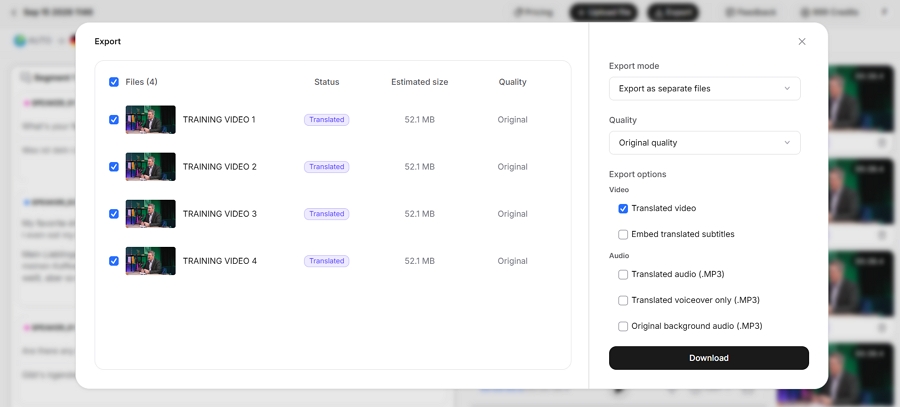
Check what your destination accepts before you pick:
To upload translated subtitles to YouTube or Facebook, convert the ASS file to SRT in a subtitle editor, then recheck the timing. The conversion drops the styling, so use the burned-in video when the look matters.
Watch the final file, not just the editor preview:
| Your situation | Recommended approach |
|---|---|
| You publish on a platform that takes caption files (YouTube, Facebook videos, Meta ads, LinkedIn) | Upload a correctly formatted SRT file for each language |
| The platform doesn't accept caption files (Instagram posts and Reels) | Burn the subtitles into the video |
| You need to translate a full video and keep timing in sync | Use an AI video translator |
| The original subtitles are burned in | Use a tool that removes and replaces them, or start from a clean video |
If you're also weighing translated audio, see subtitles vs. dubbing. For course and training libraries, how to localize training videos at scale covers when subtitles alone are enough.
Yes, if the tool can transcribe the video itself. Upload the video, choose the languages, and let it generate the subtitles. Vosko works this way, so you don't need to prepare a file first.
Keep the original timestamps when translating a file, and adjust lines that run longer than the speech. AI tools align subtitles automatically, but you should still watch the full video and fix drift.
Not by adding a subtitle track. Burned-in text is part of the picture, so you need a clean source, a tool that erases it, or a crop. Then add the new subtitles.
Yes. Vosko exports translated subtitles as .ASS and the original text as .SRT, so they don't have to be burned in. Make sure your platform accepts the format. YouTube doesn't list ASS, so convert the file first.
Reliable translated subtitles depend on the right output, natural wording, and a sync check before you publish. If you want to translate a full video and edit, restyle, and export in one place, try Vosko AI's Video Translator on a short clip first.