For content creators and channel managers worldwide, breaking into international markets used to mean launching entirely separate channels—diluting brand authority and splitting analytics. With YouTube's Multi-Language Audio (MLA) feature, you can now house English, Spanish, Japanese, and more under a single video URL. This centralized approach compounds your watch time, consolidates the algorithm's ranking signals, and drastically scales your global ad revenue.
However, successfully deploying MLA requires more than just uploading a translated MP3. From technical codec specifications to AI dubbing workflows and localized SEO, here is exactly how to execute a professional multi-language strategy.
YouTube introduced multi-language audio to help creators consolidate their global audience into a single video. When this feature first launched, data showed that creators using it gained an average of 2 million extra monthly views. By keeping all translated tracks in one place, YouTube's algorithm combines the total engagement, which significantly boosts the video's overall global ranking.
This centralized approach also solves a major problem for creators. Instead of managing the complex logistics of running separate Spanish, German, or Portuguese channels, you can manage everything from your main account. This saves up to 40% of the time previously spent operating secondary channels.
In practice, the feature is very straightforward:
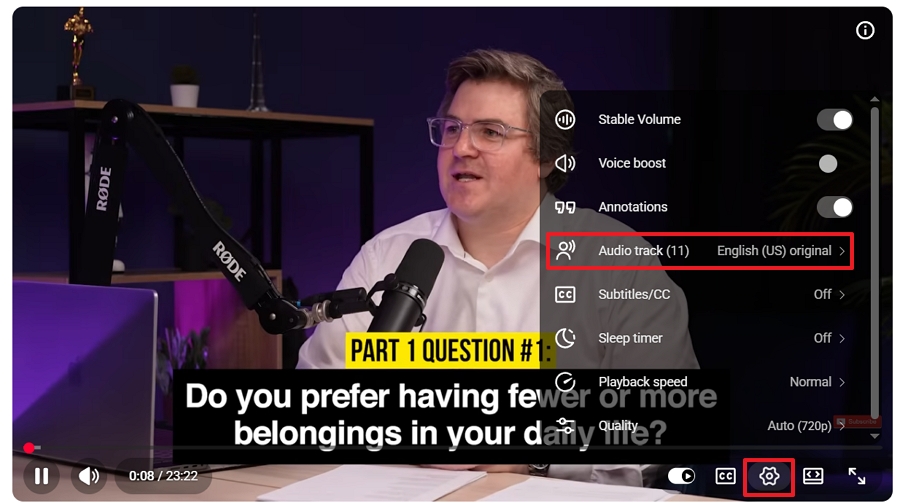
For viewers: They can switch a video's language by clicking the Gear Icon (Settings) > Audio Track on desktop or mobile. YouTube's algorithm will also automatically play the track that matches the user's default browser or app language.
For creators: You can easily add and manage these multiple language tracks under the Languages settings within YouTube Studio.
To successfully upload a multi-language track, your files must meet YouTube's specific technical parameters. YouTube is highly versatile, supporting over 200 languages for audio tracks (including high-traffic options like Spanish, Hindi, Portuguese, French, and Japanese, alongside niche regional dialects). However, your exported audio files must strictly adhere to the following broadcast standards:
| Supported Audio Formats | Sample Rate | Bitrate | Channels | Notes |
|---|---|---|---|---|
| FLAC (.flac) | 48 kHz (or 44.1 kHz) | Variable (Lossless) | Stereo (2-Channel) | Highly recommended. Retains 100% of the original voice data. The bitrate adapts variably based on audio complexity without any quality loss. |
| WAV (.wav) | 48 kHz | 1536 kbps | Stereo (2-Channel) | Highly recommended. Pure uncompressed PCM audio. (Note: Many generic guides mistakenly cite 1411 kbps, which is for CD audio, not the 48kHz video standard). |
| M4A (.m4a) | 48 kHz | 384 kbps | Stereo (2-Channel) | The standard for web video. YouTube officially recommends 384 kbps for stereo AAC to preserve vocal clarity after platform processing. |
| MP3 (.mp3) | 48 kHz | 320 kbps (Max) | Stereo (2-Channel) | Not recommended for final delivery. Supported by the Studio UI, but it is a lossy format that lacks the high fidelity required for professional multi-language dubs. |
YouTube uses adaptive bitrate streaming (HLS/DASH). When a viewer switches audio tracks on a mobile app or smart TV, there is often a 1-to-3 second buffer as the player fetches the new audio chunk.
Furthermore, if you embed your YouTube video on an external website (like a WordPress blog), the embedded player will default to the viewer's browser language, but older third-party embed plugins may hide the audio switching gear icon. Always use standard <iframe> embed codes.
For bulk workflows, some agencies prefer to mux the audio directly into a single multi-track container before uploading. Here is the standard ffmpeg command to mux an English video with a Spanish track:
ffmpeg -i video.mp4 -i audio_es.m4a -c copy -map 0:v -map 0:a -map 1:a -metadata:s:a:0 language=eng -metadata:s:a:1 language=spa output.mp4
Note: YouTube's maximum supported limit is roughly 40 tracks per video, but keeping it under 10 is recommended for fast processing.
If YouTube detects that the copyrighted content (such as background music) in the secondary audio track is different from the original audio track, the uploaded file may be removed automatically by the Content ID system.
Adding multiple audio tracks is managed directly within YouTube Studio. Unlike captions, audio tracks become native layers within YouTube's adaptive streaming player.
Based on our team's first-hand lab testing, here is the exact process to add new tracks or replace existing ones:
1. Sign in to YouTube Studio on your desktop computer.
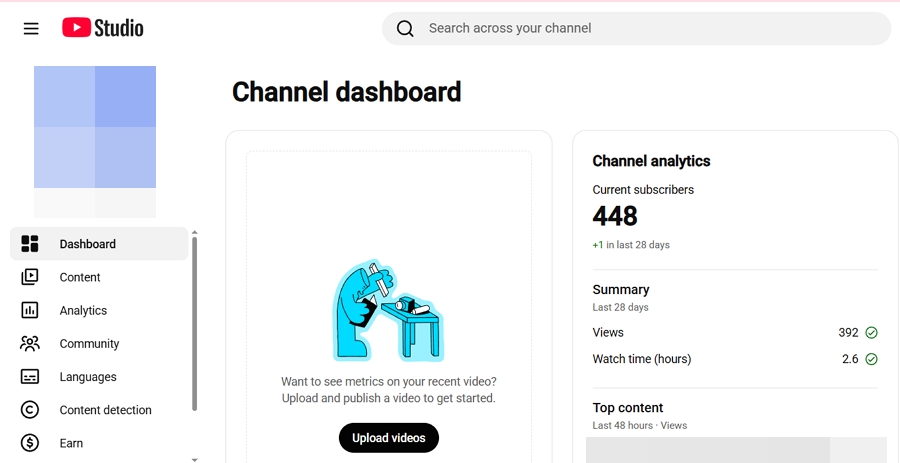
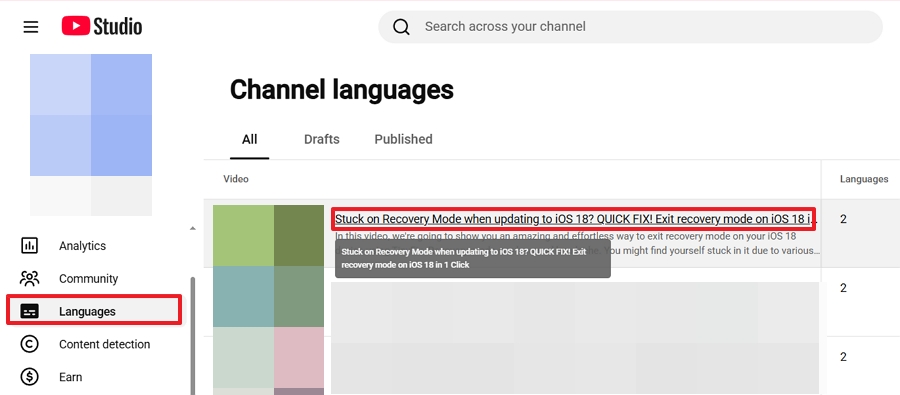
2. From the left-hand menu, select Languages and click on the specific video you want to edit.
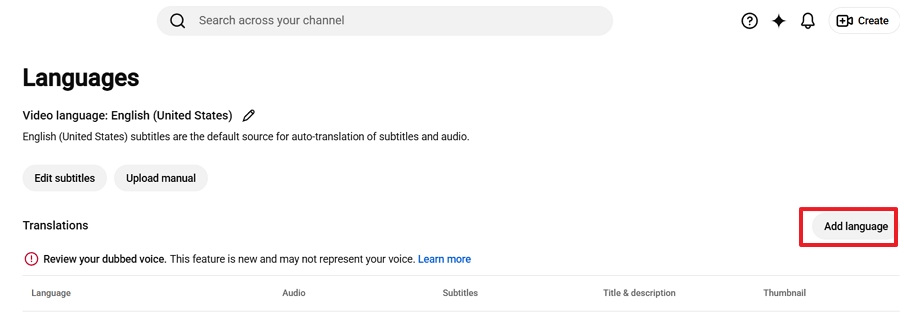
3. Click Add Language.
4. A dropdown list featuring 237 available languages will appear; search and select your desired target language.
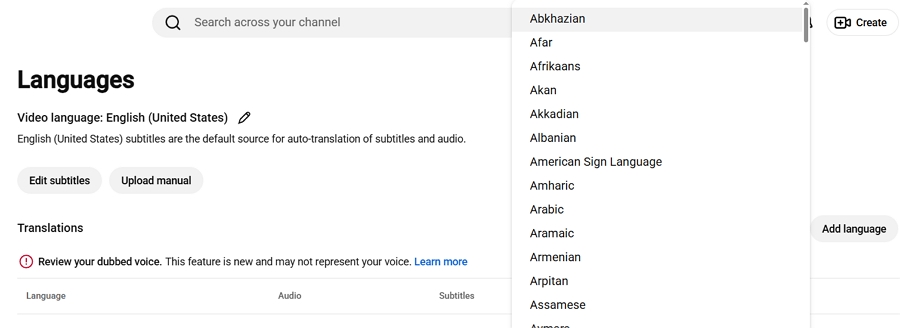
5. You will now see three distinct columns: "Title & description," "Subtitles," and "Audio." Navigate directly to the Audio column and click Add.
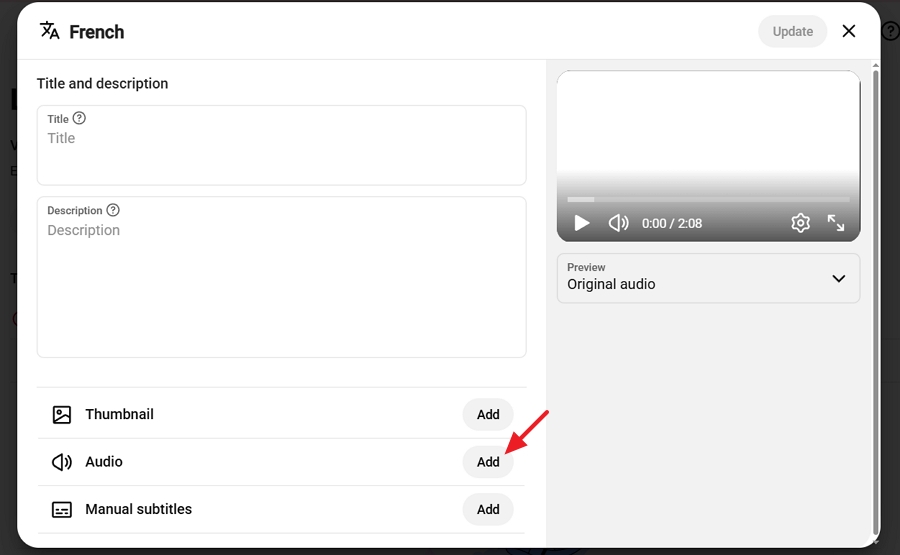
6. Click Select file and choose the localized audio track from your computer. Ensure your file is in a supported audio-only format and exactly matches the runtime of your original video to maintain perfect synchronization.
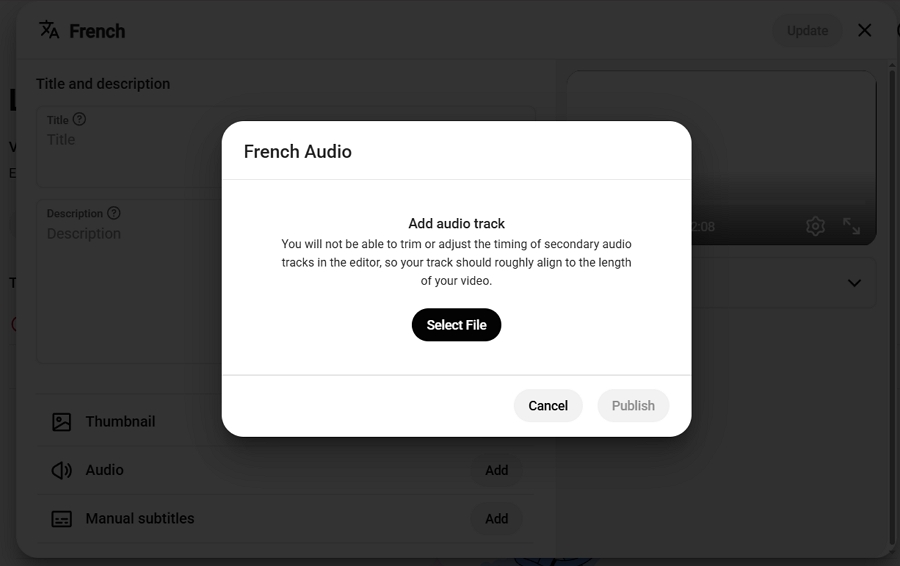
7. Click Publish to finalize the upload and make the alternate audio track live for your viewers.
1. If an audio track already exists for a language (e.g., an auto-dub or an older version), click the three-dot icon next to it.
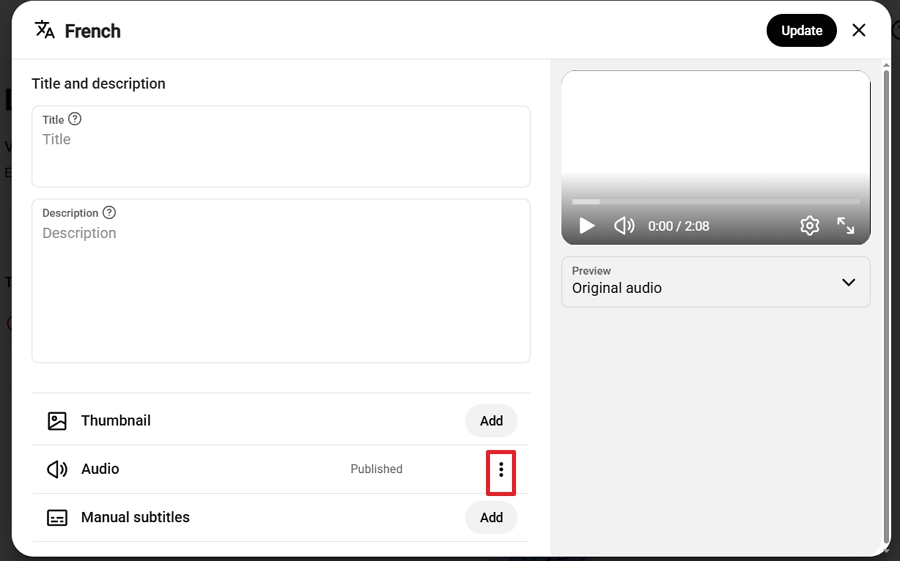
2. Select Delete from the dropdown menu.
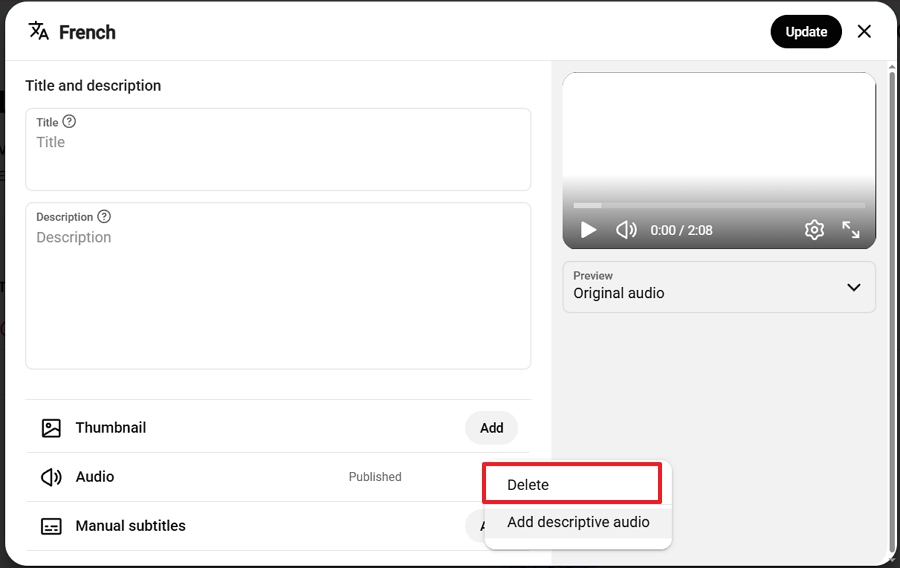
3. Confirm your action when prompted.
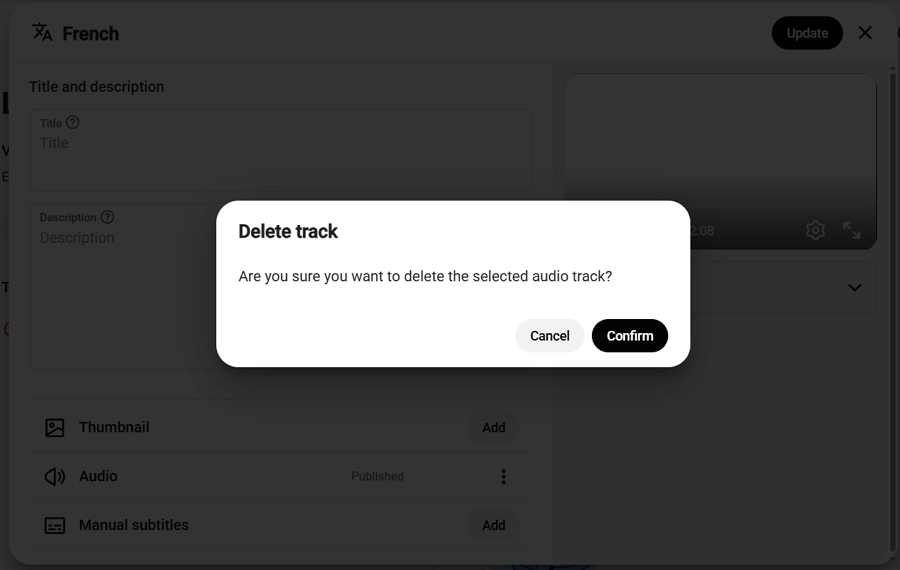
Note: YouTube does not allow direct overwriting; the existing track must be completely removed before uploading a new one.
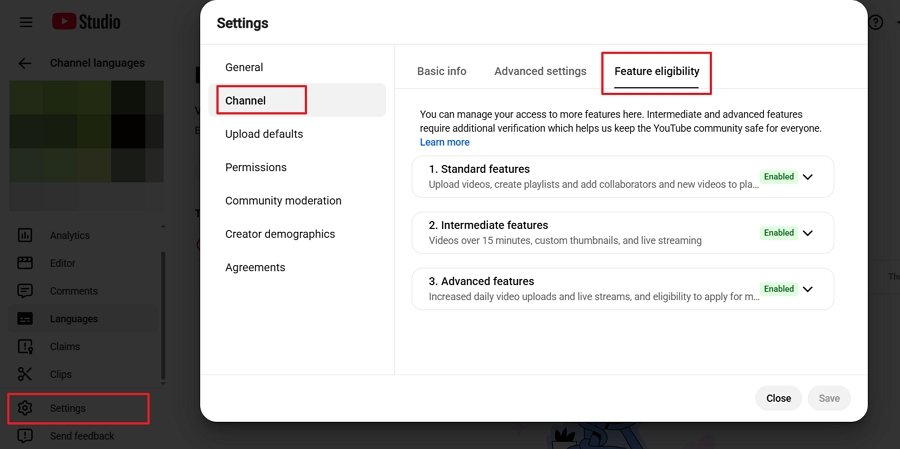
According to Google, Multi-language audio is restricted to creators who have unlocked Advanced Features. Over 90% of active channels automatically qualify through established channel history. New users must complete video or ID verification and strictly adhere to Community Guidelines to maintain access and unlock premium localization tools.
If you cannot find the feature, verify your channel status by going to Settings > Channel > Feature eligibility. You can instantly unlock these tools by providing a valid ID or submitting a short video verification.
Now that you know the technical requirements and the exact steps to upload audio tracks to YouTube Studio, the next challenge is creating the high-quality localized audio files themselves.
To generate these, you have three primary methods at your disposal: YouTube's native auto-dubbing, professional traditional dubbing, and AI-powered dubbing software like Vosko AI.
Below, we'll compare how these methods stack up against each other and provide a step-by-step guide for each, so you can choose the best strategy for your channel's budget and goals.
| Evaluation Aspect | YouTube Auto Dubbing | Traditional Dubbing | AI Video Translation (e.g., Vosko AI) |
|---|---|---|---|
| Cost | Free | $50 - $100 / minute | Highly Cost-Effective |
| Turnaround Time | Immediate | Weeks of manual effort | 50x Faster |
| Voice & Emotion | Robotic | High accuracy | 1:1 Voice Cloning |
| Brand Control | Zero control | Full control | Advanced Editor Workspace |
| Viewer Retention | High drop-off (~60%) | Excellent | Excellent |
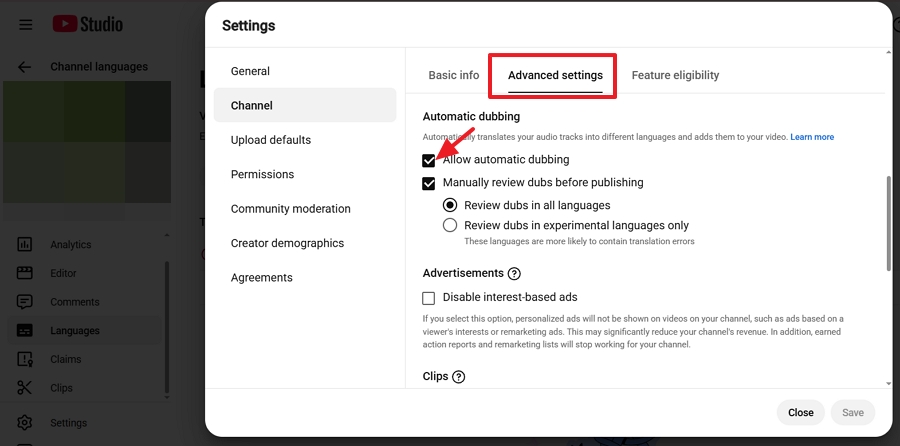
YouTube's native auto-dubbing provides a zero-cost entry point for global expansion. However, our testing indicates viewer retention drops by 60% due to robotic text-to-speech output. The system automatically translates eligible videos, but creators sacrifice control over emotional delivery, brand voice, and specific technical terminology.
Steps to enable YouTube Auto Dubbing:
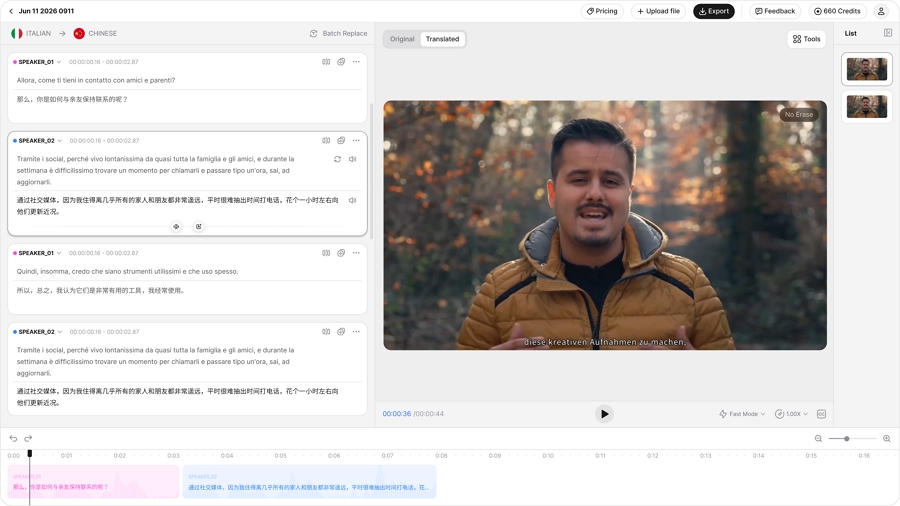
Vosko AI dubbing is the most efficient solution for scaling localization while preserving brand authenticity. It reduces translation turnaround times by 85% compared to traditional methods. It supports over 30 languages, retains the original speaker's voice, and features an advanced editor for precise script adjustments.
Because it combines voice cloning with an editor workspace, it prevents the robotic feel of standard AI.
Steps to use Vosko AI:
Hiring professional voice actors yields high emotional accuracy but struggles with scalability. Industry averages show traditional dubbing costs between $50 to $100 per video minute. While it provides excellent nuance, the weeks-long production cycle severely limits a creator's ability to release multi-language content simultaneously.
Steps for traditional dubbing:
Uploading a Spanish audio track won't help you if a Spanish viewer searches in their native language and only sees an English title.
To trigger YouTube's algorithm in foreign markets, you must translate the metadata. In the Subtitles tab, under the "Title & description" column, click Add. Input the accurately translated title and description. When a viewer in Mexico searches YouTube, the algorithm reads this translated metadata, surfaces your video, and auto-plays the Spanish audio track.
Don't guess—measure. Go to YouTube Studio > Analytics > Advanced Mode. Apply a filter for Audio track language. Here, you can compare Average View Duration (AVD) and Click-Through Rate (CTR) between your English and Japanese tracks. This data tells you exactly which regions deserve higher localization budgets.
Audio tracks do not replace the need for Closed Captions (CC). ADA guidelines and general accessibility standards require text for the hearing impaired. Always upload translated .srt subtitle files alongside your translated audio tracks.
Should I use AI dubbing or hire professional voice actors for my localized audio?
For enterprise-level theatrical releases, manual actors are still standard. However, for YouTube creators, modern AI dubbing engines are recommended. They reduce costs by up to 99%, reduce turnaround times to minutes, and feature 1:1 voice cloning and emotion delivery that traditional generic voice actors cannot match.
How does adding dubbed audio compare with captions for accessibility and SEO?
They serve different purposes. Dubbed audio increases retention and engagement for general international audiences who prefer listening over reading. Captions are legally required for ADA compliance (deaf/hard-of-hearing users). For SEO, translated metadata (titles/descriptions) drives the initial search traffic, while the dubbed audio retains that traffic.
Are there limits on how many language tracks I can upload?
YouTube theoretically supports up to 40+ tracks per video, but managing 5-10 is standard for top creators. The process is significantly different for Shorts; native multi-track upload UI is restricted for Shorts, meaning you generally have to upload separate videos or rely on YouTube's automated dubbing backend if eligible.
What legal and copyright issues should I watch?
When using manual agencies, ensure they don't replace your background music with unlicensed tracks, which triggers Content ID strikes. When using AI, ensure you have explicit written consent to clone any guest speaker's voice. If a copyright dispute occurs, you can delete and replace just the offending audio track in YouTube Studio without losing your video's views or URL.
Multi-language audio transforms a single video into a global asset, aggregating views and boosting algorithmic performance. While traditional dubbing costs upwards of $50 per minute and YouTube's native tool suffers from a 60% retention drop, AI platforms like Vosko AI strike the perfect balance. By combining an 85% reduction in production time with precise voice cloning and a dedicated editing workspace, creators can efficiently replace subpar auto-dubs with verified, high-quality audio tracks that truly engage international audiences.