Are you annoyed by hearing a flat, robotic synthetic voice when trying to watch a YouTube video by your favorite international creator? You are not alone.
While YouTube's auto-dubbing feature aims to break down language barriers, it often overrides the original audio by default, forcing users who prefer authenticity to actively fight the system. Whether you are a viewer seeking the original audio track or a creator wanting to protect your brand's voice, this guide provides steps to turn off YouTube auto-dubbing.
For Viewers (Per Video):
For Creators (Global Settings):
To maximize global watch time, YouTube's algorithm automatically plays a dubbed audio track if it detects a match with your Google account's default language or your geographic IP location.
For instance, if your device is set to Spanish and an English creator has auto-dubbing enabled, YouTube will proactively serve you the Spanish AI voice track, assuming it improves your viewing experience.
However, because the platform prioritizes broad accessibility over audio quality, this automated feature frequently backfires. Instead of enhancing the video, auto-dubbing often degrades the viewing experience by stripping away the creator's original emotion and context.
This jarring disconnect stems from YouTube's reliance on basic text-to-speech engines. These native tools frequently misinterpret cultural nuances, flatten natural vocal inflections, and cause severe audio-visual mismatches, such as poor lip-syncing.
In fact, industry tests indicate that over 60% of viewers will abandon a localized video if the voice translation feels completely artificial. Ultimately, this loss of authenticity naturally prompts users to turn off the dubbing and seek out the original language track to restore the video's intended emotional arc.
Currently, viewers lack a single master switch to disable dubbing permanently across the entire platform. You must rely on manual track selection per video or adjust your account-wide language preferences. Adjusting global language preferences can reduce unwanted dubbed video playback by up to 80% across your daily feed.
Based on our team's first-hand testing, here is exactly how to ensure you always hear the original audio.
If you are watching a video (on Mobile or Desktop) and suddenly hear a robotic voiceover, you can switch back to the original audio immediately:
On your Computer (Desktop):
1. Tap or click the Gear icon (Settings) in the top right or bottom right corner of the video player.
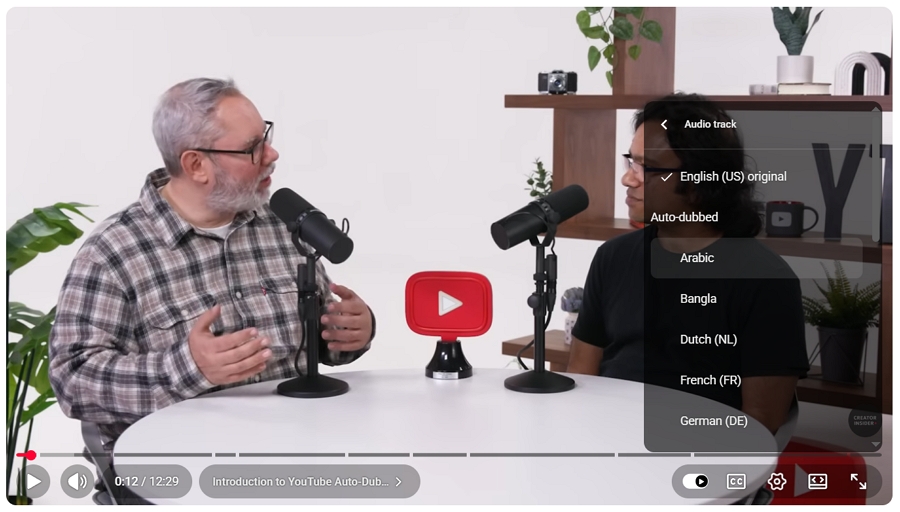
2. Select Audio track from the menu.
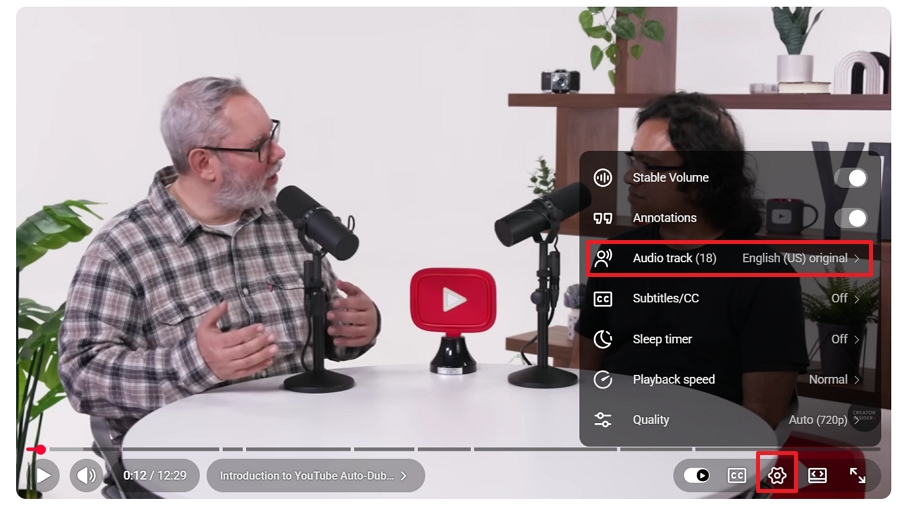
3. Choose the video's Original language (e.g., "English (Original)") instead of the dubbed version.
On your Mobile Device (iOS/Android):
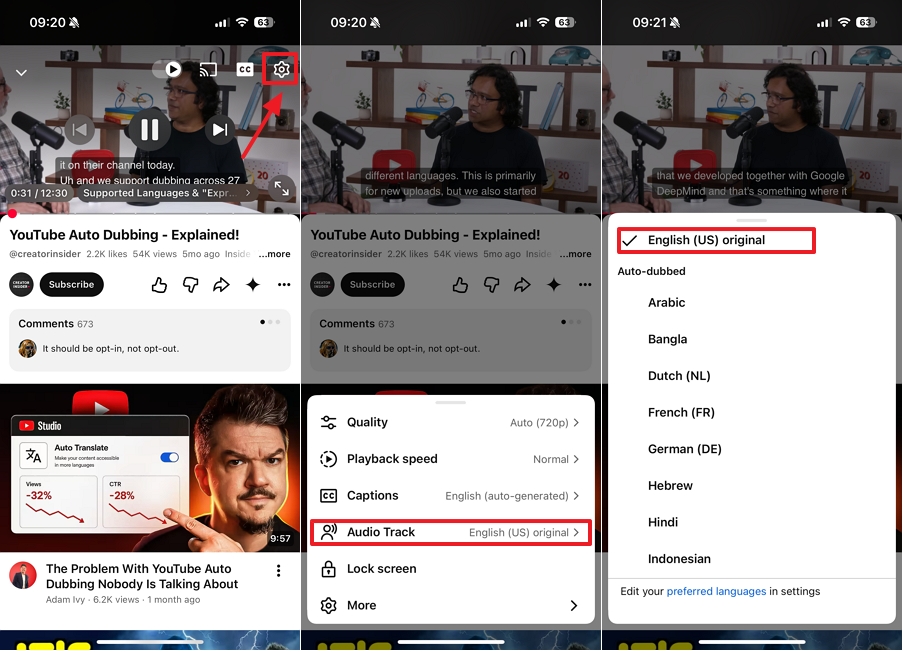
1. Tap the screen while the video is playing to display the player controls.
2. Then tap the Gear icon in the corner of the video player.
3. Select Audio track.
4. From the menu, choose Original to turn off auto dubbing.
It is important to clarify that updating your account language settings does not serve as a global "off switch" for all auto-dubbed content. Instead, it tells YouTube's algorithm which target language track you prioritize.
For example, if you set your preferred language to English, YouTube will always try to play the English track. If you watch a video originally recorded in Spanish that features an English auto-dub, YouTube will still play the dubbed English version because it matches your preference.
While this won't force the platform to play the original audio for foreign-language videos, correctly configuring this setting is crucial. It prevents YouTube from forcing random dubs based solely on your geographic IP location, drastically reducing the frequency of unwanted or irrelevant voiceovers in your daily feed.
On your Computer (Desktop):
1. Click your Profile picture in the top right corner.
2. Navigate to Settings.
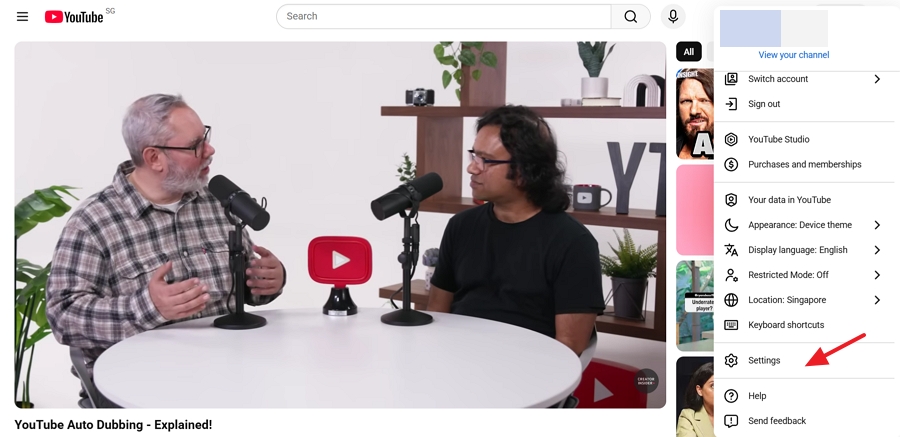
3. Tap Playback and performance and click Add or Edit languages.
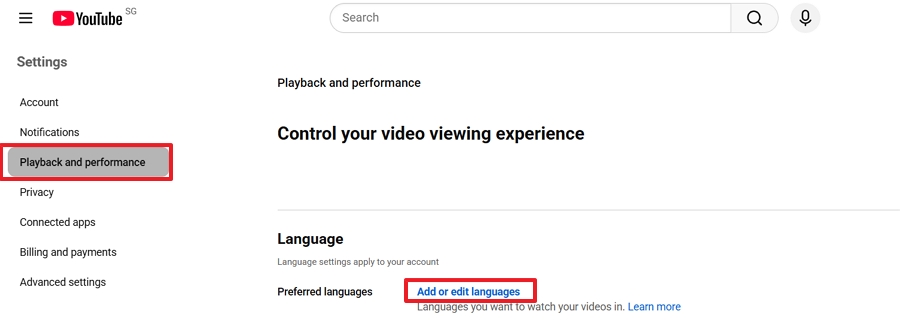
4. Select the languages you prefer listening to (e.g., English).
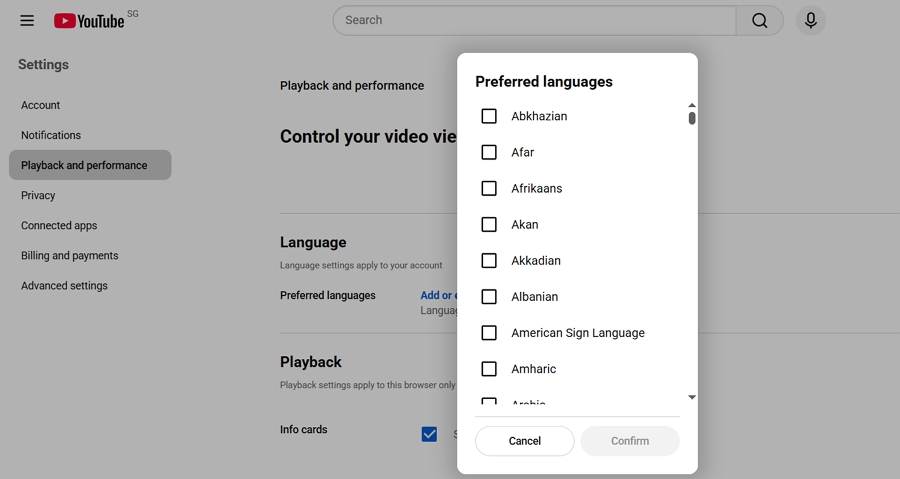
On your Mobile Device (iOS/Android):
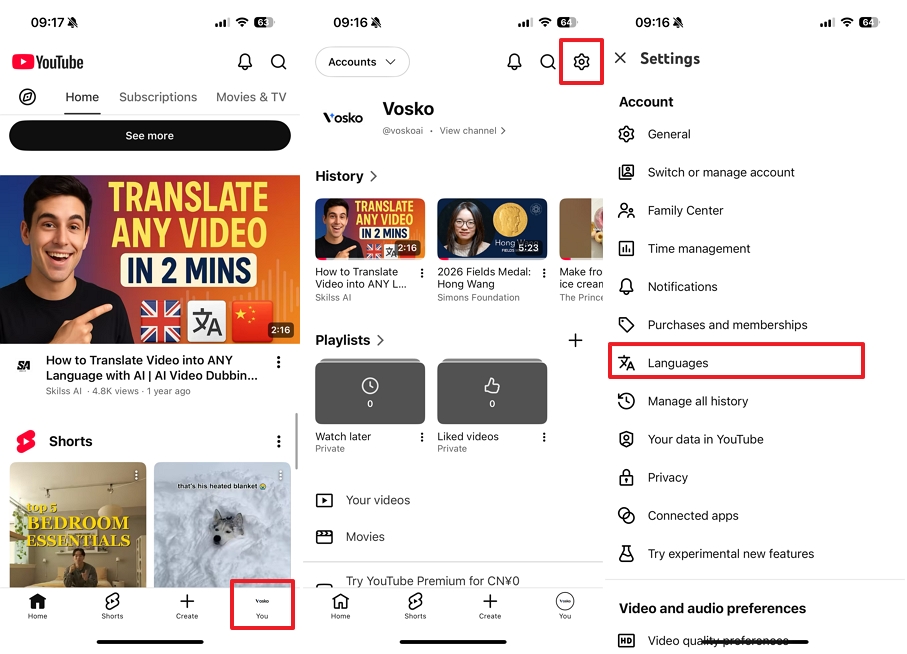
1. Open the YouTube app on your mobile device, then tap your Profile picture.
2. Tap the Gear icon (Settings).
3. Tap Languages (or General > App Language depending on your OS).
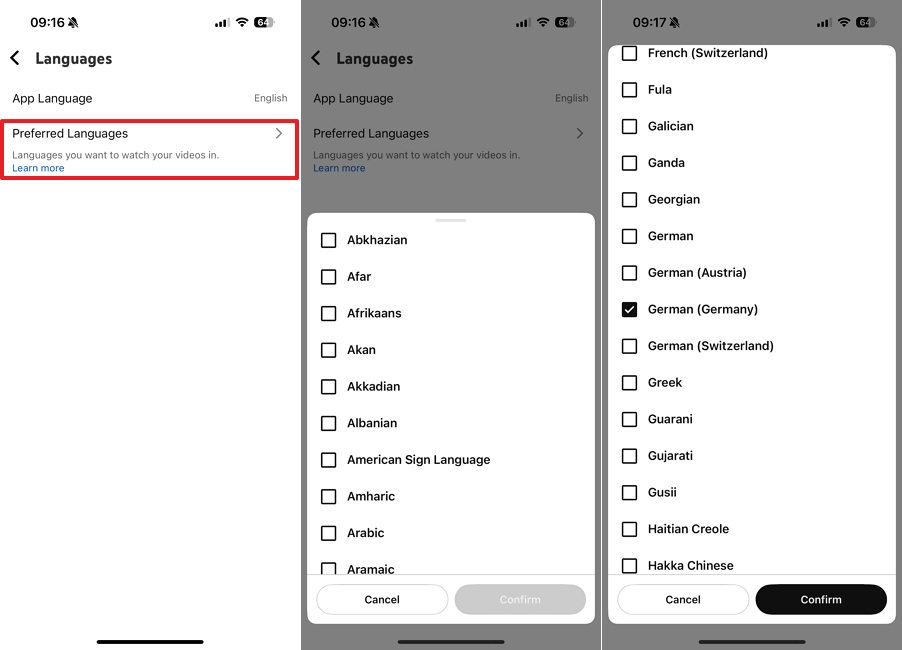
4. Tap Preferred languages.
5. Select your desired language (e.g., English) and Confirm.
Note: If a video's native language matches your preference list, YouTube is significantly more likely to play the original audio instead of forcing a dub.
Creators can permanently block YouTube from auto-generating dubs by adjusting channel-level permissions. YouTube applies auto-dubbing automatically to eligible channels, so you must actively opt out to maintain brand voice integrity and prevent substandard AI audio from reaching your audience.
To prevent YouTube from dubbing your future uploads, follow this lab-verified process:
1. Open YouTube Studio.
2. Click on Settings in the bottom left sidebar.
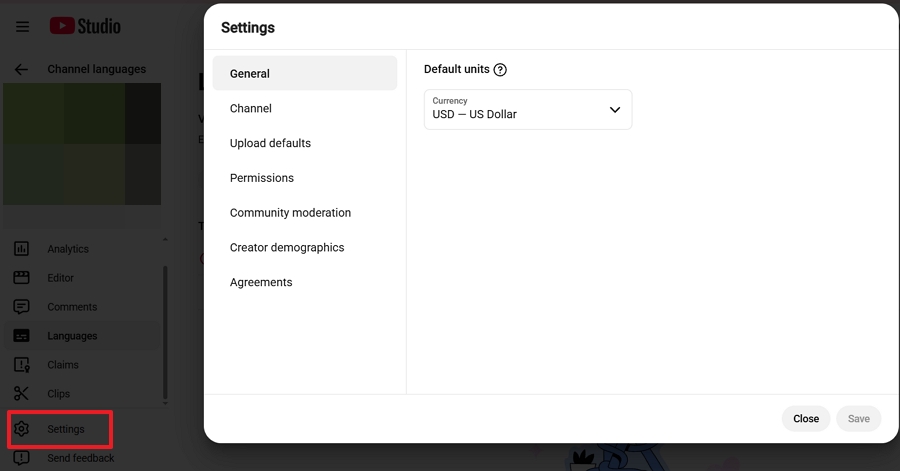
3. Select Channel.
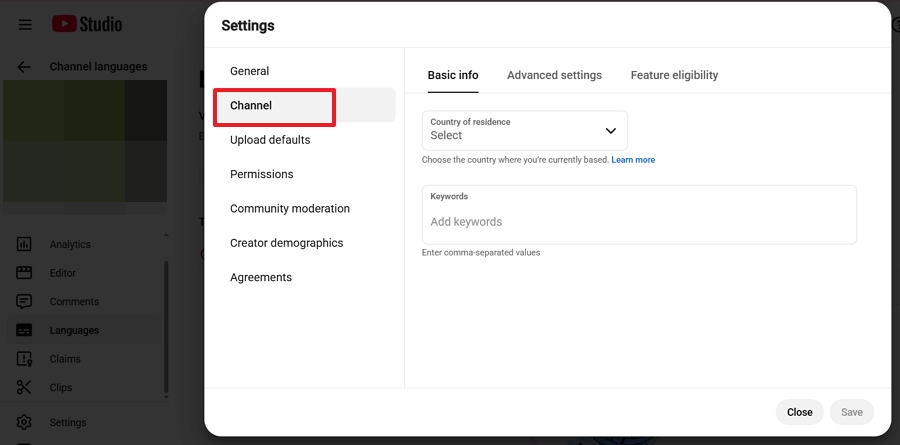
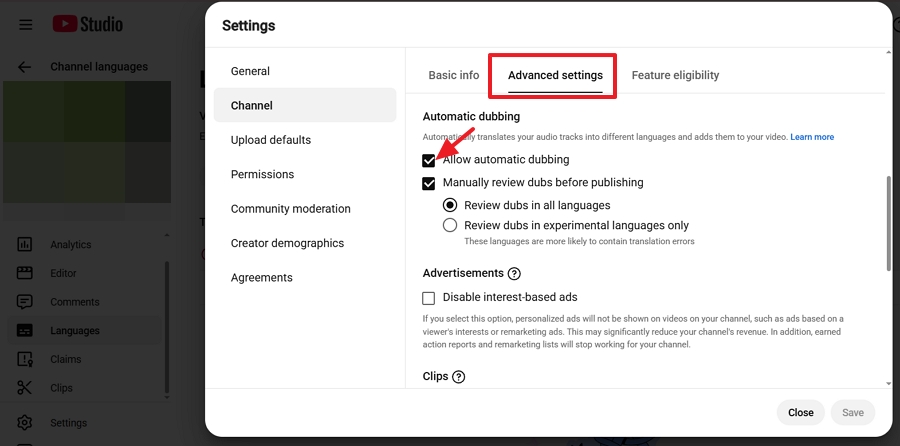
4. Then, open the Advanced settings tab. Scroll down, uncheck the box for Allow automatic dubbing, and click Save.
If YouTube has already dubbed a video and you want to pull it down to protect your brand:
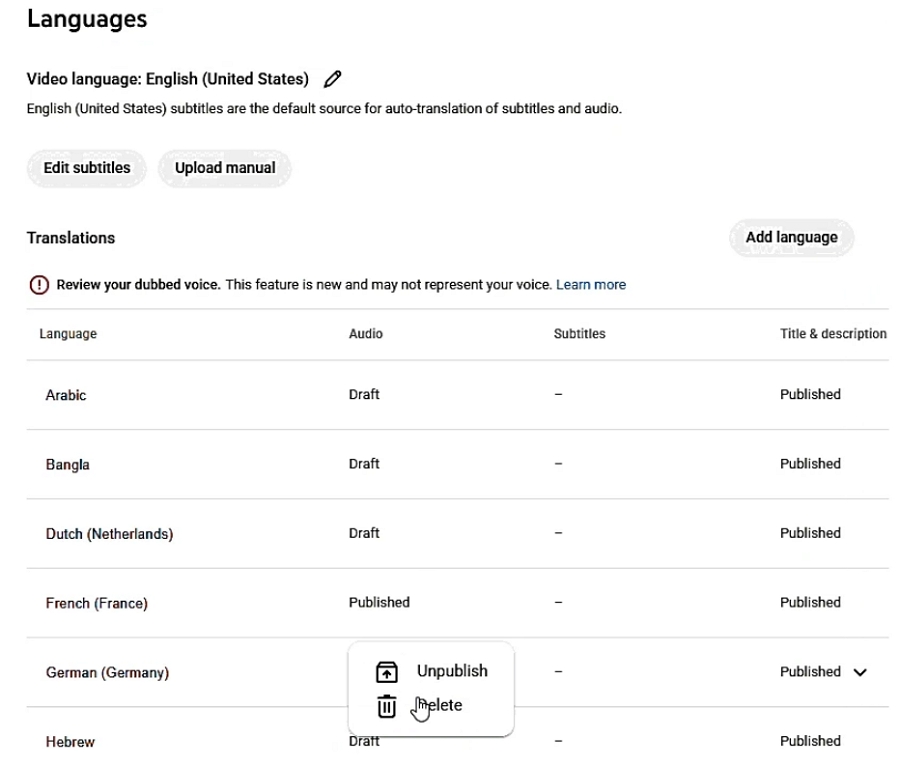
1. In YouTube Studio, navigate to the Languages tab on the left (or Video Details > Subtitles).
2. Select the specific video you want to edit.
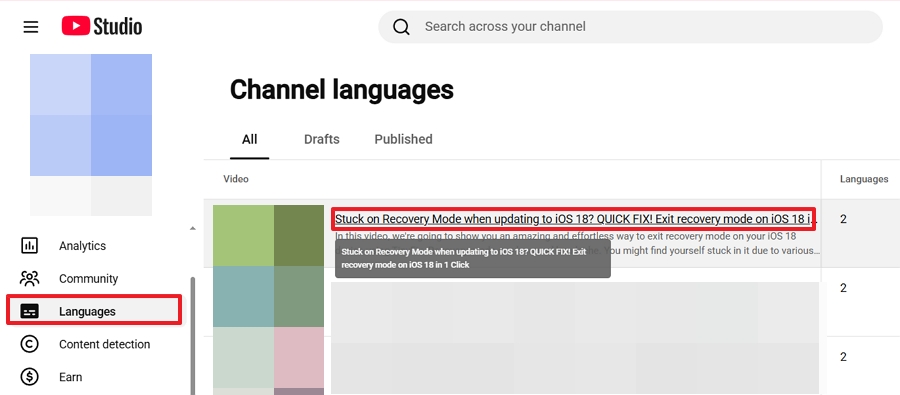
3. Find the dubbed language in the Audio column.
4. Choose either Unpublish (hides the dub from viewers) or Delete (permanently removes the track).
Professional creators require granular control over their content, which native YouTube tools simply cannot provide. If you already understand why localize your video content is crucial for global growth, you also know that relying on generic, non-editable algorithms can actively harm your brand's credibility by delivering a poor viewer experience.
If you want to scale globally without the robotic feel of YouTube's native feature, Vosko AI Dubbing is the premier professional alternative.
Replacing YouTube's auto-dubbing with your own professional audio tracks is incredibly straightforward:
1. Sign up and log in to Vosko. You will immediately receive 200 free credits to test the platform—no credit card required.
2. Import your original content directly into the Vosko platform.
3. Choose your desired output languages from the 99+ available options (you can even process multi-language batch tasks in one click).
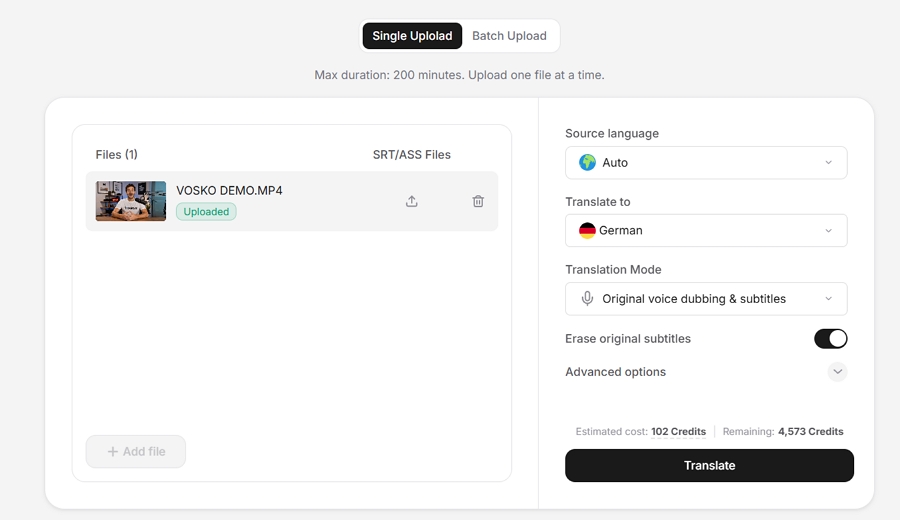
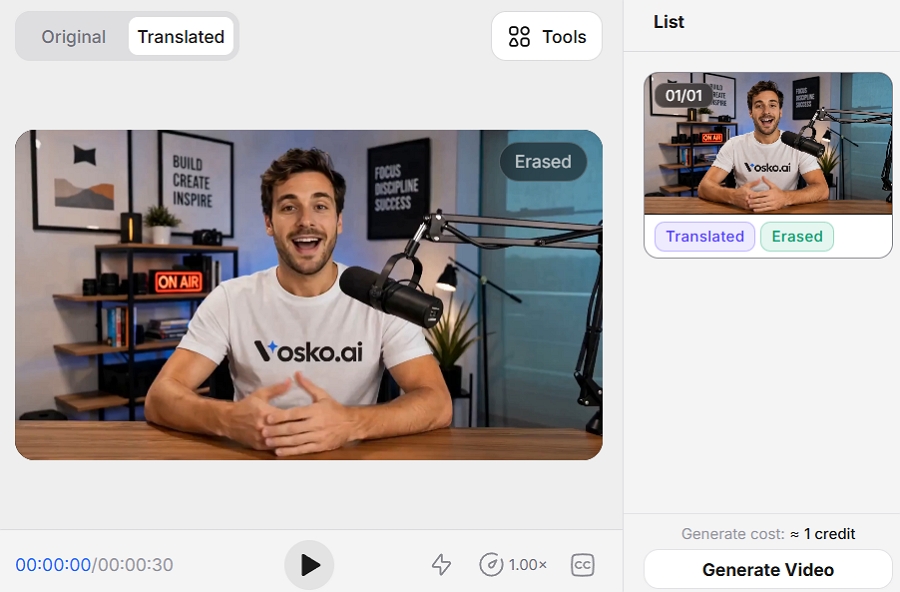
4. In just a few minutes, the AI will fully translate your video content. You can then instantly preview the results to check the translated voice tracks and ensure frame-accurate subtitle sync.
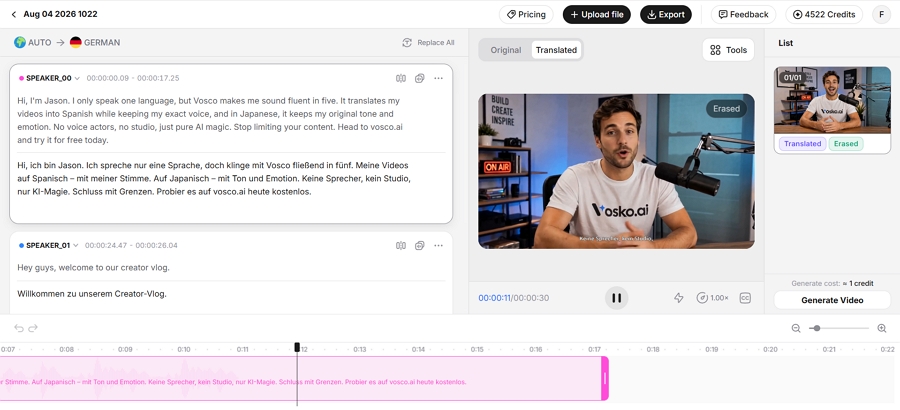
5. Use the dedicated workspace to fine-tune the translated script, adjust timeline, speaker, and ensure perfect context. Download the high-quality multi-language audio tracks and upload them seamlessly into your YouTube Studio's language settings.
Why are my YouTube video titles automatically changing languages?
YouTube's algorithm often translates metadata automatically based on the viewer's location and browser settings. If you find these machine translations inaccurate or confusing, you can easily disable YouTube auto translate video titles within your channel's advanced settings to protect your original brand messaging.
Can I permanently disable auto dubbing for all YouTube videos as a viewer?
No, currently YouTube does not have a global "turn off dubbing" account switch. You must change the Audio Track per video, though updating your account's preferred languages can significantly train the algorithm to reduce dubbing frequency over time.
Why don't I see the "Audio Track" option on some videos?
Not every video has multiple audio tracks. The gear icon option only appears if the creator explicitly uploaded custom multi-language audio files or if YouTube's auto-dubbing algorithm processed that specific video.
How do I turn on original audio but keep translated subtitles?
Simply click the gear icon, set the Audio track back to the Original language, and then click Subtitles/CC to select your preferred translated text.
Can I upload my own custom dubbed audio track as a creator?
Yes. If you are asking "can you dub a YouTube video on your own?", the answer is absolutely. You can upload a high-quality multi-language audio track (like those exported from Vosko AI) directly into YouTube Studio after deleting any existing, low-quality auto-dubs.
Does turning off auto-dubbing affect my video's algorithmic reach?
No. The YouTube algorithm ranks videos based on engagement and viewer satisfaction. A high-retention original video will perform much better than a poorly dubbed one that causes viewers to click away.
While YouTube's auto-dubbing feature is an ambitious step toward a borderless internet, it often falls short for creators and viewers who value authenticity. Automated audio replacements can lead to a drastic drop in viewer retention when the localization feels robotic or loses the original emotional context.
By utilizing the step-by-step methods outlined in this guide, viewers can bypass these automated systems and regain total control over their listening experience. For creators looking to reach international audiences without sacrificing quality, disabling native dubs and investing in a professional AI dubbing tool with a dedicated editor workspace remains the most reliable strategy for long-term growth.