Yes, you can! YouTube officially supports Multi-Language Audio tracks, allowing creators to attach audio tracks in multiple languages to a single video—eliminating the need to create separate, region-specific channels.
Currently, creators have three primary options:
To fully answer the question of whether you can dub a YouTube video in another language, this comprehensive guide covers copyright policies, channel eligibility criteria, technical workflows, audio engineering specifications, and global monetization strategies.
Before spending time and resources on audio localization, creators must navigate YouTube's legal framework and verify whether their channel supports multi-language audio uploads.
Unlike standard subtitles, the Multi-Language Audio (MLA) feature is not enabled by default for every newly created account. As YouTube is expanding this rollout gradually, access is primarily gated by specific account capabilities and metrics:
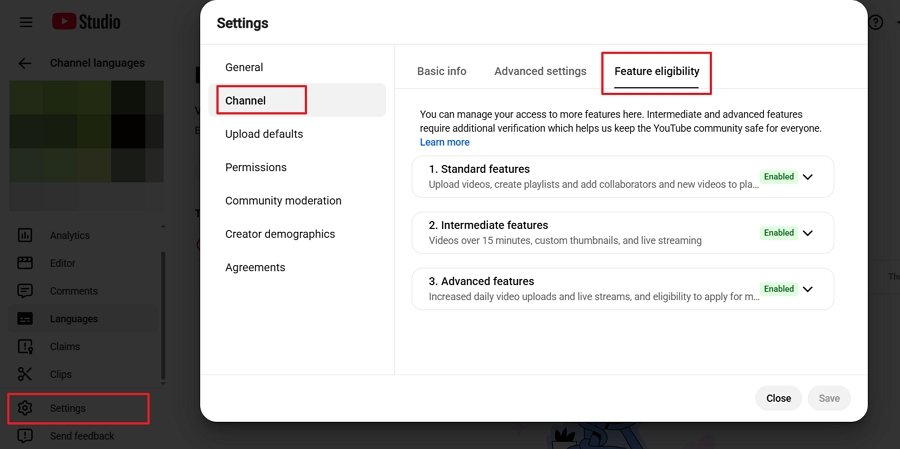
Access to "Advanced Features": Currently, multi-language audio is strictly available to a subset of creators who have unlocked Advanced features on their channel.
Partner Program Status: While not exclusively limited to monetized channels, those enrolled in the YouTube Partner Program (YPP) often receive priority access as YouTube continues to scale the feature globally.
Copyright & Community Guidelines Standing: To qualify for and maintain access to your channel's Advanced features, your account must have a clean record with zero active Copyright Strikes or severe Community Guideline violations.
YouTube's native auto-dubbing solution leverages Google's Area 120 AI project (Aloud). While convenient, it operates under tight operational constraints. YouTube's system automatically transcribes spoken video audio, runs it through Neural Machine Translation (NMT), and synthesizes a localized voice track using Text-to-Speech (TTS) models.
Despite its convenience, the tool exhibits severe operational limitations:
This feature is enabled by default for eligible creators. If it's not active on your channel, follow these steps to turn it on:
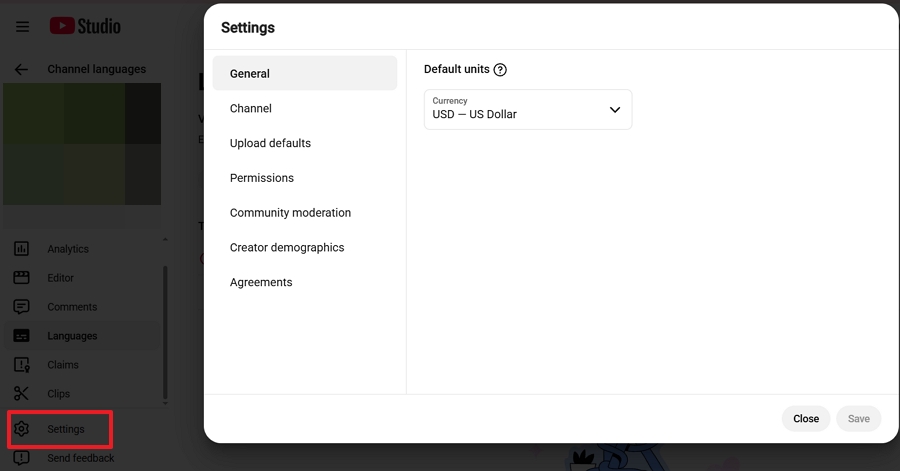
1. Navigate to YouTube Studio and click on Settings.
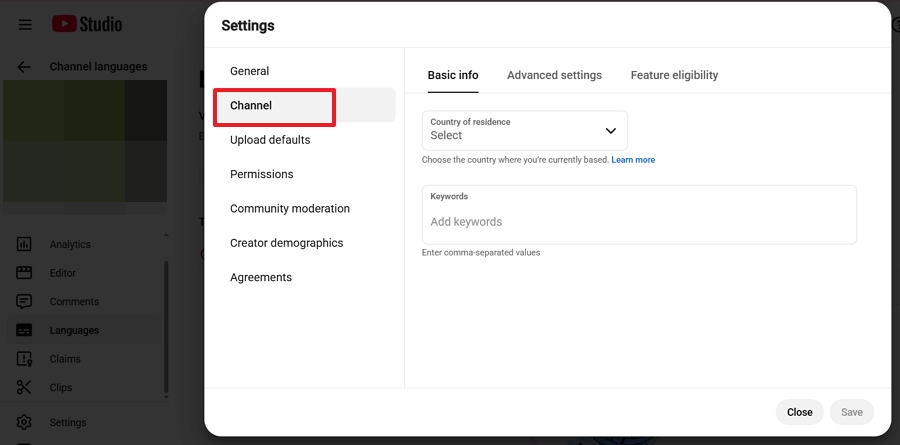
2. Choose Channel from the Settings window.
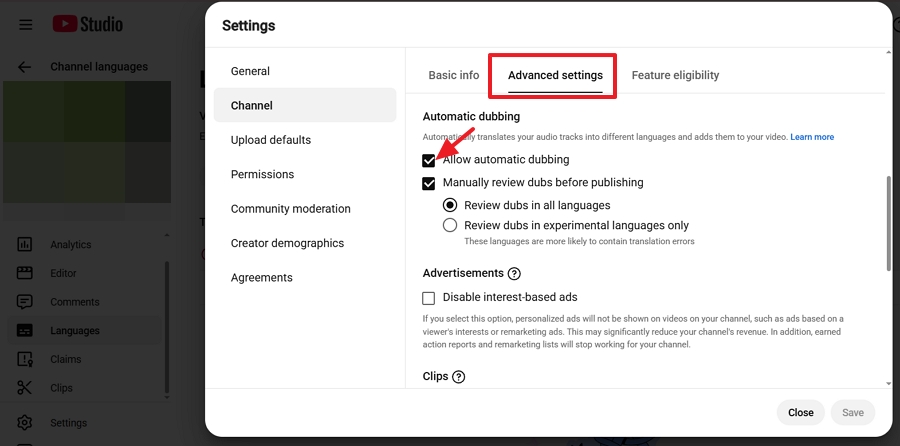
3. Then open the Advanced settings tab, and scroll to the auto-dubbing controls and check the box labeled Allow automatic dubbing.
4. Check Manually review dubs before publishing if you prefer to inspect auto-generated audio tracks before they go live to the public.
5. Click Save to confirm your preferences.
1. Sign in to YouTube Studio on your computer.
2. Select Languages from the left menu.
3. Click on the target video.
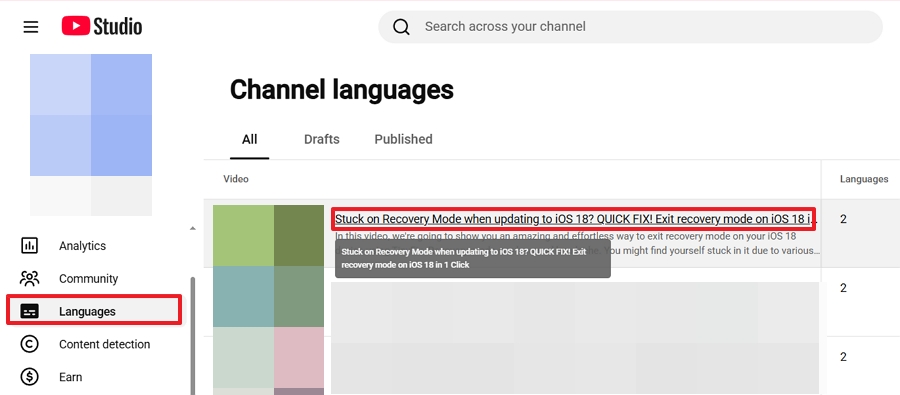
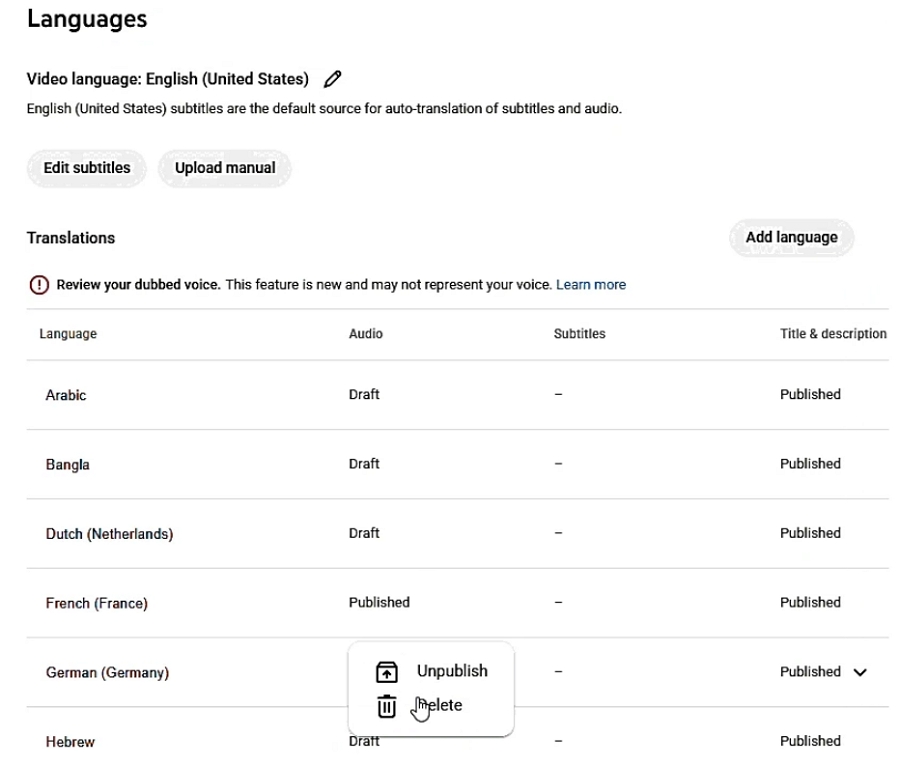
4. Here, you can review, publish, or delete the auto-dubbed tracks from the list.
| Pros | Cons |
|---|---|
|
|
If you find YouTube's native auto-dubbing too robotic or restrictive, a professional tool like Vosko AI Video Dubbing is your best alternative. Built for creators and marketers, it bypasses platform limitations and offers 1:1 Voice Preservation. This means you can translate your videos into over 99 languages while keeping your authentic voice, emotional tone, and original accent.
Step 1: Create a Free Account
Sign up for Vosko AI and instantly receive 200 free credits to test the platform—no credit card required.
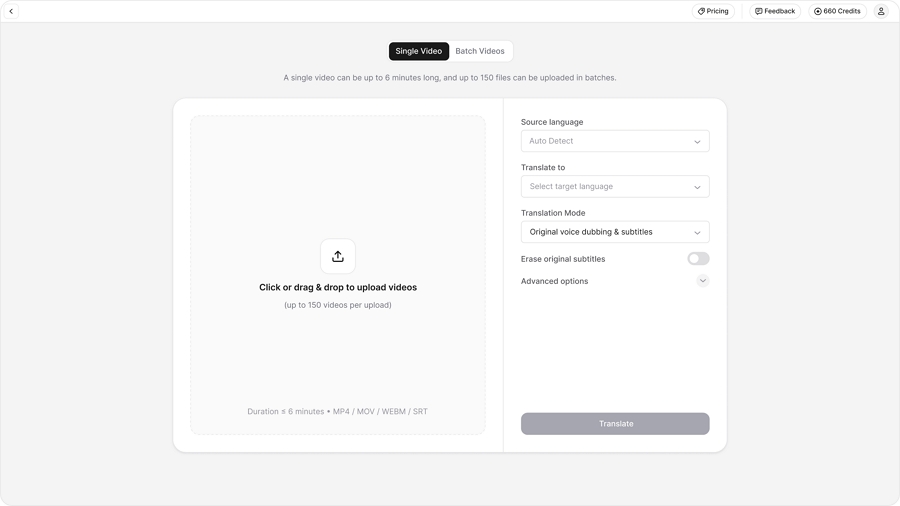
Step 2: Upload Your Video and Choose the Target Languages
You can directly upload standard video files (.mp4, .mov) from your computer. Alternatively, just paste an existing YouTube link—a massive time-saver for dubbing your older videos without hunting down the original local files.
Once your video is imported, quickly set up your translation preferences:
Click Translate to let Vosko AI do the heavy lifting.
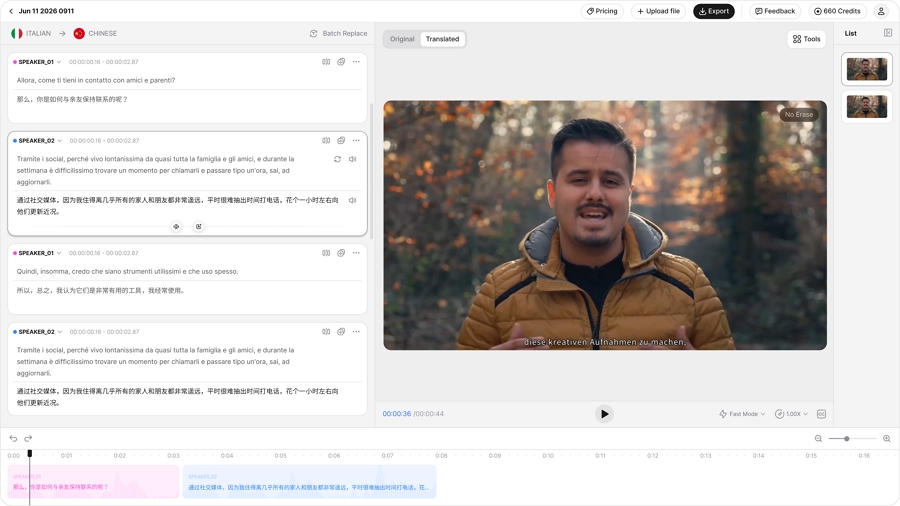
Step 3: Review, Edit & Export Your Audio
Before finalizing, use the built-in editor to review the translation. Here, you can lock specific brand names to prevent mistranslations, tweak the timing for perfect sync, and let the AI automatically separate your vocals from the background music for a crystal-clear mix.
Once you're satisfied, simply download your localized tracks. Vosko automatically exports your audio (.wav or .mp3) optimized to meet YouTube's exact playback specifications.
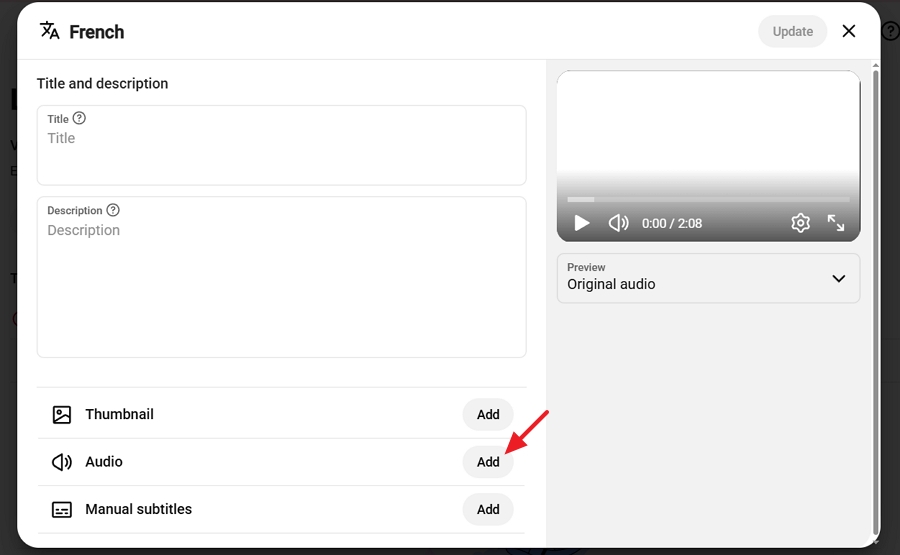
Step 4: Upload the Audio to YouTube
Now it's time to upload your dubbed audio to YouTube:
| Pros | Cons |
|---|---|
|
|
While AI is perfect for most creators, manual dubbing remains the gold standard for high-budget cinematic productions, media houses, and top-tier enterprise brand campaigns.
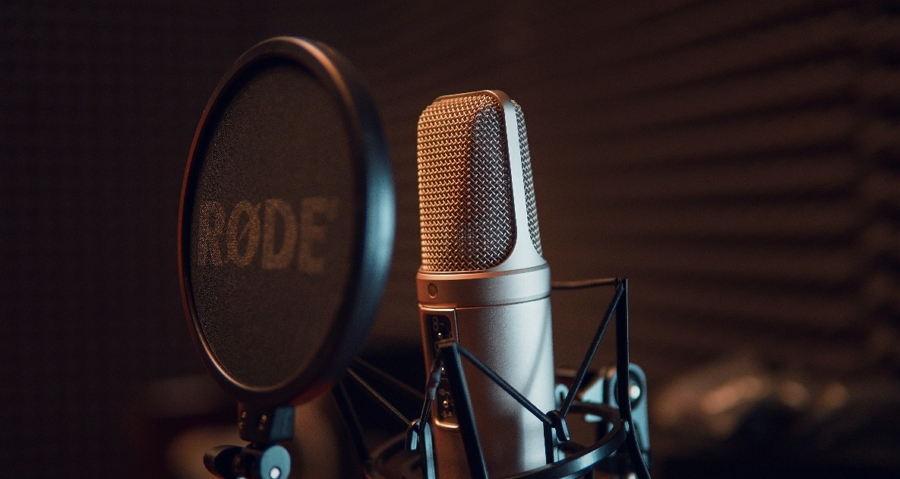
Here's the traditional dubbing process:
| Pros | Cons |
|---|---|
|
|
Whether you're prioritizing zero-cost solutions using YouTube Auto-Dubbing, flawless human artistry using traditional manual dubbing, or scalable 1:1 voice cloning using Vosko AI Dubbing, each method serves a different need. Here's how they stack up against each other.
| Comparison Feature | YouTube Auto-Dubbing | Vosko AI Video Dubbing | Traditional Manual Dubbing |
|---|---|---|---|
| Original Voice Preservation | No (Generic standard TTS) | Yes (1:1 Voice Cloning) | No (Replaced by voice actors) |
| Vocal Quality & Realism | Low (Robotic/Synthetic) | High (1:1 Voice Preservation) | Highest (Native Human Actor) |
| Back-Catalog Support (Old Videos) | No (Limited to new uploads) | Yes (Full URL / File Support) | Yes (Full Support) |
| Batch Processing | Single language / Linear | Batch process up to 8 languages | Manual per language |
| Script & Glossary Editing | Minimal | Full Timeline & Term Locking | Full Manual Editing |
| Cross-Platform Reusability | None (Locked to YouTube) | Full (.mp3, .wav, .mp4 export) | Full (.mp3, .wav, .mp4 export) |
| Turnaround Time | 5–15 Minutes | 3–10 Minutes | 3–10 Business Days |
| Average Cost | Free (If whitelisted) | Low (Free Trial + Subscription) | Very High ($300–$1,000+/vid) |
Attaching a multi-language audio track is only half the strategy. If foreign viewers cannot discover your video in their native search engines, your retention potential remains untapped.
YouTube indexes video metadata per region. If a user in Mexico searches for a topic in Spanish, an English title will not rank well—even if a Spanish audio track is attached.
When a video contains Multi-Language Audio and localized metadata:
Here's how to localize metadata in YouTube Studio:
To track the global performance after you have uploaded the dubbed audio:
1. Can I use YouTube's native auto-dubbing on my older existing videos?
No. YouTube's native auto-dubbing feature is primarily available during the upload pipeline of newly processed videos for whitelisted channels. To dub older existing videos without re-uploading the entire video file, use a dedicated tool like Vosko AI to generate standalone audio tracks (.wav), then attach them via YouTube Studio > Languages > Add Language > Audio.
2. Will dubbing my videos hurt my channel's monetization or algorithm standing?
No. Using official Multi-Language Audio tracks complies fully with YouTube policies. In fact, consolidating global watch time onto a single URL improves your video's search ranking. Reaching viewers in high-CPM regions directly increases your YouTube AdSense RPM.
3. How do I maintain clear background music when dubbing with AI?
Professional tools like Vosko AI automatically separate human vocals from background audio tracks using AI stem isolation. For custom editing, keep your BGM on a secondary track lowered by 3 dB to 5 dB relative to the translated vocal track to maintain voice clarity.
4. Can I export translated video from Vosko and use it on TikTok or Instagram Reels?
Yes. Unlike YouTube's native feature, which keeps generated audio locked inside its platform, Vosko provides full export rights for .wav, .mp3, and merged .mp4 video files. You can publish these localized clips directly to TikTok, Instagram, LinkedIn, or personal websites.
Multi-Language Audio has transformed global video distribution. Creators are no longer forced to run fragmented regional channels or rely on robotic auto-dubbing that damages brand credibility.
By leveraging Vosko AI Video Dubbing, you can preserve your authentic voice, localize your entire back-catalog of videos, and distribute high-quality audio across all marketing platforms.
Ready to scale your content globally? Sign up for Vosko AI today to claim your 200 free credits (no credit card required) and localize your first video in minutes.