YouTube now dubs videos automatically, and in our test it cost nothing, so the first question for any creator is whether a separate dubbing tool is worth using. The answer depends on your language pair, how much control you need, and where the dubbed audio has to live.
This guide compares YouTube auto dubbing with Vosko AI Dubbing, using YouTube's own documentation and a test we ran on the same video.
Disclosure: Vosko AI is our product. YouTube facts come from YouTube's help pages and blog. Test notes come from one video we dubbed in both tools in early November 2026.
Use YouTube auto dubbing to test whether viewers want your videos in another language. It's built in and, in our test, free. Choose Vosko when you need to fix names and terms, keep each speaker's voice and the background audio, dub a pair YouTube doesn't offer, dub a video longer than 120 minutes, or use the files outside YouTube. You can also combine them: dub in Vosko, then upload the result to YouTube as your own dub track.
How we tested. We dubbed one English video with four speakers, background music, and laughter into Spanish and Japanese in both tools. Notes marked "our test" are our team's judgments by ear, not a formal rating, and they come from a single video, so your results may differ. For a broader look at YouTube's limits across tutorials, vlogs, and panel videos, see our review of YouTube auto dubbing.
| Factor | YouTube auto dubbing | Vosko AI Dubbing |
|---|---|---|
| Where it works | YouTube only; viewers switch audio tracks | Any platform; you export the files |
| Languages | 27 languages; most pairs have English on one side | 99 source and 94 target languages |
| Original voice preservation | Only 8 target languages, in listed pairs (see below), and not always applied | Voice cloning in every target language; Ultra Mode refines accent and pacing in 19 |
| Voice similarity | Our test: Spanish similar, Japanese not | Our test: both similar |
| Four speakers | Our test: told apart in Spanish, not in Japanese | Our test: told apart in both |
| Background audio | Our test: music weakened, laughter lost | Our test: music and laughter kept |
| Video length | Up to 120 minutes | Up to 200 minutes per video, on the Creator plan and above |
| Editing | Can't edit; transcript review only | Edit lines, re-dub, Word Replace, speakers, timing |
| Export | No download of the dubbed track | Video, mixed audio, voiceover only, background audio, subtitles |
| Burned-in subtitles | Not processed | Can be erased |
| Cost | No charge seen in our test | Credits: 60 per minute in core languages |
| Your time | None; runs in the background | About 10 minutes for a video under 5 minutes, plus editing |
| Lip sync | Experimental, select channels; not in our workflow | Not offered |
YouTube's tool is the simplest way to find out whether viewers want your videos in another language. YouTube's February 2026 blog post says auto dubbing is available to everyone in 27 languages, and its help page says it's on by default for eligible creators. There's nothing to upload or export, and viewers choose their audio language in the player or in a preferred-language setting.
It also takes none of your time. In our test, the dubs were generated in the background with no steps on our side. YouTube says auto dubs don't hurt the original video's discovery, though that is YouTube's own claim.
Voice quality depends on the language pair. Expressive Speech, which replicates pitch and intonation, is marked only for eight target languages: English, French, German, Hindi, Indonesian, Italian, Portuguese, and Spanish. Even then, it's marked per pair, and YouTube says it isn't always applied. That matches our test: English into Spanish is marked, and our Spanish dub sounded similar to the speaker. English into Japanese isn't marked, and our Japanese dub didn't.
YouTube's language table marks Expressive Speech only for these pairs:
| Dubbing direction | Languages marked with an asterisk |
|---|---|
| English into | French, German, Hindi, Indonesian, Italian, Portuguese, Spanish |
| Into English from | Arabic, Bengali, French, German, Hindi, Indonesian, Italian, Korean, Portuguese, Russian, Spanish, Telugu, Ukrainian |
Every other pair is unmarked. That includes English into Japanese, Korean, Arabic, Russian, and nine other languages; Spanish into Portuguese or Arabic; Portuguese into Spanish; Hindi into Bengali; Korean into Indonesian; and Chinese, Dutch, Farsi, Hebrew, Japanese, Malayalam, Polish, Punjabi, Romanian, Swahili, Tamil, Thai, Turkish, Urdu, or Vietnamese into English.
It fits best when the video is in English or another pair YouTube lists, the speech is clear, you're fine with dubs you can't change, and the video runs 120 minutes or less. YouTube's help page lists longer videos as ineligible.
Vosko has costs and trade-offs. According to the pricing page, AI dubbing in core languages uses 60 credits per minute, so a 5-minute video in one language uses 300 credits. Plans and the free trial are listed there. You also upload, review, and export, which takes more steps than a toggle in Studio. Vosko doesn't offer lip sync, and cloning a voice requires the speaker's permission. Check names, terms, and claims in either tool.
If YouTube's dub isn't good enough for a video, you have two options. You can turn auto dubbing off, which our guide to turning off YouTube auto dubbing covers for creators and viewers. Or you can replace the dub with your own. YouTube calls this multi-language audio, and Vosko's exports fit it. These steps follow YouTube's multi-language audio help page:
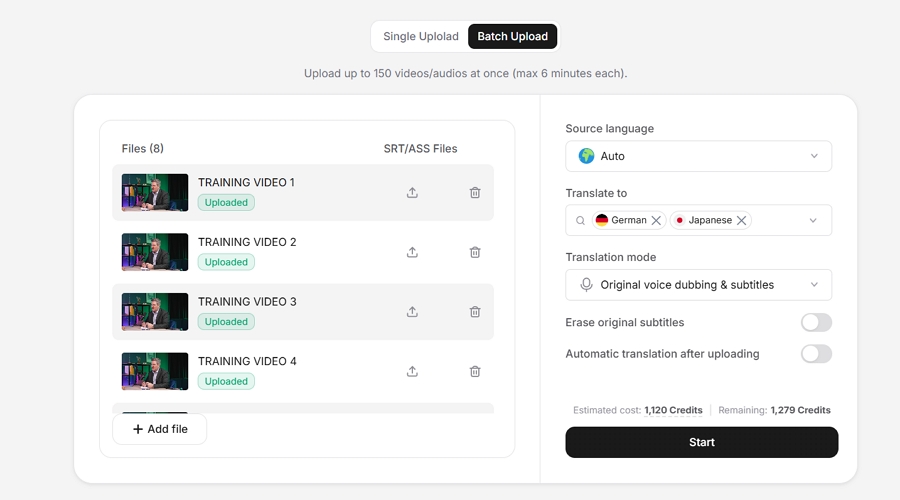
Step 1. In Vosko Dubbing dashboard, dub the video, review the script, and export the mixed translated audio (MP3). The mixed file keeps the background music. The voiceover-only file doesn't.
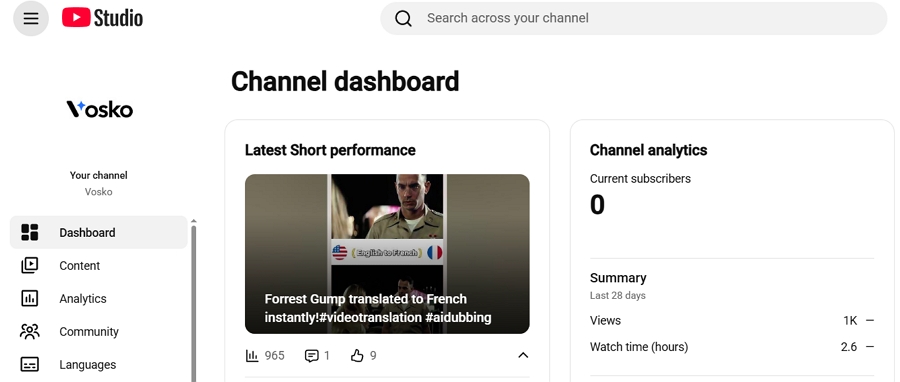
Step 2. Sign in to YouTube Studio on a computer and select Languages from the left menu.
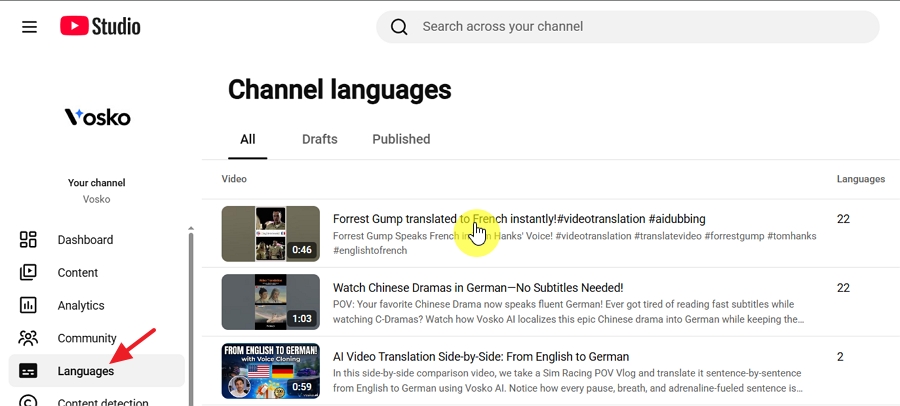
Step 3. Click the video.
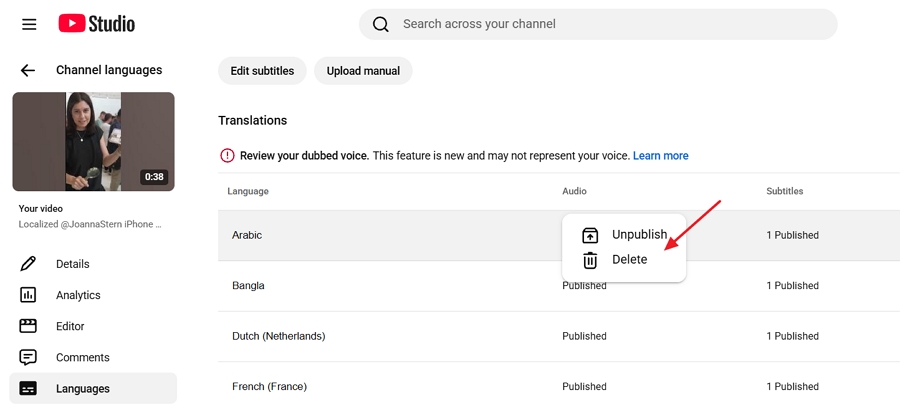
Note: If an auto dub already exists for that language, delete it first. YouTube requires this before you can upload your own.
Step 4. Click Add language.
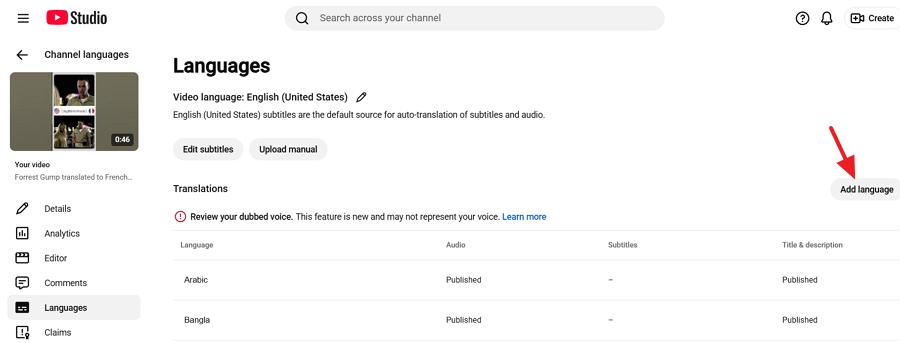
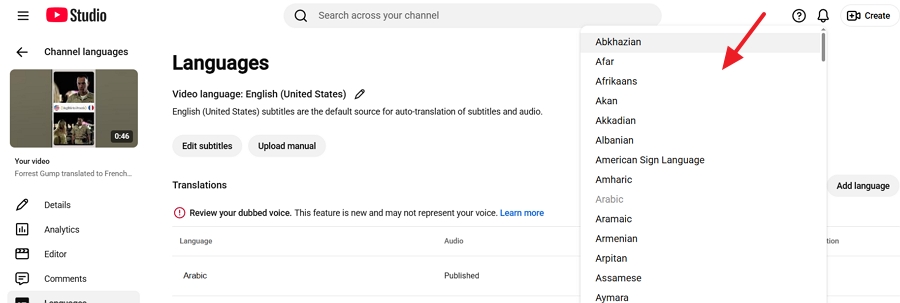
Step 5. Choose the language.
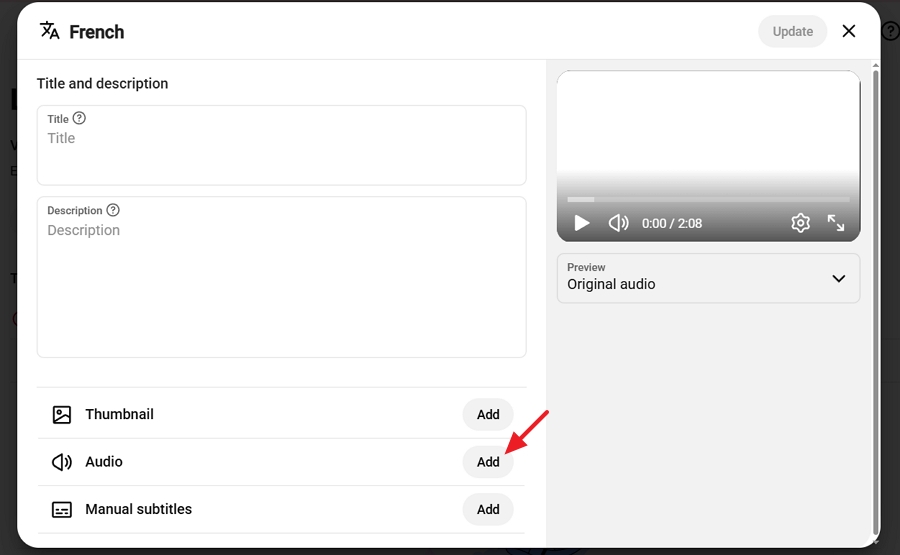
Step 6. Next to Audio, click Add.
Step 7. Then Select file, and choose the audio file.
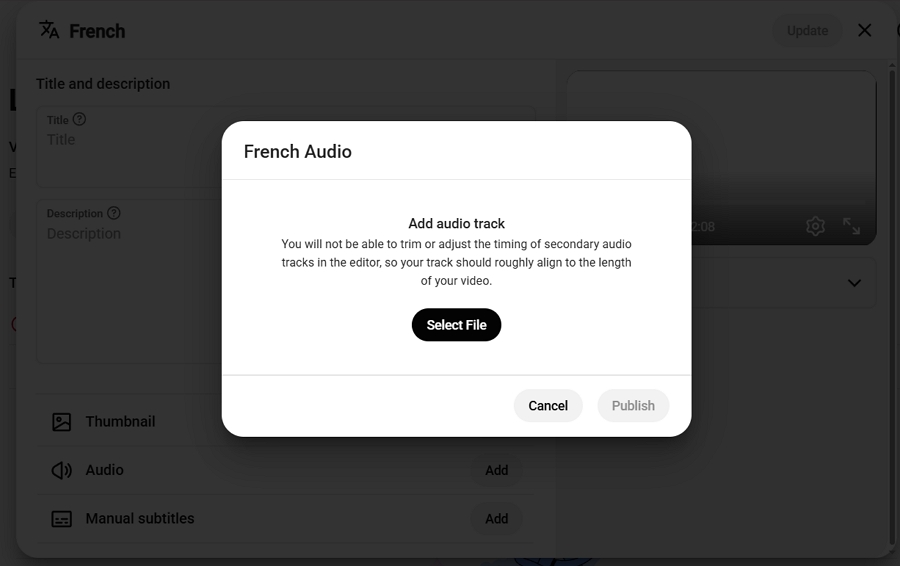
Step 8. Click Publish.
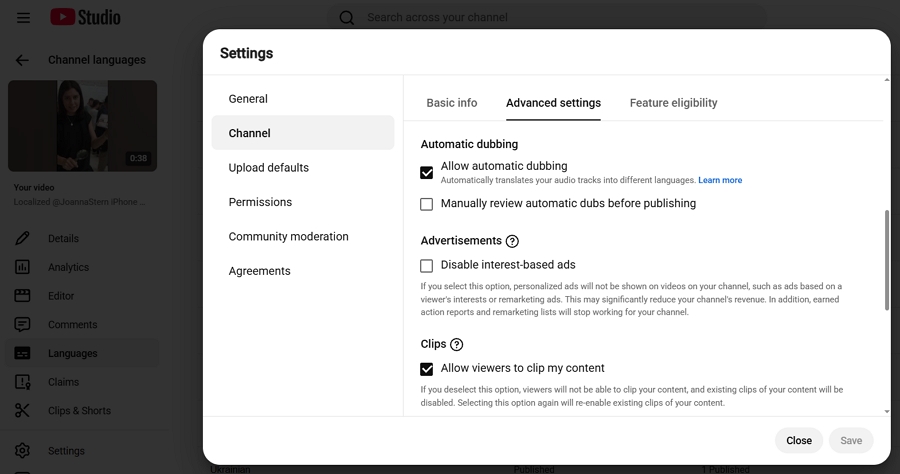
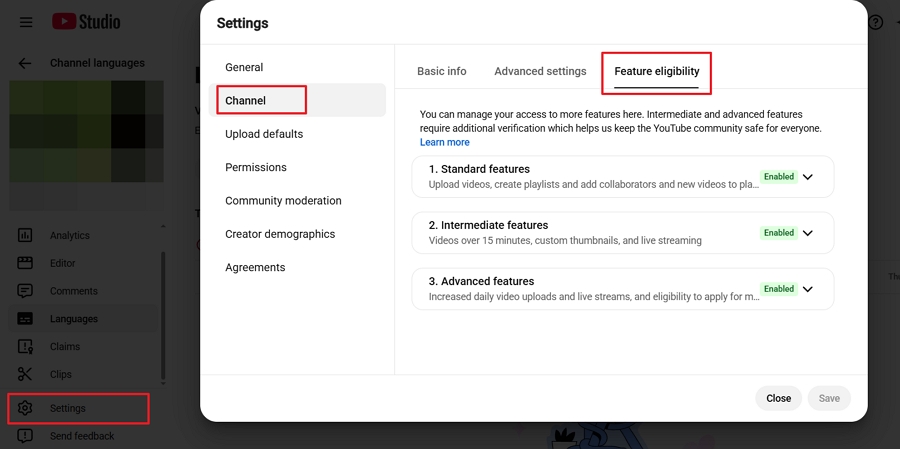
YouTube asks for an audio-only file that's roughly the same length as the video, and multi-language audio requires access to Advanced features. To check or turn on access, open YouTube Studio > Settings > Channel > Advanced Settings and Feature eligibility.
If you haven't verified your phone number yet, select Intermediate features > Verify phone number first. Then expand Advanced features and click Access features to see the verification options available to your channel.
If the second track contains different copyrighted content from the original audio, the file may be removed. In our test, the upload was straightforward. Trims you make to the original video carry over to the extra tracks, and YouTube Analytics breaks down views by audio language. For more, see our multi-language audio guide.
We saw no charge in Studio during our test, but YouTube's help pages don't state pricing. Check your own channel before you rely on it.
No. YouTube says automatic dubs can't be edited. You can review the transcript, unpublish or delete a dub, or upload your own version through multi-language audio.
Yes. Export the mixed translated audio and upload it as a dub track in YouTube Studio. You need access to Advanced features, and you must delete any existing auto dub in that language first.
No. Vosko replaces the voice and leaves the picture unchanged. YouTube's lip sync is an experimental setting for select channels.
AI dubbing in core languages uses 60 credits per minute, and subtitle translation uses 10. Plans, top-ups, and the free trial are on the pricing page.
YouTube auto dubbing is a good first test for English videos. Vosko is the better fit when you need edits, steadier voices and background audio, other language pairs, longer videos, or files you can use anywhere. To compare them on your own video, dub a short clip with Vosko AI Dubbing and listen to it next to YouTube's version. Channels with a back catalog can see how that works on our content creators page.