
How to Apply AI Dubbing with Vosko
Create professional, studio-grade AI voiceovers with our integrated dubbing engine. This guide walks you through the complete AI dubbing workflow, from batch uploading your source media to generating and refining your final dubbed video using authentic voice preservation.
Step 1: Upload & Configure Your Files
Before proceeding, ensure you have signed in to your account to access the secure workspace.
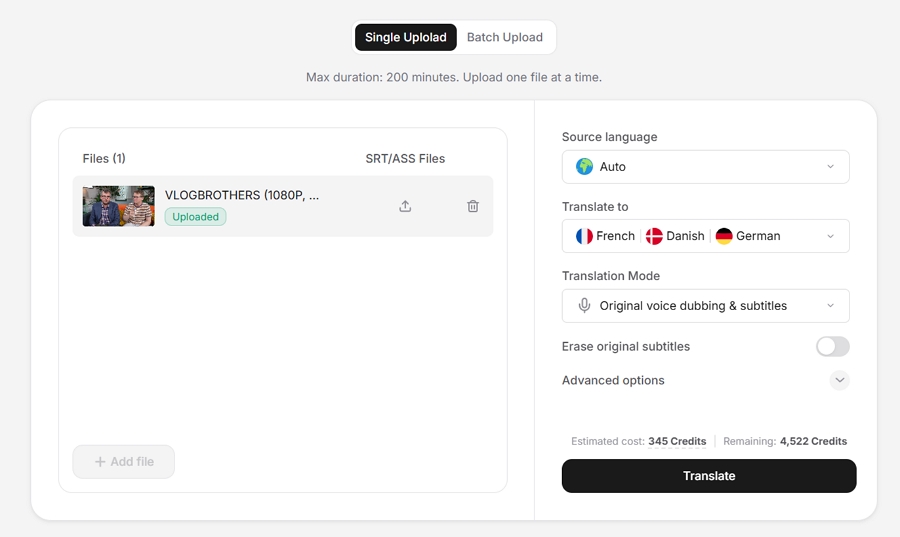
Click the Upload button in your dashboard to import your media. We offer two uploading modes:
- Single Upload: Process individual videos up to 200 minutes in duration.
- Batch Upload (Pro Feature):Process multiple files simultaneously (up to 150 videos) via the dedicated Batch Videos module. Each video must be 6 minutes or less.
Next, select your video's original Source Language and your desired Target Language.
- Supported Source Languages (99):Afrikaans, Amharic, Arabic, Armenian, Assamese, Asturian, Azerbaijani, Belarusian, Bengali, Bosnian, Bulgarian, Burmese, Cantonese, Cape Verdean Creole, Catalan, Cebuano, Chichewa (Nyanja), Croatian, Czech, Danish, Dutch, English, Estonian, Filipino, Finnish, French, Fulah, Galician, Ganda, Georgian, German, Greek, Gujarati, Hausa, Hebrew, Hindi, Hungarian, Icelandic, Igbo, Indonesian, Irish, Italian, Japanese, Javanese, Kannada, Kazakh, Khmer, Korean, Kurdish, Kyrgyz, Lao, Latvian, Lingala, Lithuanian, Luo, Luxembourgish, Macedonian, Malay, Malayalam, Maltese, Mandarin Chinese, Maori, Marathi, Mongolian, Nepali, Northern Sotho, Norwegian, Occitan, Odia (Oriya), Pashto, Persian (Farsi), Polish, Portuguese, Punjabi, Romanian, Russian, Serbian, Shona, Sindhi, Slovak, Slovenian, Somali, Spanish, Swahili, Swedish, Tajik, Tamil, Telugu, Thai, Turkish, Ukrainian, Umbundu, Urdu, Uzbek, Vietnamese, Welsh, Wolof, Xhosa, and Zulu.
- Supported Target Languages (74):Afrikaans, Arabic, Armenian, Assamese, Azerbaijani, Belarusian, Bengali, Bosnian, Bulgarian, Catalan, Cebuano, Chichewa (Nyanja), Croatian, Czech, Danish, Dutch, English, Estonian, Filipino, Finnish, French, Galician, Georgian, German, Greek, Gujarati, Hausa, Hebrew, Hindi, Hungarian, Icelandic, Indonesian, Irish, Italian, Japanese, Javanese, Kannada, Kazakh, Korean, Kyrgyz, Latvian, Lingala, Lithuanian, Luxembourgish, Macedonian, Malay, Malayalam, Mandarin Chinese, Marathi, Nepali, Norwegian, Pashto, Persian (Farsi), Polish, Portuguese, Punjabi, Romanian, Russian, Serbian, Sindhi, Slovak, Slovenian, Somali, Spanish, Swahili, Swedish, Tamil, Telugu, Thai, Turkish, Ukrainian, Urdu, Vietnamese, and Welsh.
Choose your settings:
- Translation Mode: Select Original voice dubbing & subtitles to clone the original voice into the target language with synced subtitles. (Note: This option is required to enable the AI dubbing workflow).
- Enable Subtitle Eraser: If your original video has hardcoded text, toggle the Subtitle Eraser switch ON for clean removal.
Click the Translate button to begin processing.
Step 2: Preview Your Dubbed Video
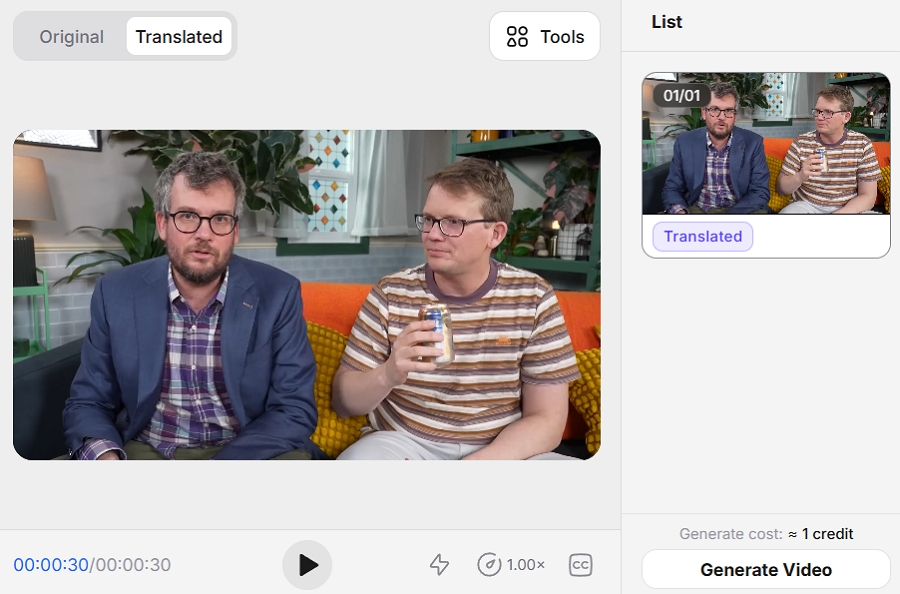
Open the Interactive Workspace. Navigate to the Translated tab above the video preview player and click play to listen to the AI-generated dubbed audio, paying close attention to voice quality, pacing, and emotional delivery.
Tip: If the dubbing and synchronization sound perfect, you can skip directly to Step 4 to export your video! If you need to fix sync issues, edit the script, or adjust pacing, proceed to Step 3.
Step 3: Edit and Refine Dubbed Video & Script
Use our comprehensive audio editing suite to fine-tune your voiceover segments:
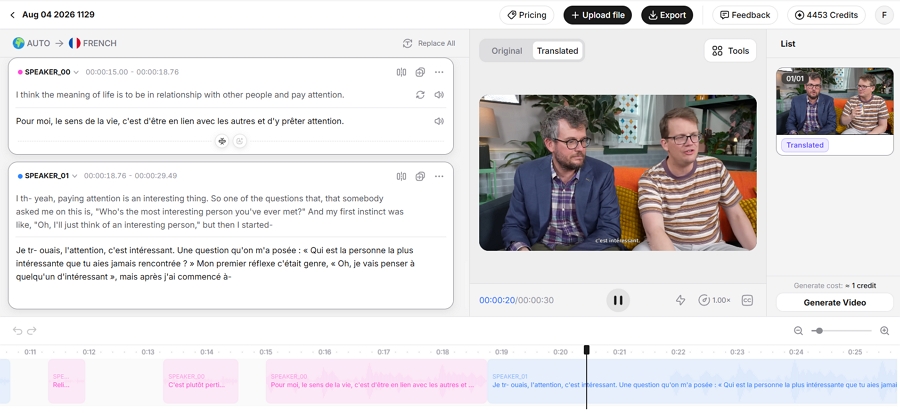
1. Edit Script & Redub
Use our comprehensive audio editing suite to fine-tune your voiceover segments:
Select to edit: Click directly on the translated text block to activate editing mode.
Modify text: Manually edit the script for better accuracy, or click Re-translate.
Update dubbing: Click Re-dub, and the AI will dynamically re-translate and redub only the revised portions.
2. Refine Audio & Voiceover Pacing
Merge Segments: Select two adjacent blocks and click Merge to combine them into a single, continuous voiceover sentence. Vosko will automatically re-translate and re-dub the combined audio track.
Split Segments: Place your cursor exactly where you want an intentional audio pause or break, then click the Split icon to divide the audio and text into two separate segments.
Add Segments:Click Add Segment to insert a new voiceover block manually. Type in your script, and Vosko will automatically translate the text and generate the corresponding authentic voice dubbing for that new segment.
3. Manage Speakers
Vosko detects speakers automatically based on voice characteristics. Click their Speaker Tag to rename the speaker for better organization, or manually change the speaker assignment from the dropdown list if a correction is needed.
4. Adjust Timeline
Due to language structure differences, translated audio length may vary.
- Adjust Timing: Click the audio clip and drag it left or right on the timeline to sync perfectly with on-screen actions.
- Adjust Speed: Hover over the edge of the clip to reveal the handle. Drag it to stretch (slow down) or compress (speed up) the speech instantly.
5. Copy and Paste Voice
Click Copy Voice next to a speaker, then Paste it on another segment to enforce that specific vocal profile elsewhere.
6. Bulk Replace:
Click the Word Replace button in the upper-right corner to instantly find and update specific character names, technical jargon, or repeated phrases across your entire script.
Step 4: Download Your Dubbed Video
Once you are completely satisfied with the dubbing quality and synchronization, click Generate Video to finalize the rendering.
Next, click the Export button at the top right to configure your files:
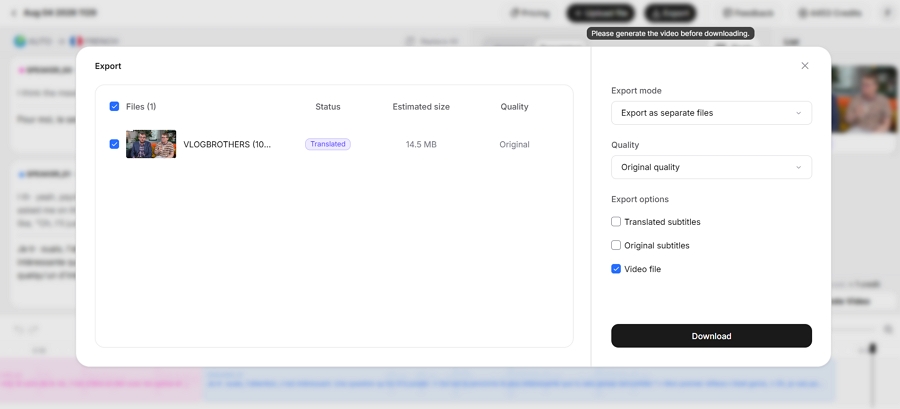
- Choose to export as Separate files or Merge into one video.
- Select your required Video Quality (Original, High, Standard).
- Select your Export Options (Video, Audio, Subtitle files).
Click Download to save your localized assets.