How to Manage Vosko Projects
Learn how to streamline your workflow by efficiently organizing, editing, and tracking all your video projects in one central hub.
Note: Please note that all project files are automatically deleted after 7 days to ensure data security. Be sure to download your exported videos before they expire.
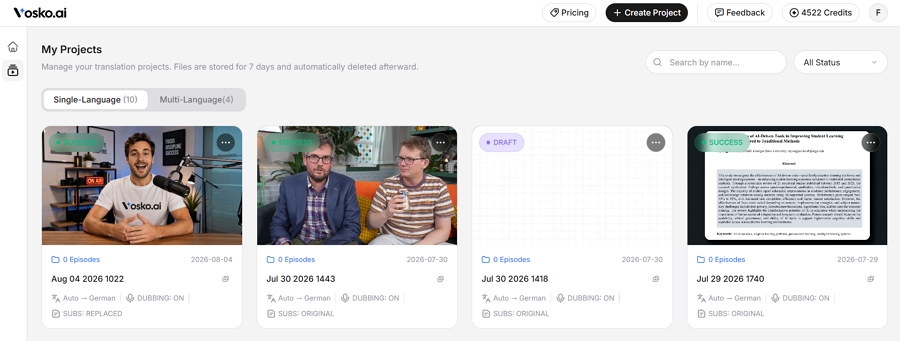
To get started, Sign in to your account and click the Projects tab on the left navigation menu.
This opens your "My Projects" dashboard, displaying a complete grid of all ongoing and completed translations. You can use the search bar or status filters at the top to quickly locate specific tasks.
How to Create a New Project
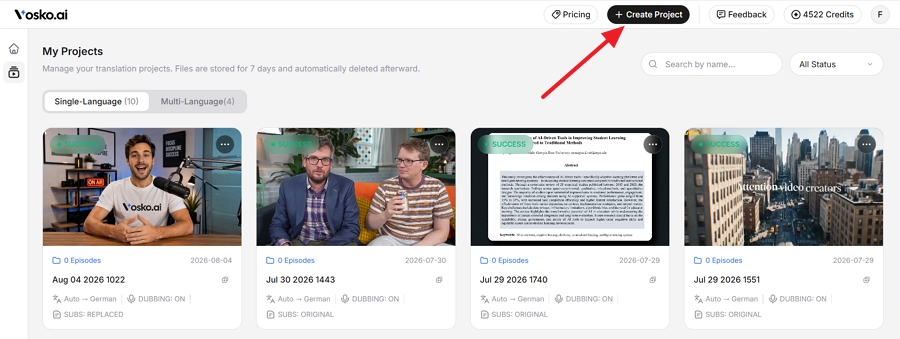
To start translating a new video, simply click the [+ Create Project] button located in the top-right corner of the dashboard.
How to Manage Existing Projects
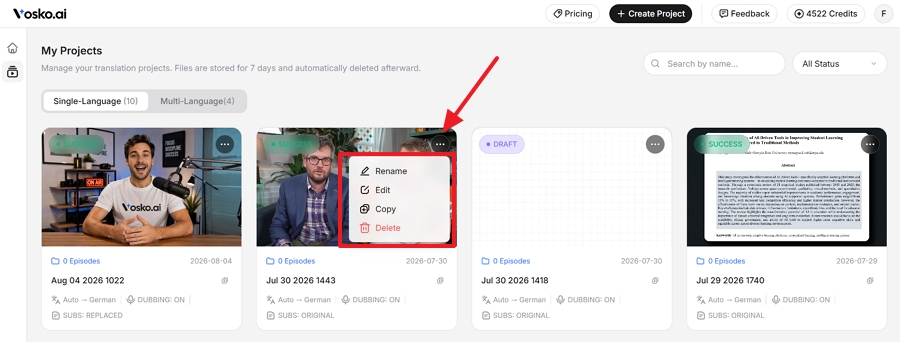
To manage a specific task, locate its project card in the grid and click the three-dot menu in the top-right corner. Choose from the following options:
- Rename: Change the title of your project for better internal organization.
- Edit: Open the interactive workspace to continue modifying your subtitles, audio, or settings.
- Delete: Permanently remove the project and its files from your dashboard.