
Getting Started
This Getting Started guide is designed to help you quickly understand the platform and set up your workspace for success. Whether you are translating your first video or managing bulk localization projects, this section covers the foundational knowledge you need to hit the ground running.
What is Vosko AI?
Vosko AI is an advanced, all-in-one video localization platform built for global content creators, educators, and businesses. Powered by cutting-edge AI technology, it goes beyond simple translation. Vosko AI enables you to seamlessly translate your videos into over 99 languages, preserve the speaker's original voice for natural-sounding dubbing, and automatically generate perfectly synced subtitles.
Our mission is to break language barriers. With an intuitive interactive workspace, frame-by-frame timeline control, and batch processing capabilities, Vosko AI empowers you to transform raw media into studio-grade, multilingual content—all without needing a professional production team.
Ready to translate your first video? Click [Sign Up] to create your account, or [Log In] to access your existing workspace.
Vosko Overview
The overview of Vosko dashboard is built as an all-in-one control center for your AI video localization workflow. It consists of three primary interfaces:
1. The Upload Panel
The upload interface is designed for high-efficiency processing.
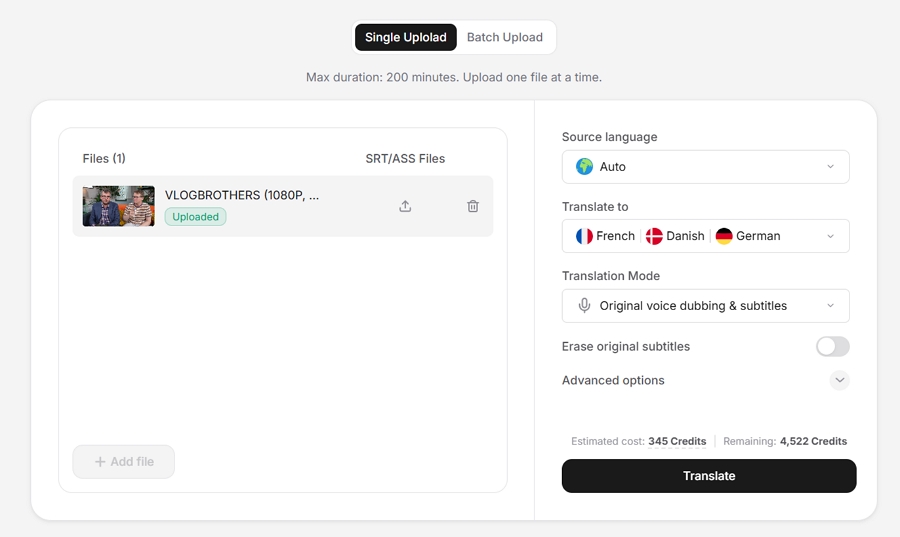
- Upload Modes & Formats: For single files, use the standard Single Video upload interface. To process multiple files simultaneously (up to 150 videos), navigate to the dedicated Batch Videos module. The system supports common video and audio formats.
- Processing Configuration: Before starting, simply select your Source and Target languages, and choose your desired Translation mode.
- Core Toggles: You have granular control over the engine by toggling Subtitle Eraser and Video Dubbing on or off before hitting the Translate button.
2. The Editing Workspace
The workspace is a precision tool for reviewing and fine-tuning your localized content.
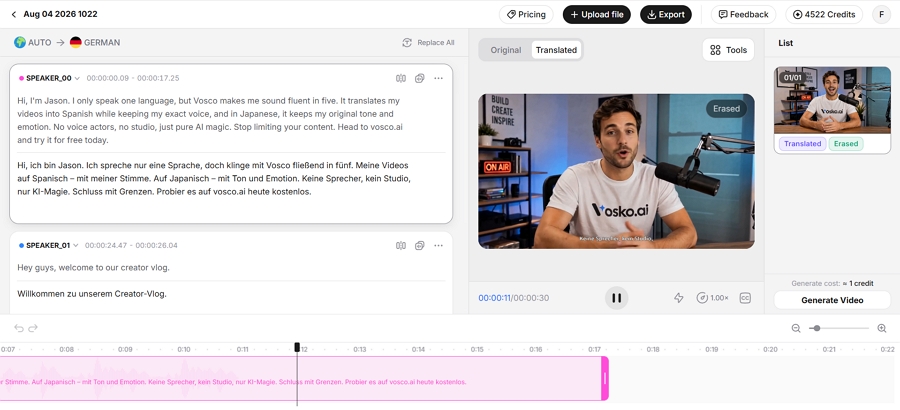
Dual-View Player: The center player allows you to toggle between the Original and Translated versions, with speed controls and closed captioning (CC) options.
Transcript & Dubbing Editor: The left panel displays the speaker-segregated transcript. You can listen to individual segments, edit text, and see the side-by-side translation.
Adjust Timeline: Due to differences in language structure, the duration of translated audio may differ from the original. Our engine automatically aligns the audio as closely as possible while maintaining a natural speaking pace, but you can manually fine-tune it on the bottom timeline:
- Adjust Timing: Click on the audio block you want to adjust, then drag it left or right on the timeline to match the on-screen visuals.
- Adjust Speed: Hover over the left or right edge of the audio block to reveal the control handle. Drag the handle to stretch or compress the clip (longer to slow down, shorter to speed up). These adjustments take effect immediately and can be previewed directly in the editor.
Subtitle Styling Panel: The right panel gives you full control over font aesthetics, including Font family, color, size, stroke, and precise X/Y offset adjustments to ensure perfect visual alignment.
Generate & Export Video: Once satisfied, finalize your project in two steps. First, click Generate Video at the bottom right. After processing, click Export at the top of the screen to open the export configuration window. You can choose to export as Separate files or Merge into one video, select your Video Quality (Original, High, or Standard), and download your Video file, Audio file, and Subtitle files.
3. The Projects Dashboard
The "My Projects" dashboard serves as the master view for all localization tasks.
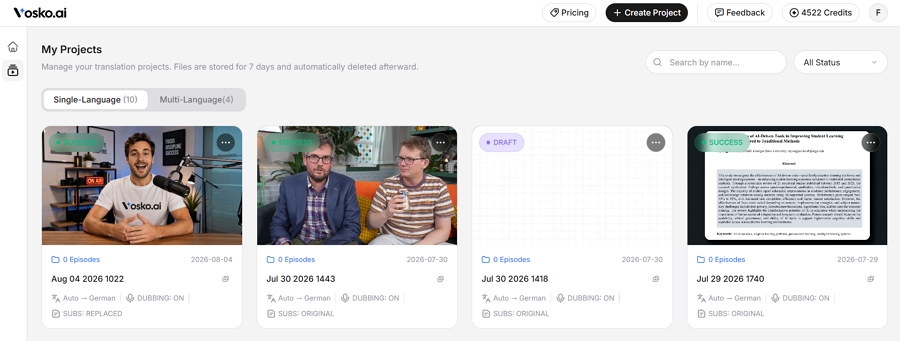
Project Grid: Displays all your video series and marketing content. Each card summarizes key metadata, including the language pair, dubbing status, and original file info.
Action Menu: Click the three-dot icon on any project card to view details, rename, edit, or delete projects.
Security Promise & Retention Warning
At Vosko, we prioritize the privacy, integrity, and security of your content. Your media files are valuable intellectual property. All project files are handled with strict security measures and are never utilized to train our public AI models. We maintain rigorous internal access controls to prevent unauthorized access.
To optimize system performance, all project files are kept in our system for exactly 7 days, after which they are automatically and permanently cleared. We strongly recommend downloading your final exported videos promptly upon project completion, as we cannot recover data once it has been purged.