Managing video audio after publishing used to require deleting the original upload, forfeiting views, and losing accumulated search ranking. Today, mastering how to add audio track to youtube video is a critical skill for creators needing to fix audio issues, replace copyrighted music, or upload localized voice tracks.
YouTube divides post-upload audio management into two separate systems to help you maximize audience retention while staying compliant with platform policies.
The first system is the background music editor, designed for quick audio repairs. It lets you cover up copyright claims or add ambient music using a royalty-free catalog directly within your browser dashboard.
The second system is the YouTube multi-language audio feature, built specifically for global audience expansion. YouTube official data shows channels adding localized audio experience an average 25 percent increase in watch time from international viewers.
Instead of replacing your primary track, this feature attaches secondary language channels to a single video URL. This allows international audiences to consume your content in their native language without requiring you to build separate regional YouTube channels from scratch.
The YouTube Studio video editor lets you add licensed songs from the YouTube Audio Library to published videos. Tracks sourced from this library are fully cleared for use in monetized videos.
Before modifying your audio timeline, keep these essential constraints in mind.
You must complete this process on a desktop computer. YouTube no longer allows creators to change audio tracks from within the mobile app.
1. Log into YouTube Studio on a desktop browser.
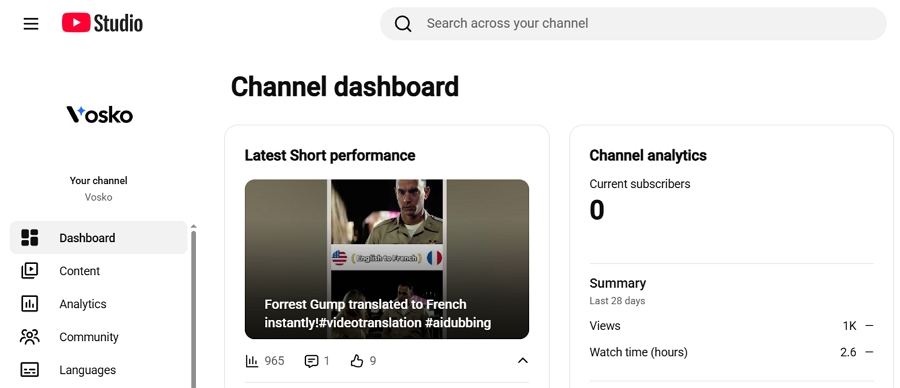
2. Click Content on the left menu to view your uploaded videos.
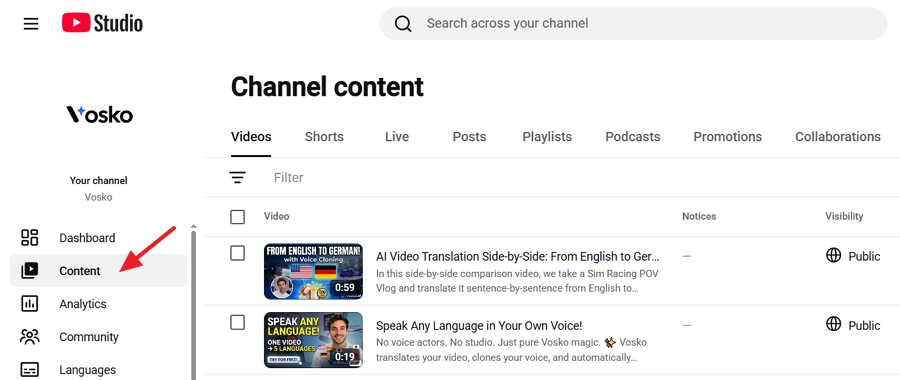
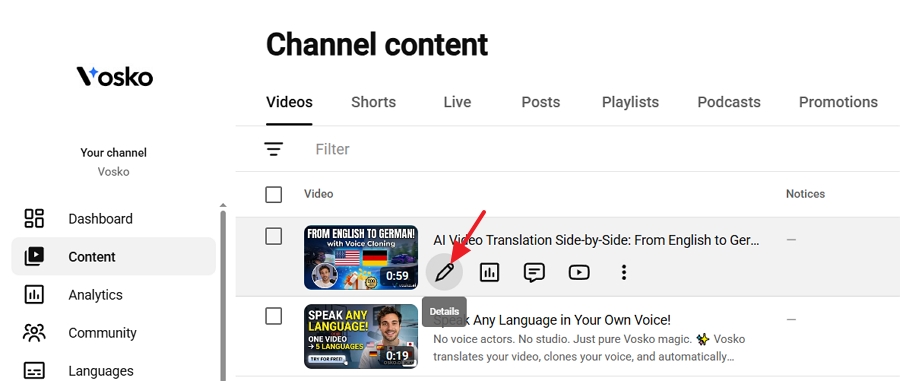
3. Click the title or thumbnail of the video you want to edit.
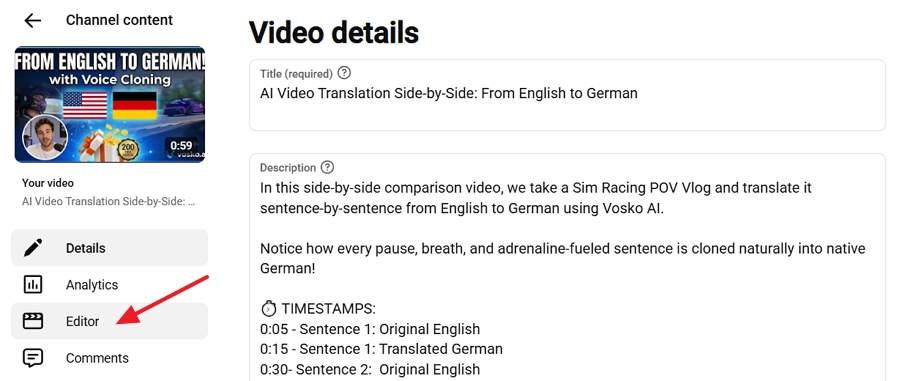
4. Click Editor on the left sidebar.
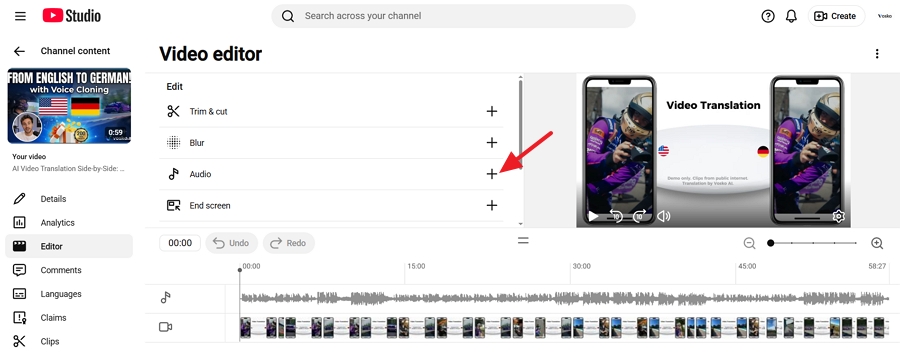
5. Locate the Audio row marked with the musical note icon and click the Plus icon to expand the track library.
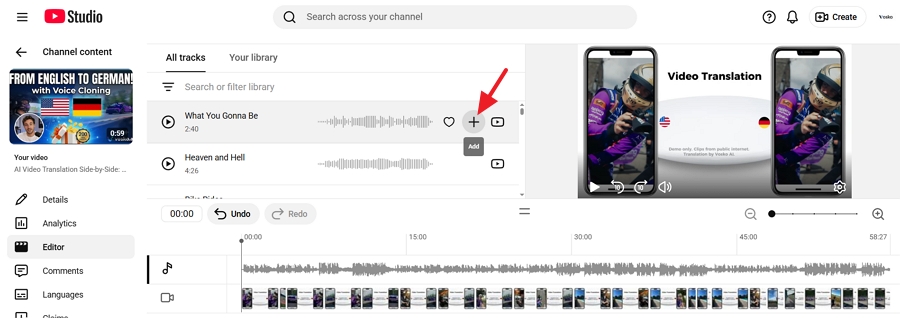
6. Search or filter the YouTube Audio Library by genre, mood, or duration. And click Add next to your selected track to place it onto the video timeline.
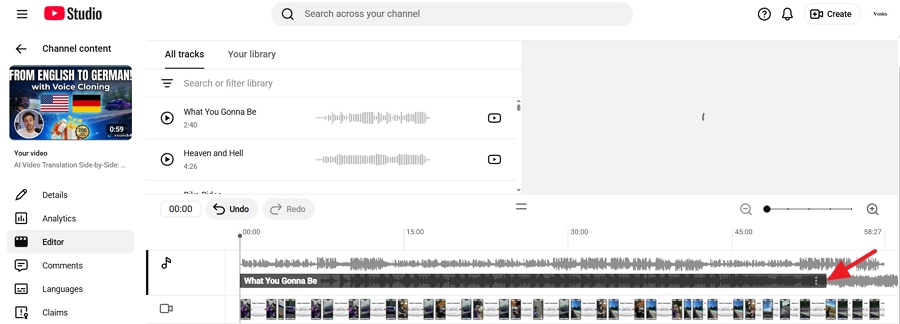
7. Drag the edges of the audio block to position where the track starts and ends.
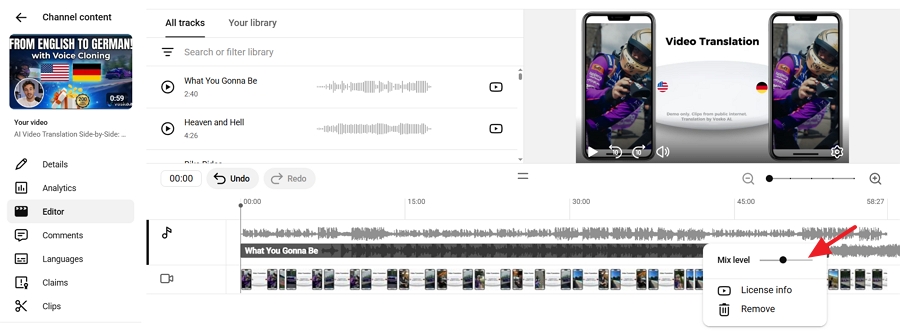
8. Click the Mix Level icon beside the track to adjust the volume balance between your original voice track and the new background music.
9. Click Save in the top right corner to process the update.
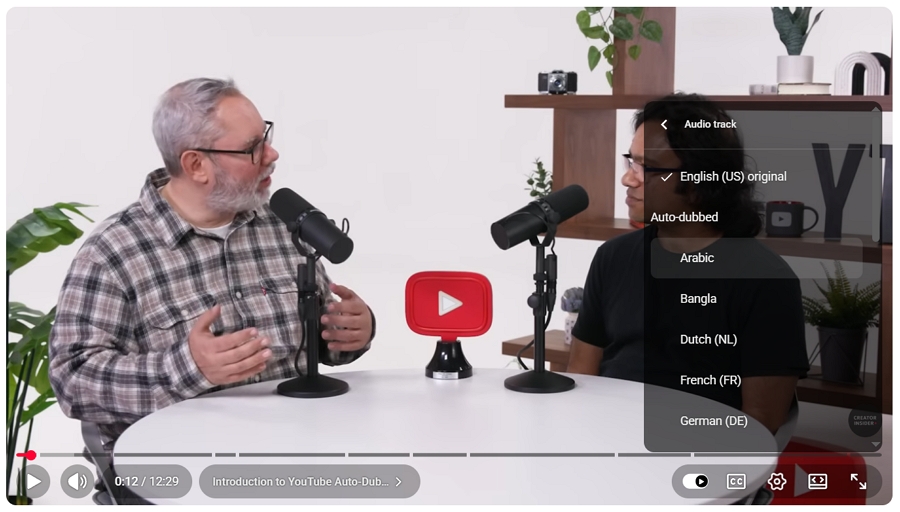
The official YouTube multi-language audio feature allows you to upload distinct audio tracks in different languages to a single long-form video or Short. This transforms a single upload into a global distribution asset, preventing audience fragmentation.
Instead of managing multiple regional channels, you consolidate all global views, likes, and comments onto one video URL. For long-form videos, YouTube even allows you to upload different thumbnails for different regions to maximize local click-through rates.
When you upload localized audio alongside translated titles and descriptions, YouTube directly integrates your video into foreign search algorithms. If a viewer in Mexico searches for a topic in Spanish, the algorithm surfaces your translated video natively.
When they click play, the system checks their watch history preferences and automatically defaults the video to the Spanish audio track. Viewers always retain the option to switch languages manually via the video player gear icon.
Keep in mind that multi-language audio is an upload framework, not an automatic translation engine. It enables you to upload your own professionally dubbed audio tracks, but it does not create them for you.
As covered in our YouTube auto dubbing review, if YouTube has already generated an experimental auto-dub for your video in a specific language, you must delete that automatic dub from your dashboard before the system will allow you to upload your own custom version.
After you upload the multi language audio tracks, viewers can change their preferred language in their overarching account settings to dictate this default behavior across the platform. They can also switch between available multiple language audio tracks seamlessly using the native video player settings.
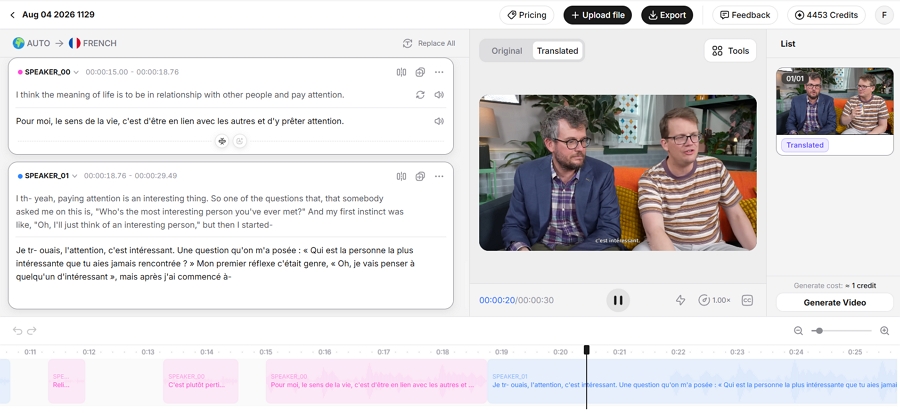
Because YouTube requires you to supply the localized audio files, many creators ask can you dub YouTube videos in other languages without spending thousands on professional voice actors? The answer is yes, using advanced AI localization platforms.
Vosko AI is one of the most popular industry standard tools designed specifically to translate YouTube video audio in 99 languages at scale. You simply upload your original video into Vosko, select your target languages, and the engine translates the script while cloning your exact vocal tone. Vosko allows you to export a perfectly mixed, standalone audio file containing your localized voiceover.
When exporting your audio track from Vosko or any external editor, the total duration of the new audio file must identically match the duration of your original published YouTube video. If the audio track is even a few seconds longer or shorter, the YouTube Languages dashboard will reject the upload and throw a synchronization error.
To maintain high playback quality, YouTube enforces specific requirements for secondary audio files.
| Requirement Category | Technical Standard |
|---|---|
| Channel Access | Multi-language audio is available to a subset of creators with access to Advanced Features, and rollout is expanding gradually. |
| Supported File Formats | .mp3, .m4a, .wav, .aac, .flac |
| Bitrate and Encoding | Minimum 128 kbps stereo audio; 44.1 kHz or 48 kHz sample rate recommended. |
| Length Synchronization | The secondary audio track length must match the original video duration exactly to prevent upload failures. |
Once you have exported your perfectly timed foreign language audio file, follow these steps to attach it to your video.
1, Log into YouTube Studio on a desktop browser.
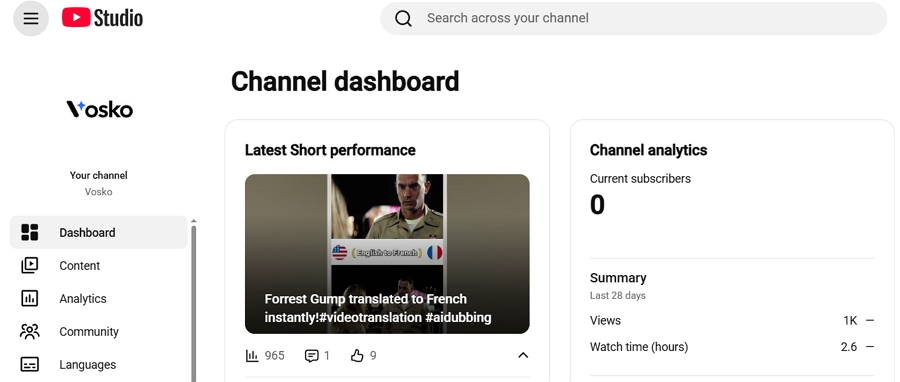
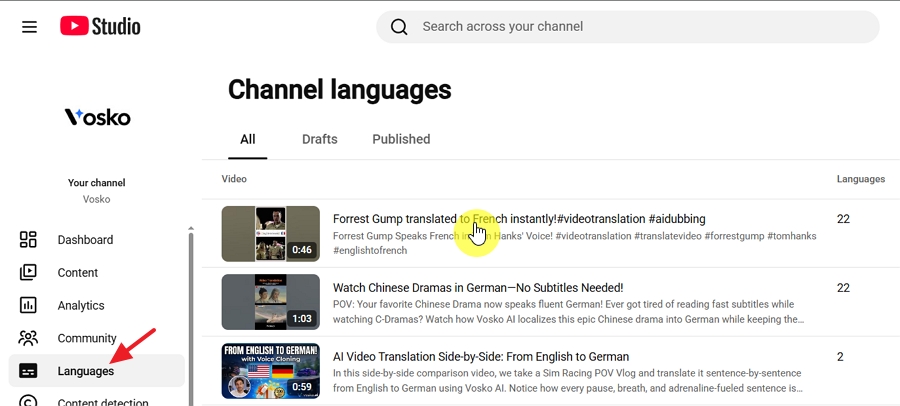
2. Click Languages from the left navigation menu. And select the video you want to localize.
3. Select the video you want to localize.
4. Click Add Language in the top right corner.
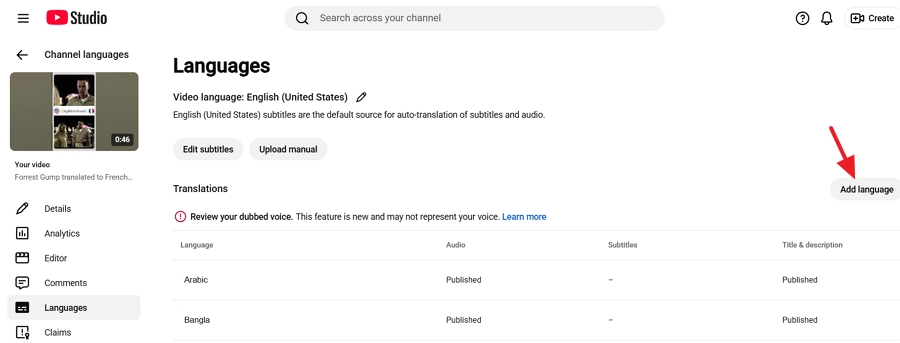
5. Choose your target language from the list.
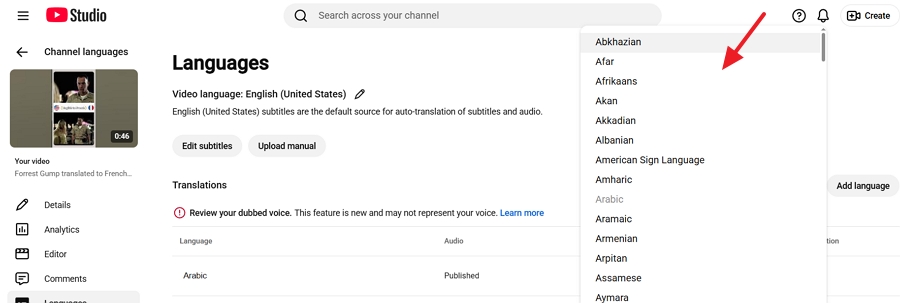
6. Locate the Audio column next to your newly added language and click Add.
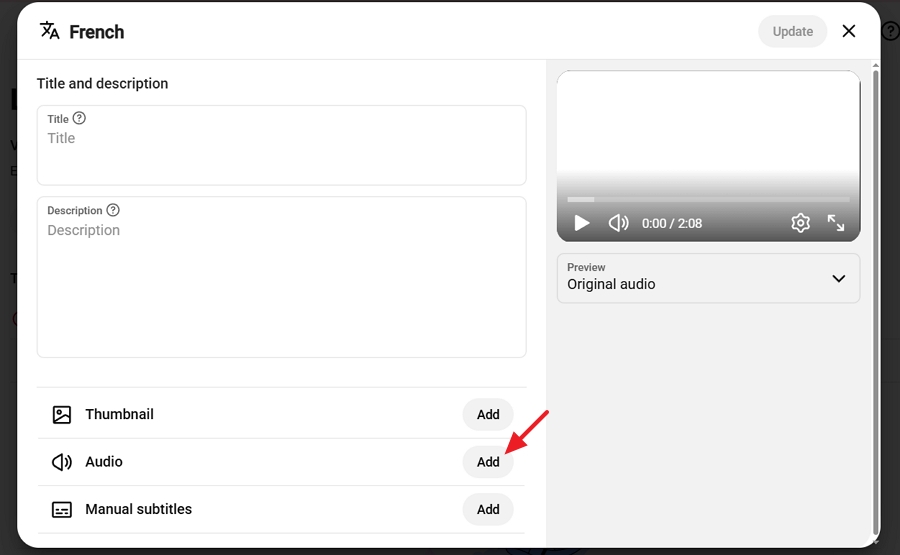
7. Click Select File to upload your .mp3 or .wav track dubbed using Vosko or other tools.
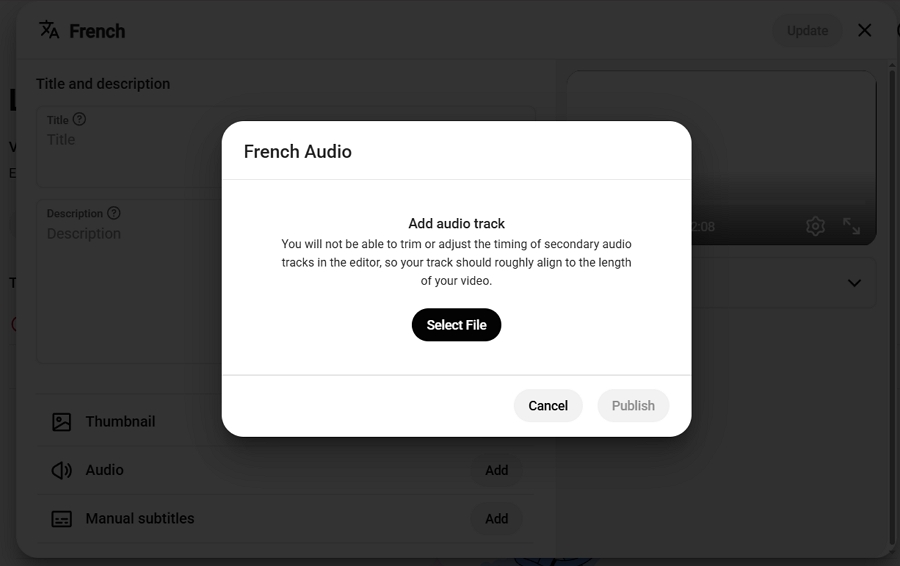
8. Verify that the audio duration precisely matches the video length. And click Publish to make the localized track active for global viewers.
Can I add my own custom background music file to a published YouTube video?
No. The native YouTube Studio Editor only allows you to select songs from the official YouTube Audio Library. If you want to use custom background music, you must edit the original video file on your computer and upload it as a new video.
Does adding a dubbed audio track delete my original audio?
No. Multi-language audio tracks exist alongside your primary audio track. The video player serves the correct audio track based on the viewer's language preferences, leaving the original audio intact for native speakers.
Why cannot I revert my video audio back to the original version?
As of June 2025, YouTube retired the Revert to original feature in the YouTube Studio Editor. Once you process and save an audio change inside the editor, the change is permanent.
What should I do if an auto dub already exists on my video?
If YouTube automatically generated a dub for a specific language and you want to replace it with a professional human or AI dub, navigate to the Subtitles page in YouTube Studio, locate the automatic dub track, click the options menu, and delete it. Once deleted, you can upload your custom audio file.
Managing video audio effectively requires choosing the right tool for your strategic goals. If you need to fix a background music track or resolve a copyright claim on an existing video, the native YouTube Studio Editor provides a royalty-free solution directly inside your browser. However, remember that edits saved after June 2025 are permanent.
For creators focused on expanding their international footprint, multi-language audio is one of the highest ROI features available on YouTube today. By producing high-quality dubbed tracks externally with tools like Vosko AI Dubbing and uploading them via the Subtitles dashboard, you increase global retention and rank higher in foreign search results without fracturing your brand across multiple regional channels.