Three things can translate what you see on Facebook. Facebook translates posts and comments, it dubs some Reels into your language, and your browser may translate the whole page. Each has its own setting, so find what you're seeing in the table below and go straight to that section.
| What you see | Fix | Section |
|---|---|---|
| Posts or comments appear translated | Add the language to the "automatically translated" list | Stop Translated Posts and Comments |
| A See translation link under posts | Add the language to the "don't offer translations" list | Stop Translated Posts and Comments |
| A Reel sounds dubbed, with a Translated with AI label | Choose its language under Don't translate | Stop Dubbed Reels |
| Menus and buttons are translated too | Turn off translation in your browser | If Your Browser Is Translating Facebook |
| Your Page's posts show up translated for others | Page setting, or the Reels toggle | If You Run a Page or Post Reels |
Facebook sets this by language, not with one master switch. The Language and region page has several rows, and two matter here:
Add each language you read to the first list, and to the second if you also want to hide the See translation link. Leave out any language you can't read, so Facebook can still translate it for you. The other rows set Facebook's display language, the language posts are translated into, and how you share your own posts, so leave them as they are.
The screenshots below are from our own Facebook account, taken in November 2026.
These screenshots are from an iPhone. The steps are the same on Android, though the screens may look a little different.
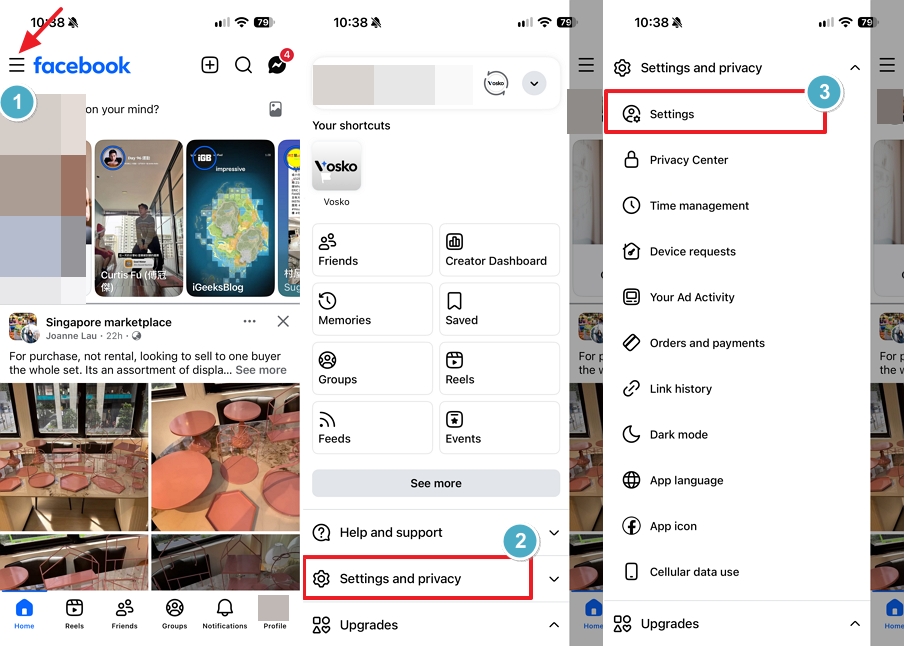
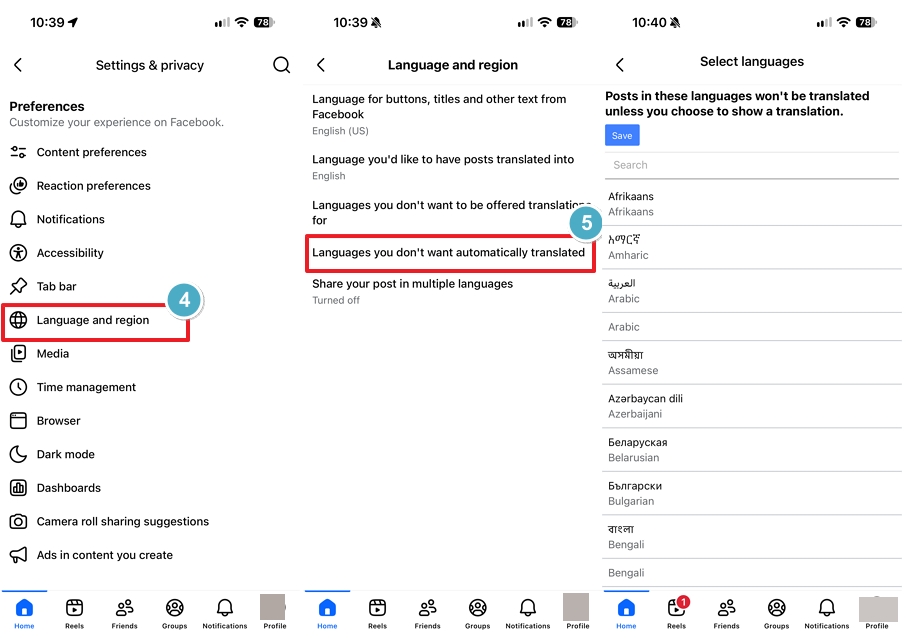
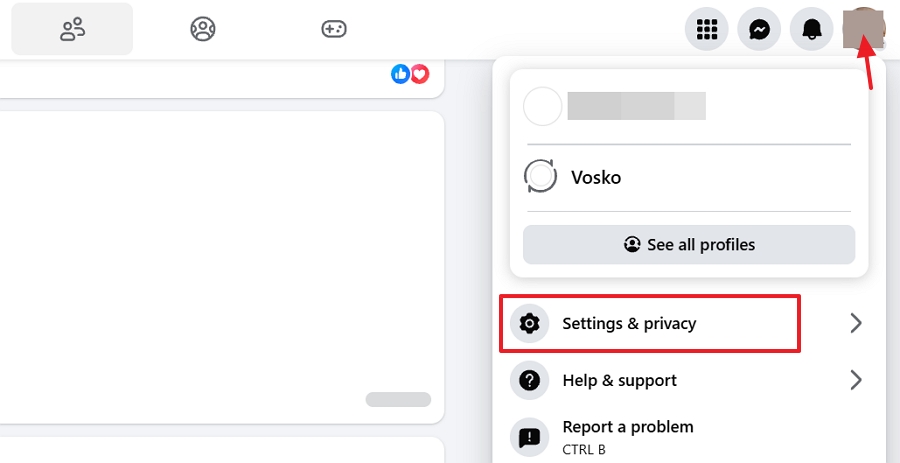
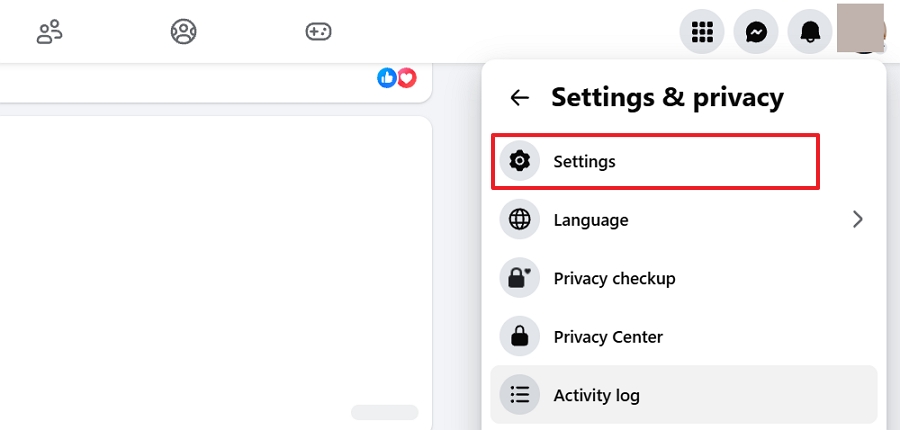
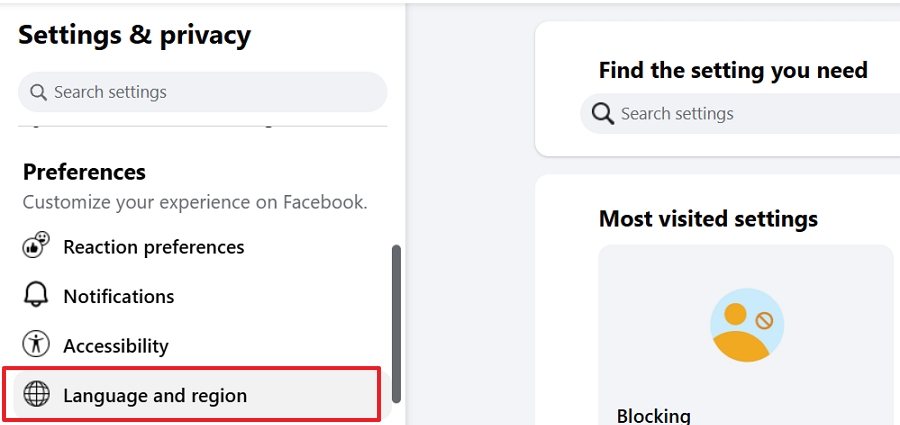
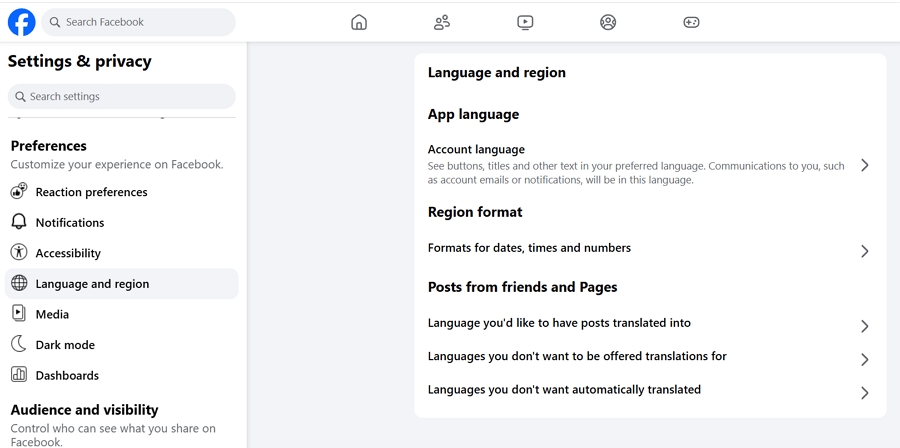
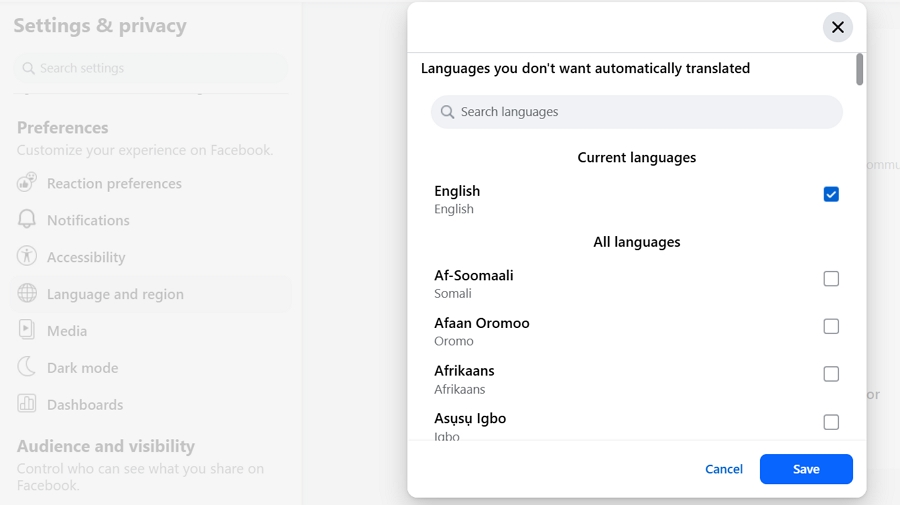
If a post is still translated, its language is probably not on Languages you don't want automatically translated yet. Add it.
Facebook marks a dubbed Reel with Translated with AI under the account name. The dub is in the language set under Language you'd like to have posts translated into.
When ours was set to English, a Spanish Reel played with an English dub. Instagram works differently: a single Translate voice switch turns off dubbed Reels there. See our guide to turning off auto translate on Instagram.
Choose the original language to hear one Reel as recorded, or use Don't translate to stop dubbing for a whole language. Don't translate works by language, not by Reel: choose a language once, and Reels in that language stop being dubbed.
We didn't find a switch that covers every language at once, so Reels in other languages can still be dubbed until you add them. Start from a dubbed Reel:
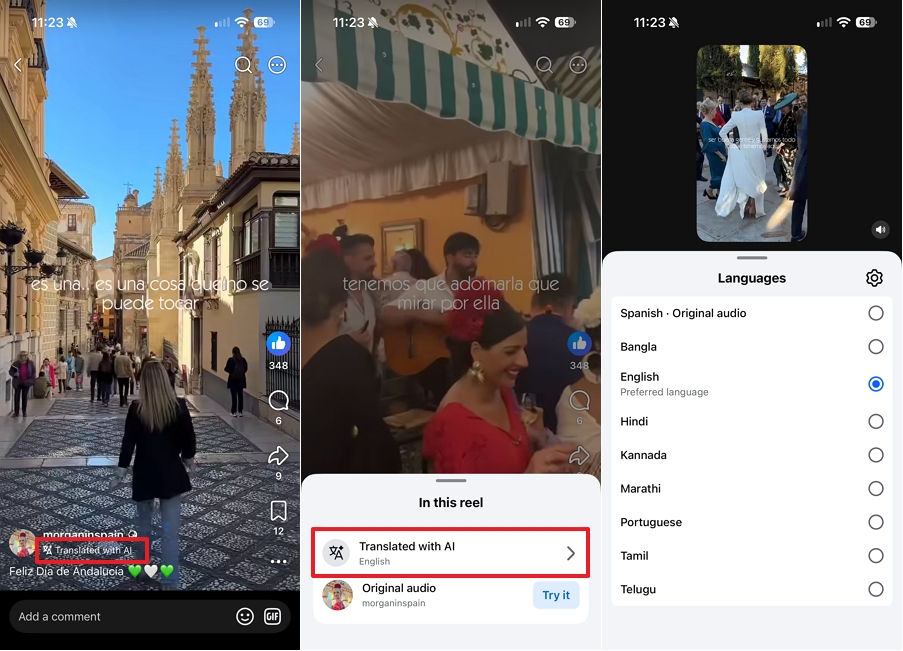
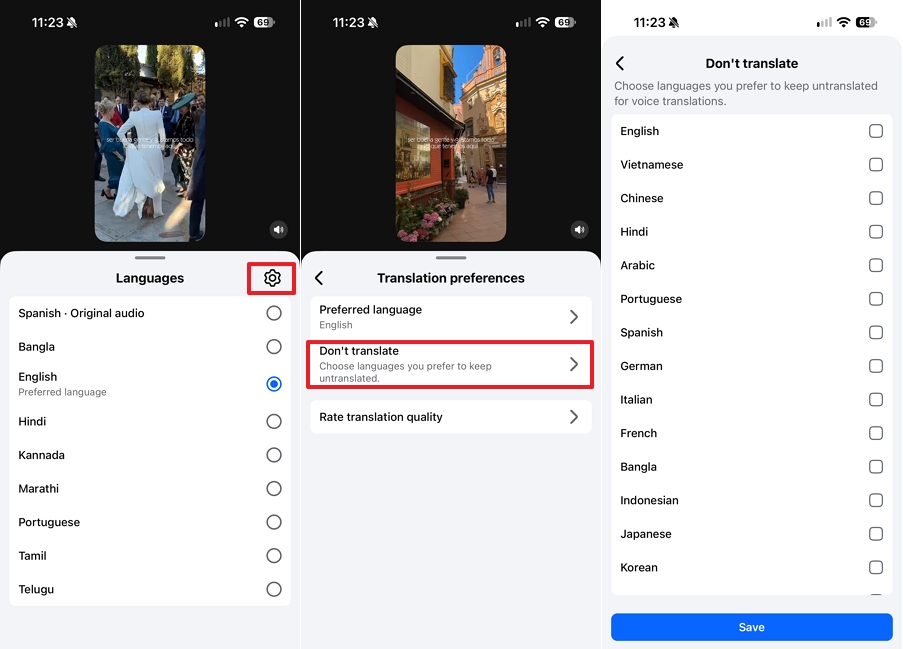
In our test, tapping Spanish · Original audio played the Reel's original Spanish audio. After we selected Spanish under Don't translate and tapped Save, the Spanish Reel played in Spanish and the Translated with AI label was gone. Other Spanish Reels that had the label were no longer dubbed into English either.
The list in Language and region also stops dubbing. We added Spanish to Languages you don't want automatically translated, reopened a Spanish Reel, and it played in Spanish too. If a Reel is still dubbed, add its language in both places.
Facebook's own translations change post text, comments, and Reel audio. If the menus, buttons, and settings are translated too, the browser is translating the page. In Chrome:
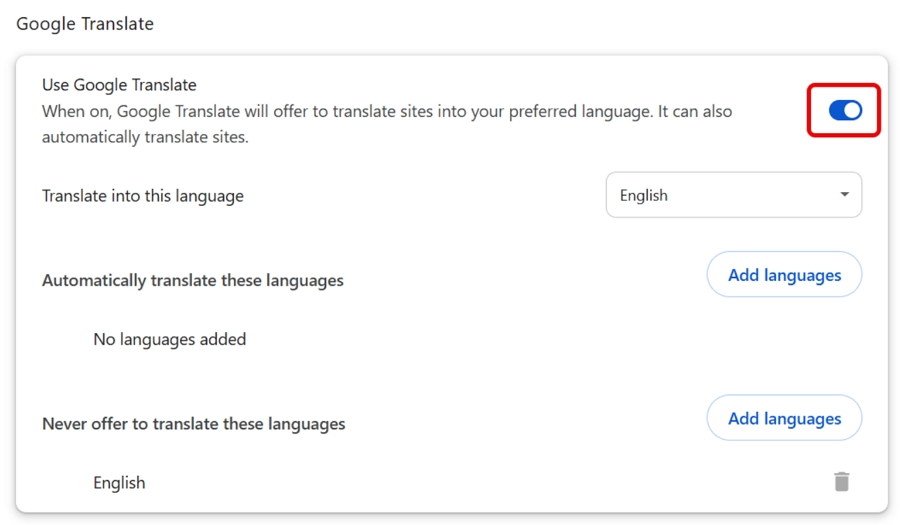
On a phone, open Chrome's Settings > Languages and turn off the option that offers to translate pages. Other browsers, such as Edge, have their own translation settings.
The settings below control what your audience sees, not what you see.
As Meta describes it, Meta AI dubs a Reel only if you turn it on. Before you publish, find Translate your voice with Meta AI in the Reels composer and leave the toggle off.
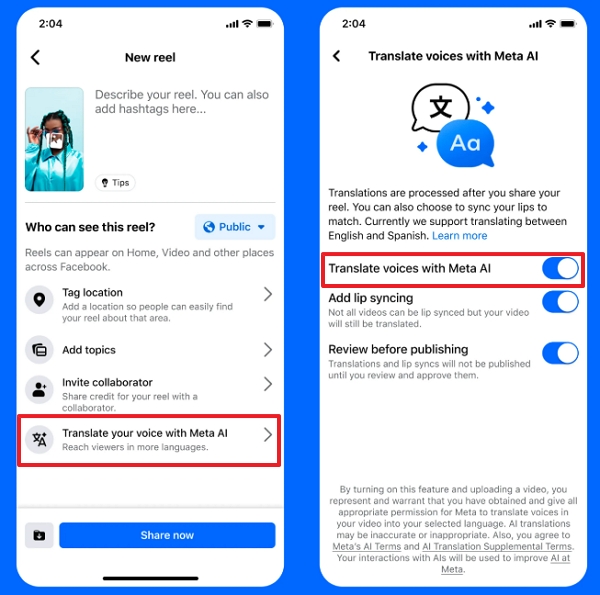
If you turned it on and enabled the review option, you can approve or reject each translation, and rejecting one doesn't affect your original Reel. Meta says you can remove translations at any time, but it doesn't name the menu for a published Reel.
Disclosure: Vosko AI is our product.
Facebook Pages can add their own dubbed audio tracks to a Reel, up to 20 per Reel, from the Closed captions & translations section of the Reels composer in Meta Business Suite. Meta says you can add, replace, or remove those tracks before and after publishing.
Vosko AI Dubbing can export a voiceover-only or a mixed audio file for those tracks. Voice cloning needs the speaker's permission, and Vosko doesn't change on-screen mouth movements, so it won't lip-sync a talking-head Reel.
Not that we found. Facebook works by language: you list the languages you read in Language and region, and Reels have their own Don't translate list. Browser translation has its own setting.
No. The language you see in menus and buttons is a separate setting on the same Language and region page.
Usually because the post's language isn't on Languages you don't want automatically translated yet. Add it there to stop the translation.
Yes. Posts in the languages you added aren't translated on their own, but you can still tap See translation below a post or comment. Adding the language to the "don't offer translations" list removes that link.
No. These settings only affect what you see. Page admins control translation of Page posts in the Page settings.
Looking for another platform? See how to remove auto translate in TikTok, and disable YouTube auto-translated titles.