Currently, YouTube does not provide a single native toggle switch to permanently turn off auto-translated video titles. However, you can stop automatic title translations using these four proven workarounds:
Note: If your issue is translated voiceover audio during playback rather than text titles, read our dedicated guide on How to Turn Off YouTube Auto Dubbing.
If you watch a lot of international content on YouTube, the platform's automatic title translation is easily one of its most annoying features. You search for a video in its native language, only to get hit with a clunky, machine-translated title that ruins jokes, strips away context, and makes finding specific videos nearly impossible.
YouTube automatically translates video metadata—including titles, descriptions, and captions—to expand global audience reach. The system uses your IP address, browser language, and primary Google Account settings to guess which language you prefer.
The major drawback? YouTube provides no master toggle in its settings to disable title translation directly.
As tech editors who test platform workarounds daily, we've documented the most effective methods to bypass this limitation and force YouTube to display original video titles.
Most tutorials incorrectly tell you to only change settings inside the YouTube app. But here is the secret: YouTube inherits its translation rules directly from your overarching Google Account profile.
By telling Google that you understand multiple languages, the algorithm automatically stops translating titles in those specific languages back into your default language.
1. Open your browser and go to your Google Account Language Settings.
2. Sign in to the Google Account linked to your YouTube profile.
3. Under the "Other languages" section, click Add another language.
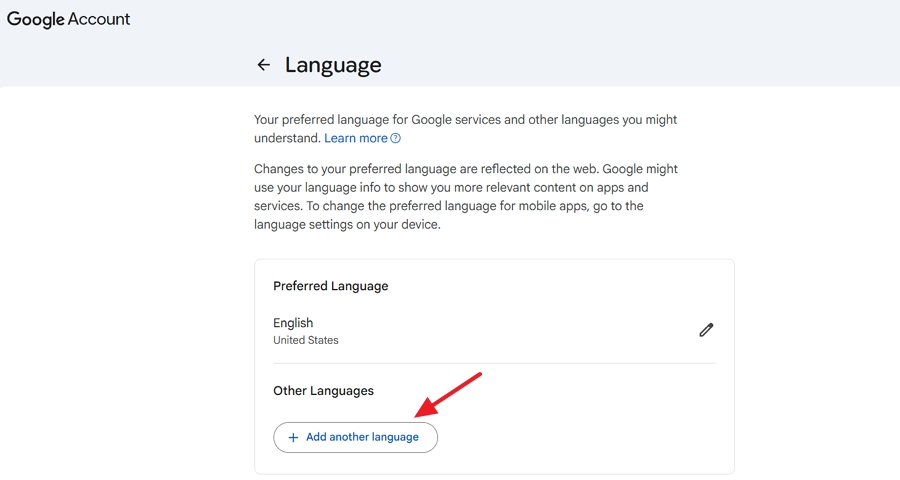
4. Search for and select the original languages of the YouTube videos you want to watch (e.g., Japanese, Spanish, German, French).
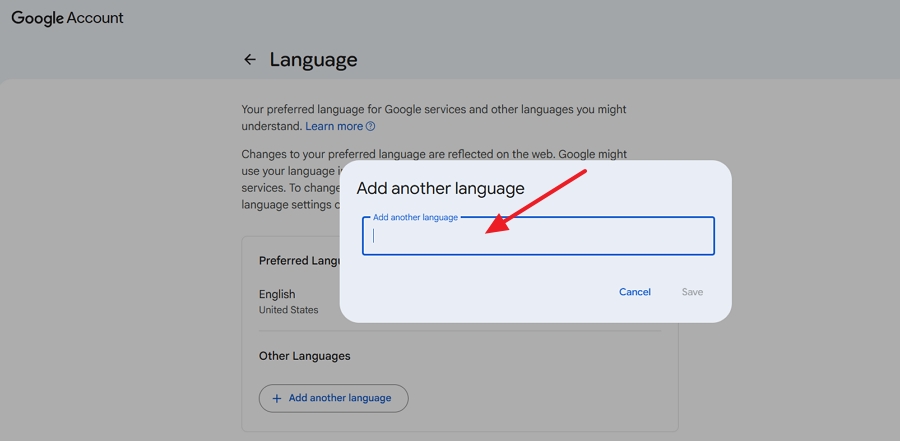
5. Save your changes and refresh your YouTube page.
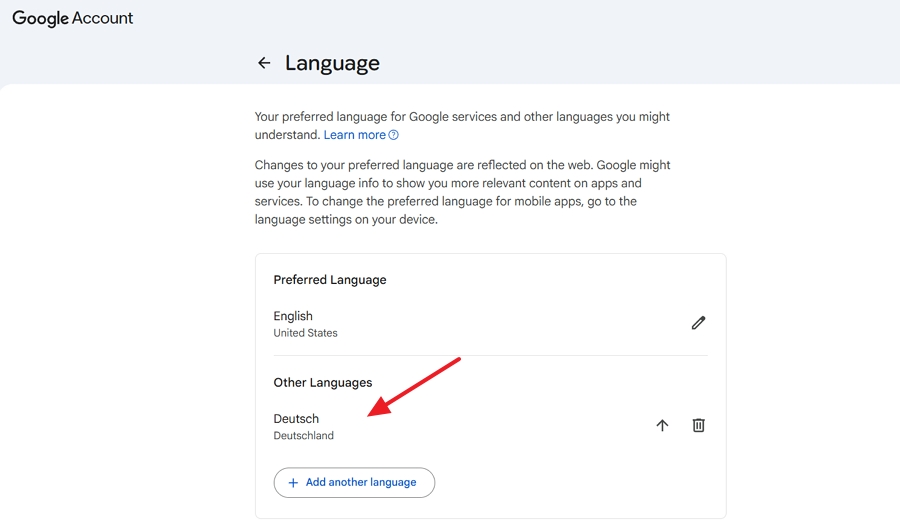
Why this works: When Google knows you understand a language, its auto-translation engine marks content in that language as "native" to you, leaving video titles in their original typography.
If you want to reduce title translation across all devices without modifying your main Google profile, you can update your localized preferences directly within YouTube.
The Catch: Changing your YouTube language tells the system not to translate titles in that selected language. But if you set your language to English, YouTube will continue translating non-English titles into English. Also, updating your account Location will shift your "Trending" feed and regional recommendations toward that new region.
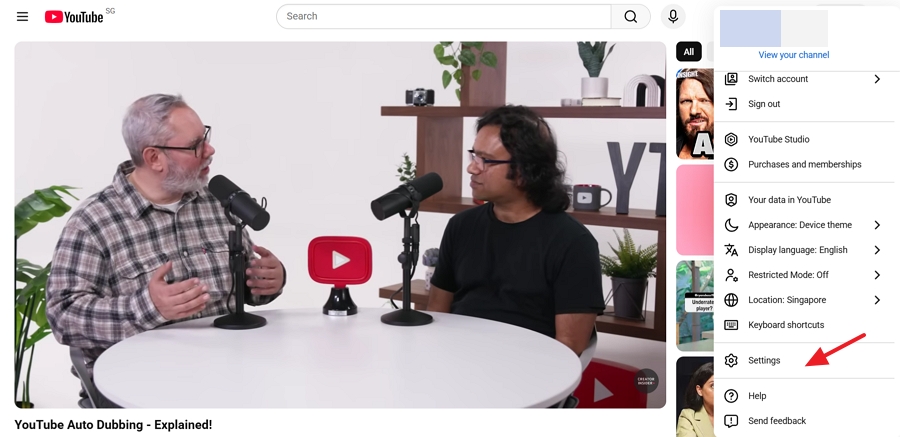
1. Click your Profile picture in the top-right corner of the screen.
2. Select Settings from the dropdown menu.
3. From the left-hand sidebar, click on Playback and performance.
4. Scroll down to the Language section and click Add or edit languages under Preferred languages.
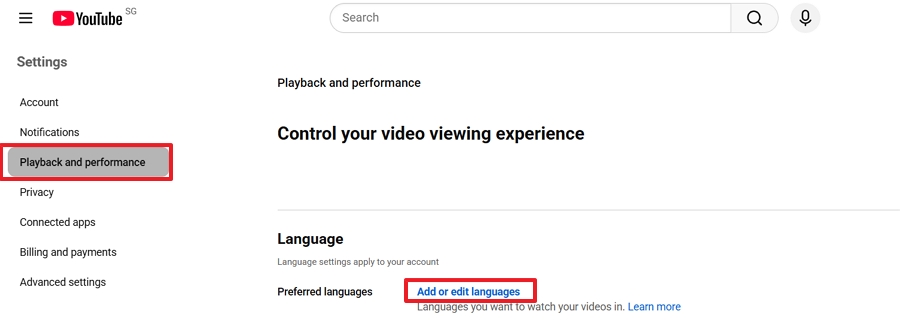
5. Select all the languages you understand (e.g., English, Japanese, Spanish). YouTube will now stop auto-translating video titles, descriptions, and audio tracks for these specific languages.
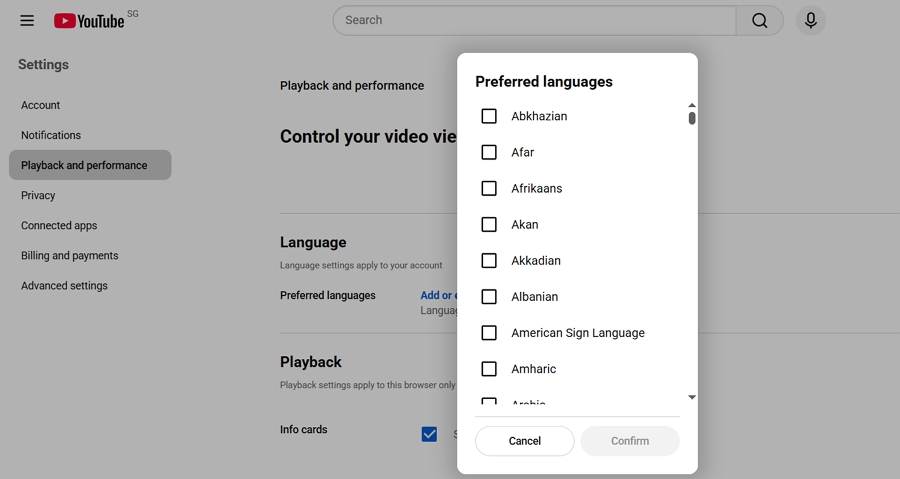
Editor's Note: This "Preferred languages" setting is a relatively new and powerful feature rolled out by YouTube. It is significantly more effective than simply changing your UI language because it directly stops the algorithm from translating titles and dubbing audio for any language you select here.
1. Open the YouTube app and tap your Profile picture (often located in the bottom-right corner under the You tab).
2. Tap the Settings in the top-right corner.
3. Navigate to Languages.
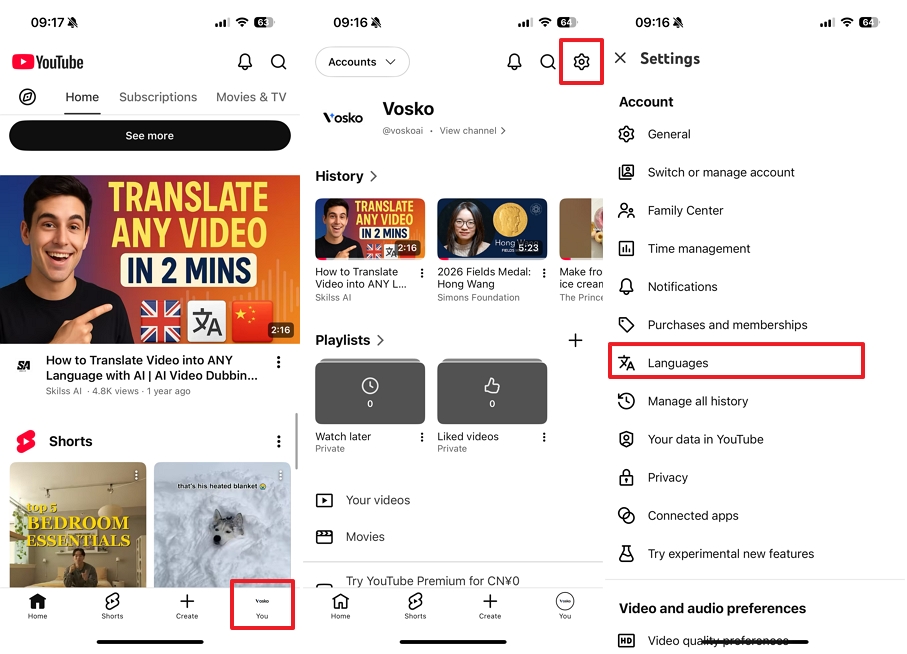
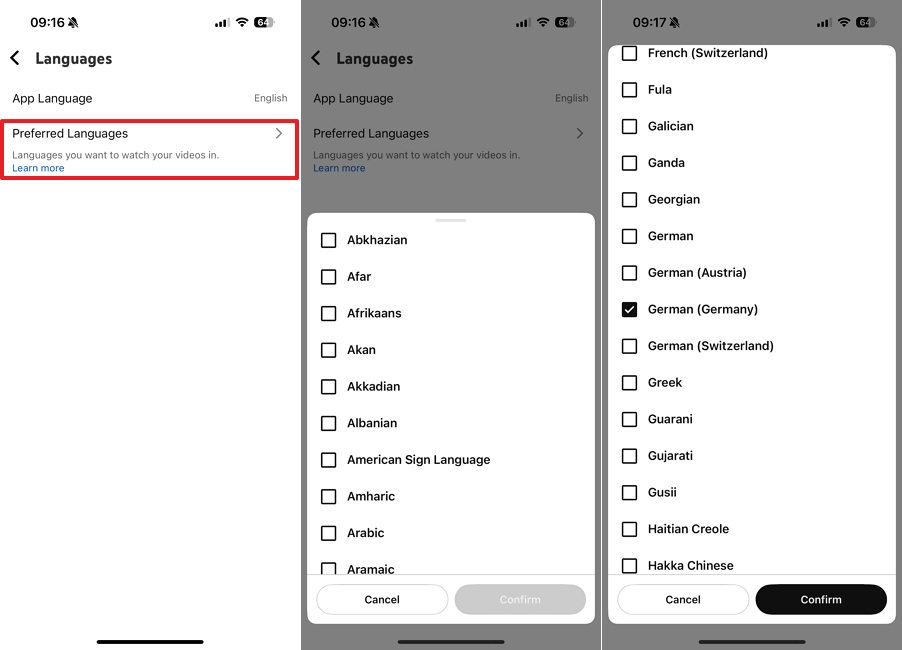
4. Tap on Preferred languages.
5. Select all the languages you understand (e.g., English, Spanish, Japanese) and hit Confirm. Just like on the desktop, this tells the YouTube app to leave titles in these specific languages untouched.
For desktop users who want absolute control over title rendering without messing with account settings, third-party browser extensions offer a reliable, automated fix.
Tools like YouTube Anti Translate hook into YouTube's API to catch localized text and dynamically replace translated titles with their original source text.
Here's how to install and set up YouTube anti translate:
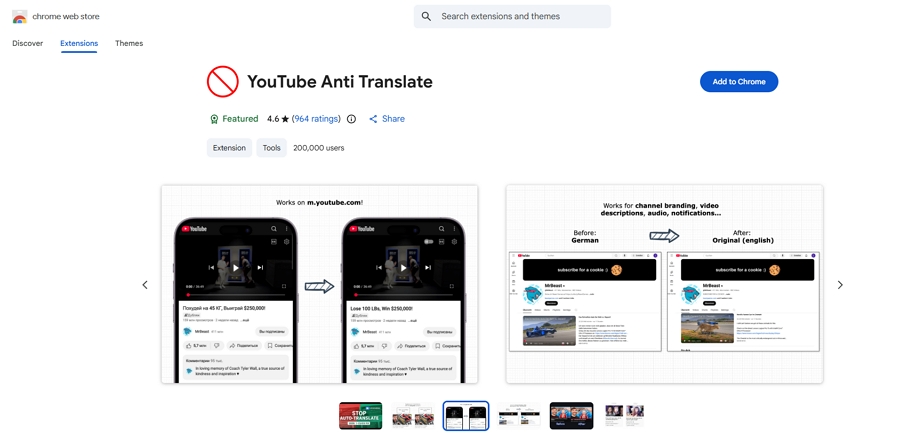
Warning: As editors, we always recommend checking extension permissions. Extensions that alter web content require access to read your site data. Always download extensions with high user ratings and recent updates.
Navigating YouTube on Smart TVs (Roku, Apple TV, Amazon Fire TV, LG webOS) presents unique challenges because streaming apps do not support browser extensions or third-party scripts.
Here's how to stop title & audio localization on smart TVs using your remote:
1. Open the YouTube app on your Smart TV.
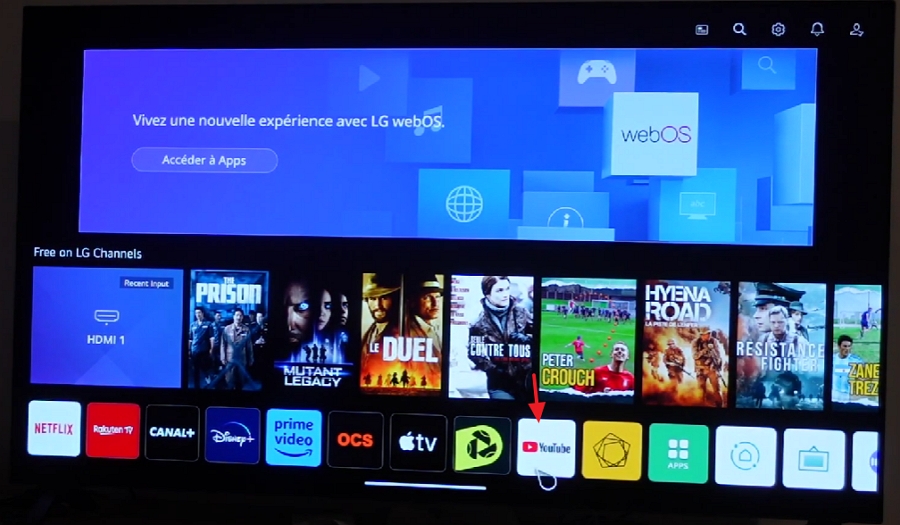
2. Navigate to the left sidebar menu and scroll down to Settings. Then select Languages under Language & Location.
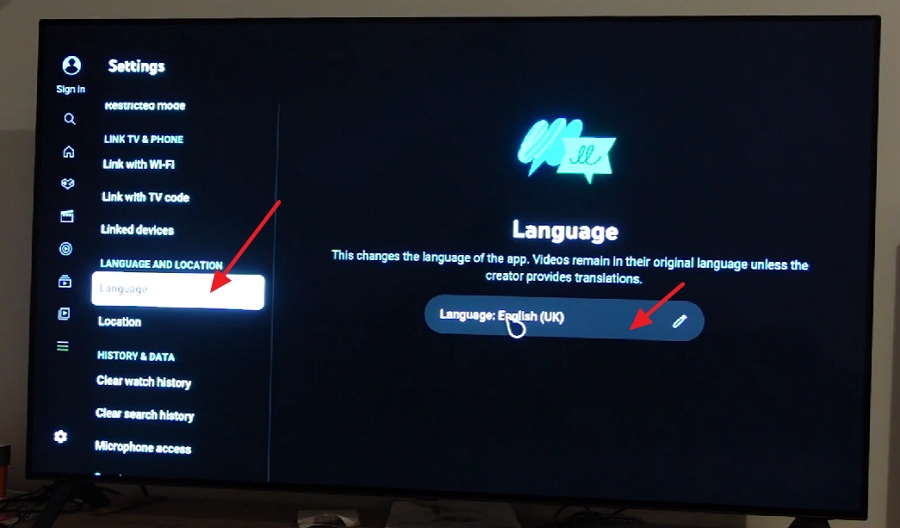
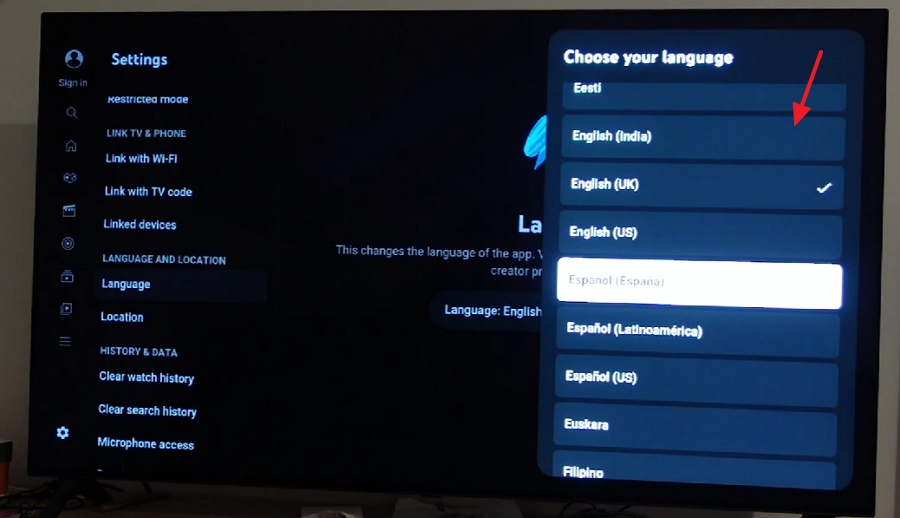
3. Select your preferred primary content language.
Regular captions (CC) are text transcripts created manually by the video creator or generated automatically in the video's original spoken language. Auto-translate takes those existing captions or metadata strings and processes them through Google Translate to display them in your local language on the fly.
No. YouTube currently does not offer a global toggle switch in its user settings to permanently turn off automated metadata translation. You must use the Google Account language profile configuration or desktop browser extensions.
YouTube applies page-wide localization based on your detected location and system language. To stop the automatic translation of video descriptions and user comments, you need to add the source language to your Google Account "Languages you understand" list (see Method 1).
Reputable extensions from verified developers are generally safe, but any extension with permission to read webpage data carries potential privacy risks. To mitigate this, only install extensions with high ratings, or use well-maintained open-source scripts via Tampermonkey.
If you tweaked your Google Account settings, simply remove the extra languages from your "Languages you understand" list at myaccount.google.com/language. If you used a browser extension, just toggle it off or remove it from your browser's extension manager.
Regaining control over your YouTube feed shouldn't require jumping through hoops, but until the platform adds a simple "Turn Off Title Translation" button, these workarounds are your best bet. We highly recommend starting with the Google Account language tweak (Method 1), as it offers the cleanest, most permanent native fix across all your synced devices without risking browser extension privacy issues.
Have you discovered another trick to keep YouTube titles in their original language? Let us know in the comments below—your tip might just save another viewer's sanity! And don't forget to bookmark this guide so you can easily reference these steps the next time a YouTube update resets your preferences.