"Auto translate" on Instagram means a few different things. Reels can be dubbed into your language, text and stickers on a Reel can be translated, and captions and comments can show a translation. You can control the first two from one screen in the iPhone app. Captions and comments work differently, and the web version doesn't have these switches.
On our test account, both Reels translation switches were off until we turned one on. So if Reels sound dubbed on your phone, check whether one of them is on.
We tested these steps in November 2026 on Instagram 456.0.0 on an iPhone (iOS 27) and in Chrome 157 on a computer, with English as the app language. We didn't test Android, the Accessibility settings, or what the text-translation switch changes on a Reel.
On an iPhone, tap your profile picture, tap the menu, then tap Settings and activity. Scroll down to Language and translations. Under Reels translations, turn off Translate voice to stop dubbed Reels, and turn off Translate text on reels to stop translated stickers and text.
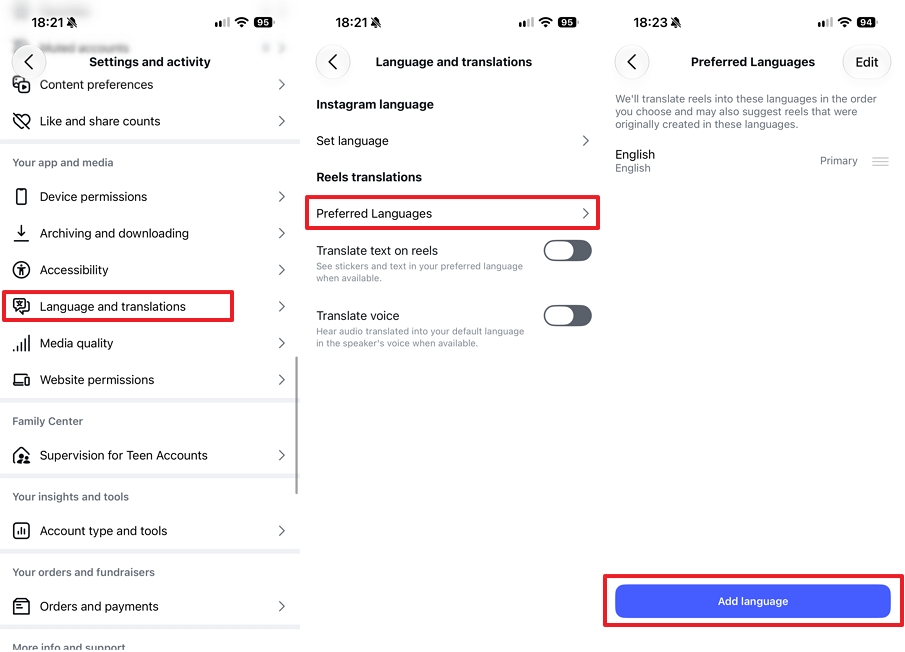
If you'd rather keep translations on, open Preferred Languages on the same screen and choose the languages you want.
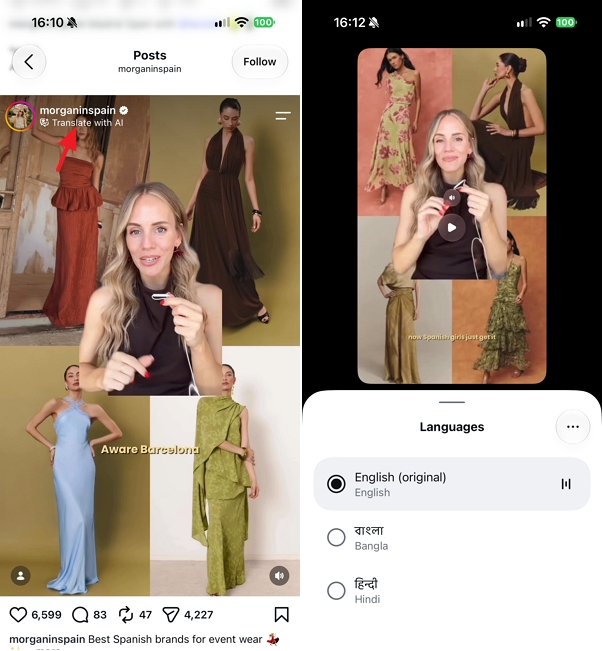
To hear one Reel as it was recorded, tap Translate with AI under the account name, then choose the language marked (original).
Creators: Meta's opt-in switch, Translate your voice with Meta AI, isn't on every account yet. See If You're a Creator.
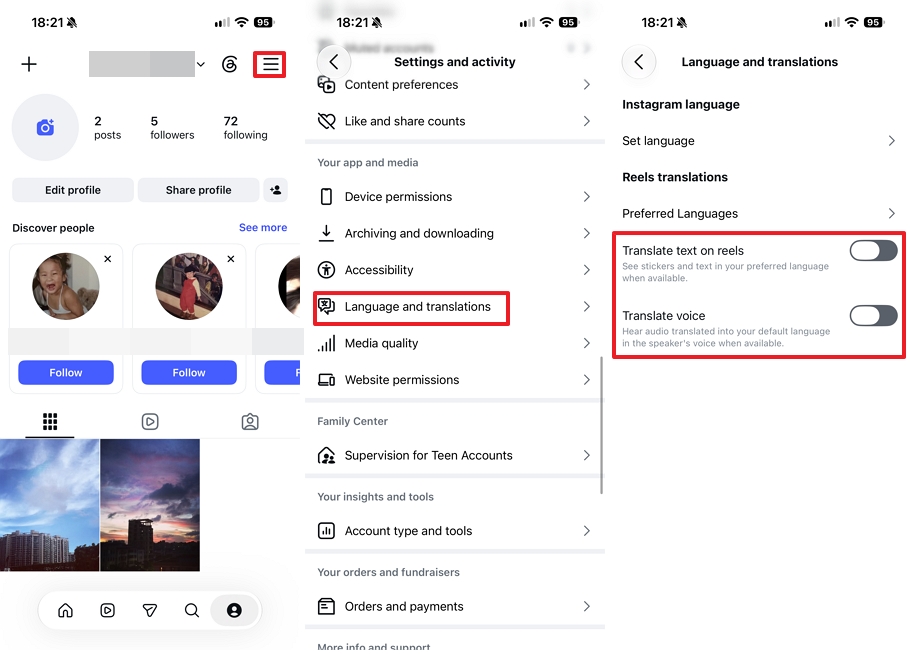
Each switch has a short description on the screen. Translate voice says you'll "hear audio translated into your default language in the speaker's voice when available." Translate text on reels says you'll "see stickers and text in your preferred language when available."
If you'd rather not turn off Translate voice, you can change which languages Instagram translates Reels into. It's on the same screen, under Reels translations.
We picked English. The page says Instagram will translate Reels into these languages in the order you choose, and may also suggest Reels that were originally made in them. So if you add more than one language, the order matters. And if you'd rather not hear Reels dubbed into a language you don't use, keep your list to the languages you understand.
If you only want to change a single Reel, you don't need to go into settings.
To change your settings from there, tap the three dots at the top right of the list, then tap Settings. It opens the same Language and translations screen.
Older guides, and Meta's own announcements, describe a Reel's three-dot menu with Audio and language > Don't translate. We didn't find that in version 456.0.0 of the app, so use the steps above.
The names and places of these settings change between app versions. If you don't see Language and translations, or the Reels translations section is missing, update the app first.
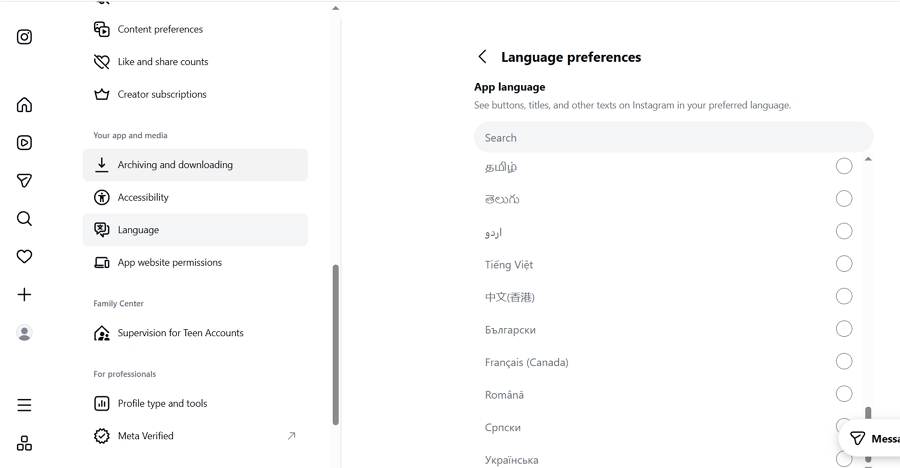
On a computer, you won't find them at all. Instagram's website doesn't have these switches. In Settings, under Your app and media, Language only lets you pick the app language.
We also opened a Reel on the web that showed Translate with AI on our phone, and the web page had no label and no translation option. So if you want to stop translated Reels, do it in the phone app.
As Meta describes it, a Reel is dubbed with Meta's voice translation only when the creator turns it on. The switch is called Translate your voice with Meta AI, and it sits on the sharing screen before you post.
Not every account has it. Instagram's help page for this feature says it isn't available on computers, and for the iPhone and Android apps it says "This feature isn't yet available for everyone." Meta says it's for public accounts in countries where Meta AI is available, but we didn't find it on the sharing screen on an iPhone or on a computer, with a private account or with a public one. If you don't see the switch either, there's nothing for you to turn off.
The steps below come from Meta's announcements, not from our own tests. Names may differ in your app: the label on a Reel in our viewer test said Translate with AI.
If you've already turned it on, you can look at the translation and the lip sync before you post, and turn off either one. According to TechCrunch's report on Meta's announcement, rejecting the translation doesn't change your original Reel. The translation goes live when you tap Share now, so check it first.
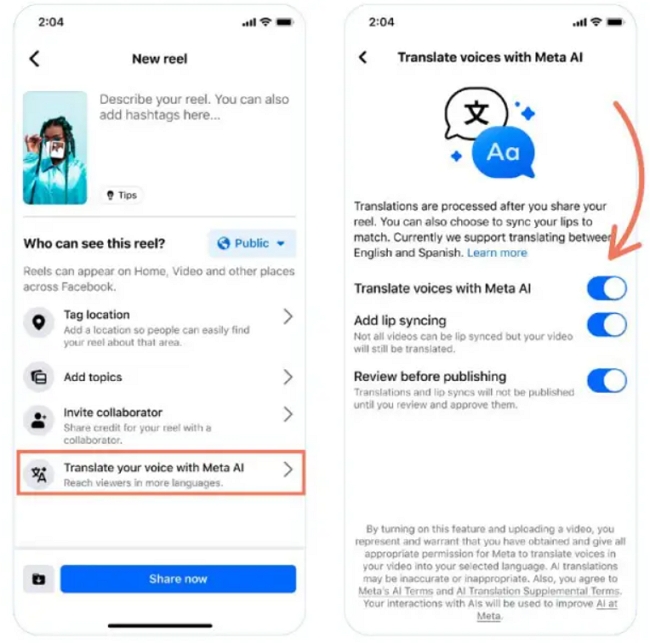
Meta says creators can turn translations off or remove them at any time. We couldn't confirm the exact menu for a Reel that's already published, and Meta's announcements don't spell it out, so we can't give you tap-by-tap steps. A good place to look is the Reel's three-dot menu.
You can't change what a viewer's app does. A viewer can switch off translated Reels in their own settings, and a translated Reel carries a label that says so. Viewer options and creator options also roll out separately: our test phone had the viewer settings, but not the creator switch.
Some creators would rather upload a dub they made than let Meta AI voice it. Meta has described an option to upload your own translated audio track, listed under Closed captions and translations in Meta Business Suite.
We haven't tested it. If you go this way, you need an audio file in the other language. Vosko AI, our product, can export a voiceover-only file or a mixed file with the background sound. Voice cloning needs the speaker's permission, and Vosko doesn't do lip sync.
Go to Settings and activity > Language and translations and turn off Translate voice. On our test account, this switch was off until we turned it on ourselves.
We didn't find a setting for it. The translation only appears after you tap See translation.
It's the label under the account name on a Reel that can be translated. Tapping it opens a list of languages for that Reel.
Meta describes voice translation as something creators turn on before they post. We didn't see the switch on our account, and Instagram's help page says the feature isn't yet available for everyone.
Instagram's help page says the feature isn't available on computers, and for the iPhone and Android apps it says it isn't yet available for everyone. It didn't appear on our account either, on a phone or a computer, with a private account or a public one.
Looking for another platform? See how to remove auto translate in TikTok and how to disable YouTube auto-translated titles.