Scrolling through your TikTok feed should be a smooth experience, but the app's aggressive auto-translate feature often gets in the way.
If you speak multiple languages or prefer consuming foreign content in its original context, machine-translated captions and comments can be inaccurate, distracting, or completely ruin a joke.
Fortunately, TikTok provides built-in tools to stop this behavior. This guide outlines exactly how to remove auto translate in TikTok on iPhone, Android, and desktop to help you regain control over your feed.
To stop TikTok from automatically translating content on your mobile app, open TikTok and go to your Profile. Tap the three-line menu in the top right corner and select Settings and privacy. Scroll down to the Content & Display section and tap Language. Finally, toggle off the switch next to Always translate posts. This will instantly stop the app from converting foreign text into your default language.
Unlike YouTube, which often lacks a universal off-switch for translated titles and descriptions, TikTok gives users direct control over how foreign text behaves.
Understanding the difference between TikTok's four language settings is essential for customizing your feed properly.
| Setting Name | Function | How It Affects Your Feed |
|---|---|---|
| App Language | Controls the text language of TikTok's interface, menus, and buttons. | Changes system navigation only. It does not alter video captions, descriptions, or comment text. |
| Translate Into | Sets the default target language for all incoming translations. | Dictates what language foreign text converts into whenever an automatic or manual translation occurs. |
| Always Translate Posts | Master toggle for automatic translation across the app. | When enabled, automatically converts post descriptions, video captions, photo titles, text stickers, and comments. |
| Do Not Translate | Exception list for specific languages you understand. | Prevents TikTok from automatically translating selected languages, leaving them in their original, untranslated form. |
If you want to stop all automated translations completely, turning off Always Translate Posts is the fastest solution.
However, if you speak multiple languages or are currently learning one, a hybrid setup works best. Keep Always Translate Posts turned on, but open the Do Not Translate menu and check the languages you already read comfortably (such as Spanish, Japanese, or French).
This tells TikTok's algorithm to translate content from unfamiliar languages into your Translate Into preference, while leaving the languages you actually speak completely untouched.
TikTok frequently updates its interface, so ensure your app is updated to the latest version on your iPhone before following these steps.

Or you can follow the quick steps to turn off auto-translation directly from the video feed.
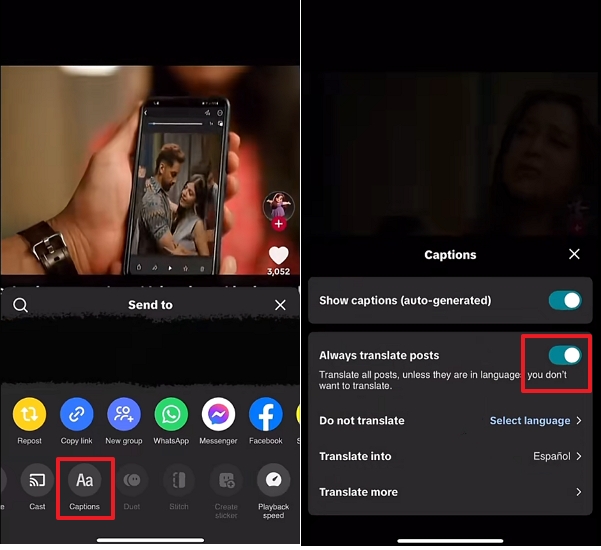
Once disabled, any foreign language videos that appear on your For You Page will display their original captions and descriptions.
The process for Android users is nearly identical to iOS, though some Android devices may display slightly different menu formatting depending on your operating system version.
You do not need to restart your phone or the app for this change to take effect. Your feed will immediately stop forcing translations.
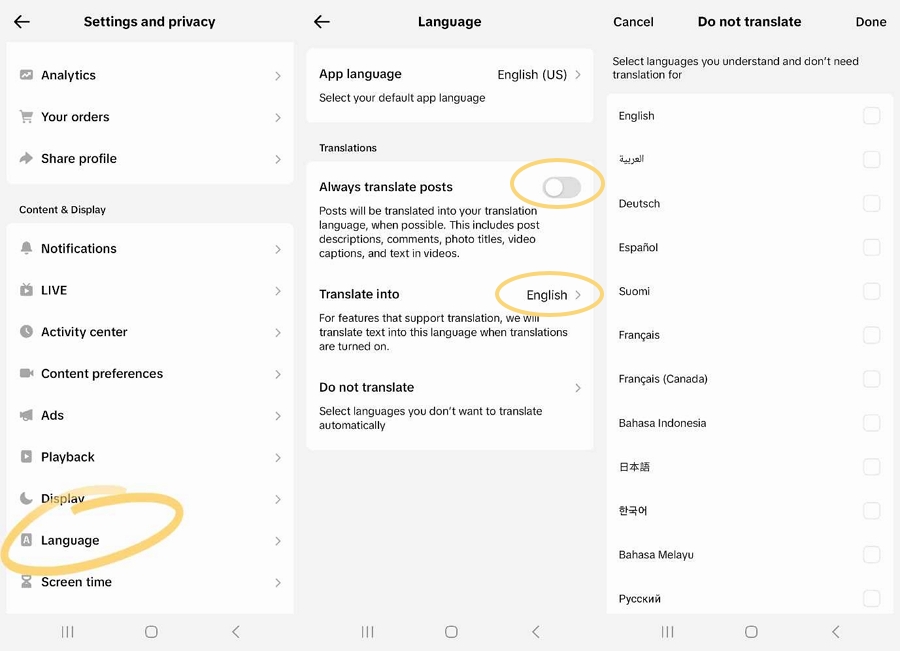
If you watch TikTok on a desktop browser, you will notice that the global settings menu looks completely different from the mobile app.
The web version of TikTok does not use a master settings dashboard for translations; instead, it handles these preferences directly inside the video player itself.
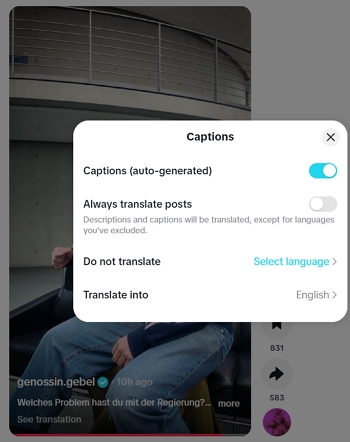
1. Open TikTok in your web browser and click on a video to start playing it. Hover over or click the three-dot menu icon located in the top right corner of the video player area.
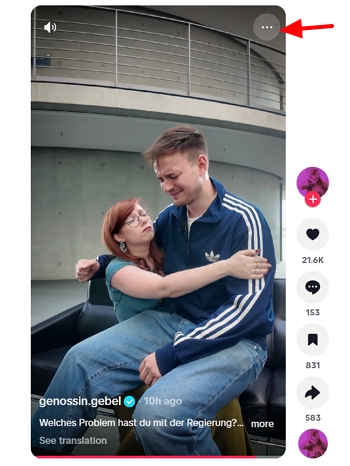
2. Click on Captions from the dropdown panel.
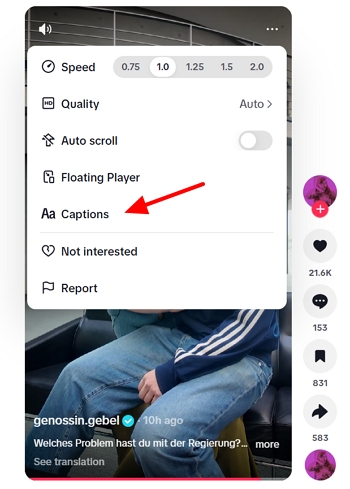
3. Toggle off the Always translate posts switch.
You do not have to choose between a fully translated feed and a completely untranslated one. If you are bilingual or actively learning a new language, you can customize TikTok to serve you native content while only translating the text you actually need help reading.
To set up a hybrid, multi-language feed, you need to configure your content preferences so the algorithm knows what to show you and what to leave alone. Here is the best way to set this up:
With this setup, TikTok will automatically translate unfamiliar content (like French or German videos) into your default language, but will leave your preferred Spanish and Japanese videos entirely untouched. This is the optimal configuration for retaining cultural context without constantly tapping the "See original" button.
Sometimes you will follow the exact steps above, only to find that the translation toggles are completely missing from your menu. This is a common frustration caused by how TikTok rolls out software updates.
The platform frequently uses A/B testing and gray-scale rollouts, meaning new features and menu layouts are pushed to different regions and accounts at different times.
If you cannot find the translation settings, start by checking the App Store or Google Play Store to ensure you are running the latest version of TikTok. If the app is up to date and the setting is still missing, corrupted temporary files might be hiding the menu.
Go to your TikTok Profile, tap Settings and privacy, scroll down to Free up space, and tap Clear cache. Once cleared, force close the app completely and reopen it.
If the toggle is still invisible, your specific account or region might be temporarily restricted due to a server-side update. In this case, logging out and logging back in can force the app to fetch the most current UI for your profile.
Additionally, check your phone's system language and keyboard settings; TikTok sometimes defaults to system-level preferences if it detects conflicting regional data.
Keep in mind that altering these settings impacts both privacy and accessibility. Turning off automatic translations reduces the amount of text sent through TikTok's machine-learning processors.
However, if you are deaf or hard of hearing, remember that disabling this feature might also disable translated auto-captions on foreign videos, limiting your ability to understand non-native content and participate in cross-language community interactions.
Before you close your settings menu, take a moment to confirm exactly which features you want to control. If you only want to stop auto translation in TikTok, verify your "Always translate posts" toggle is off. If you want a hybrid approach, populate your "Do not translate" list with your spoken languages.
Because TikTok frequently updates its interface, background app refreshes can occasionally reset these preferences. We recommend saving or bookmarking this guide as a quick troubleshooting checklist so you can easily restore your settings the next time a major app update occurs.
For more ways to take control of your feed, check out our related guides on managing TikTok privacy settings and algorithm resets.
How do I turn off auto translated captions on TikTok?
Go to your Profile, tap the three-line menu, select Settings and privacy, tap Language, and toggle off the "Always translate posts" switch.
Why is the TikTok translation toggle missing from my settings?
The toggle may be missing due to an outdated app version, a corrupted cache, or server-side A/B testing by TikTok. Try updating the app, clearing your cache under the "Free up space" menu, and restarting your device.
Can I stop TikTok from translating only certain languages?
Yes. In the Language settings menu, tap "Do not translate" and check the boxes next to the specific languages you want to remain in their original form.
How do I change the language TikTok translates videos into?
Navigate to Settings and privacy, tap Language, and select "Translate into." Choose your preferred target language from the provided list.
What is the difference between TikTok auto captions and translated captions?
Auto captions use speech-to-text technology to generate subtitles in the video's original spoken language. Translated captions take those generated subtitles and run them through machine translation to convert them into your app's default language.
Can I turn off translated comments on TikTok?
Yes. Toggling off the "Always translate posts" setting disables automatic translation for video descriptions, in-video text, and comment sections simultaneously.