Facebook now treats every video you post as a Reel. The Create reel screen says so, and Meta announced the change in 2025. So the same translation tools apply to videos and Reels. This guide shows how to watch a Reel in your language, and how to translate your own with Meta AI, subtitles, or dubbed audio.
| I want to | Go to |
|---|---|
| Watch a Reel in my language, or hear the original | Watch a Reel in Your Language |
| Translate my own Reel in my own voice | Translate Your Own Reel With Meta AI |
| Add subtitles in another language | Add Subtitles in Another Language |
| Add my own dubbed audio tracks | Upload Your Own Dubbed Audio Tracks |
| Use a language Meta AI lacks, or edit the script | Make a Dub or Subtitle File With an AI Tool |
| Fix a missing option | If You Don't See the Option |
A Reel plays in your language only if its creator added a translation. For those Reels, Facebook picks the audio track that matches your language setting, so you don't choose anything while you watch.
These steps use the Facebook app on an iPhone, captured on our own account in November 2026. On a computer, the steps are similar: start from your profile picture and go to Settings & privacy > Settings > Language and region.
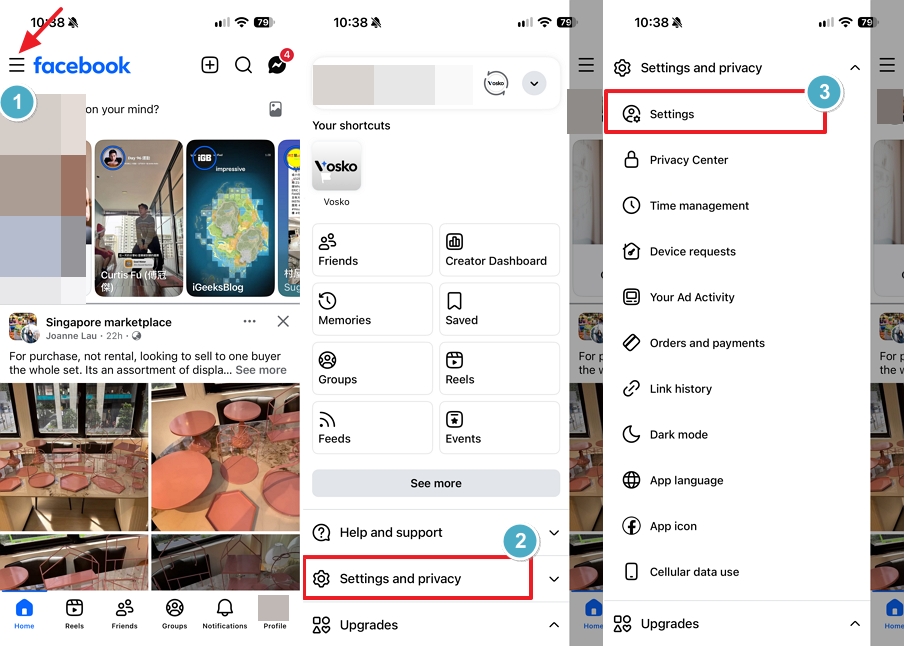
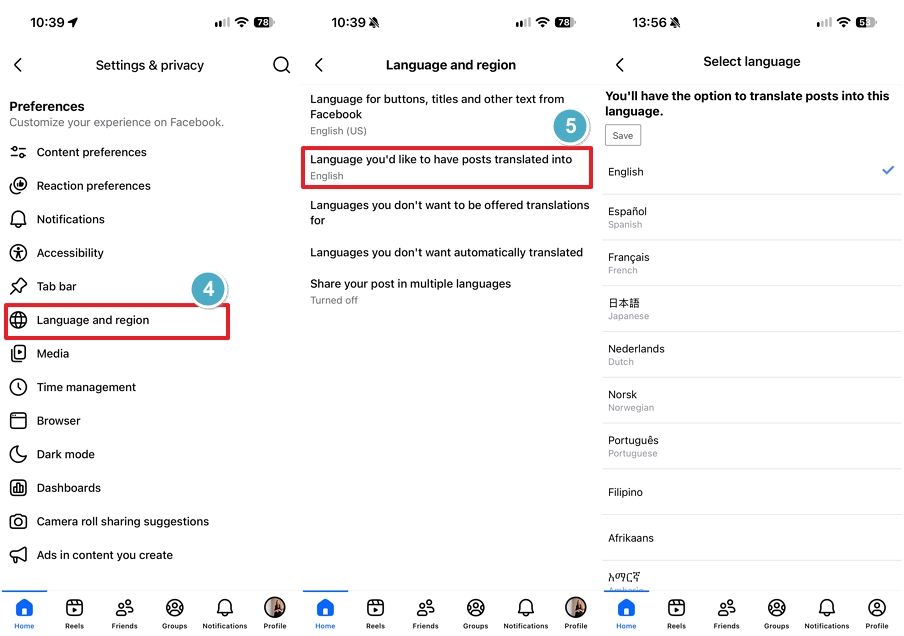
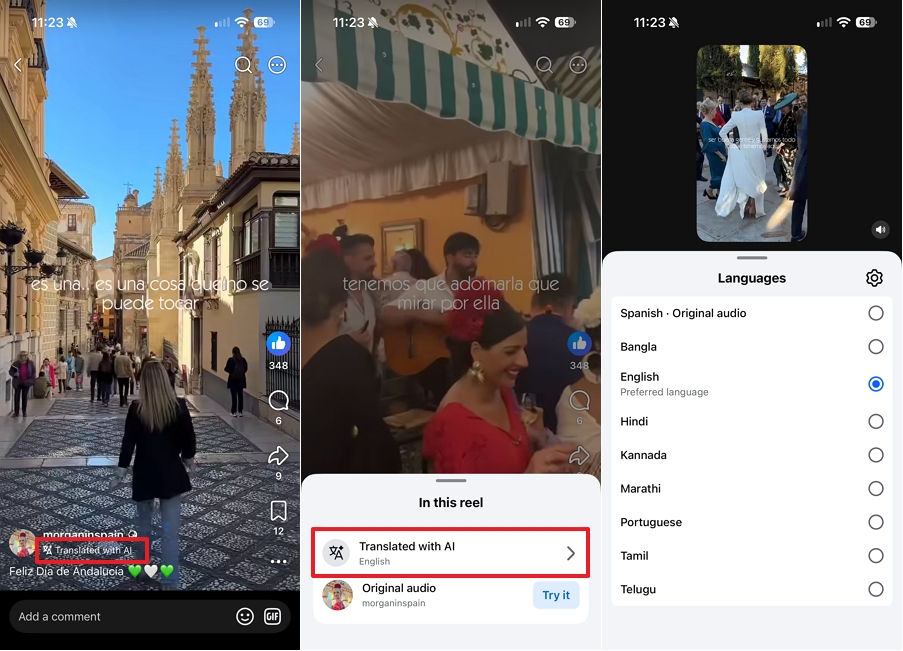
If you'd rather hear the Reel as the creator recorded it, use the same label to switch the audio.
To translate a caption or comment, tap See translation under it. To stop dubbing for a language, see how to turn off auto translate on Facebook.
Meta AI dubs your Reel into another language with a voice designed to sound like yours, and it can match your mouth movements to the new audio. Meta says the tool is free for Facebook creators with 1,000 or more followers.
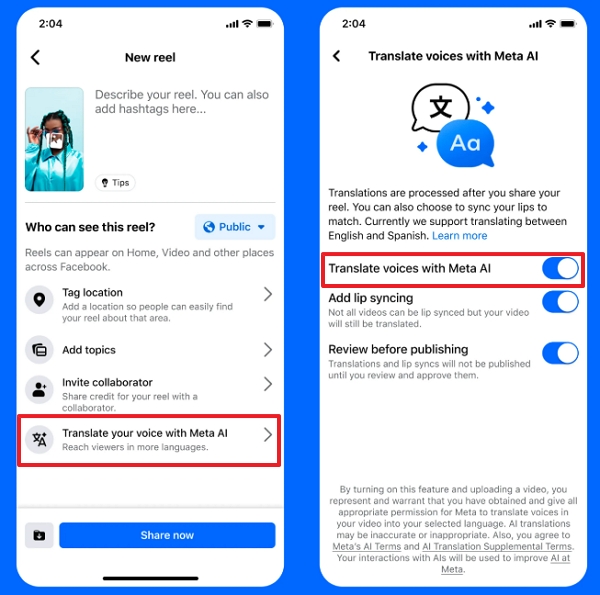
If you turn on review, Meta says you can approve or reject the translation from a notification or in Professional Dashboard. Rejecting it doesn't affect your original Reel.
Meta says the tool supports up to two speakers on Facebook, so avoid talking over each other and keep background music low.
Meta's list of languages includes English, Spanish, Hindi, Portuguese, Bengali, Tamil, Telugu, Marathi, and Kannada, with more coming to Facebook. Check which ones your account offers.
On our Page, the Create reel screen lets you upload an .srt subtitle file, and the upload box says it takes captions in any language. That makes it a route that doesn't depend on Meta AI. These steps are from Facebook on a computer, in November 2026.
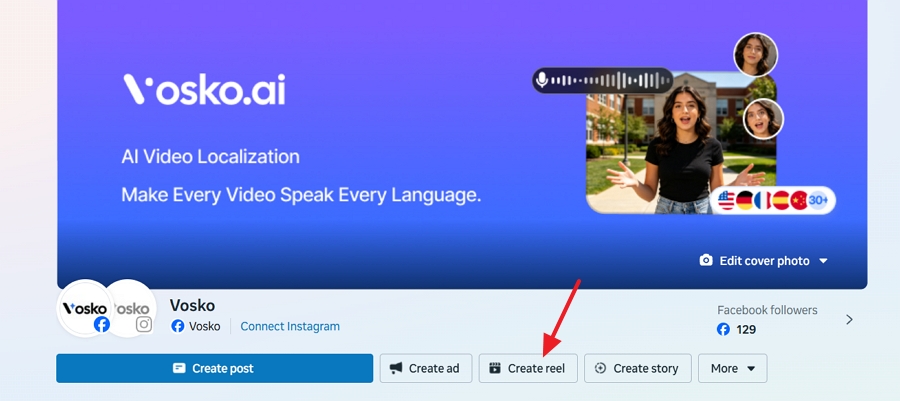
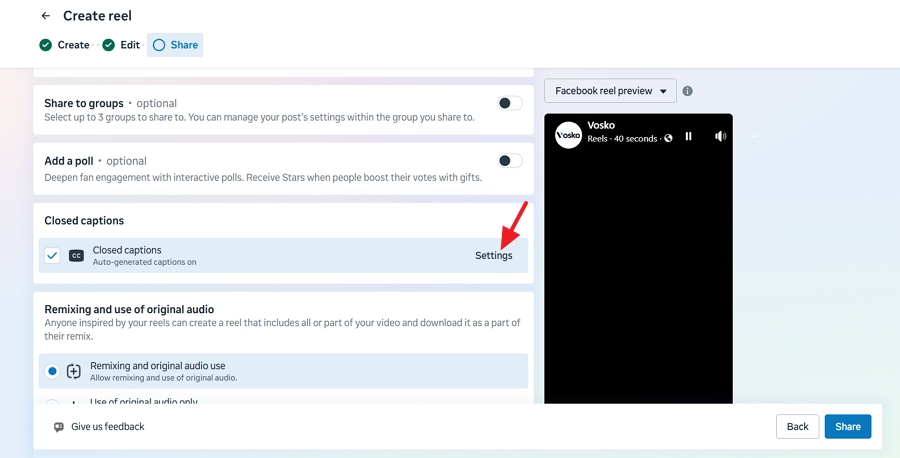
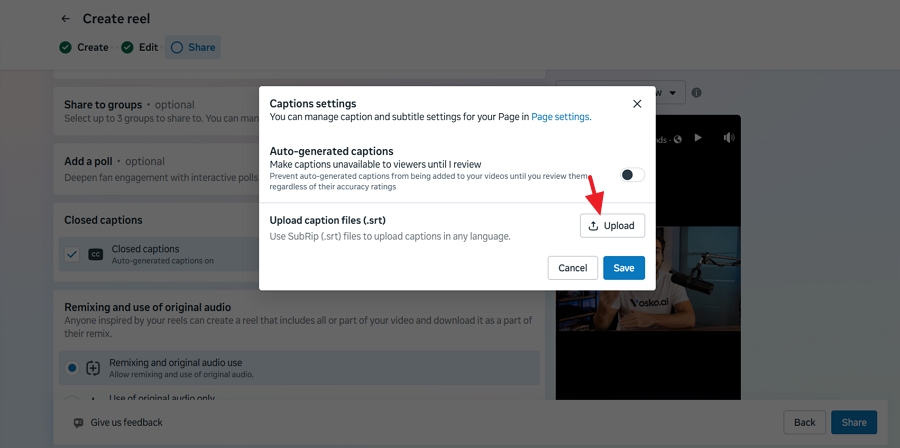
If the upload fails, try renaming the file. Facebook's caption uploader has long asked for a language and country code in the name, such as video.es_ES.srt.
If you want every viewer to see the subtitles, burn them into the video before you upload it. Our guide to translated subtitles has the steps.
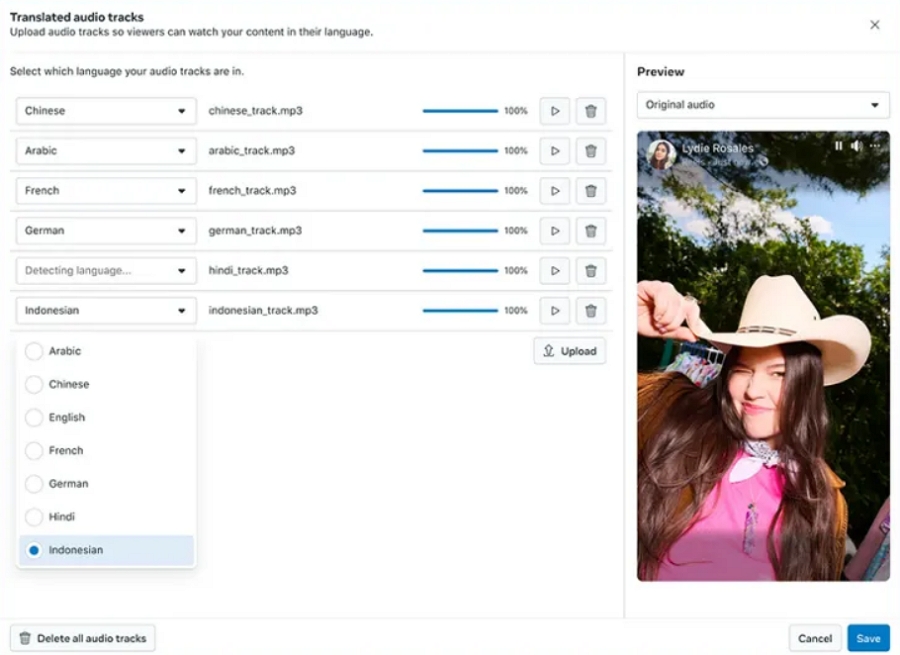
Meta says a Page that already translates its own Reels can add up to 20 dubbed audio tracks to one Reel. Viewers then hear the track that matches their language, and you can add, replace, or remove tracks before and after publishing.
On our Page, Create reel opens that same composer, and its Share step shows only Closed captions, with no translation option. So we haven't tested these steps. They follow Meta's description, and your labels may differ.
Disclosure: Vosko AI is our product.
Meta AI is built into Facebook, but it doesn't fit every Reel. A separate tool makes sense if you want to edit the script after seeing Meta's automatic dub or captions, your account doesn't have the Meta AI toggle, the Reel has more than two speakers, or your language isn't on Meta's list.
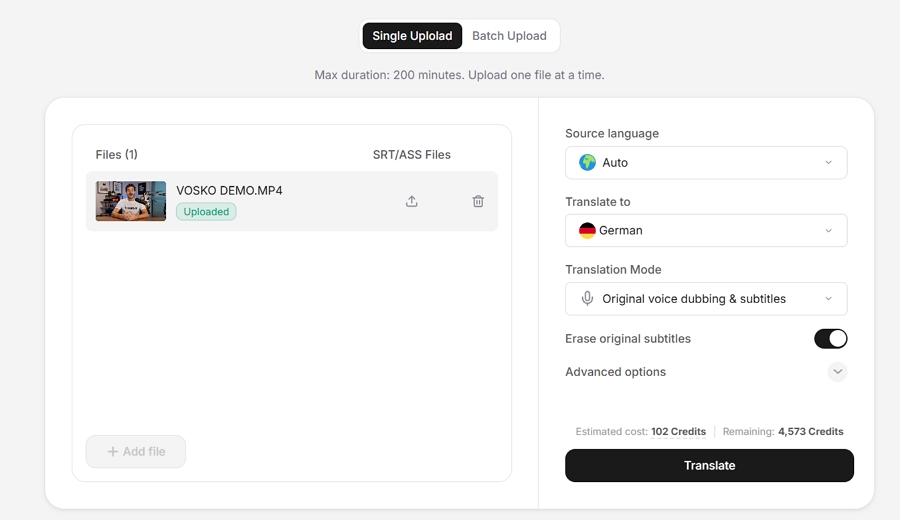
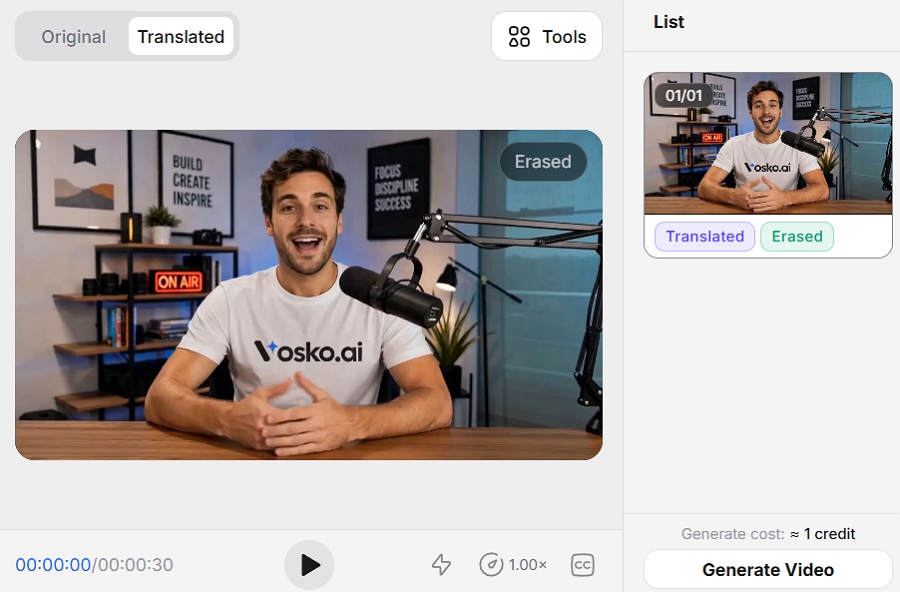
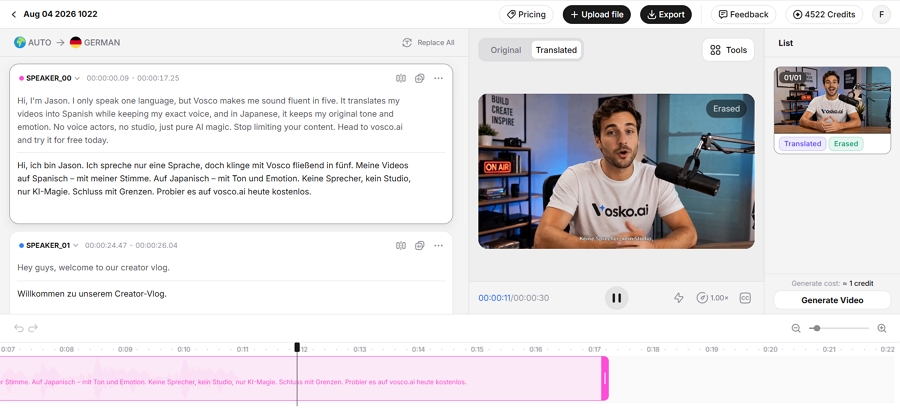
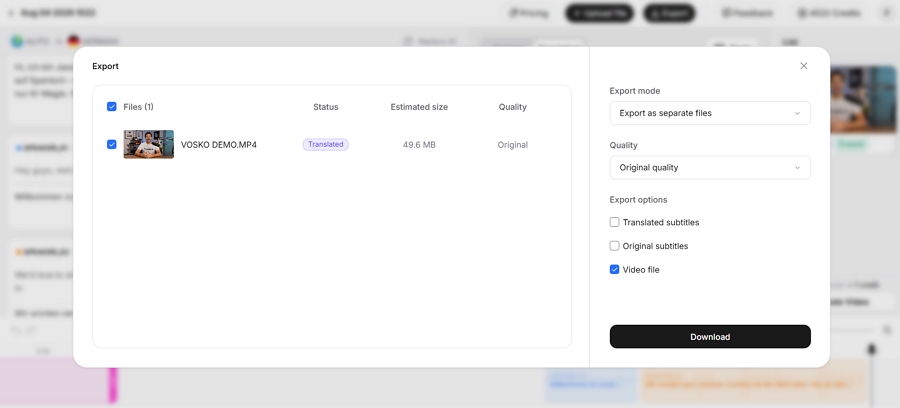
Vosko AI Dubbing supports 94 target languages and replaces only the dialogue, so the music and effects stay.
Vosko has two limits. It clones a voice only with the speaker's permission, and it doesn't change mouth movements, so a close-up face won't be lip-synced. If lip sync matters most, Meta AI is the better fit. On cost, the dubbing mode uses 70 credits per minute for each language (60 for dubbing, 10 for subtitles), and Subtitles only uses 10.
| What you see | What to check |
|---|---|
| No Translate your voice with Meta AI | Meta lists 1,000+ followers; our Page has fewer |
| No Translated with AI on a Reel | The creator may not have added a translation |
| Your language missing from Languages | That Reel wasn't translated into it |
| No Upload your own translated audio tracks | Not on our Page; use an .srt file instead |
| Can't find Upload caption files (.srt) | On the Share step, click Settings under Closed captions |
The tools above are built for Reels. If one of your older videos doesn't show these options, dub or subtitle the file and post it as a new Reel.
Not without permission. The footage and the voice are that creator's work. Ask first, or share the original Reel instead.
Meta says creators who translate Reels with Meta AI can see views by language in Insights after publishing.
Start with one short Reel in one language. If the result holds up, add more languages. If you also post on Instagram, see how to translate Instagram Reels.