On Instagram, "translate" can mean two different things. You may want to understand a Reel someone else posted, or you may want your own Reel to reach people who speak another language. Instagram has a built-in option for each. When those fall short, a dubbing tool fills the gap.
| If you want to | Use | Details in |
|---|---|---|
| Understand a Reel you're watching | Translate voice, then Translate with AI | Translate a Reel You're Watching |
| Read a Reel's on-screen text or caption | Translate text on reels, See translation | Translate a Reel You're Watching |
| Post your own Reel in another language, inside Instagram | Translate your voice with Meta AI | Translate Your Own Reel With Meta AI |
| Need a language Instagram doesn't offer, or script edits | An AI dubbing tool, posted as a new Reel | Dub a Reel With an AI Dubbing Tool |
Viewer steps were checked in November 2026 on an iPhone running Instagram 456.0.0. Menu names and availability change with the app version, account, and country.
Meta describes translation as an option creators choose to use, so a Reel has a translated version only if its creator turned one on. The steps below work in the phone app.
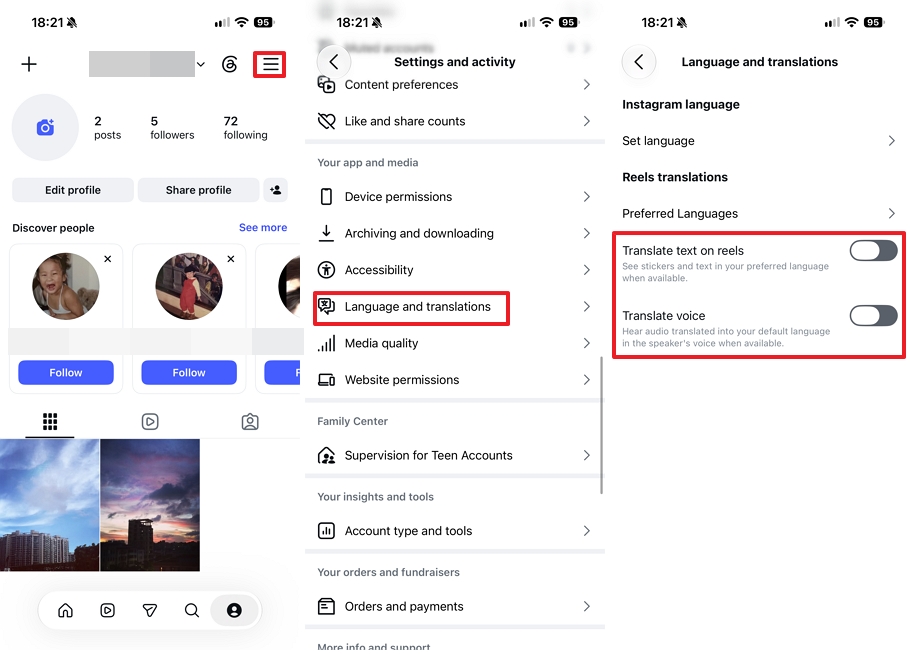
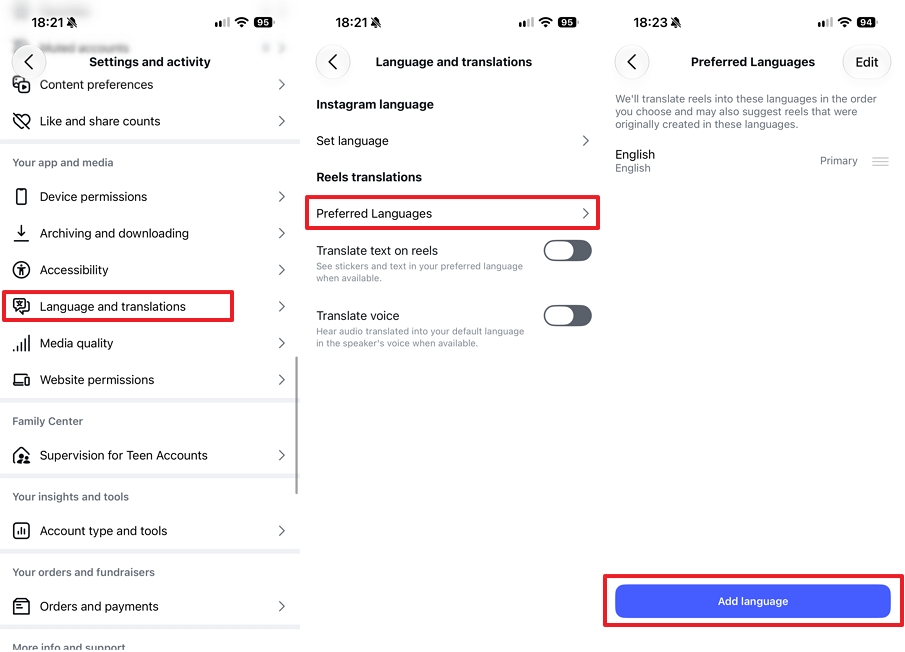
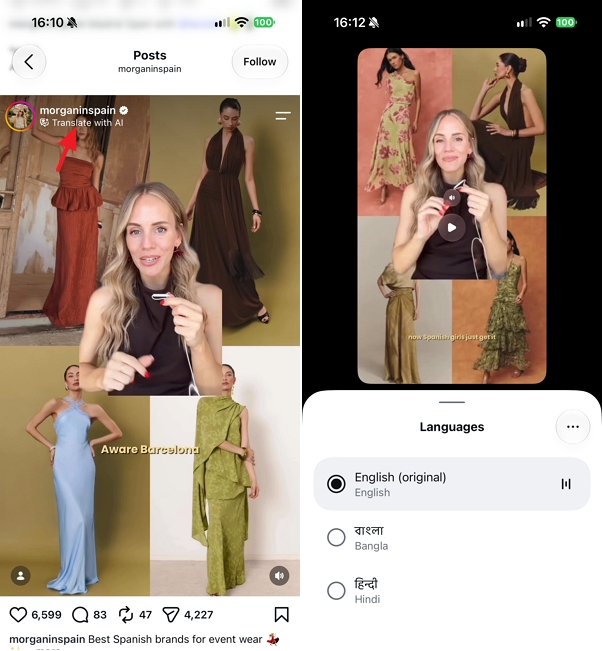
Instagram's description under the switch says the dub uses the speaker's voice when that's available. Keep Translate voice on while you choose a language. On our test phone, switching it off made the language list stop loading, and a message said it couldn't load translations.
To read instead of listen, turn on Translate text on reels in the same place. Instagram says it shows stickers and text in your preferred language when available. For a caption or comment, tap See translation under the text, and tap See original to switch back.
On instagram.com, the only translation option we found was See translation under a post's caption. Translate with AI and the two Reels switches aren't on the website, and its language setting changes only the app language.
If a Reel has no label under the account name, it may not have a translation yet, and the FAQ below has a few checks. To stop the dubbing later, see how to turn off Instagram auto translate.
Meta AI translation dubs your Reel into another language using the sound and tone of your own voice, and it can also match your mouth movements to the new audio. It's free, and Meta says all public Instagram accounts in countries where Meta AI is available are eligible.
Not every account has the switch yet. According to Instagram's help page, the feature isn't available for everyone and doesn't work on a computer. We couldn't find it on our test account, whether it was set to private or public. If yours doesn't show it, the next section covers what to do instead.
Meta's creator guide gives these steps for Facebook, and reports on the Instagram version describe the same flow. Names may differ in your app.
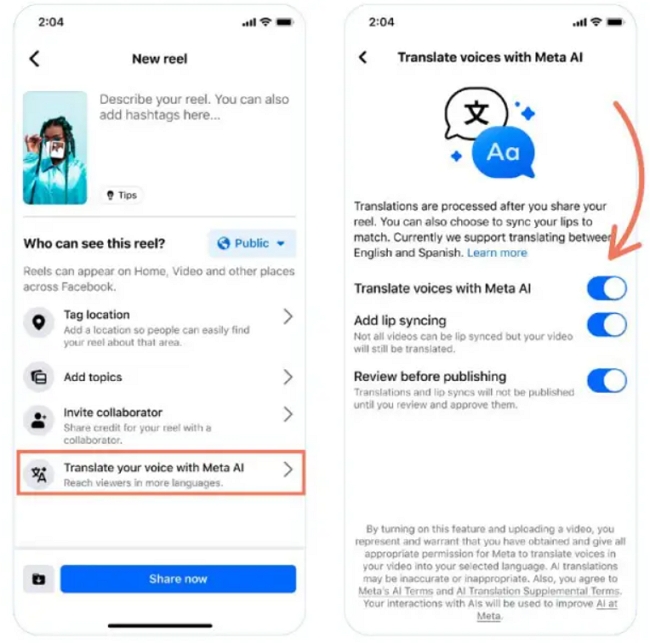
Instagram's help page and the language list on our test phone showed nine languages: Spanish, English, Hindi, Portuguese, Bengali, Tamil, Telugu, Marathi, and Kannada.
Meta's newsroom says French, German, Italian, Japanese, and Korean were added to Instagram in July 2026, so your list may be longer. Meta and Instagram's head, Adam Mosseri, also gave different totals that month, 18 and 14, so go by the list in your own app.
Before posting, you can check the translation, switch off lip syncing, or drop the translation entirely. Meta says rejecting a translation doesn't affect your original Reel. Meta's guides don't describe a way to edit the translated script, so listen for names and product terms in the preview.
Meta says a translated Reel carries a note that Meta AI did the translation. The nearest thing we saw on our test phone was the Translate with AI label under the account name.
To get a cleaner dub, Meta suggests facing the camera, speaking clearly, not talking over other speakers, and keeping background noise and music low. Its guide says the tool supports up to two speakers on Facebook and gives no number for Instagram.
If your Reel has several speakers or a music-heavy mix, try a tool and compare the two results. Meta also says creators can remove a translation at any time, though it doesn't spell out the menu.
Disclosure: Vosko AI is our product.
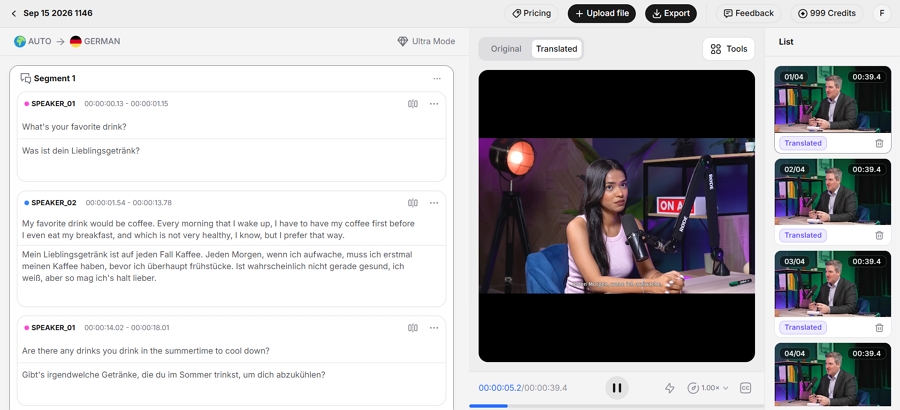
A dedicated tool makes sense when your language isn't on Instagram's list, you want to edit the script before anyone hears it, or the switch isn't on your account.
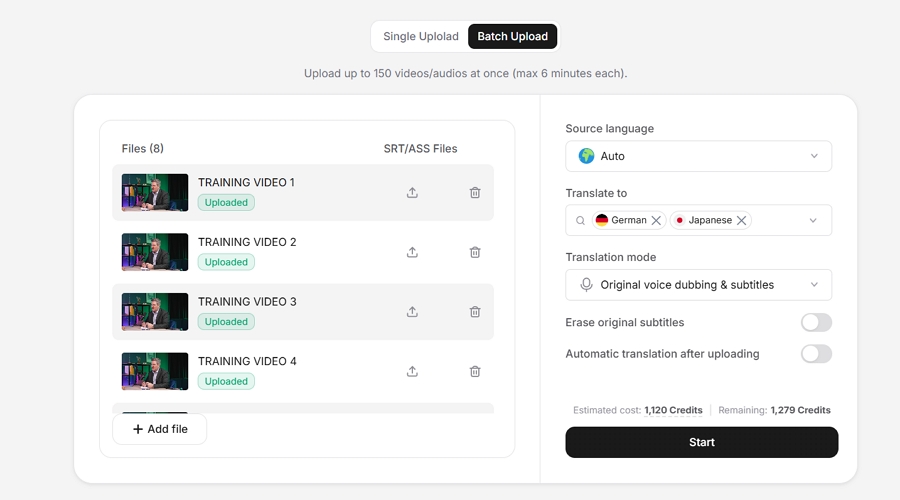
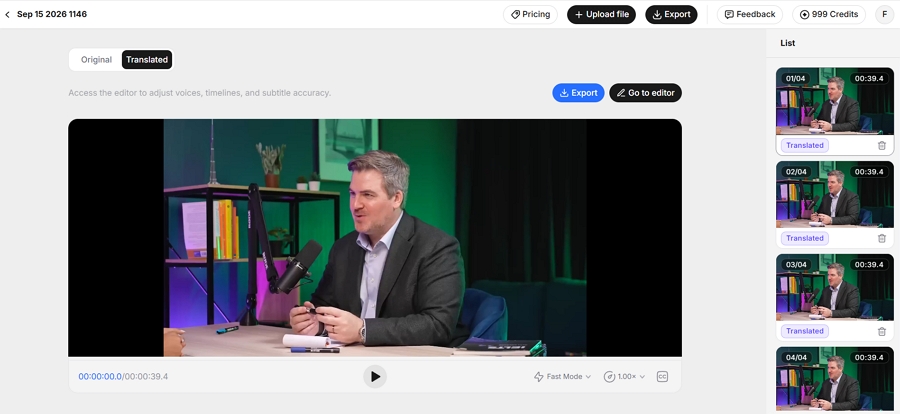
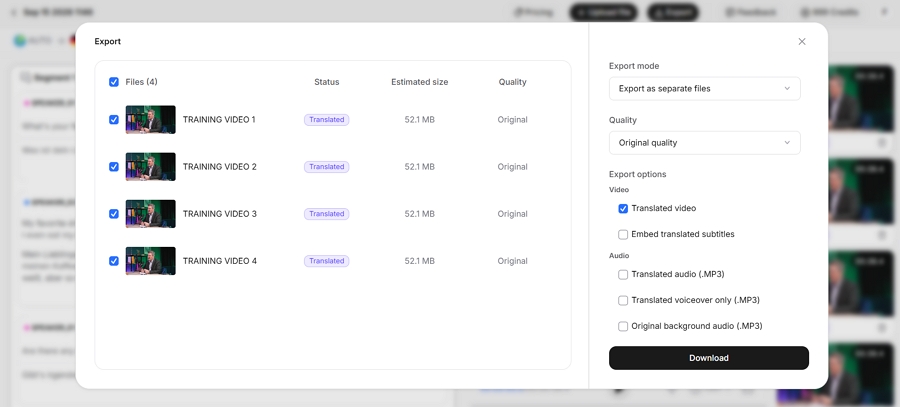
Vosko AI Dubbing supports 99 source languages and 94 target languages (see our supported languages). In Original voice dubbing & subtitles mode, it carries the speaker's voice into the new language and swaps out only the dialogue, so the music and effects stay.
It clones a voice only with the speaker's permission. There's no lip sync, so a close-up face will still move to the original words. If matching the mouth to the new audio matters, Meta AI's lip sync option is the better fit.
Check these before you share:
Start with one short Reel in one language. If the dub holds up, add more languages. Creators who post regularly can also see how Vosko fits a creator workflow.
Instagram says translations show up when they're available, so that Reel may not have one. Update the app and confirm that Translate voice is on. The label also doesn't appear on instagram.com.
Not without asking. The footage and the voice both belong to that creator, so get permission first. If you only want to share a Reel you like, send people to the original.
Probably, if the voice sounds realistic. Instagram's help page says Meta requires a label on realistic-sounding audio that was digitally generated or altered, including with AI, and it gives a Reel narrated with a realistic AI voiceover as an example. A cloned-voice dub likely falls under that. Look for the AI label option in the sharing settings. Its name varies by app version.
Posting somewhere else too? See how to dub a video on TikTok.