Facebook shows translated subtitles from separate .srt files, one per language, and each viewer chooses which one to turn on. This guide covers getting the translated files, uploading them, and checking them as a viewer.
Facebook now treats every video you post as a Reel (Meta announced the change), so we use "video" and "Reel" interchangeably. We tested in November 2026, on a Facebook Page in a desktop browser and in the iPhone app.
Captions.es_ES.srt. | I want to | Go to |
|---|---|
| Know if Facebook can translate subtitles for me | Does Facebook Translate Subtitles for You? |
| Get translated .srt files | Translate Your Subtitles for Facebook |
| Add the files to my Reel | Upload Translated Subtitles to Facebook |
| Switch subtitle language on a Reel I'm watching | How Viewers Switch Subtitle Languages |
| Fix "filename was invalid" or missing subtitles | If the Upload Fails or Subtitles Don't Show |
Not for the subtitle files you upload, as far as we found. Meta describes its translation tool for creators as dubbing, and the captions Facebook writes on its own come from your video's speech.
| Facebook feature | What it does |
|---|---|
| Meta AI translations | Dubs a Reel into another language, with optional lip sync, so it changes the audio, not the subtitles |
| Auto-generated captions | Writes captions from the video's speech, so it transcribes but doesn't translate |
| Uploaded .srt files | Adds one subtitle option per file, only in the languages you upload |
The language lists on our own Reels held only the files we uploaded: German, Japanese, and Spanish on iPhone, and Thai on a computer. On one other creator's Reel, opened on a computer, the list showed only English.
So the translation has to happen before you upload. Our guide to translating Reels on Facebook covers Meta AI dubbing.
Disclosure: Vosko AI is our product.
This is the step Facebook leaves to you, and any tool that exports .srt files will do. In Vosko subtitle translator, you upload the original video and don't need a script. Vosko transcribes the speech and translates it in one run, into any of 94 languages.
Vosko also offers AI dubbing as another translation mode. These steps use the Subtitles only mode, which keeps your original audio and translates only the text.
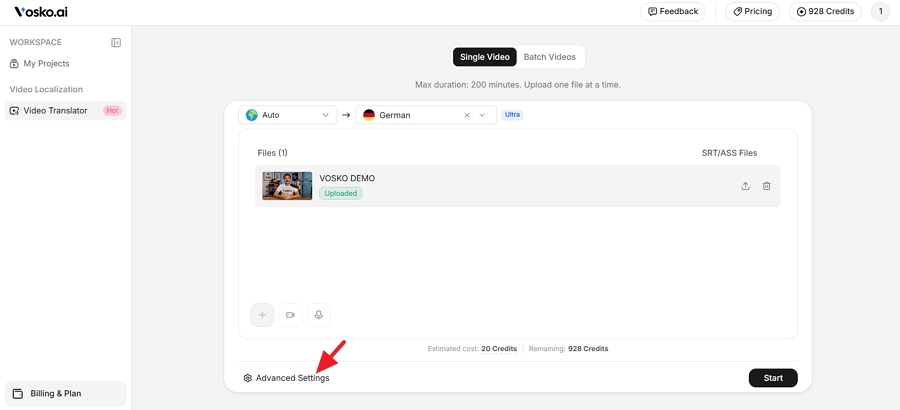
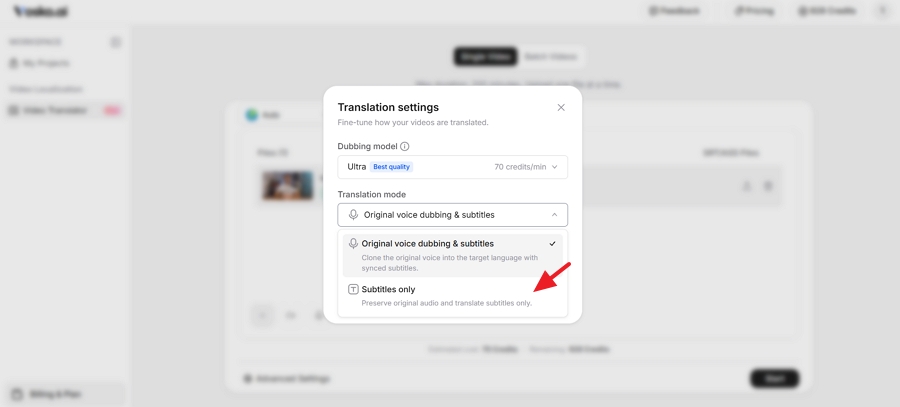
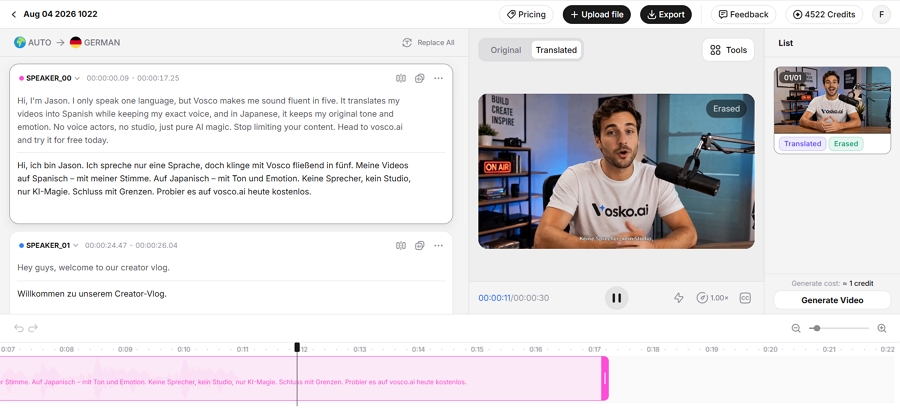
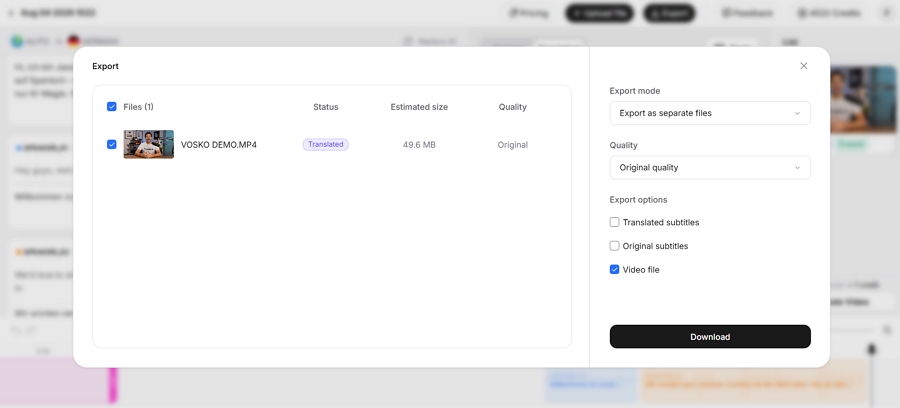
Vosko also exports the original-language subtitles, if you want those on the Reel too. It doesn't post to Facebook, so you upload the files yourself, and machine translation still needs a human check for names and brand wording.
Subtitles only costs 20 credits per minute for each target language, so a 1-minute Reel in three languages uses 60 credits. The pricing page lists the free trial and plans.
With a translated .srt file ready for each language, the next step is to add them to your Reel. We followed these steps on our own Page in a desktop browser.
Create reel there opens Meta's Reels composer, so your screens may differ. We didn't test a personal profile or the mobile app.
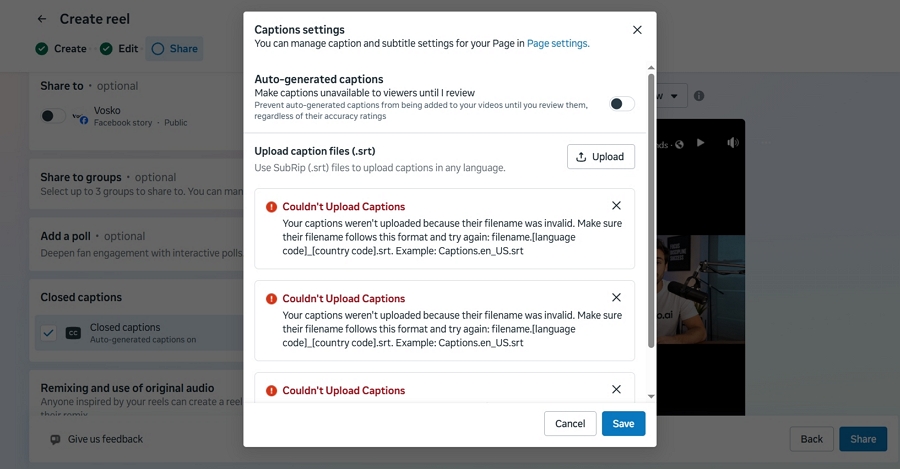
filename.[language code]_[country code].srt, with a name in front of the codes. Facebook rejected jp_JP.srt and accepted Captions.jp_JP.srt. German is Captions.de_DE.srt, and Spanish is Captions.es_ES.srt. For other languages, see the language codes question in the FAQ.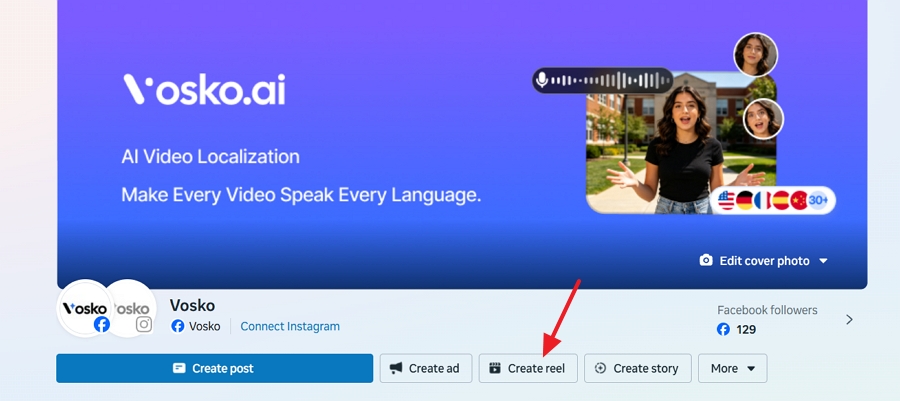
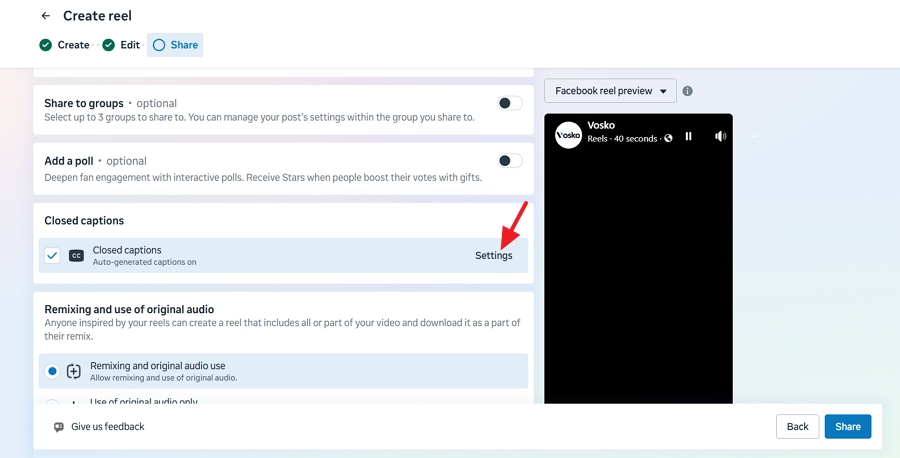
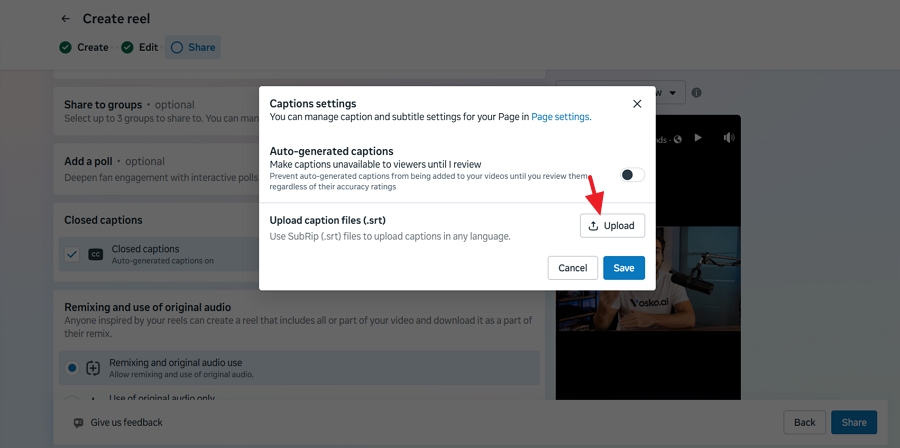
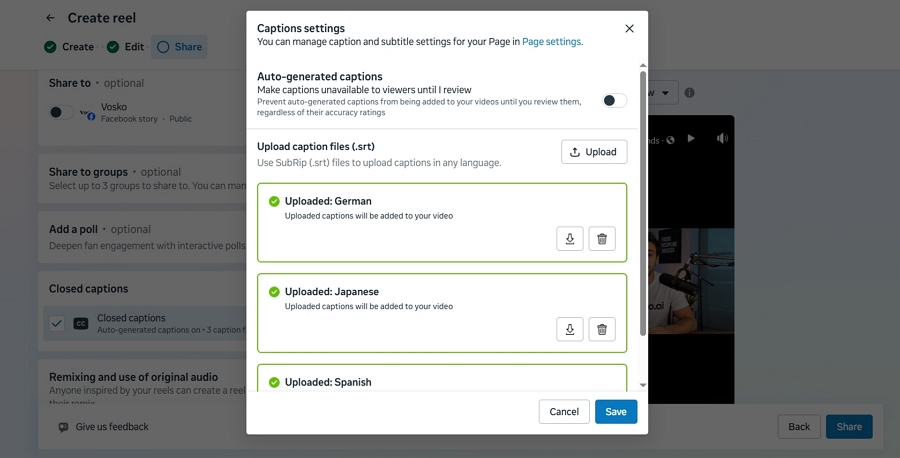
To remove a file, click the trash icon next to it in Captions settings. There's no replace button, so delete the old file and upload the new one.
The same window has an Auto-generated captions switch, labeled Make captions unavailable to viewers until I review. It's about the captions Facebook writes from your video's speech, not your uploaded files. Turn it on to hold those captions until you've reviewed them, even if Facebook rates them as accurate. Ours was off, and we didn't test turning it on.
Use these steps to watch a Reel with subtitles, or to check how your own subtitles look to viewers. Subtitles are off by default on iPhone and on a computer, and the viewer chooses a language by hand.
We set Language you'd like to have posts translated into to Spanish, then Japanese, then German, and subtitles stayed off every time until we picked a language ourselves.
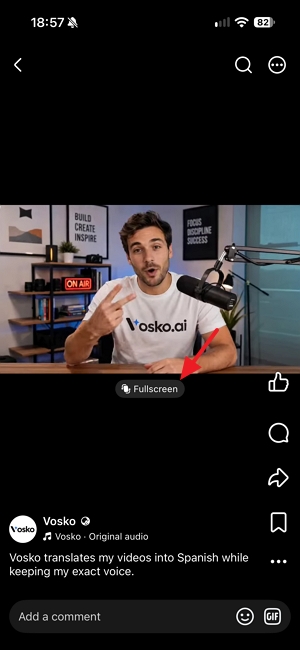
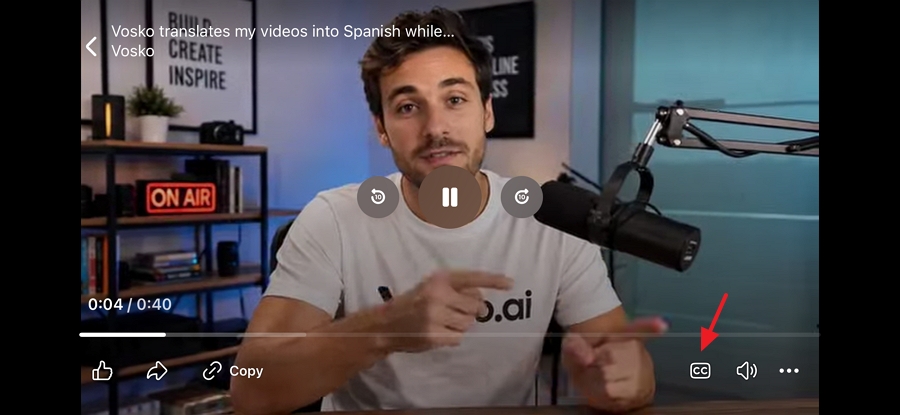
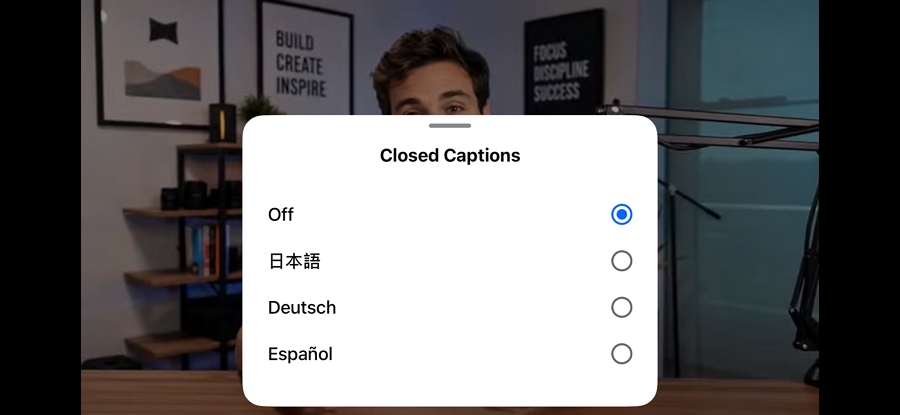

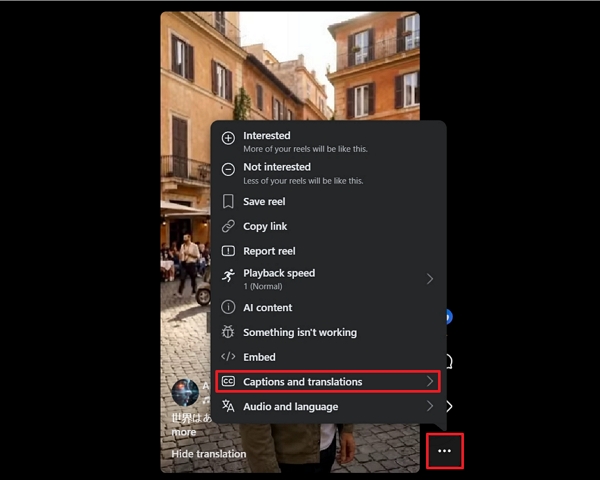
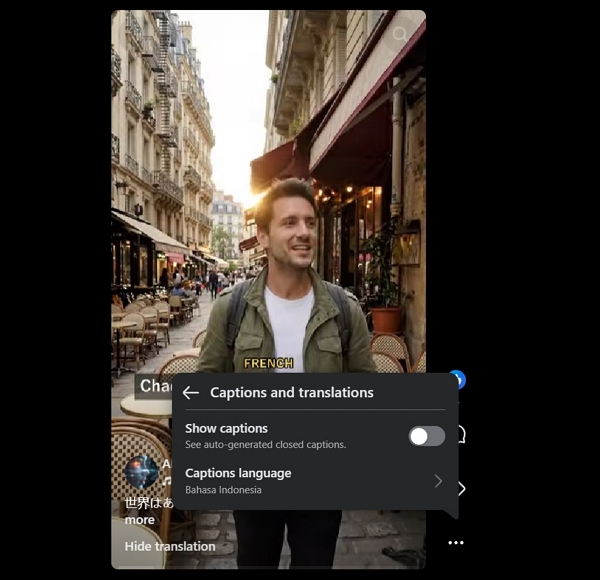
The Hide translation link under a description only affects the post text, not the subtitles.
| What you see | What to do |
|---|---|
| "Your captions weren't uploaded because their filename was invalid" | Use the full pattern with a name before the codes, such as Captions.jp_JP.srt, and upload again |
| Subtitles uploaded, but viewers see none | Subtitles start off, so viewers turn them on from the CC menu |
| No CC icon on iPhone | Tap Fullscreen first |
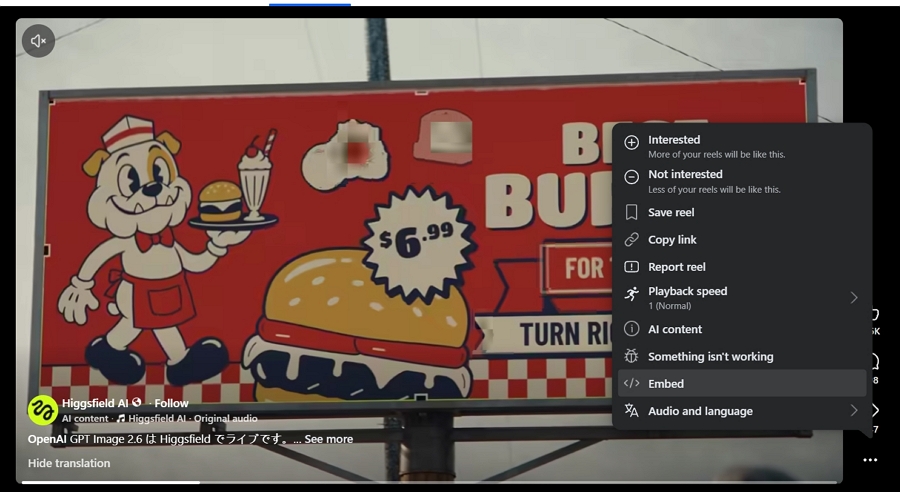
| No Captions and translations in the ⋯ menu | That Reel probably has no subtitles to switch to. Only its creator can add them |
In portrait view, our iPhone menu for a Reel listed no captions option. On a computer, one Reel from another creator showed only Audio and language in the ⋯ menu. Most likely that creator hadn't added subtitles, since Captions and translations appeared on the Reels that had them.
Not with closed captions, which start off and need a tap from each viewer. To show subtitles by default, burn them into the video before you upload it. The text then becomes part of the picture, so viewers can't turn it off or change the language, and you need a separate video file for each language. Our guide to translated subtitles has the steps.
Facebook accepted de_DE, jp_JP, and es_ES in our tests and labeled the files German, Japanese, and Spanish. Meta's locale list uses ja_JP for Japanese and also includes es_LA for Spanish in general. We didn't test those two.
Only by switching to a language the creator added, if the ⋯ menu shows Captions and translations. You can't add subtitles to someone else's video, and we found no way to make Facebook translate them. If you want to re-upload a video with your own subtitles, get the creator's permission first.
Translate the subtitles outside Facebook, name each .srt file with a language and country code, and upload them together. Viewers turn the subtitles on themselves, so burn them into the video if you need them visible without a tap.