ElevenLabs can take a video in one language and hand it back in another, spoken in the original speakers' voices. Most of the job is waiting. The few decisions you make happen on a single screen.
We went through every step on a paid Starter account in November 2026, dubbing a 55-second, four-person interview from English into German. This guide follows that run, including a YouTube link format that refused to import and a start button that's easy to miss.
The free plan will dub a short clip, but on our free account the result came with a watermark and there was no way to open the editor. If you want to correct the translation or publish the video, you'll need a paid plan.
We bought Starter on November 9, 2026. It normally costs $6 a month for 30,000 credits; a first-month promotion brought ours down to $1.
Dubbing uses about 13,500 credits per minute of video, for each language you dub into. Our 55-second interview used 12,389 credits. That means Starter covers a little over two minutes of video a month, so test with a short clip first.
On the website, ElevenLabs accepts files up to 2 GB and 180 minutes long. Clear speech gives the best results. Background music is fine: in our test, it stayed under the German voices without any extra steps.
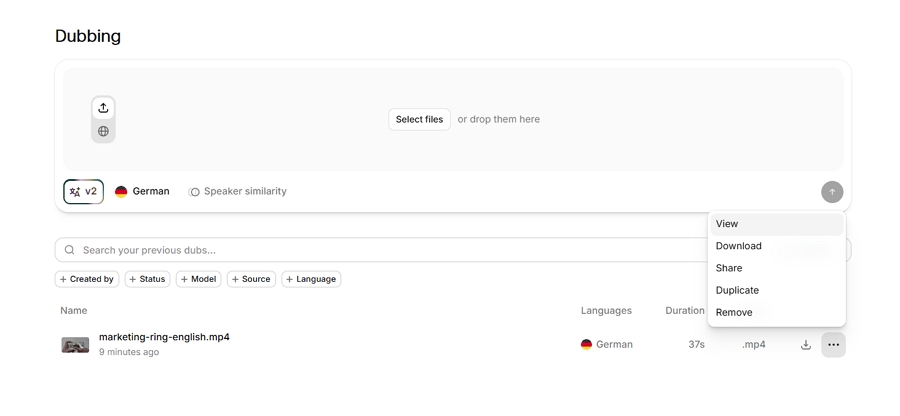
In the left sidebar, click Dubbing. The top of the page is where you add a video. Your finished dubs appear in a list underneath, which is where you'll come back later.
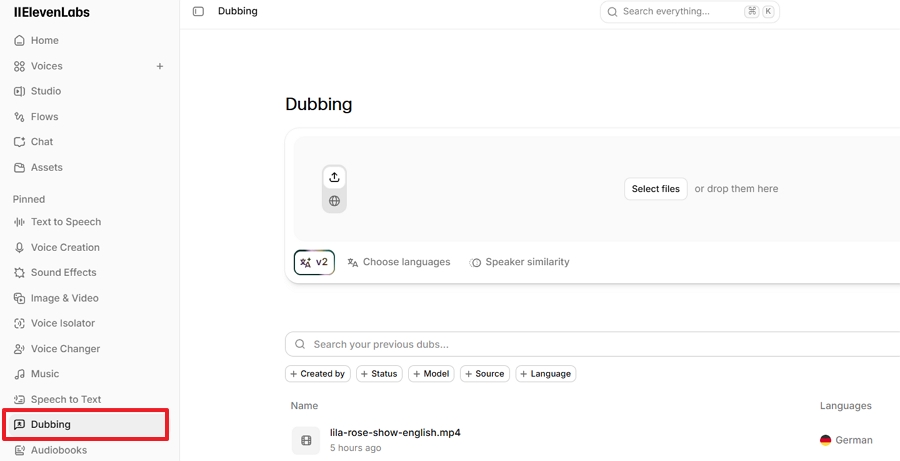
The upload area has two tabs, shown as icons rather than words: one for uploading a file from your computer, and one for pasting a link.
If you're dubbing a YouTube video, the link format matters. A full address like youtube.com/watch?v=... didn't import for us. The short version, youtu.be/..., worked right away. You'll get the short form from YouTube's Share button. Once it was accepted, the import was quick.
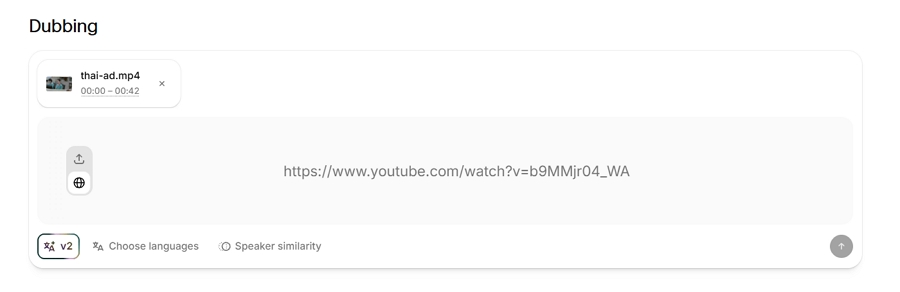
You don't need to tell ElevenLabs what language the video is in. It detected English on its own.
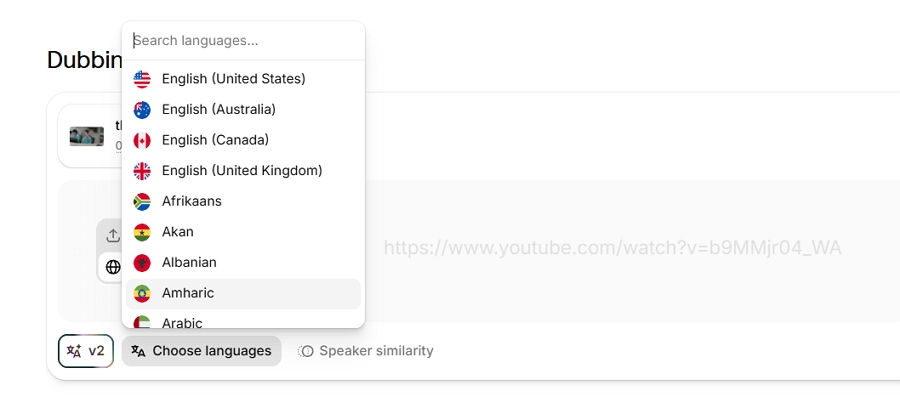
Click Choose languages and pick where you want the dub to go. You can select several languages at once, but each one is charged separately, so a two-language dub costs twice as much.
When we opened the list in November 2026, it had 104 options. That works out to about 93 distinct languages, because several appear more than once as regional variants: four kinds of English (US, UK, Australia, and Canada), four of Spanish (Spain, Mexico, Argentina, and Chile), two each of French, Portuguese, and Arabic, and Chinese as Mandarin, Taiwanese Chinese, and Cantonese.
If your audience is in one region, pick its variant rather than the generic option, for example Spanish (Mexico) for viewers in Latin America. The list also goes well beyond the major languages, with options like Swahili, Yoruba, Zulu, Tagalog, Cebuano, and Tibetan.
Just to the left of the language picker is the model selector. It shows V2 by default, and clicking it reveals V1, the older model. Leave it on V2 unless you specifically need V1 for a reason covered later in this guide.
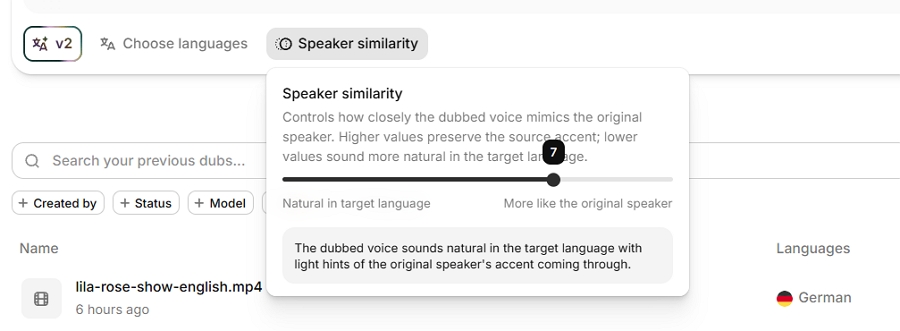
On the same screen, you'll see a Speaker similarity slider on a scale up to 10, set to 7 by default.
Higher values keep the dub closer to each speaker's real voice, accent included. Lower values sound more like a native speaker of the target language but less like the person on screen.
We left ours at 7, and all four people in our interview still sounded like themselves in German. If a dub comes back with an accent that's too strong for your audience, lower the slider and run it again, keeping in mind that a second run costs credits again.
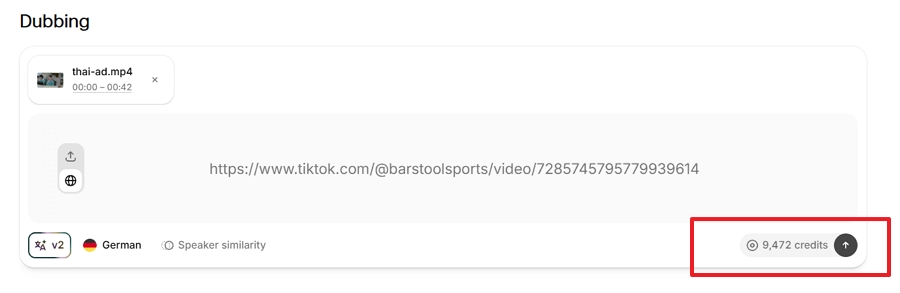
Before anything runs, ElevenLabs shows how many credits the dub will use. Ours said 12,389, and that's exactly what came off our balance.
To start, click the button with an upward arrow. It has no text label, which is why we're pointing it out: it's easy to sit on this screen looking for a "Dub" or "Generate" button that isn't there.
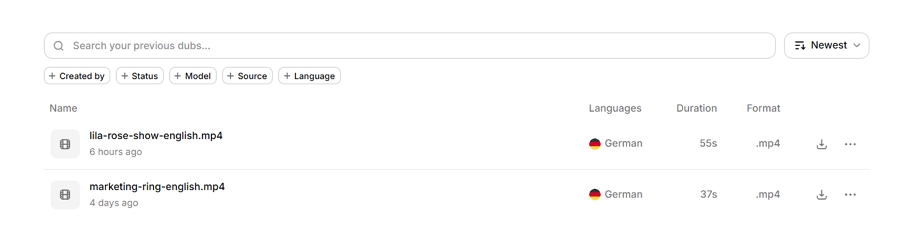
A progress bar shows how far along the dub is. Our 55-second interview took about three minutes.
You can leave the page while it works, but ElevenLabs won't tell you when it's finished. Come back to the list under the upload area to find it.
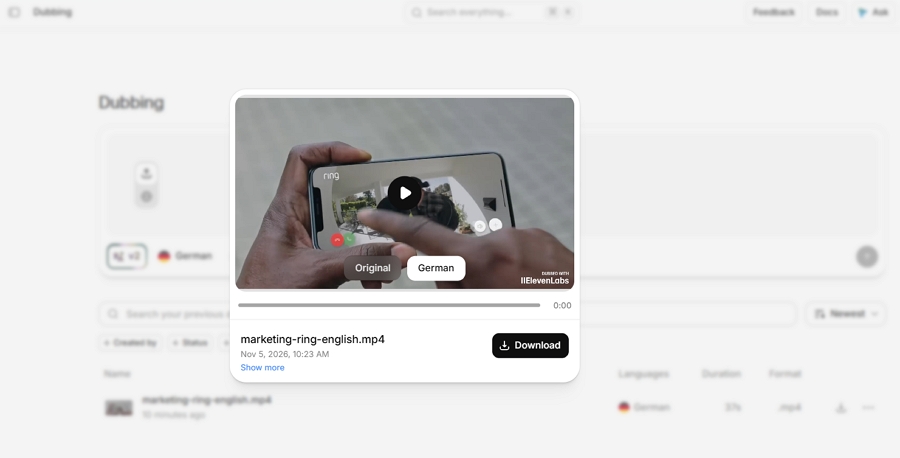
When you play it back, listen for the things automatic dubbing tends to get wrong:
This step needs a paid plan. Open the editor by clicking the dub's name, or by choosing Edit from its menu.
The original transcript is in the Source view. Each translation has its own tab, labeled with the language. Click into a line and type your correction; changes save automatically.
Nothing is re-voiced until you click Regenerate all, in the bottom right of the text area. There's no button to regenerate a single line, so make all your corrections first and regenerate once. In our test, three corrections took about a minute in total and used no extra credits.
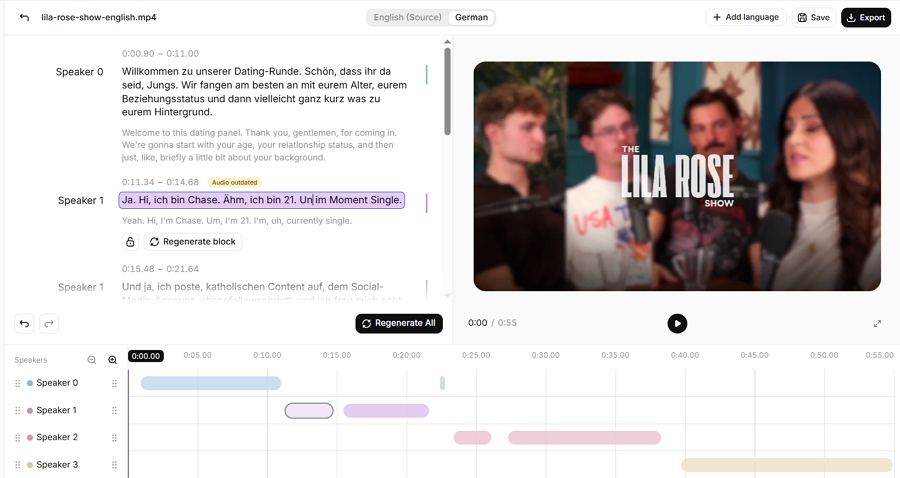
If you want another language later, the Add languages button sits at the top right of the dub.
The download button is at the top right. Clicking it starts the download straight away; there's no format menu. You'll get an MP4 at the same resolution as your source, and on a paid plan it has no watermark.

Switch to the short youtu.be link from YouTube's Share button. If that still fails, download the video and upload the file instead.
You're probably on the free plan. On our free account, clicking a dub's name only opened a video player, and the menu had no Edit option.
Your balance is in the account menu at the top right of the screen, not on the dubbing page, so it's easy to lose track. Remember that each target language uses its own credits. On the free plan, ElevenLabs asks you to upgrade once you run out.
V2 dubs download only as MP4. ElevenLabs' older Dubbing Studio can export SRT subtitles, a WAV track for each speaker, and timeline files for video editors, but it only works with V1 dubs and is in maintenance mode, according to ElevenLabs' documentation. You'd need to pick V1 in Step 3 and set the dub up as a Dubbing Studio project from the start; an existing V2 dub can't be converted.
The V2 editor changes words, not timing or voices. To fix those, you can try lowering the Speaker similarity slider and dubbing again, or trim the source so problem sections are dubbed separately. Both cost new credits. For anything more precise, you'll need to finish the video in an editing app.
ElevenLabs' dubbing doesn't move the speakers' lips to match the new language. If your video is mostly people talking to camera, look at a tool that does. Our Rask AI vs HeyGen comparison includes a hands-on lip-sync test.
At about 13,500 credits per minute, here's roughly how much V2 dubbing each plan covers in one target language each month:
These are our estimates from the credits our own dubs used, against the allowances on ElevenLabs' pricing page. We compare that cost with another dubbing tool in our ElevenLabs Dubbing review.
Yes. Paste the link into the link tab in Step 2. Use the short youtu.be form; the full youtube.com/watch address didn't import in our test.
The target-language list had 104 options in November 2026, or about 93 languages once regional variants of English, Spanish, French, Portuguese, Arabic, and Chinese are grouped together. ElevenLabs itself describes it as 90+. The source language is detected automatically.
As many as you pick under Choose languages, and you can add more later with Add languages. Each language is charged in full, so three languages cost three times as much as one.
No. V2 detects speakers on its own. In our four-person interview, it found all four and kept each voice distinct.
Our 55-second interview took about three minutes, and a 37-second ad took about the same. Longer videos will take longer, and you'll need to check back, since there's no notification when it's done.
For a short clip with clear speech, the eight steps above are usually all it takes: add the video, pick a language, start it, read through the script, and download. The parts worth slowing down for are the link format, the unlabeled start button, and making every correction before you click Regenerate all.
If your videos regularly need more than word changes, such as fixing timing, reassigning a voice, or exporting subtitles and separate audio, a tool built around editing may save you time. Vosko Dubbing, which publishes this guide, is one option; our review linked above covers how it compares.