Looking for the exact steps to add chapters to your YouTube videos? You are in the right place. In this comprehensive guide, we cover everything from strict timestamp formatting rules to the manual and automatic setup processes.
To ensure you get the most accurate and reliable information, every method and troubleshooting step detailed below is backed by our own real-world tests and actual YouTube Studio screenshots.
To add chapters to a YouTube video, open YouTube Studio and edit your video description. Type a list of timestamps starting exactly at 00:00, followed by a space and your chapter title. You must add at least three timestamps, and each section must be at least 10 seconds long. Save the description, and the chapters will immediately appear on your video progress bar.
YouTube chapters are interactive markers that break a long video into smaller, selectable sections. Viewers see these chapters as distinct blocks on the video progress bar.
However, chapters do not magically appear. To trigger this feature, you must first add timestamps to YouTube videos in your description. Simply put, timestamps are the text foundation you build, and chapters are the upgraded visual result that YouTube generates automatically from your text.
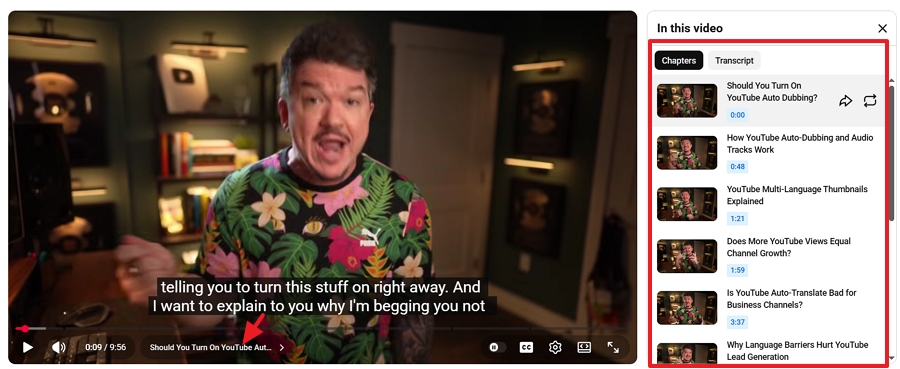
Adding chapters is a mandatory optimization step for any professional channel. It directly impacts your search rankings and user experience.
You cannot just type random times and expect chapters to work. YouTube enforces strict formatting rules. If you break one of these rules, the platform will simply ignore your entire list.
| Rule | Requirement | Correct Example | Incorrect Example |
|---|---|---|---|
| Starting Point | The very first timestamp must be exactly zero. | 00:00 Introduction | 00:01 Introduction |
| Minimum Length | Every chapter must last at least 10 seconds. | 01:15 Setup
| 01:15 Setup
|
| Minimum Quantity | You must include at least 3 separate timestamps. | 3 or more timestamps in the list. | Only 1 or 2 timestamps. |
| Format Structure | Use a colon (not a period) and leave a space before the text. | 03:45 Pricing | 03.45 Pricing
|
| Chronological Order | Timestamps must go in ascending order. | 01:00, 02:30, 04:15 | 02:30, 01:00, 04:15 |
Manual chapters are the industry standard for professional creators. They give you total control over the exact keywords used, which is critical for YouTube SEO. Here is the exact process to add them using a desktop computer.
Step 1: Open YouTube Studio
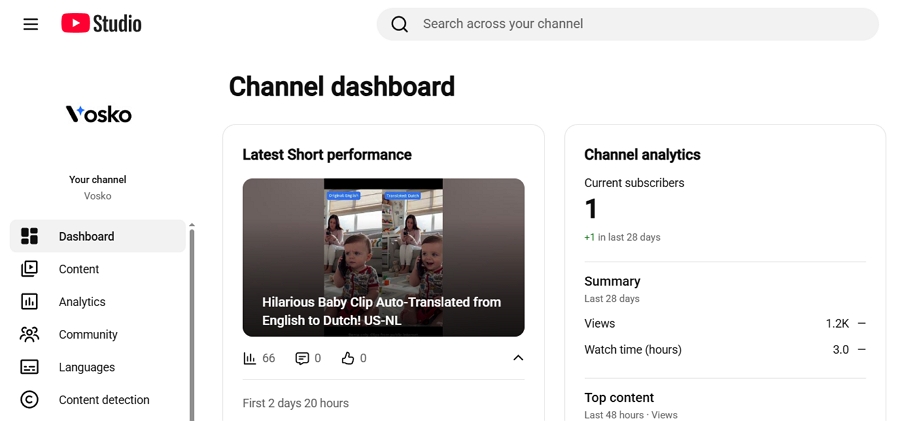
Open YouTube Studio and log into your YouTube account.
Step 2: Access Your Video
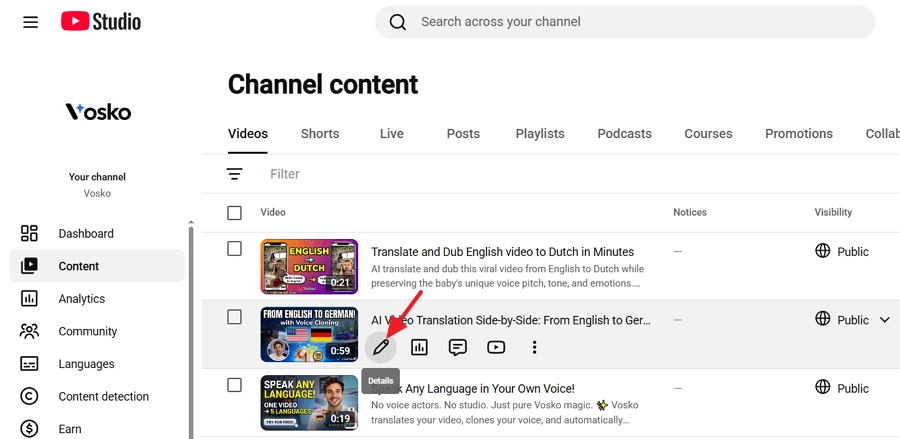
Click Content on the left sidebar. Hover over the video you want to edit and click the pencil icon to view the video details.
Step 3: Edit the Description
Scroll down to the description box. You can place your chapters anywhere in the description. We recommend placing them toward the bottom so your main hooks and outbound links stay at the top.
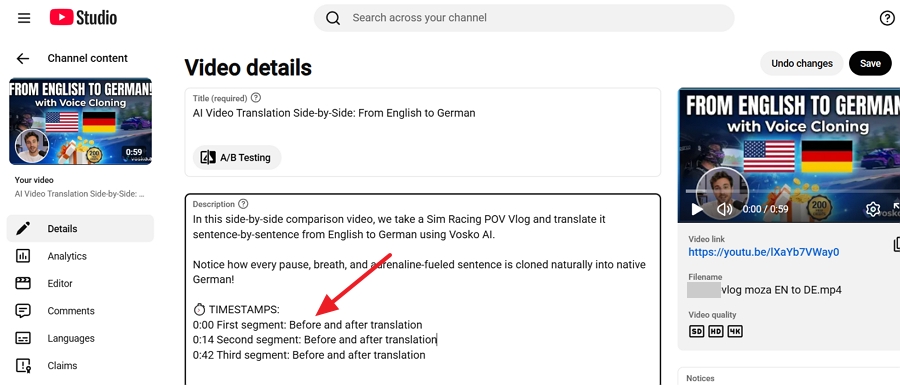
Step 4: Type and Save Your Timestamps
Write your timestamps following the strict rules outlined above. Keep your chapter titles short and keyword-rich. Click the blue Save button in the top right corner. Here is a template for a tutorial:
00:00 What we will cover today
01:00 Required tools and software
02:00 Step 1 Account setup
04:00 Step 2 Configuration
06:00 Common mistakes to avoid
08:00 Final review
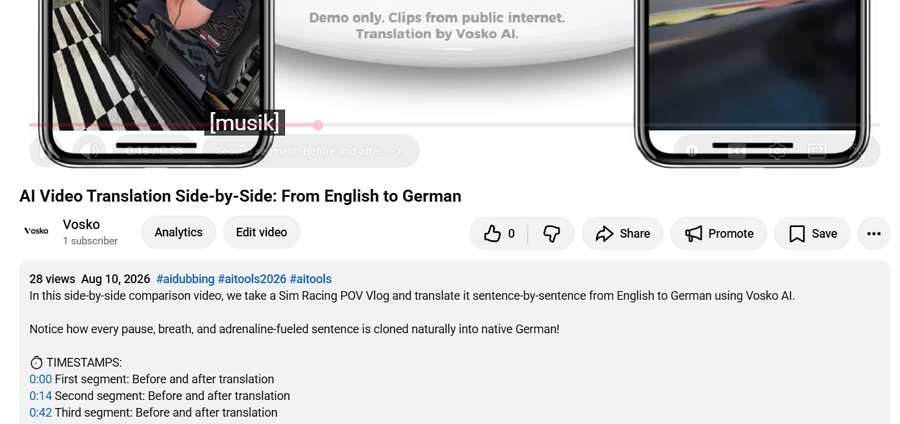
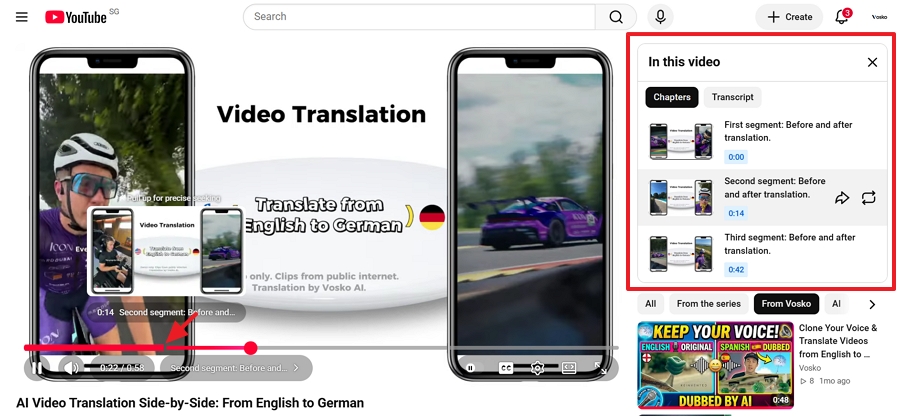
Step 5: Verify Your Chapters
Open your video on a regular YouTube watch page to verify that the chapters have successfully populated on the red progress bar.
While manual timestamps give you full SEO control, YouTube's auto-chapter feature is a great time-saver. The platform simply scans your video content to build the timeline for you. It is the perfect shortcut if you want to quickly upgrade older videos without typing everything by hand.
You have two options here: you can enable this feature for one specific video, or you can adjust your channel settings to apply it to all future uploads automatically. Here is how to do both.
1. Open YouTube Studio and go to Content.
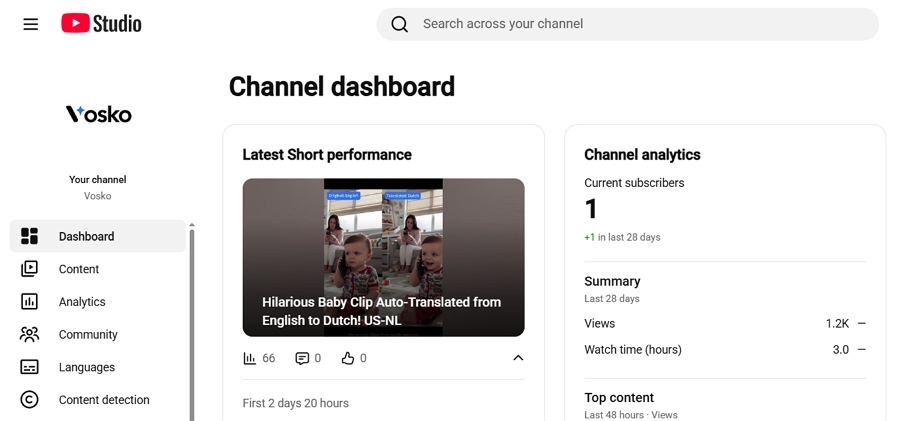
2. Click the pencil icon on a specific video.
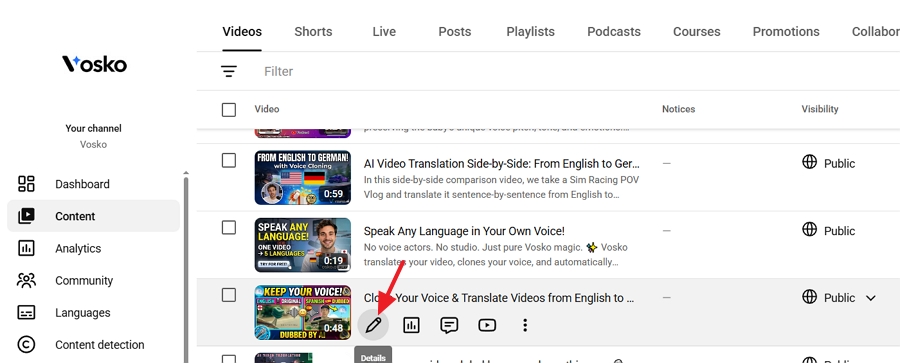
3. Scroll down to the bottom of the details page and click Show More.
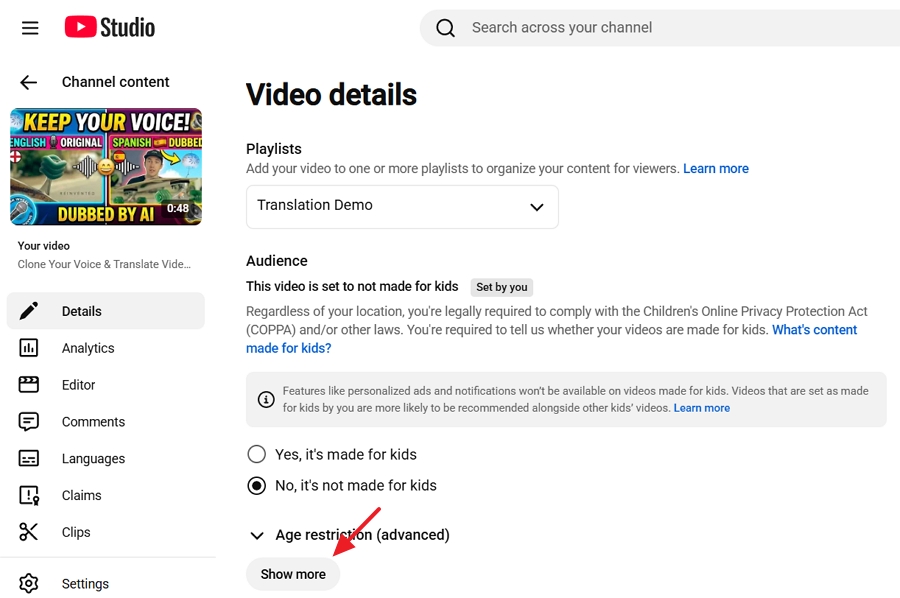
4. Find the section labeled Automatic chapters. Check the box that says Allow automatic chapters and key moments.
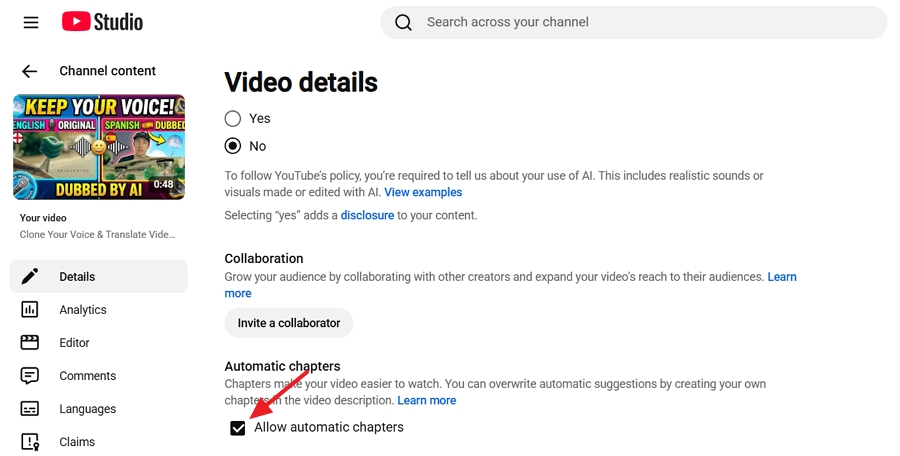
5. Click Save.
1. Open YouTube Studio. Click Settings in the bottom left corner.
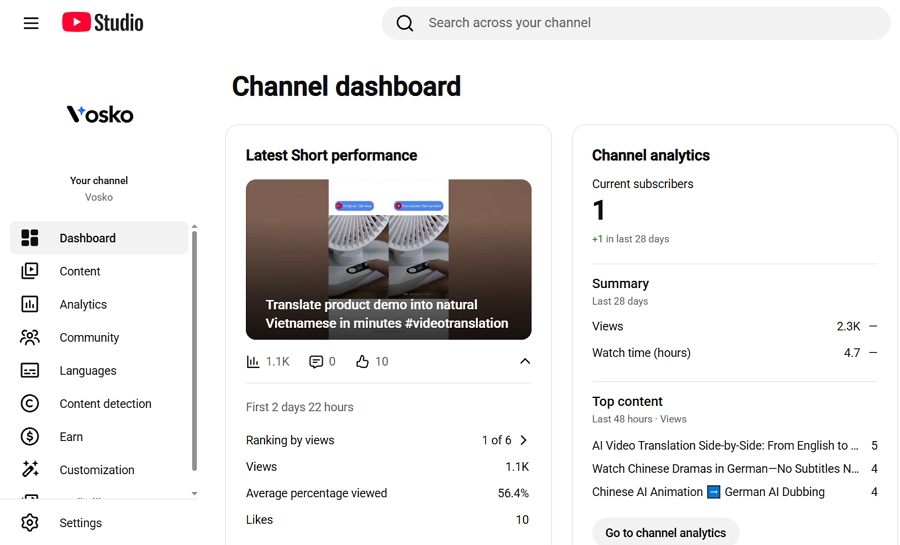
2. Select Upload defaults from the menu.
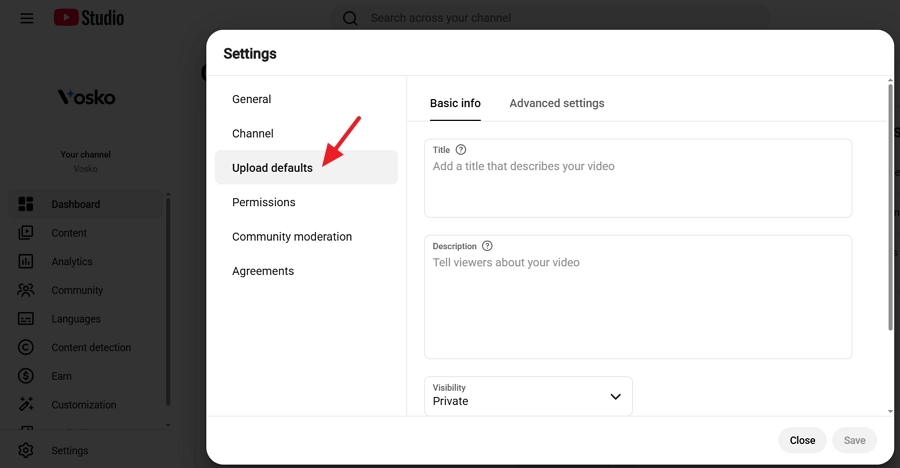
3. Click the Advanced settings tab. Check the box under Allow automatic chapters and key moments to allow them by default.
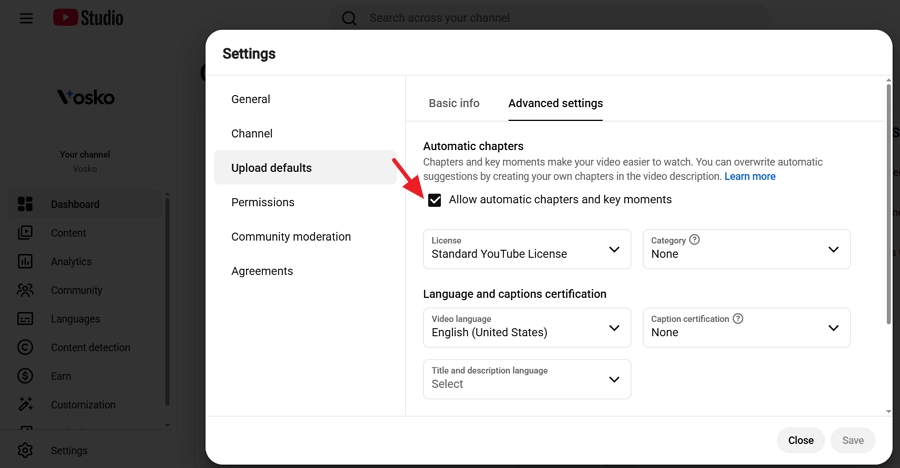
4. Click Save.
Note: If you manually type timestamps into the description of a video, YouTube will always prioritize your manual text over the automatic chapters.
If you added timestamps to your description but the chapters are not appearing on the video player, run through this troubleshooting checklist.
00:00 or 0:00? If you started at 00:01, chapters will fail.01.30 will fail. It must be 01:30.Do not wait for your next upload to start using this feature. Pick one of your best-performing long videos right now and add a clean timestamp list to the description. Taking two minutes to format your description correctly will instantly upgrade your viewer experience.
Once your video structure is optimized, the next logical step is to scale your content globally. Many creators looking to reach international audiences eventually explore can you dub a YouTube video in another language for different regions. By combining YouTube multi-language audio files with clear video chapters, you deliver a premium, accessible viewing experience to users around the world.
What is the correct timestamp format for YouTube chapters?
Use a colon to separate minutes and seconds, followed by a space, and then the title. Example: 02:15 Product Unboxing. For videos longer than an hour, include the hour marker: 01:15:30 Conclusion.
Does the first YouTube chapter timestamp have to start at 0:00?
Yes. If you do not include 00:00 as the very first line in your timestamp list, YouTube will not generate chapters for the video.
Why are my YouTube chapters not showing after I added timestamps?
The most common reasons are missing the 00:00 start time, having fewer than three chapters, making a chapter shorter than 10 seconds, or having an active copyright strike on your channel.
Can I add or edit YouTube chapters after a video is published?
Yes. You can edit the description of any published video at any time through YouTube Studio. The chapters will update immediately after you click save.
What is the difference between manual and automatic YouTube chapters?
Manual chapters are created when you type specific times and titles into your description, giving you full SEO control. Automatic chapters are generated by YouTube's AI based on your audio and visuals.
Do YouTube chapters work on Shorts?
No. YouTube chapters are designed exclusively for standard long-form videos. The Shorts player does not support chapter navigation.
Do YouTube chapters help with SEO or Google search visibility?
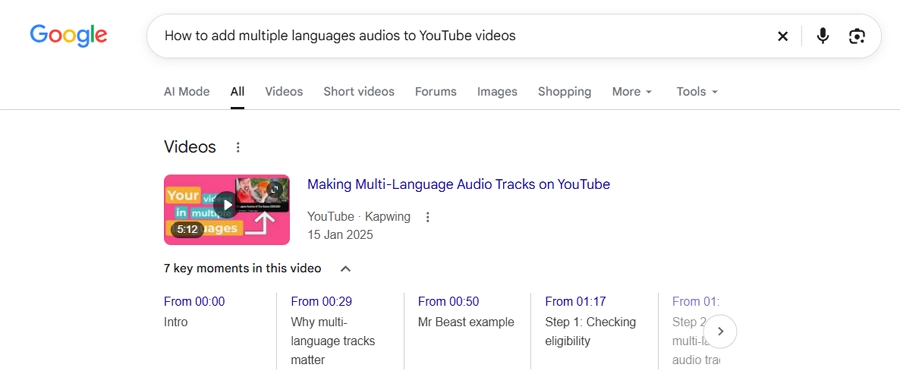
Yes. Google indexes YouTube chapters and displays them as "Key Moments" in Google Search results. This helps your video rank for specific long-tail keywords associated with your chapter titles.