Learning how to add timestamps to YouTube videos is the fastest way to boost your viewer retention and search rankings. When you format these times correctly the platform automatically transforms your text timestamps into clickable visual chapters across your video progress bar.
This helps viewers jump to the exact information they need instead of clicking away to a competitor. This guide shows you exactly how to add timestamps to YouTube videos on both computer and mobile.
You will get the formatting rules of YouTube timestamps and the troubleshooting steps to guarantee your chapters work perfectly every single time.
YouTube timestamps and video chapters are often talked about together, but they refer to two completely different parts of your video structure.
YouTube timestamps and video chapters are often talked about together, but they refer to two completely different parts of your video structure.
Simply put, timestamps are the foundation you build, and chapters are the upgraded visual result that YouTube generates automatically from your text.
Many beginners confuse how these two features interact. Here is the exact breakdown of how they compare.
| Feature | YouTube Timestamps | YouTube Chapters |
|---|---|---|
| Visual Display | Appears only as clickable blue text links in your description or comments | Appears as segmented blocks on the video progress bar complete with titles and visual thumbnails |
| How to Create | Typed manually by creators or viewers anywhere in the text box | Generated automatically by the system when a creator formats a specific list in the video description |
| User Experience | Jumps directly to the moment when clicked but gives no visual clue about the segment length on the player | Allows viewers to hover over the progress bar to preview section names and thumbnails making it easy to rewatch specific parts |
| Best Use Case | Directing a single viewer to a specific answer in the comments section | Structuring a long tutorial podcast or webinar so all viewers can navigate the content easily |
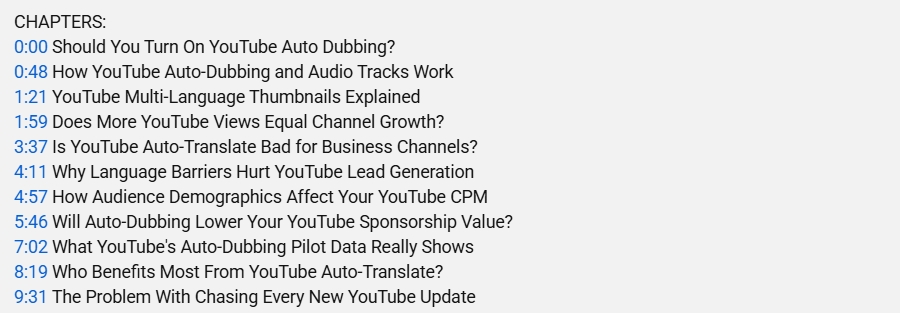
Below is an example of how a properly formatted timestamp list looks in the description of a YouTube video.
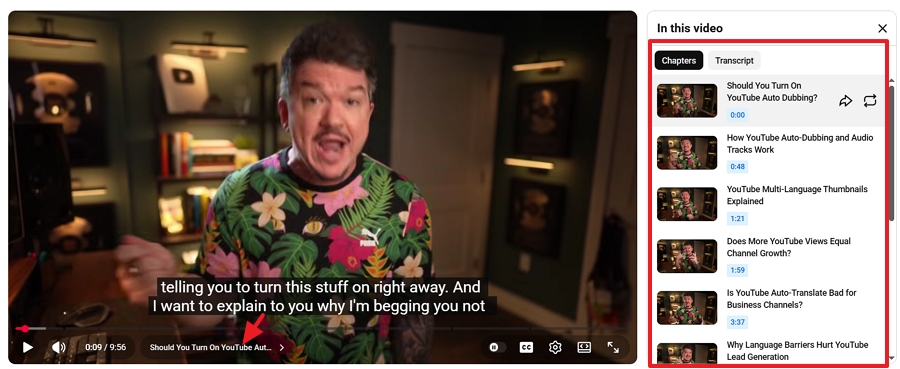
Viewers can view chapters directly as segmented blocks on the video progress bar or by opening the full sidebar directory next to the time display.
Before you open your video descriptions you must understand how the algorithm reads timestamps. The system strictly enforces a specific format of timestamps to generate chapters.
If you miss even one rule the platform will ignore your entire list completely. Treat this table as your ultimate pre flight checklist to avoid common beginner traps.
| Rule | Requirement | Why It Fails |
|---|---|---|
| Start Time | Must begin at exactly 00:00 | Creators often try to skip their video intro and start their first tag at 00:15 which disables the feature instantly |
| Minimum Count | Requires at least three time tags | Providing only one or two time markers will not trigger the visual progress bar |
| Segment Length | Each chapter needs 10 seconds minimum | Cramming sections too closely together confuses the video player |
| Chronological Order | Times must increase sequentially | Mixing up the timeline by placing a later time above an earlier time breaks the sequence logic |
| Format Structure | Use standard colons like 01:30 | Typing a dot or semicolon makes the numbers unrecognizable to the algorithm |
| Placement | Place in the description on separate lines | Writing times in a running paragraph prevents the system from reading the list |
You can add YouTube timestamps while uploading a new video or by editing an old one. Both methods use the exact same description box.
Follow these exact steps on your desktop workspace.
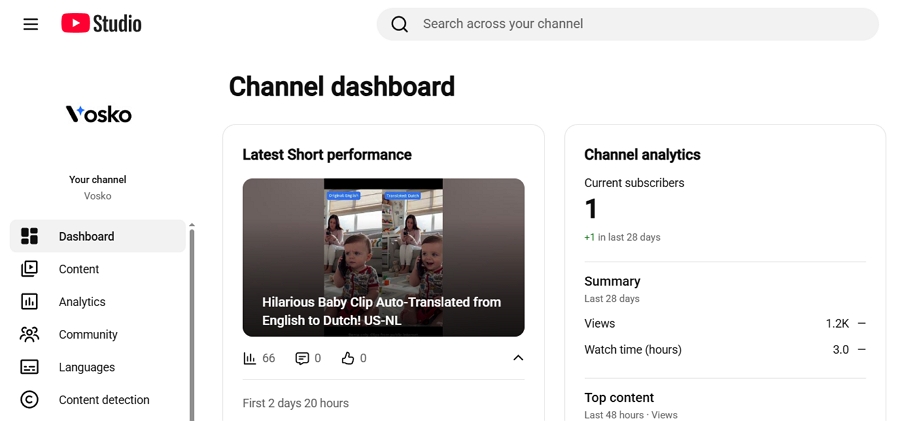
1. Open YouTube Studio and navigate to your content list.
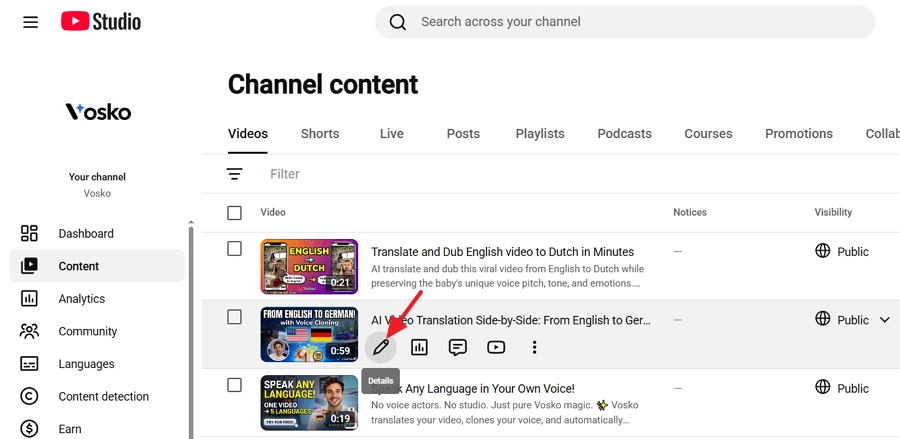
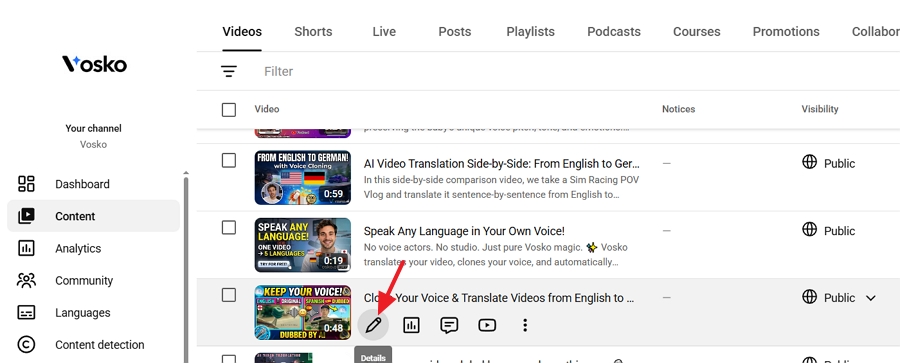
2. Click the pencil icon to edit your chosen video.
3. Scroll down to your description box and create a new line.
4. Type 00:00 followed by a space and your first chapter title.
5. Add the rest of your timestamps in chronological order on separate lines.
6. Click save.
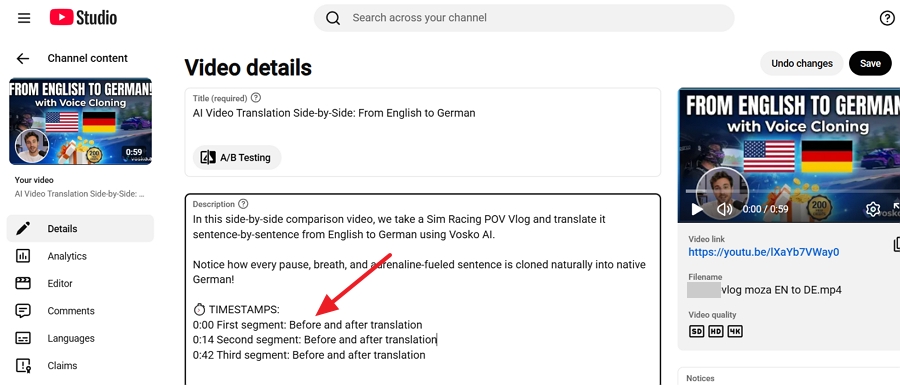
Here is a foolproof template you can copy and paste directly into your description. Just replace the titles and adjust the numbers to match your video.
00:00 Introduction and Welcome
01:00 Unboxing the Product
04:00 Setup and Installation
08:00 Performance Test
12:00 Final Thoughts and Verdict
8. Check your live video and click the timestamps in your description to test the links.
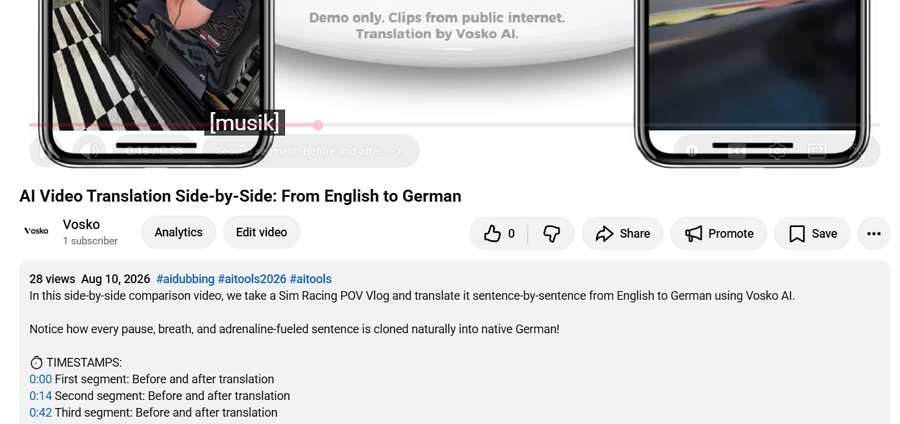
Many creators upload daily vlogs short tutorials or event recaps directly from their smartphones. The process for adding chapters on mobile is exactly the same as on desktop but the interface requires a bit more precision.
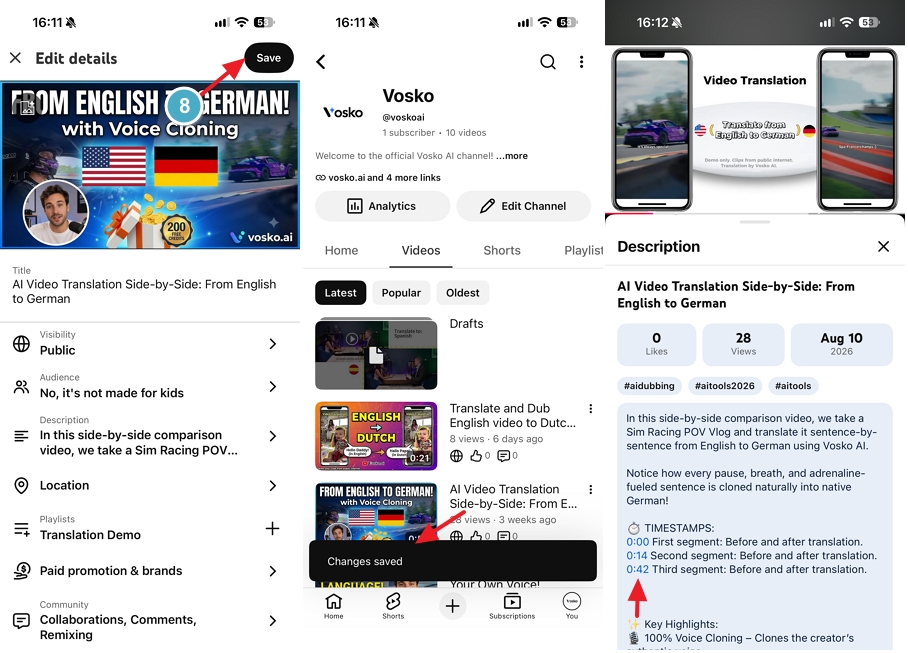
You can do this using either the main YouTube app or the YouTube Studio app. Here are the exact steps we tested to add timestamps manually using the YouTube mobile app.
1. Open the YouTube app on your mobile device and tap your Profile icon.
2. Tap View channel and select the Videos tab to find the video you want to edit.
3. Tap the three-dot icon next to the video and select Edit.
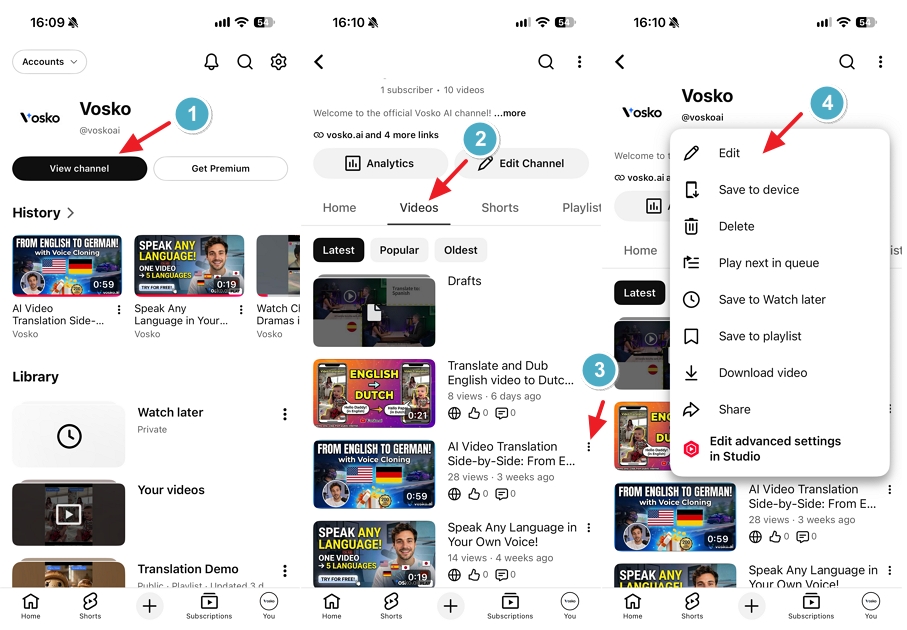
4. Tap Show more, and scroll down to the Description box and tap it.
5. Type out your timestamps and their corresponding titles line by line, ensuring you follow the correct format (e.g., starting with 0:00 for the intro):
0:00 Introduction
1:15 First segment
3:45 Conclusion
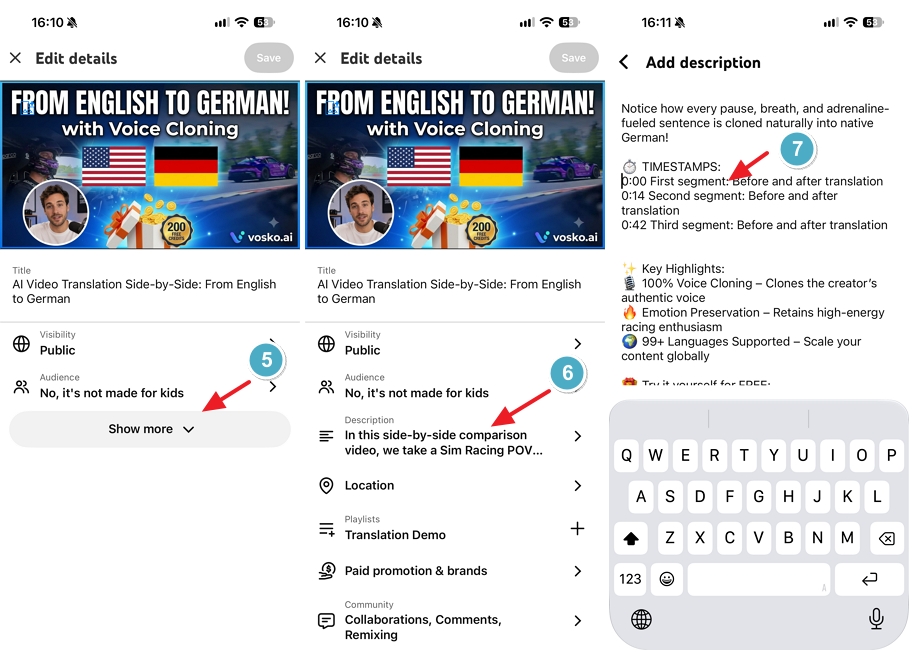
6. Tap the Save button (usually located at the top right or bottom depending on your OS) to apply the changes.
7. Open your video and tap on the timestamps in the description to verify that they turn into clickable, blue interactive links.
Mobile keyboards often cause unexpected formatting errors. Pay close attention to your typing. Ensure you use a standard English time separator instead of a semicolon. Ensure every timestamp sits on its own distinct line instead of wrapping into a single paragraph.
As long as your formatting is correct the system will instantly transform these raw text timestamps into clickable visual chapters across your entire video progress bar.
If you do not want to type timestamps manually into your description you can let the platform do the work for you. By enabling automatic chapters YouTube uses machine learning algorithms to scan your video audio and generate progress bar chapters on its own.
Keep in mind that this feature does not write timestamps into your description box. Instead the system directly slices your video player progress bar using AI guesses.
While automatic chapters save time they come with significant compromises. Compare both methods below to see which fits your content strategy.
| Feature | Manual Timestamps | Automatic Chapters |
|---|---|---|
| Title Creation | You write exact keywords | YouTube guesses the topic using AI |
| Accuracy | Perfect precision based on your edits | Often misses the actual start of a new topic |
| SEO Value | Extremely high because you control the search terms | Low because the system uses generic terms |
| Setup Time | Takes two minutes to type the list | Requires zero effort |
Manual timestamps always override automatic chapters. If you care about search rankings it is always better to control your own keywords. However if you still want to let the system try, here is how you turn this feature on.
1. Open YouTube Studio.
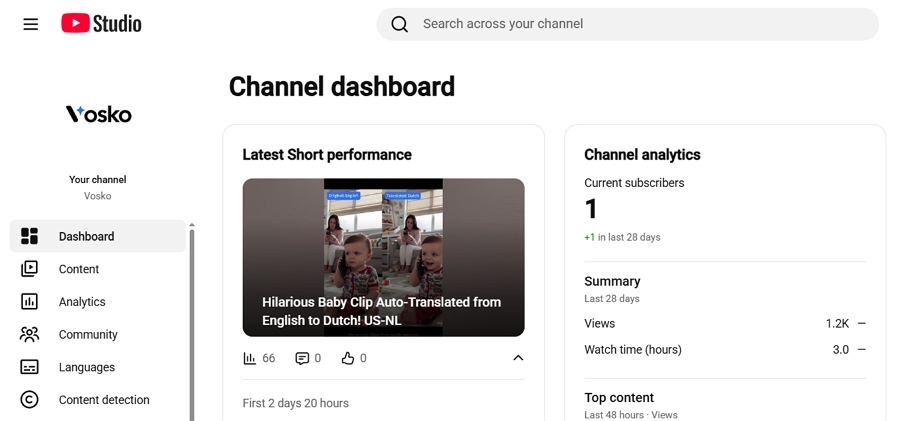
2. Click the Content tab, and select the video you want to edit.
3. Click Show More at the bottom of the video details page.
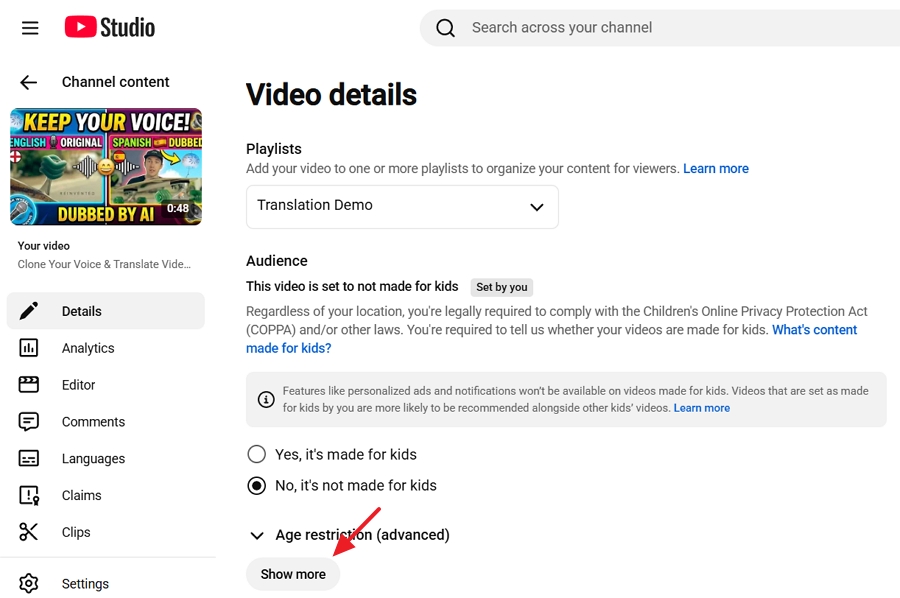
4. Scroll down to the Automatic Chapters section, and check the box that says Allow automatic chapters and key moments.
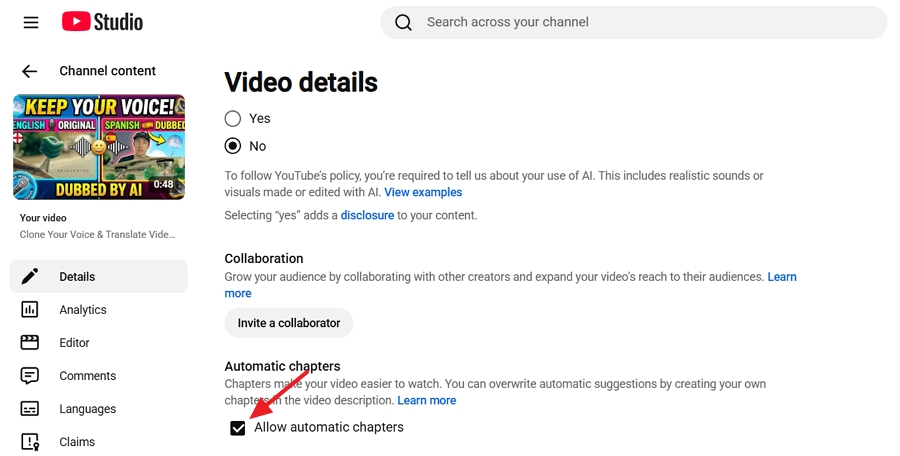
5. Save your changes and let the system process the video.
If your timestamps are not turning into video chapters do not panic. It is rarely a system bug. It is almost always a tiny formatting error.
Run through your checklist again. Check if you started your list with exactly 00:00. Verify you have a minimum of three timestamps. Ensure they are in perfect chronological order and spaced at least 10 seconds apart.
Once your timestamps are working properly and generating your chapters you must optimize the titles. Name each timestamp clearly and naturally. Use strong keywords that people actually search for. Instead of writing Part Two write Pricing and Subscription Plans.
Clear timestamp titles tell Google exactly what that segment is about and help your video rank higher in search results. If you are optimizing for an international audience you should also ensure your metadata remains accurate.
You should also track how these timestamps perform. Open YouTube Analytics and check the audience retention graph. Spikes in the graph show where viewers use your timestamps to jump to specific answers.
Dips show where people lose interest. Use this data to name your future timestamps better and structure your next video to keep viewers engaged.
Why are my YouTube timestamps not turning into video chapters?
The most common reasons are missing the 00:00 start time having fewer than three timestamps or placing chapters less than 10 seconds apart. A single formatting typo will cause the platform to ignore the entire list.
Do YouTube chapters have to start at exactly zero?
Yes. If you do not include exactly 00:00 followed by a title at the very top of your list the progress bar will not split into chapters.
Can I add timestamps to a YouTube video after it is already published?
Yes. You can edit the description of any old video at any time. Simply add the formatted timestamps hit save and refresh the video page to see the new visual chapters.
What is the difference between description timestamps, comment timestamps and share links?
Description timestamps create visual chapters on the video progress bar. Comment timestamps only create clickable blue links that jump to a specific time. Share links direct external users to a specific starting second when they click a URL.
Do YouTube Shorts support timestamps or chapters?
No. The Shorts player interface is designed for rapid scrolling and does not currently support progress bar chapters or clickable timestamps in the description.
Do YouTube timestamps help with SEO and viewer retention?
Yes. Chapter titles provide rich keywords that help search engines index your content accurately. They improve retention by letting viewers skip directly to the exact information they want instead of abandoning the video entirely.
Do not wait for your next upload to start using this feature. Pick one of your best performing long videos right now and add a clean timestamp list to the description. Save the template provided above in your phone notes or a text document. Taking two minutes to format your description correctly will instantly upgrade your viewer experience and professional credibility.