Course translation is no longer an optional feature; it is a mandatory growth strategy for serious creators. With almost 80 percent of Udemy learners located outside the U.S. and 59 percent of total platform revenue generated outside North America, localizing your content unlocks massive financial potential.
However, successfully translating content requires navigating strict platform rules that differ substantially from open video networks like YouTube. This guide provides an actionable operational plan for both course creators and students looking to translate Udemy courses and maximize their global reach.
Maximizing global course revenue requires executing a structured workflow across subtitle refinement, course cloning, voice synthesis, and sales page transcreation.
Before launching a localization project, creators must understand the technical architecture of the Udemy video player. Unlike platforms like YouTube that allow creators to attach multiple languages audio tracks to a single video upload, Udemy links every course listing strictly to one primary language. The platform handles subtitles differently than open video networks and does not offer native automatic dubbing for creators.
Udemy manages automatic captions through two distinct algorithmic systems. The first system handles speech-to-text generation for your primary audio language. The second system handles text-to-text machine translation for international audiences.
Because both systems rely entirely on machine processing, technical terms and accents frequently contain errors that require your attention. The platform restricts the primary speech-to-text generated captions based on specific language availability and enrollment thresholds.
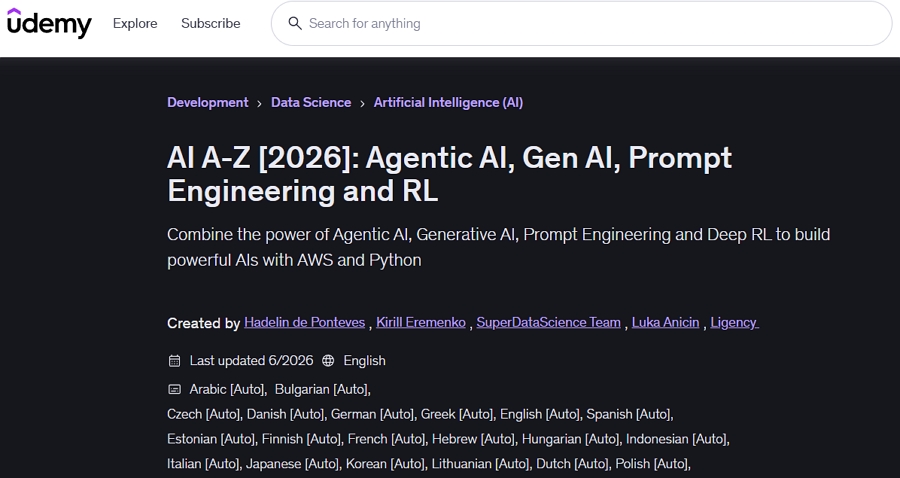
Beyond these core languages, you may notice some course landing pages displaying dozens of extra subtitle options like Czech [Auto], Thai [Auto], or Polish [Auto]. These are algorithmic regional translations.
Once your course meets the initial twenty student threshold for its primary language, you will be notified directly on the Captions page and receive an alert in your notification bell. Follow these steps to manage your editable primary captions.
1. Navigate to your instructor dashboard and open the Course Management page for your specific course.
2. Select the Captions menu located on the left hand navigation panel.
3. Locate the auto generated captions file and click Edit to review the transcript.

4. Edit any machine transcription errors directly in the Udemy's captions editing tool to ensure high quality playback for your students.
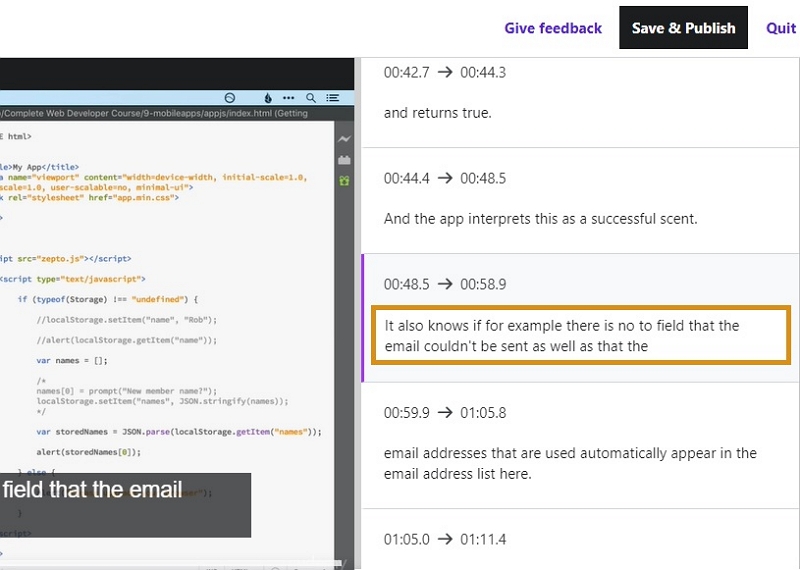
When published, the label "Auto" appears beside the captions icon on your public course landing page. If you manually edit a significant portion of these primary auto generated subtitles to improve accuracy, the system automatically removes the "auto-generated" tag.
Relying solely on unedited automatic subtitles damages your instructor rating. Poorly translated technical terms alienate international students, leading to lower completion rates and negative reviews. If you choose to manage subtitles manually, execute this sequence to ensure quality.
1. Navigate to the Captions menu in your instructor dashboard and download the baseline caption files.

2. Translate the clean transcript using professional translators and ensure your editing tool does not alter timecode formats to prevent desynchronization between audio and visual cues.
3. Re-upload the localized .srt files back by navigating to Course Management > Captions. Select the language of the captions you want to upload.

4. Hover over the target lecture and click the Upload icon.

5. Once uploaded successfully, the .vtt caption file will be displayed under that lecture.

To list your course under a foreign language category, Udemy rules require that the primary spoken audio matches that specific language. Adding foreign subtitles to English audio does not qualify the course for a foreign language category listing.
You must publish full native audio. To achieve this without spending thousands of dollars on professional recording studios, the industry standard workflow combines the Udemy course cloning feature with Vosko AI. Vosko offers a highly affordable and automated dubbing solution designed specifically for e-learning courses.
The engine translates your lecture audio while preserving your exact original speaking tone through advanced voice cloning. It supports highly accurate translation into 99 different languages and allows you to process a single video into eight distinct languages simultaneously.
This massively accelerates your global expansion strategy. Additionally, Vosko automatically translates your subtitles and exports the final synthesized video with perfectly synced captions ready for immediate upload.
Follow this exact workflow to clone and dub your course.
1. Submit a formal ticket to Udemy Instructor Support requesting a course clone for localization. Specify the target language for the duplicate listing.
2. Udemy support will generate an identical unpublished draft of your course architecture in your dashboard.
3. Download your high resolution master lecture files directly from your video library and upload them to the Vosko AI workspace.
4. Select your target languages within Vosko. You can choose to translate your course into up to eight languages at the exact same time.
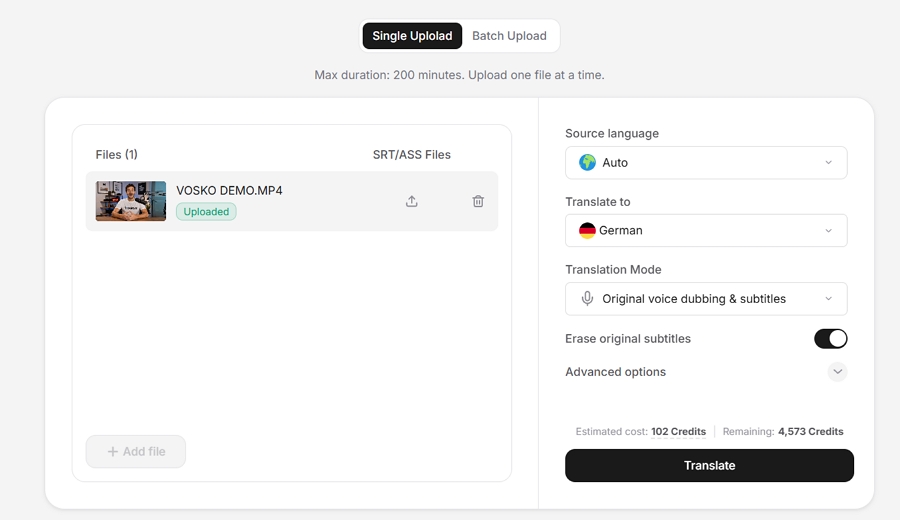
5. The engine will voice clone to generate a synthetic voice model that speaks the translated script while retaining your natural vocal identity.
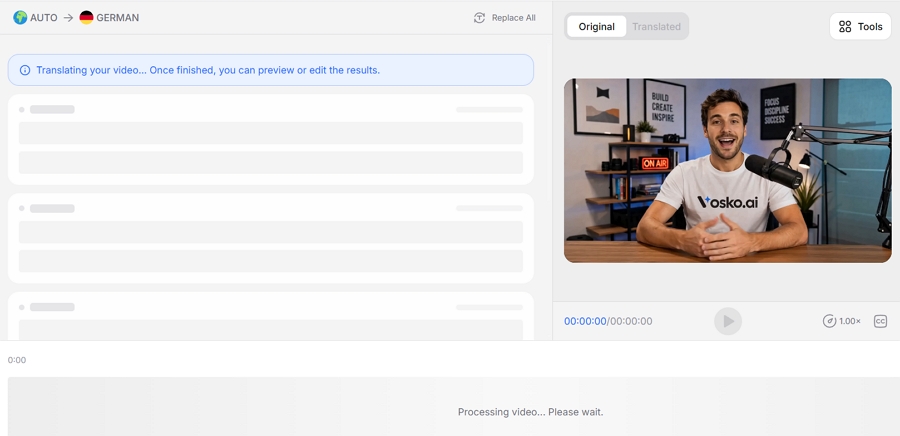
6. Open the Vosko collaborative timeline editor to preview the translated video.
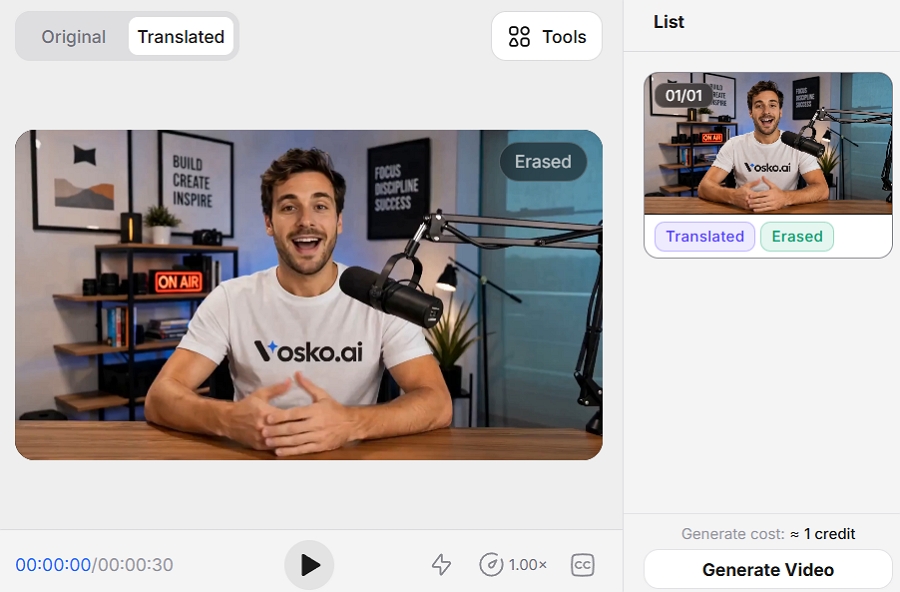
7. Check the transcript accuracy, correct industry terms, and adjust translated sentence lengths to match your original lecture timing.
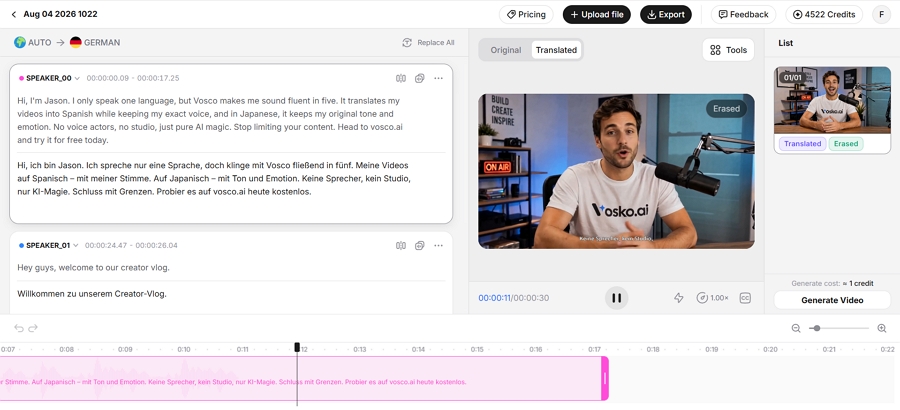
8. Render and export the final synthesized video files with perfectly aligned audio and synced subtitles.
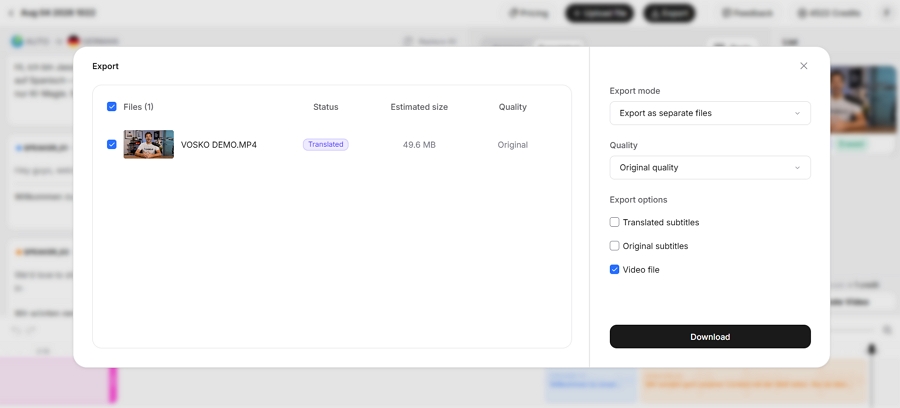
9. Upload these newly dubbed video files into your cloned Udemy course draft. Add a small national flag badge to the course thumbnail image to help browsing students identify the language version immediately, then publish it as a standalone product.
Localizing video lectures without translating your sales page results in abysmal conversion rates. International students will not purchase a course if the sales page remains entirely in English.
Focus your marketing transcreation efforts on these high impact conversion points:
Course creators should prioritize localization based on purchasing power, regional market growth, and topic competition. Expanding into strategic non English markets allows instructors to capture long tail search volume with significantly lower competition than English segments.
When evaluating expansion markets, prioritize these high ROI regions:
Students frequently purchase highly rated courses only to discover their native language is missing from the player. When this happens, you have two realistic paths to follow. You can rely on the native player settings, or you can force real time translation using dedicated browser extensions.
Before installing external software, always check the built in caption options provided by the instructor or platform algorithms.
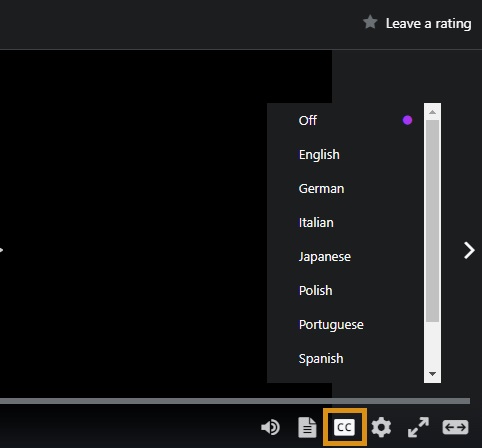
If your target language is not listed natively in that menu, you have hit a dead end within the platform. Udemy does not auto-translate unlisted languages by default for individual viewers. Overcoming this limitation requires a third party browser extension to translate the existing captions in real time.
When native options fail, language learning extensions like Trancy provide the most reliable workaround. Trancy is a specialized browser extension that translates web media. It focuses strictly on text translation, meaning it translates the on screen subtitles but does not alter or dub the original audio track.
The extension offers broad global compatibility, supporting translation across Arabic, Brazilian Portuguese, Chinese (Simplified and Traditional), English, French, German, Indonesian, Italian, Japanese, Korean, Persian, Russian, Spanish, Thai, Turkish, and Vietnamese.
Here're the steps to use Trancy to translate substiles on any Udemy course.
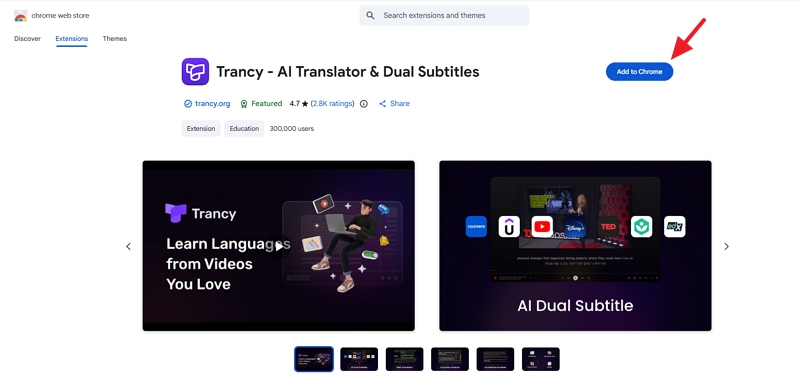
1. Install the Trancy extension directly from the Chrome Web Store and pin it to your browser toolbar.
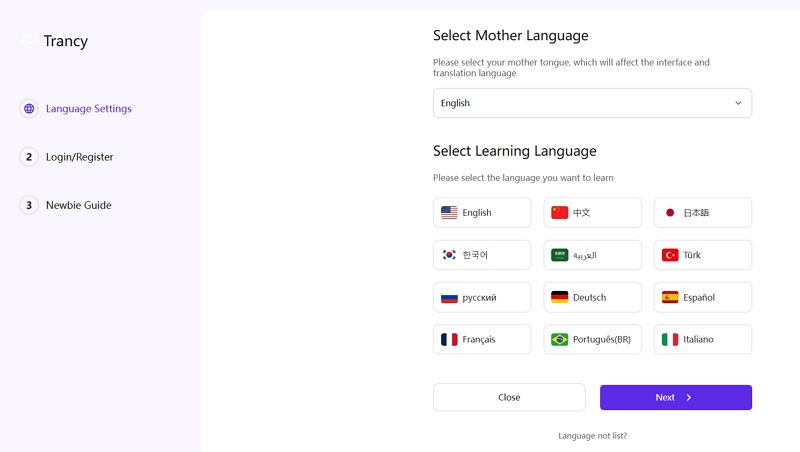
2. Configure the extension setup by selecting your mother language and your target learning language.
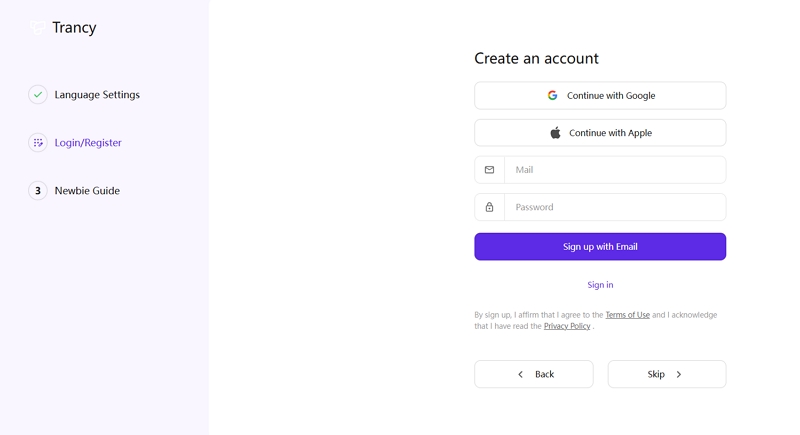
3. Register for a new account or log in to your existing profile to activate the service.
4. Open your Udemy course and ensure the original base captions are turned on via the native CC button. Trancy requires an active text source to generate translations.
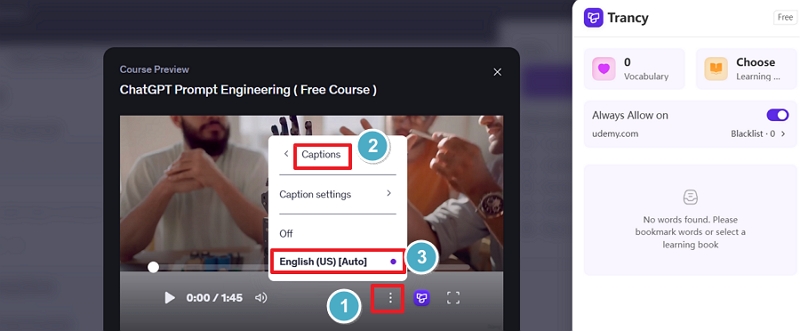
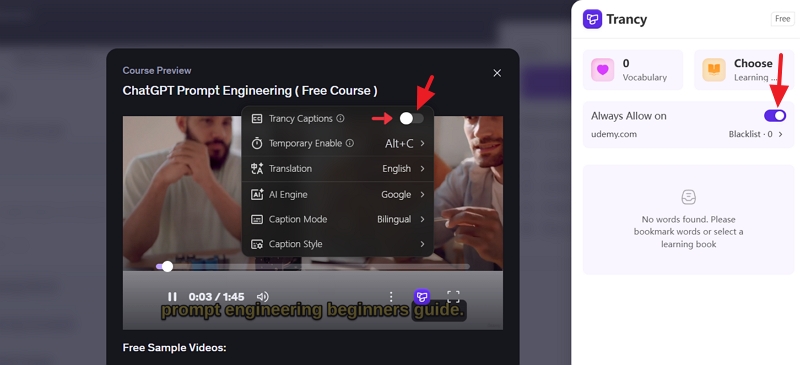
5. Click the Trancy icon in your browser and toggle Always allow on and Trancy captions on to activate the video overlay.
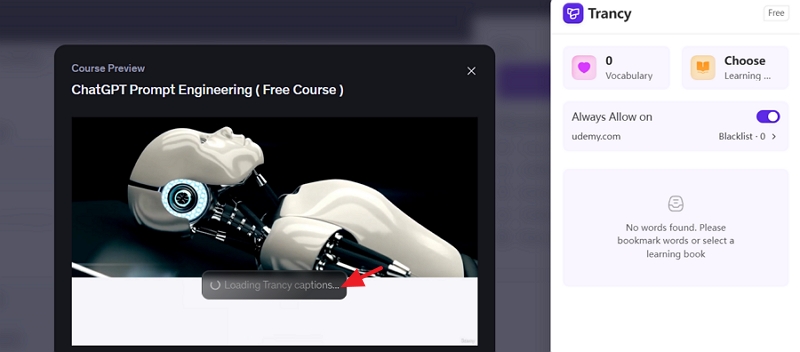
6. The Udemy player will load the translated subtitles.
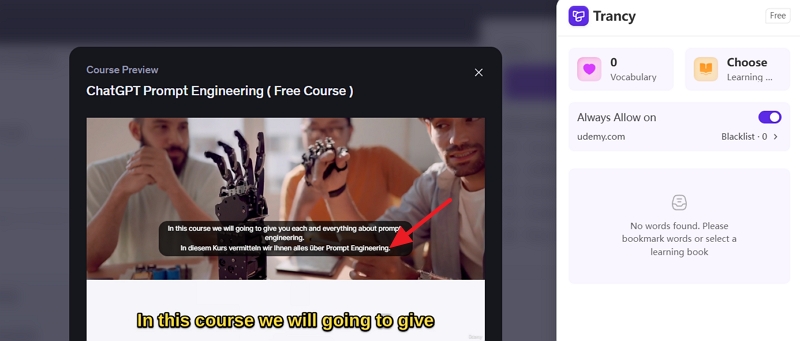
7. When it is ready, it will display the original text alongside your translated language.
Trancy operates on a freemium pricing model. The free tier provides basic machine translation features, which is often sufficient for standard course consumption. If you want highly accurate technical translations powered by advanced engines like DeepL or OpenAI, you will need to upgrade to their premium tier, which typically costs around four to five dollars per month depending on the billing cycle.
Can I upload multiple audio tracks to a single Udemy course upload?
No. Udemy does not support multiple audio tracks on a single course listing. To provide your course in another language with matching audio, you must write to Udemy Support to clone the course and publish a separate listing for that target language.
How many students are required to trigger automatic captions on Udemy?
A course must reach twenty or more enrolled students before Udemy's automated speech recognition engine generates baseline captions for supported non language learning courses.
Is it legal to use AI voice cloning to dub my Udemy course?
Yes. Voice cloning is completely legal provided you own the intellectual property rights to the original video lectures and hold explicit consent to clone your own voice for commercial distribution.
How do students translate Udemy courses that have no captions?
Students can use browser extensions that capture live system audio, generate real time transcripts, and display auto translated floating captions directly over the Udemy video player during playback.
Globalizing course content on Udemy requires working within platform mechanics rather than against them. While Udemy's single audio limitation prevents adding multi language audio tracks to a single listing, the course cloning framework provides a clear path toward international brand expansion.
By leveraging tools like Vosko AI video translator to perform zero shot voice cloning and fully translating marketing funnel copy, instructors can scale revenue across high growth international markets. For students, deploying modern browser extensions and live translation tools unlocks access to top tier global instruction regardless of native language constraints.