YouTube translates subtitles in two ways: viewer-side auto-translate, which machine-translates a video's existing captions on your screen in a few clicks, and creator-published subtitle tracks, which a channel owner adds in YouTube Studio so every viewer can choose them.
The first takes seconds. The second takes more care, because a machine translation of a messy transcript will confuse the audience you're trying to reach. This guide covers both. The steps match the current YouTube Studio layout, where the old Subtitles menu now appears as Languages on most accounts.
The rest of this article explains each step, the limits of YouTube's built-in translation, and what to do when an option is missing.
It helps to know what YouTube is actually translating.
YouTube generates automatic captions in more than 60 languages, including English, Spanish, Hindi, Japanese, Arabic, and Indonesian. Automatic captions for live streams are English-only, per YouTube Help.
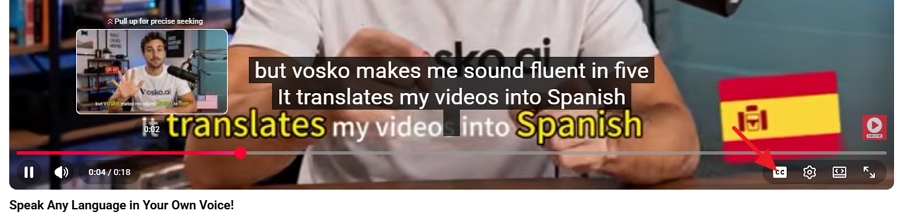
1. Open the video and click the CC icon in the bottom-right corner of the player to turn on captions.
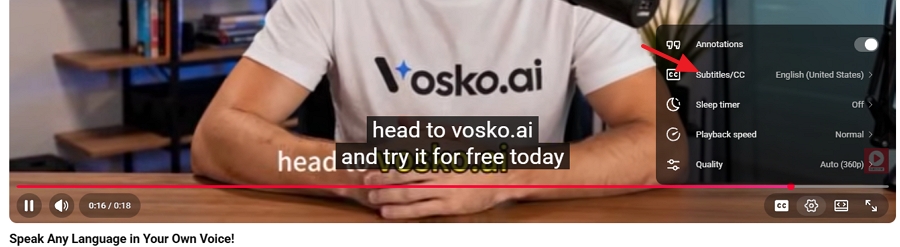
2. Click the Settings (gear) icon. Select Subtitles/CC.
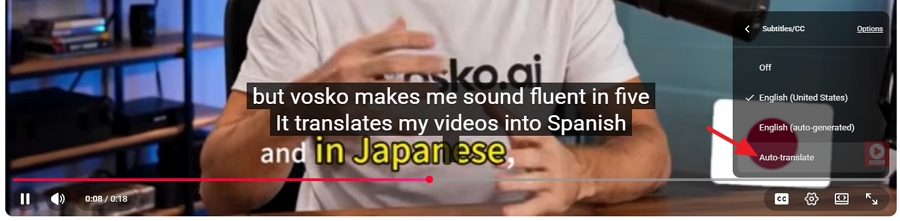
3. Choose Auto-translate, then pick your language from the list.
The translated captions stay on until you change them. To make them easier to read, go to Settings > Subtitles/CC > Options. There you can change the font, size, color, and background opacity.
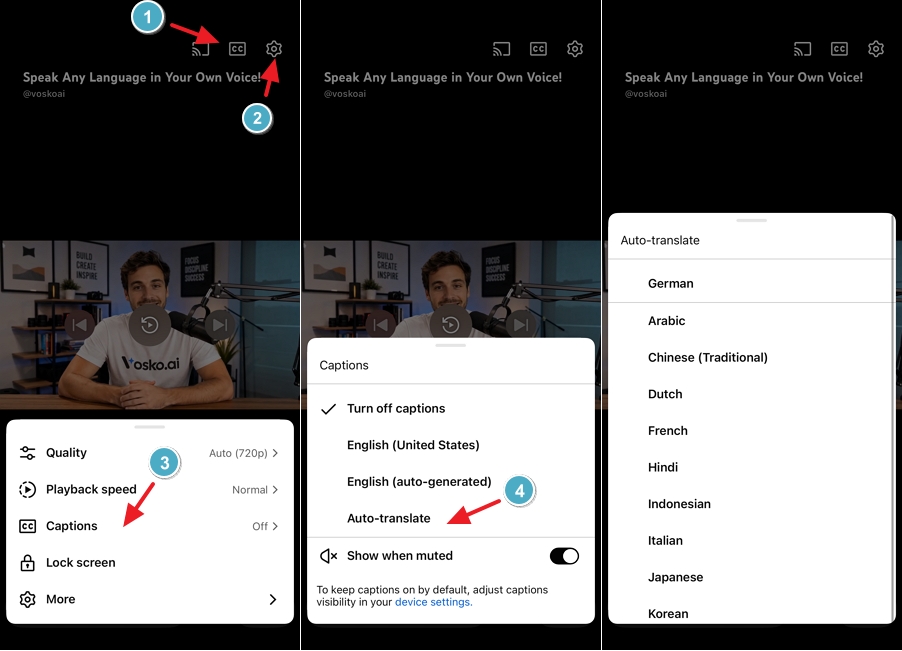
Open the video, bring up the player controls, and open the captions or settings menu. Many TV apps let you choose from the caption languages the creator published. Auto-translate support on TVs is less consistent than on desktop and mobile. If it isn't there, casting from your phone or watching on a computer usually works.
If you run a channel, translated subtitles help international viewers understand your video and make the effort look deliberate. Do two things first, then pick one of the three methods below.
Every translation inherits the mistakes of its source. A misheard product name in English becomes a confidently wrong product name in six other languages.
1. Open YouTube Studio.
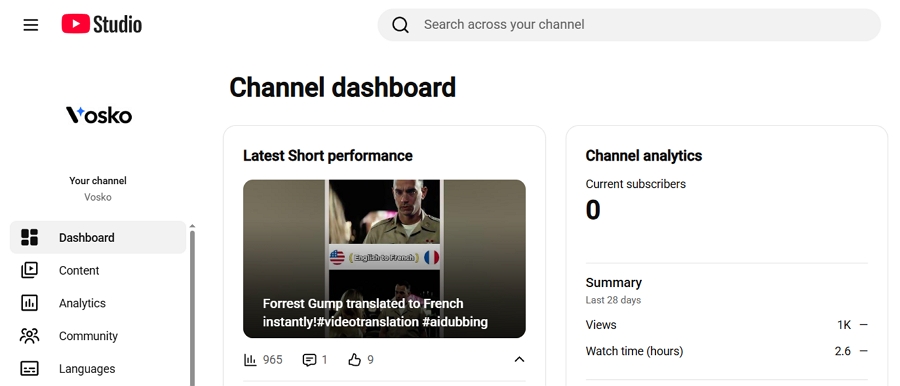
2. Select Languages from the left menu. (On some accounts this is still labeled Subtitles.) Click the video.
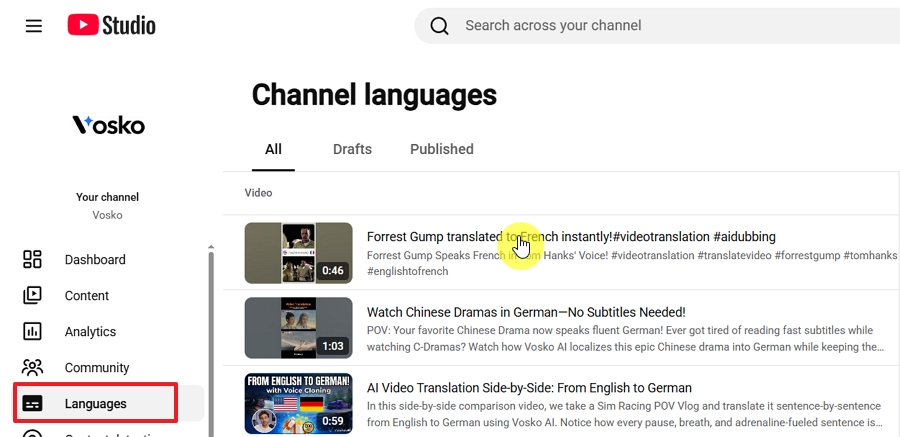
3. If you haven't set the video's language, YouTube asks you to choose it. Select the language spoken in the video and click Confirm.
4. Open the original-language subtitle track by clicking Edit subtitles.
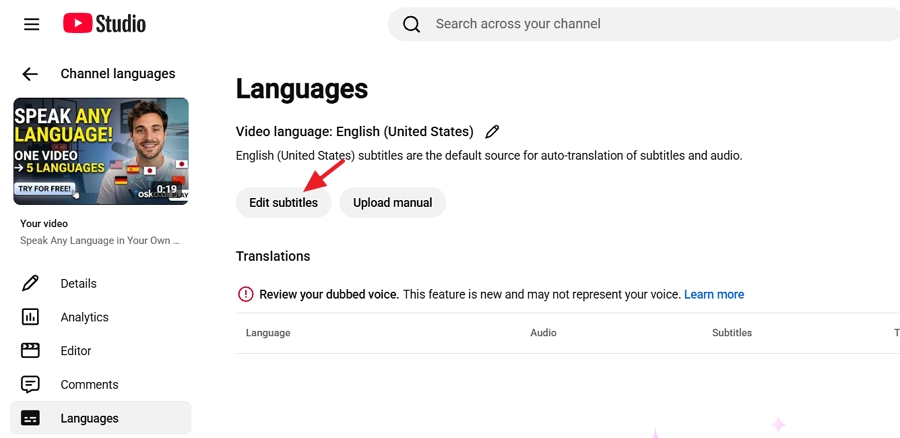
5. Review the orignial-language subtitles and fix names, numbers, technical terms first, as they are the default source for auto-translation of subtitles and audio.
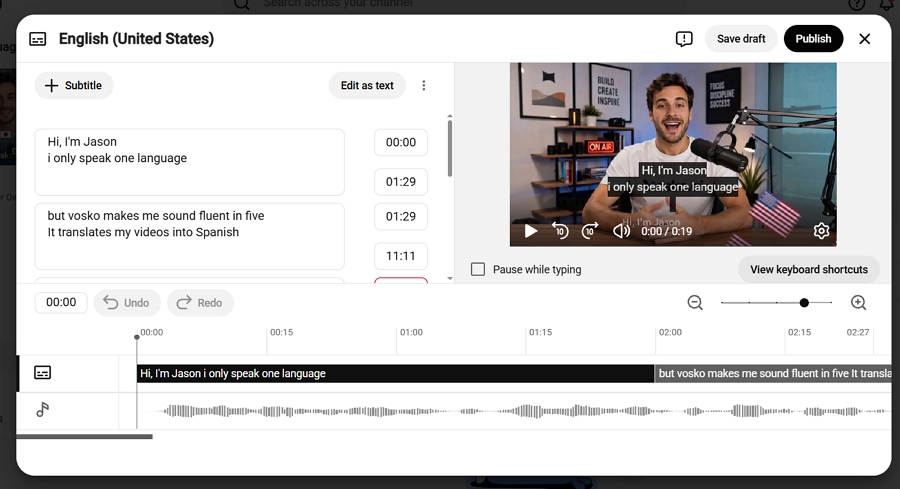
6. Publish the corrected subtitles.
| Method | Best for | Accuracy | Effort |
|---|---|---|---|
| Auto-translate in YouTube Studio | Quick coverage of many languages | Machine translation; needs review | Low |
| Upload a translated subtitle file | Videos where accuracy matters (tutorials, product, education) | Depends on your translation process; can be very high | Medium |
| Type or paste manually | Short videos, or fixing a few lines | High if a fluent speaker does it | High for long videos |
1. In YouTube Studio > Languages, open your video. Click Add language.
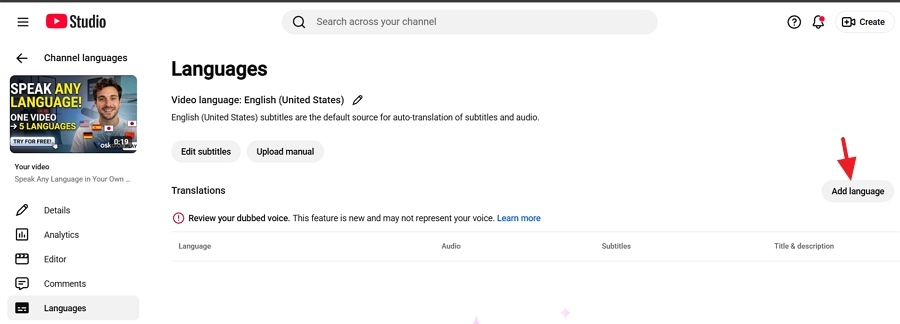
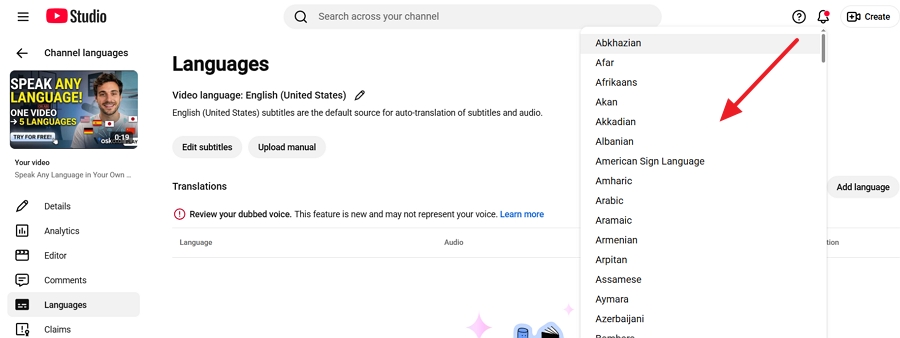
2. Select the target language, for example German.
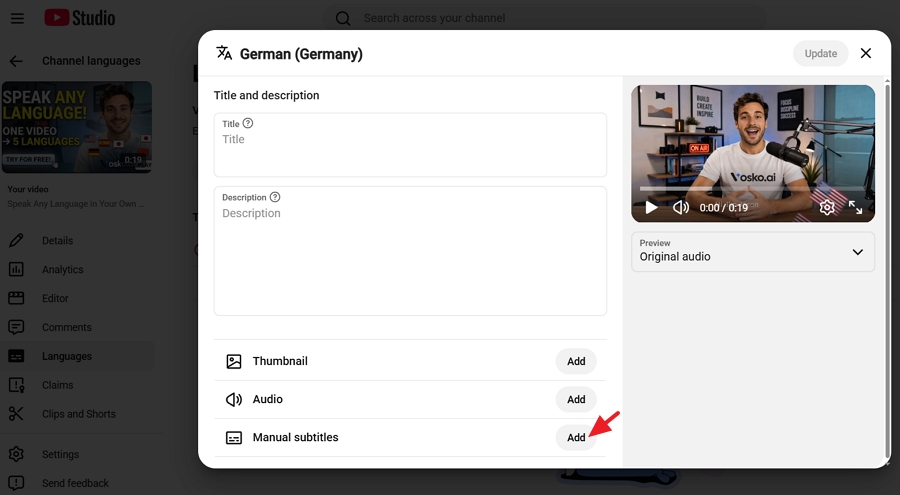
3. In that language's row, click Add under Subtitles.
4. Choose Auto-translate. YouTube fills in a draft translation based on your published source track.
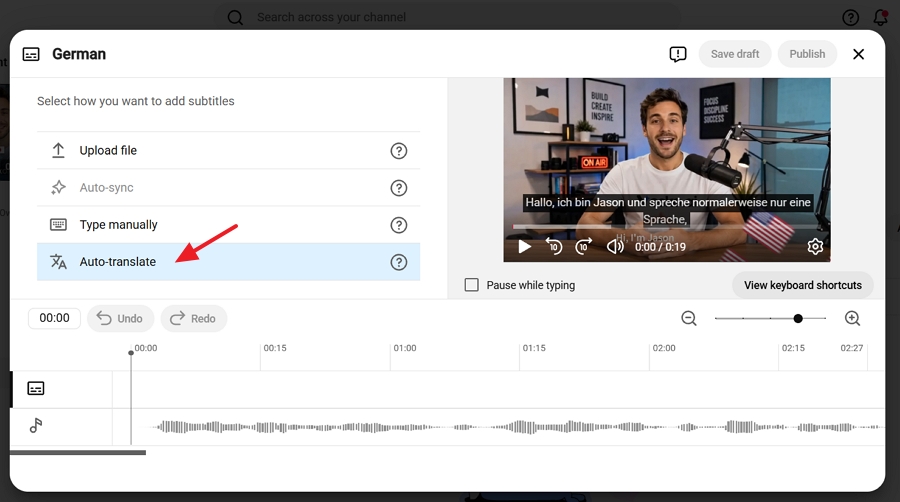
5. Read through the draft. At minimum, check names, numbers, and any on-screen call to action. Click Publish.
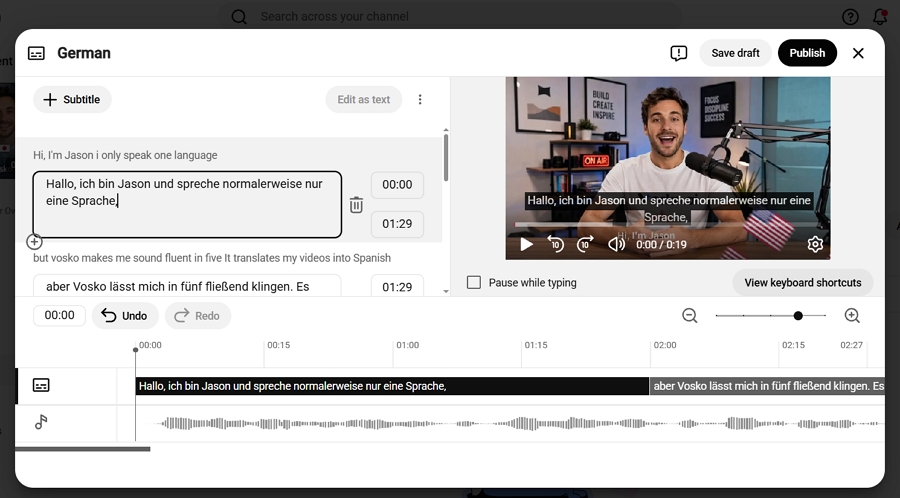
This is the fastest option, but treat the output as a first draft. Idioms, jokes, and specialized terms are where machine translation breaks most often.
This is the most reliable method when the translation has to be accurate.
1. In YouTube Studio > Languages, open your video and click Add language.
2. Under Subtitles, click Add, then choose Upload file.
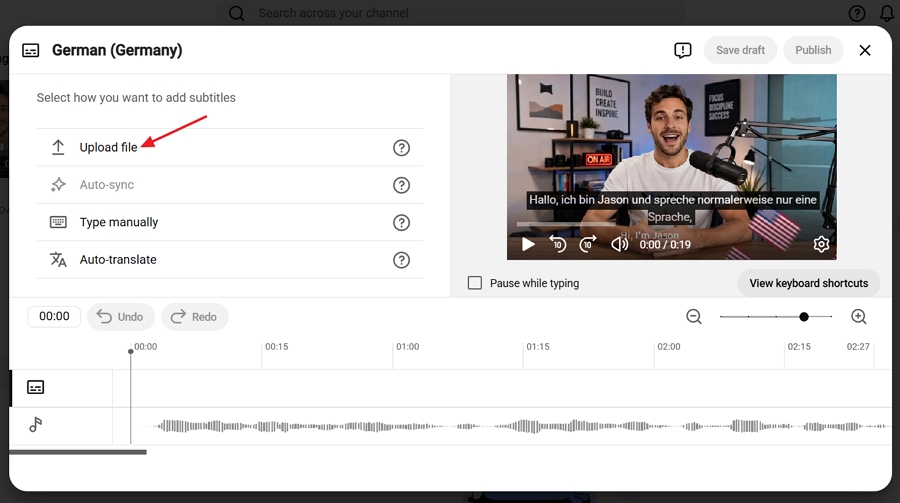
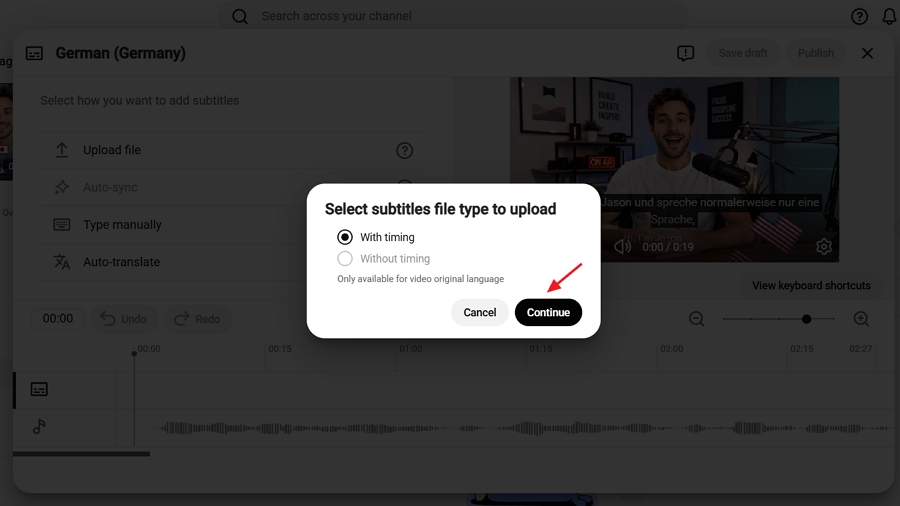
3. Choose With timing if your file has timestamps (SRT and VTT always do). Choose Without timing if it's a plain-text transcript, and YouTube will sync it to the audio.
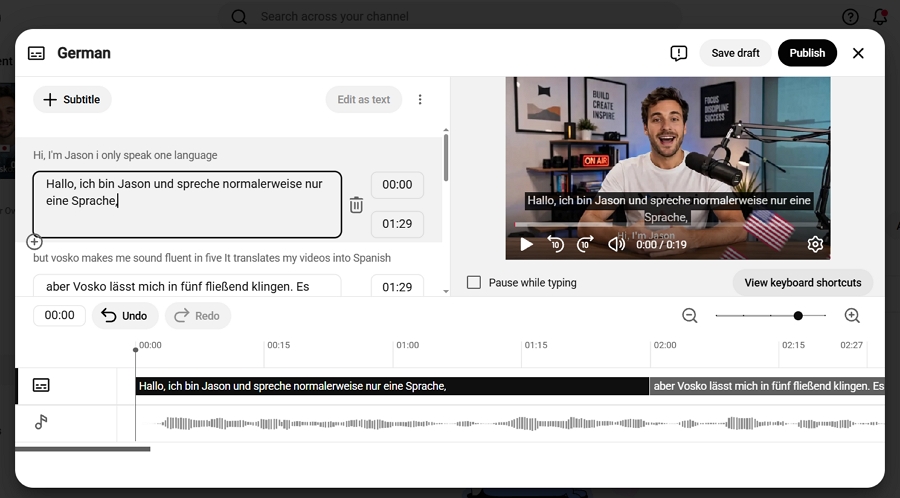
4. Select your file, review it, and click Publish.
File requirements that cause most upload failures:
1. Choose Type manually instead of uploading. This works for a 30-second clip, or for fixing a few lines after auto-translate. For anything longer, it's easier to edit a subtitle file and upload it.
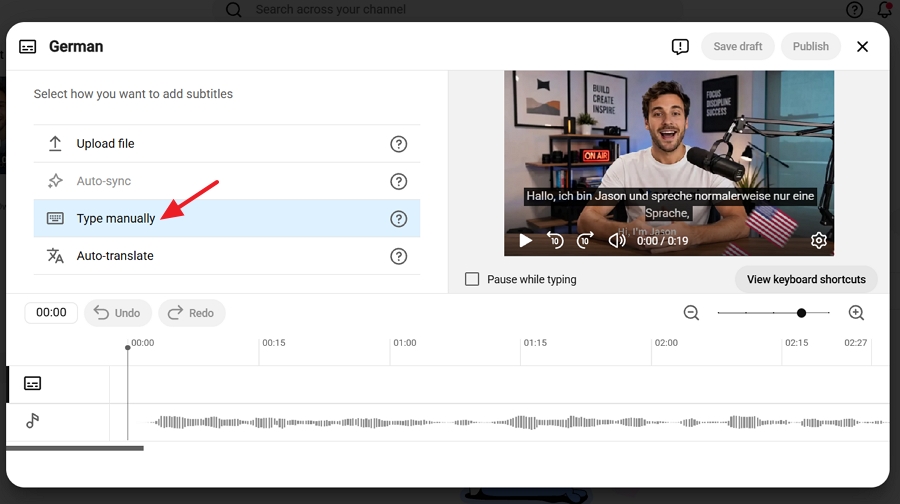
2. Type the subtitles manually and click Publish.
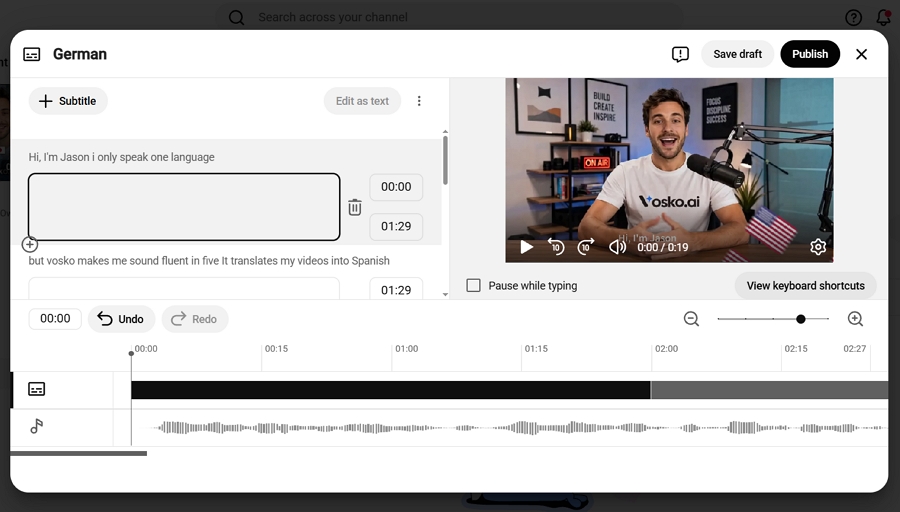
Method 2 is only as good as the file you upload. Here's how to translate your YouTube subtitles:
1. In YouTube Studio.
2. Select Languages from the left menu. Click the video.
3. Click Edit subtitles.
4. Open the published original-language subtitle, click the three-dot menu.
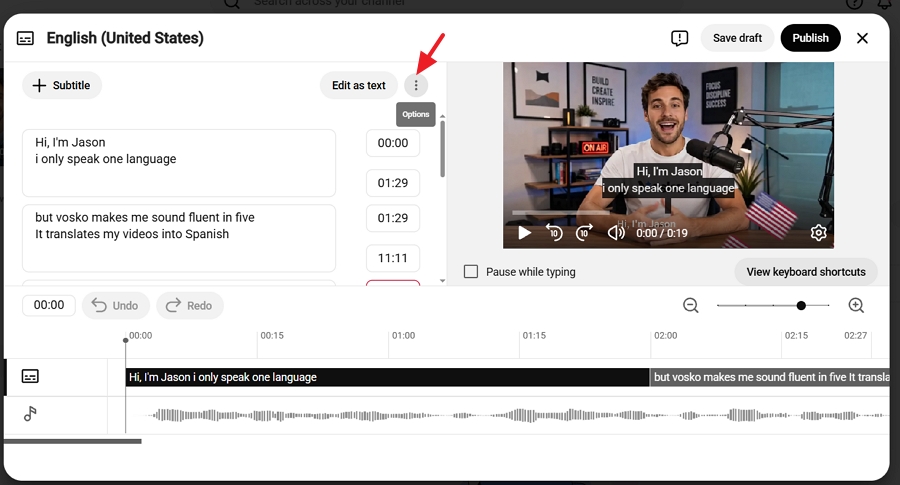
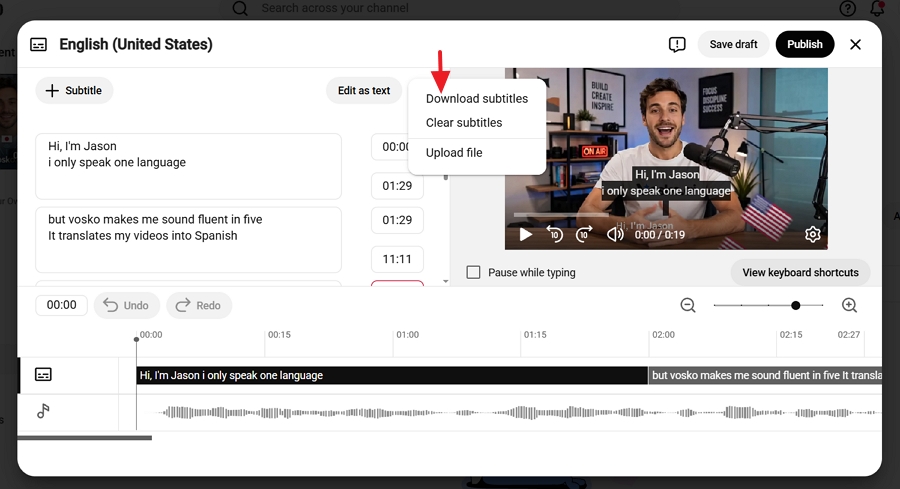
5. Choose Download subtitle and download it as SRT, SBV, or VTT.
6. You can use a professional translator, a bilingual team member, or an AI subtitle translator to translate video subtitle. With Vosko's Subtitle Translator, you can import an existing SRT or VTT file, or upload the video itself. You then edit the translated lines on a timeline and export a subtitle file for YouTube.
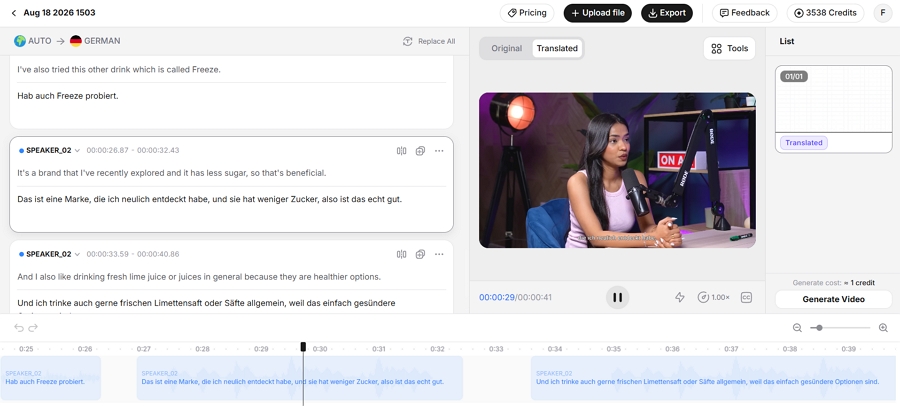
7. Have a fluent speaker run a quick review. It doesn't have to be a full retranslation. Use the checklist below:
Shorts use the same subtitle system. Open the Short in YouTube Studio > Languages, add a language, and use auto-translate or upload a file. Shorts move fast and many viewers watch them muted, so short, tightly timed lines matter even more there.
| Problem | Likely cause | Fix |
|---|---|---|
| Viewers don't see Auto-translate | The video has no caption track, or automatic captions are still processing | Wait for processing, or upload a source caption track |
| No automatic captions on your video | Unsupported language, poor audio, overlapping speakers, a long silent intro, or a very long video (YouTube Help) | Upload or type the source captions yourself |
| Can't find Subtitles in Studio | It has been renamed Languages | Use Languages in the left menu |
| Studio asks for a video language first | The video's language was never set | Select the spoken language and click Confirm |
| Upload error or garbled characters | Wrong format or non-UTF-8 encoding | Re-save as UTF-8 SRT or VTT |
| Subtitles drift out of sync | A timed file was uploaded as "Without timing," or the timestamps were made for a different edit | Re-upload with the correct option, or re-time the file against the final video |
| Translation published but viewers can't find it | The track is still a draft | Open the language row and click Publish |
Translated subtitles cost little and work well for viewers who are comfortable reading along. They're less effective for fast-paced content, mobile viewing, or audiences that strongly prefer audio in their own language. If you're weighing both, see our comparison of subtitles vs. dubbing. If you decide on audio, our guide on how to translate YouTube video audio covers it.
Yes. Viewer auto-translate and the Studio auto-translate option cost nothing. The cost is accuracy: both rely on machine translation of the source captions.
It's usually good enough for following general meaning between widely spoken languages. It's less reliable with slang, specialized terms, and poor source captions. For anything that represents your brand, review the translation before you publish it.
You can view them in your language with Auto-translate. You can't add a translated track to another creator's video. YouTube discontinued community-contributed captions in 2020.
YouTube doesn't publish a strict limit for creator-added tracks, and channels commonly publish many. In practice, start with the countries where your audience already watches. Analytics > Audience shows where your viewers come from.
Yes. Translated subtitles help people who are already watching. A translated title and description help people decide to click in the first place.
For viewers, translating YouTube subtitles is a one-minute settings change. For creators, the shortcut and the right way are different. Fix the source captions, use auto-translate for breadth, and upload reviewed subtitle files for the videos that matter most. Do that well and the extra languages bring in viewers who can follow every line.