Learning how to translate video subtitles efficiently allows creators, educators, and enterprise brands to expand their international reach without rebuilding video assets from scratch.
Whether you need to translate video subtitles for social media clips, convert SRT files for global audiences, or erase hardcoded captions from legacy video files, selecting the right workflow ensures your translated message resonates while keeping your audio timecodes perfectly synchronized.
Translating video subtitles is rarely a one size fits all process. The route you take depends entirely on your source files, your target audience, and whether the text is separate from the video or permanently baked into the pixels.
Most localization guides point you directly toward online tools, ignoring the reality that professional subtitle translation requires strict timecode management and format compatibility.
To help you choose the most effective approach for your project, the table below breaks down the primary methods to translate video subtitles based on speed, accuracy, and use case.
| Translation Method | Best For | Speed and Scalability | Accuracy and Control |
|---|---|---|---|
| Native Platform Auto Translate | Social media creators prioritizing fast publishing on platforms like YouTube, TikTok, or Instagram. | Instant processing. Difficult to export or repurpose across multiple channels. | Low accuracy for idioms and dialects. Zero control over timecodes outside the platform. |
| Web Based AI Video Editors like Veed | Marketing teams and content creators who prefer a visual browser interface for single projects. | High speed for individual videos. Often restricted by upload limits and lacking batch options. | Moderate accuracy. Good visual sync, but exporting raw SRT files can sometimes alter original timestamps. |
| AI Video Localization Tools like Vosko | Brands and agencies needing to erase hardcoded subtitles, clone voices, and translate subtitles simultaneously. | High scalability. Replaces multiple editing tools by tranlating substitles, voiceover in one workflow. | High accuracy. Automatically erases hardcoded subtitles, aligns newly generated translated audio with the translated subtitles. |
| Desktop Open Source Software | Professional localizers managing large libraries who need to batch process multiple SRT or VTT files manually. | Highly scalable for text-only workflows. Excellent for bulk editing and file conversions. | Maximum control. Locks timecodes in place to ensure translated text aligns precisely with original speech. |
Before translating a single word, you must also understand the underlying file formats. Modifying these files incorrectly will instantly break your video timeline.
| Subtitle Format | Primary Use Case | Timecode and Formatting Behavior |
|---|---|---|
| SRT (SubRip Subtitle File) | Universal platform compatibility (YouTube, social media, standard media players). | Strictly text and timestamps. Extremely easy to edit manually, but highly sensitive to broken formatting arrows. |
| VTT (WebVTT) | HTML5 web players and modern streaming platforms. | Supports basic text styling, font colors, and screen positioning. Retains metadata during export. |
| ASS (Advanced SubStation Alpha) | Anime, complex kinetic typography, and advanced video overlays. | Complex scripting language. Translating the text without breaking the animation code requires specialized software. |
If your content lives exclusively on social media, native platform translation is the fastest route to market. Instagram and TikTok both offer built in auto captioning and translation features.
When a viewer watches your TikTok video in a different country, the app can automatically translate the captions into their local language. However, these native tools offer zero export functionality and restrict you from editing the translated text for accuracy.
YouTube provides a much more robust dual layer translation system. By default, YouTube automatically generates closed captions for your original spoken language.
Viewers can instantly translate these default captions on the front end by clicking the video player settings gear icon, selecting Subtitles CC, clicking Auto translate, and choosing their preferred language. This viewer side feature requires zero backend configuration from the creator.
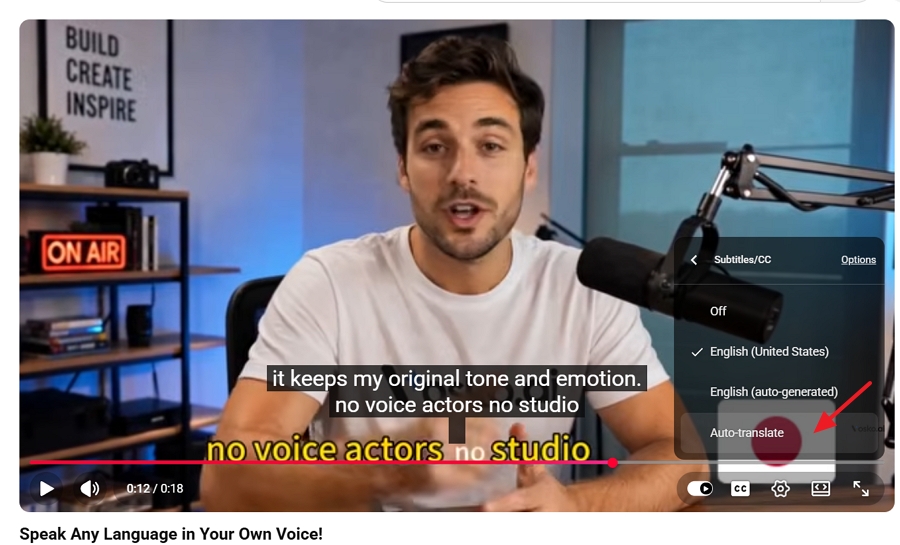
However, relying entirely on automatic viewer side translation hurts your international search ranking and leaves machine translation errors uncorrected.
To index your video in foreign search results and ensure cultural accuracy, you can generate and edit dedicated translated tracks inside your creator dashboard.
Here is the exact process to edit auto translated subtitles within YouTube Studio.
1. Sign in to your YouTube Studio dashboard.
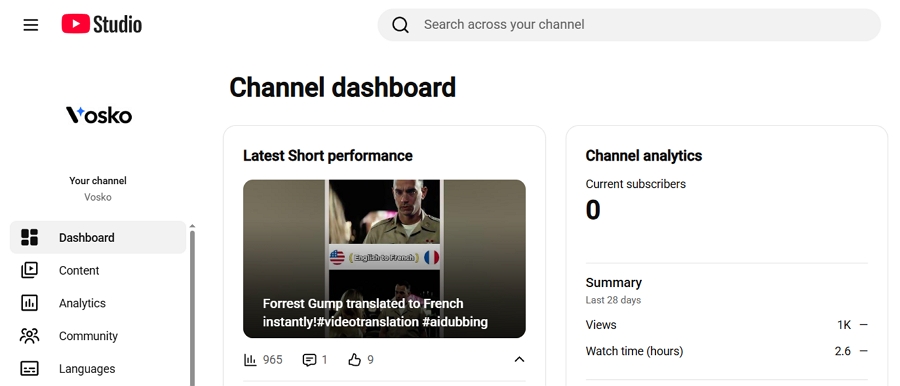
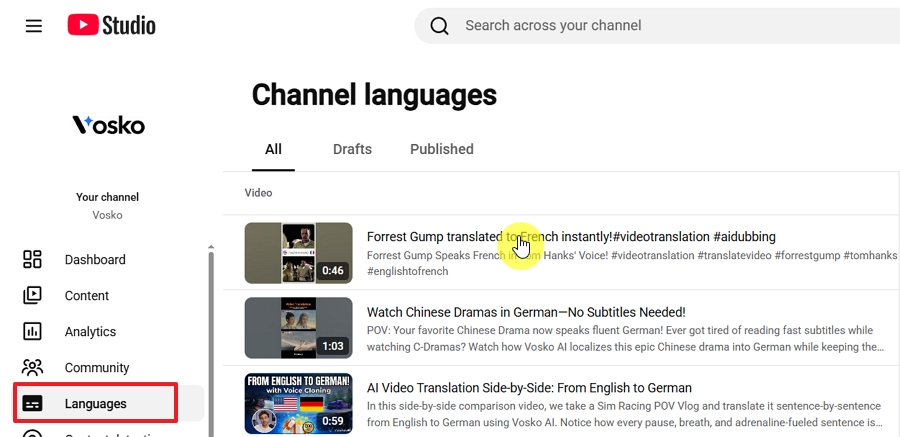
2. Click Languages from the left navigation menu. And select the video you want to edit.
3. Verify and edit your original captions first. Click the Edit subtitles button next to your default language track.
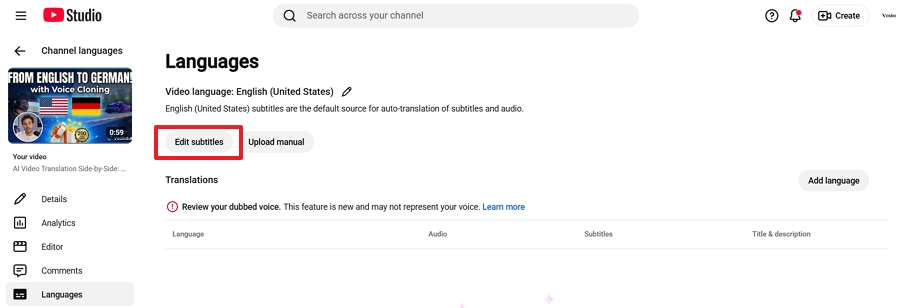
4. Fix any machine generated errors. This clean original track acts as the foundational source for all accurate auto translations.
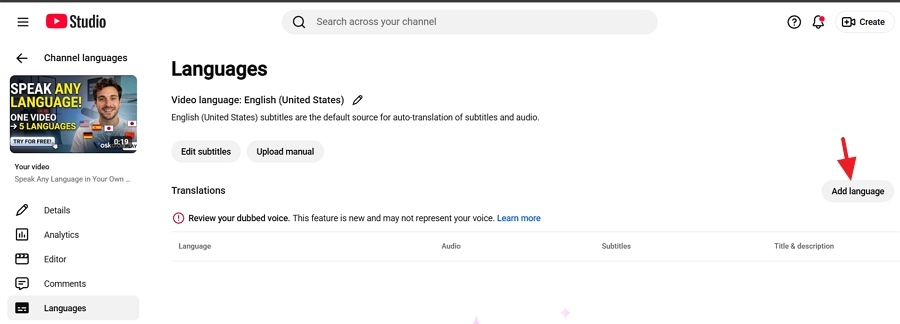
5. Click the Add Language button to edit the auto translated subtitle.
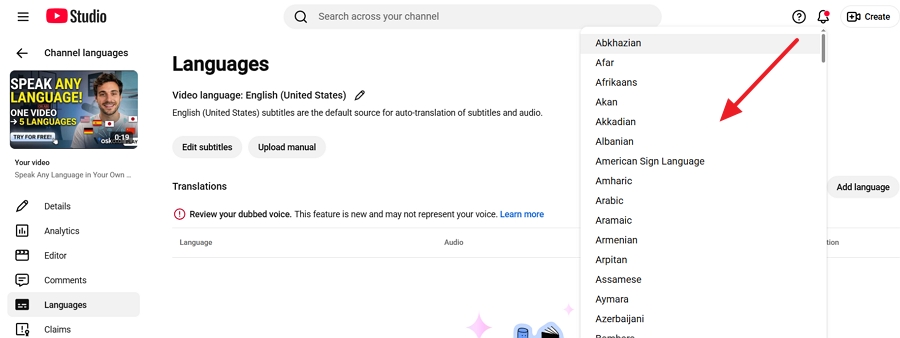
6. Choose your target language from the dropdown list.
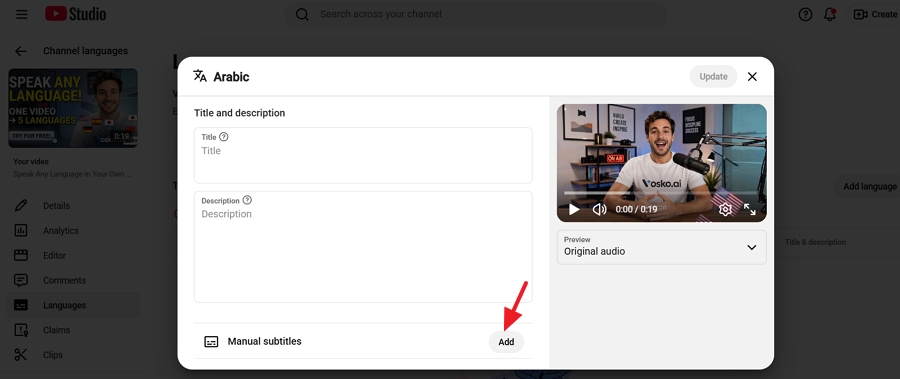
7. Click Add under the Manual subtitles column.
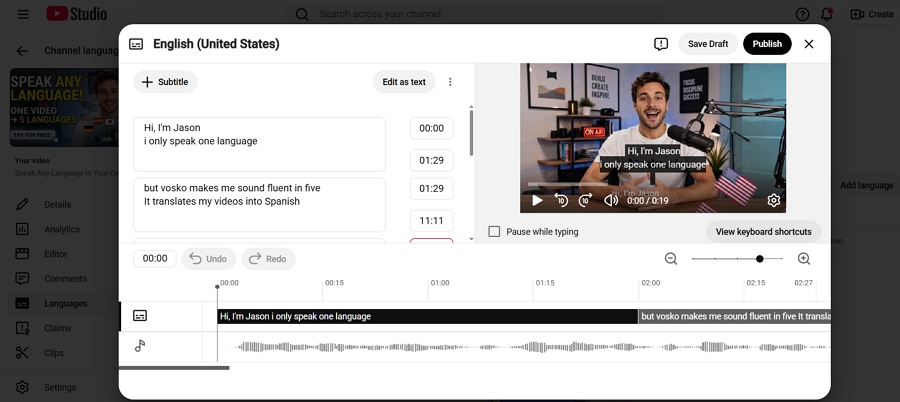
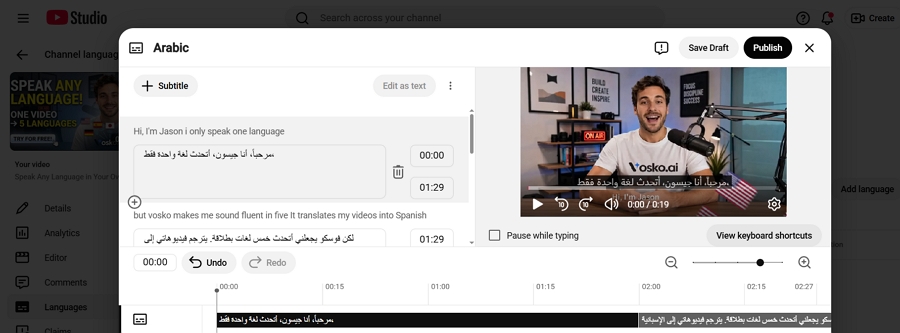
8. Click Auto translate in the pop up editor window to instantly populate the fields with the translated dialogue.
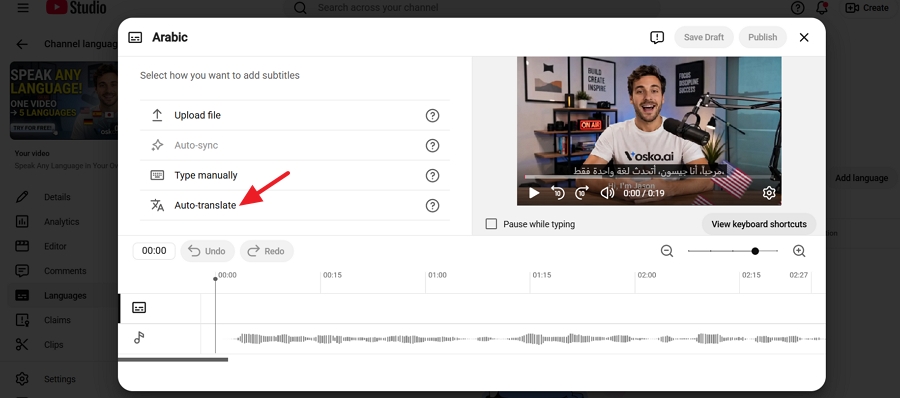
9. Review the translated text, make any necessary manual adjustments, and click Publish.
When you need a standalone subtitle file but prefer a visual, browser based workflow, online video localizers provide a streamlined interface. Platforms like Clideo, Canva, and Veed are built for speed and visual feedback.
Here is how to translate the video subtitle using Veed.
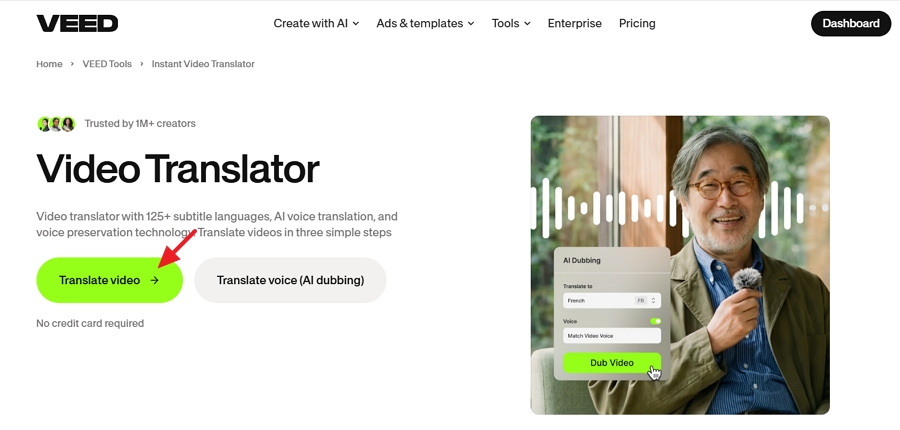
1. Visit Veed video translator on your browser.
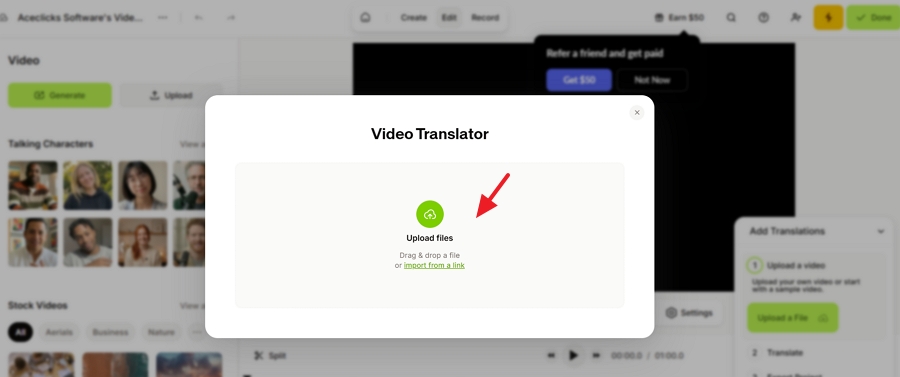
2. Drag and drop your source video file into the Veed project timeline.
3. Click the Subtitles tab on the left sidebar and enable Add translation option.
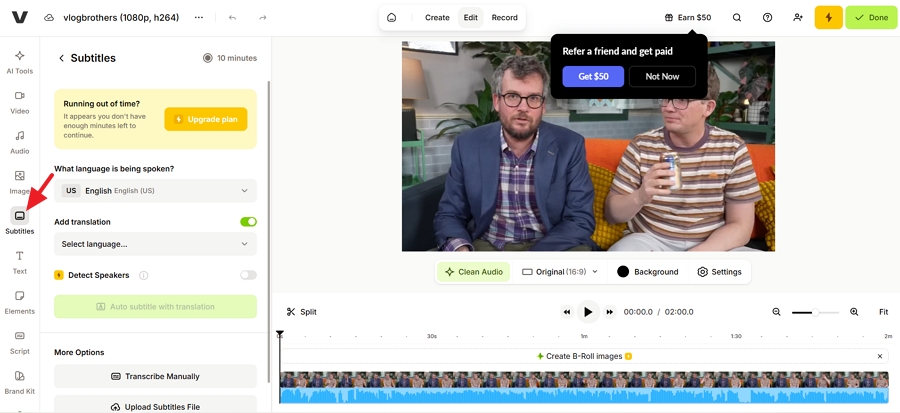
4. Choose your source language and select your target translation language from the available list.
5. Click the Auto substitle with translation button.
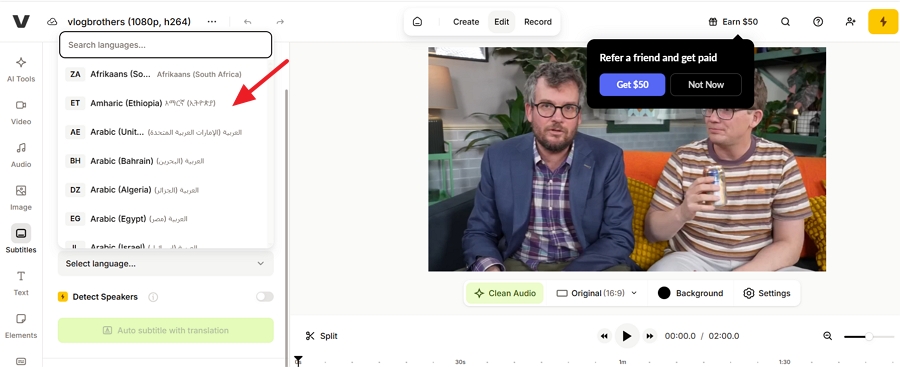
6. Allow the engine to process the translation. Review the text blocks on the screen.
7. Click the Options tab on the subtitle panel and select Export to download your finished SRT or VTT file, or export the entire video with the new text overlaid.
Standard workflows fall apart when you encounter hardcoded subtitles. These are text elements permanently rendered into the video pixels.
You cannot extract them as an SRT file, and simply overlaying new translated text on top of them creates a messy, unreadable viewing experience.
Handling burned in subtitles requires optical character recognition to read the text, followed by content aware fill to erase the original pixels.
Furthermore, if you are localizing the visual text, you often need to localize the audio track using AI dubbing technology as well to create a cohesive experience for the viewer.
This is where Vosko provides a distinct advantage. Vosko is an advanced localization platform engineered to handle complex audio and substitle translation simultaneously.
Instead of relying on manual blurring techniques, Vosko detects and erases hardcoded subtitles from your video footage.
It then utilizes deep voice cloning to translate your original voiceover into your target language while preserving your authentic vocal tone. What's more, it will sync the translated substiles to the video as well.
Here is the exact workflow to translate hardcoded subtitles and voiceovers using Vosko.
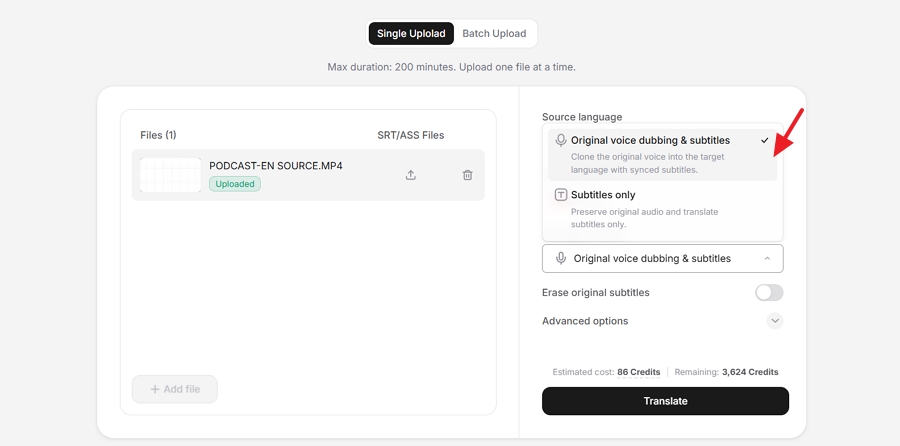
1. Click Sign Up to create an account, or Log In to access your workspace.
2. Click Upload and import your video or audio file.
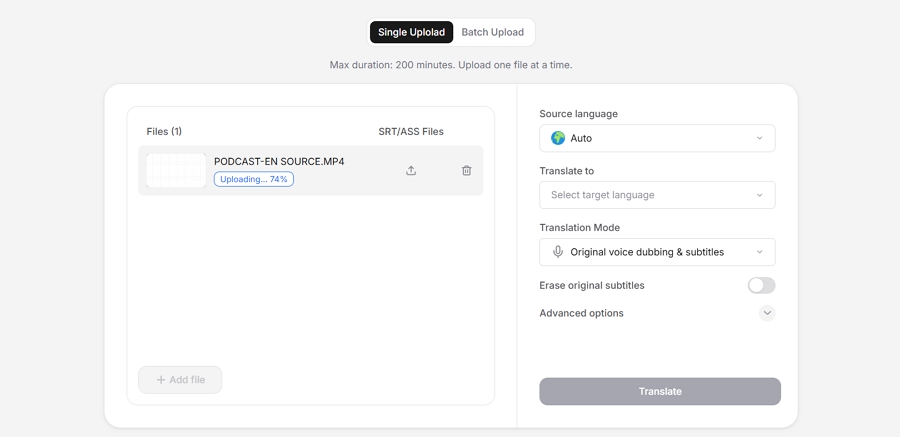
3. Select the source and target language.
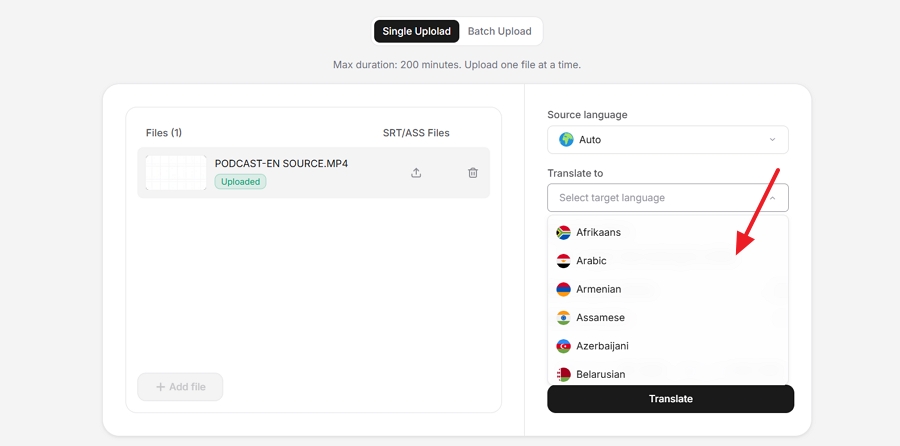
4. Then choose a translation mode. You can select Original Voice Dubbing & Subtitles to clone the original voice in the target language and generate synced subtitles, or select Subtitles Only to keep the original audio and translate subtitles only.
5. Enable the erasing original subtitles feature to remove existing burned in subtitles and click Translate.
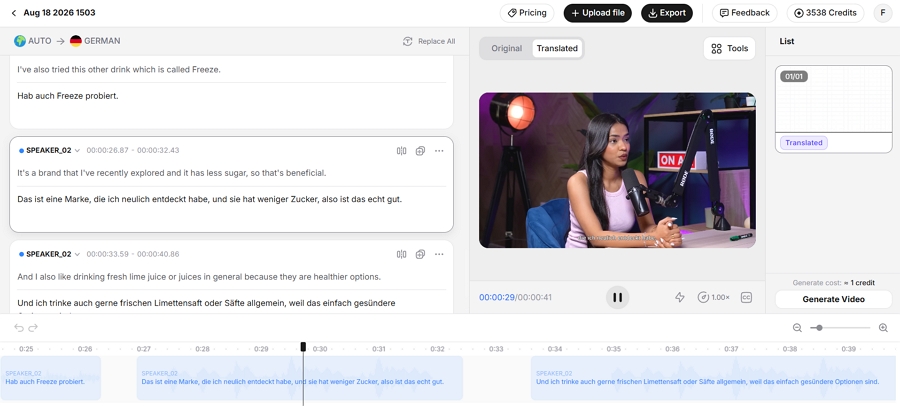
6. When processing is complete, open the workspace, switch to the Translated tab, and preview the result.
7. Use the subtitle editor to edit text, re-translate segments, merge or split subtitles, add new segments, or replace words in bulk.
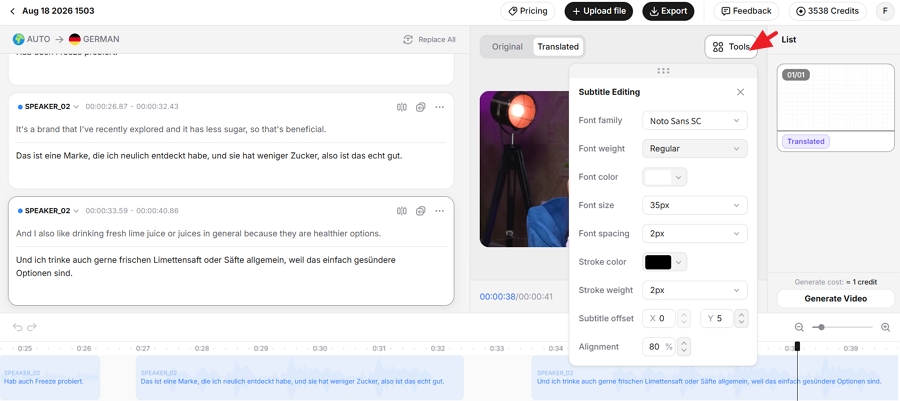
8. Click the Tools button to customize subtitle fonts, colors, outlines, size, and position from the styling panel to match your brand guidelines.
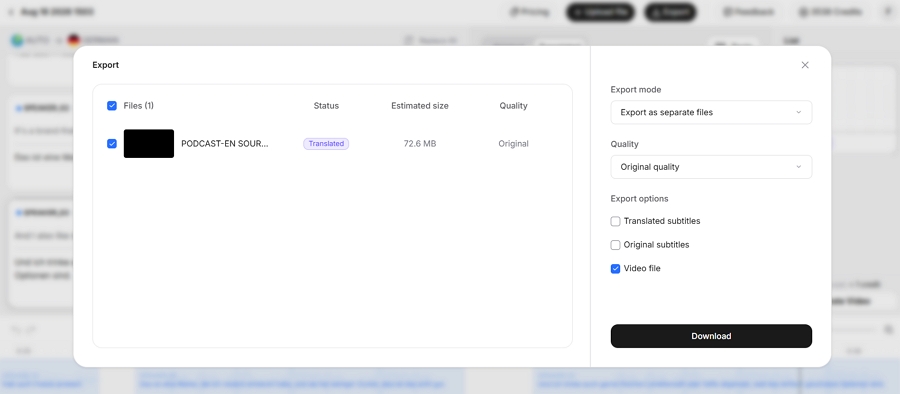
9. Click Export to render the final video with clean subtitles, then choose Export options to download it.
When absolute precision is required, manual translation is the only acceptable method. AI tools routinely miss contextual nuances, tone, and brand specific terminology. Editing a raw subtitle file requires strict adherence to formatting rules.
A standard SRT file consists of a sequence number, a timecode formatted as hours, minutes, seconds, and milliseconds, the dialogue text, and a blank line.
Follow these steps to manually translate a subtitle file using Subtitle Edit without destroying the video sync.
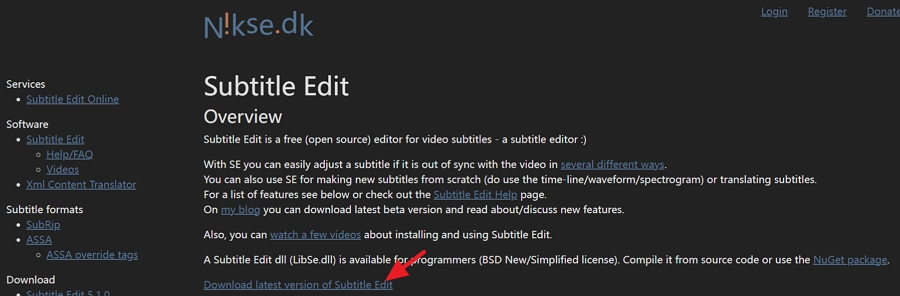
1. Download Subtitle Edit on your computer.
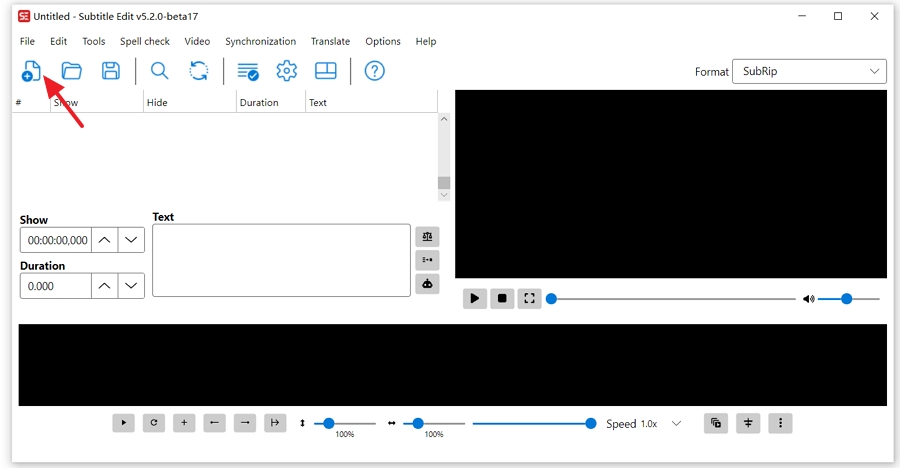
2. Launch the program after the installation. Click the Open button to open your source SRT, ASS or VTT file.
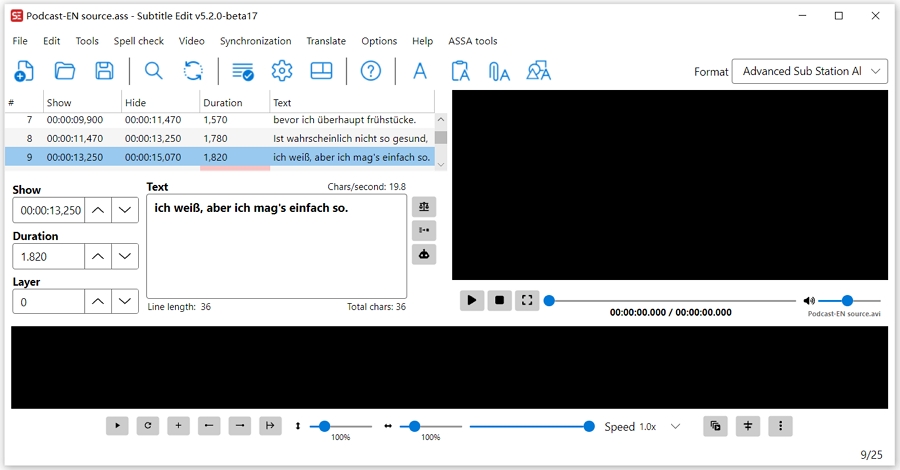
3. Locate the first block of text. Leave the sequence number and the timecode completely untouched. If you delete a single space or alter the formatting arrows, the file will corrupt.
4. Open the original dialogue and type your translated text within Subtitle Edit. Monitor your line lengths. A standard industry rule is a maximum of 42 characters per line. Break longer sentences into two lines to maintain readability.
5. Save the document with the exact same file extension, ensuring the text encoding is set to UTF-8 to prevent special characters from breaking.
What is the best free subtitle translation tool for SRT files?
Subtitle Edit is widely considered the best free, open source tool for managing and translating SRT files. It provides side by side translation views, audio waveform visualization, and built in error checking to prevent broken timecodes.
How do I translate an SRT file without losing the original timing?
You must use a dedicated subtitle editor or carefully edit the file in a plain text editor, ensuring you only replace the dialogue text. Never alter the sequence numbers or the timecode brackets.
Will YouTube let me download the SRT file?
Yes. Once YouTube generates the auto captions for your video, you can use the auto translate feature within YouTube Studio to create a new language track. You can then download that specific translated track as an SRT, VTT, or SBV file.
How accurate is AI subtitle translation?
AI translation accuracy drops significantly when processing idioms, slang, and cultural expressions. Machine learning models struggle with context and often provide literal translations that strip the original meaning away from the phrase.
How do I translate subtitles that are burned into the video?
You must use an advanced video editor or AI platform like Vosko to erase the original burned in text from the video file. Once the visual space is clean, you can generate a new translated SRT file, clone your voiceover, and overlay the fresh text track perfectly synced to the new audio.
Which subtitle file formats should I use for multilingual caption translation?
SRT is the safest and most widely accepted format for multilingual translation. It is supported by nearly every video player and social media platform globally. VTT is the preferred secondary option if you need specific text formatting for web players.
How can I batch translate multiple SRT or VTT files at once?
You can utilize desktop software like Subtitle Edit, which includes a batch convert feature, or use specialized localization platforms such as Vosko that allow bulk uploads. Avoid free browser tools for batch processing, as they often impose strict file size and quantity limits.
Translating video subtitles effectively requires balancing speed with precision. If you are managing standard content and need rapid deployment, leveraging AI translation platforms and native social media tools followed by a manual review is highly efficient.
However, if you are localizing high value corporate assets, narrative films, or dealing with complex hardcoded text, manual translation combined with professional synchronization tools is mandatory.
Exporting and managing clean SRT or VTT files ensures your content remains flexible across all distribution channels. Take control of your localization strategy today by downloading a dedicated subtitle editor or utilizing an advanced workflow platform to scale your global reach.