Growing a YouTube channel requires reducing friction for your viewers. If you want more people to subscribe, you have to make the button impossible to miss and incredibly easy to click. In this guide, we break down exactly how to add the subscribe button to YouTube videos using builtin YouTube tools, description links, and external embeds.
To ensure you get the most accurate information possible, we manually tested every single method discussed in this guide using the latest 2026 YouTube Studio interface. The exact steps detailed below are based on our own real-world tests, and we have included actual screenshots so you can see exactly where to click and what to do.
A common point of confusion for new creators is thinking there is only one type of subscribe button. When competitors talk about this topic, they often mix up clickable features with visual graphics. Let us clarify the five distinct ways to prompt a subscription.
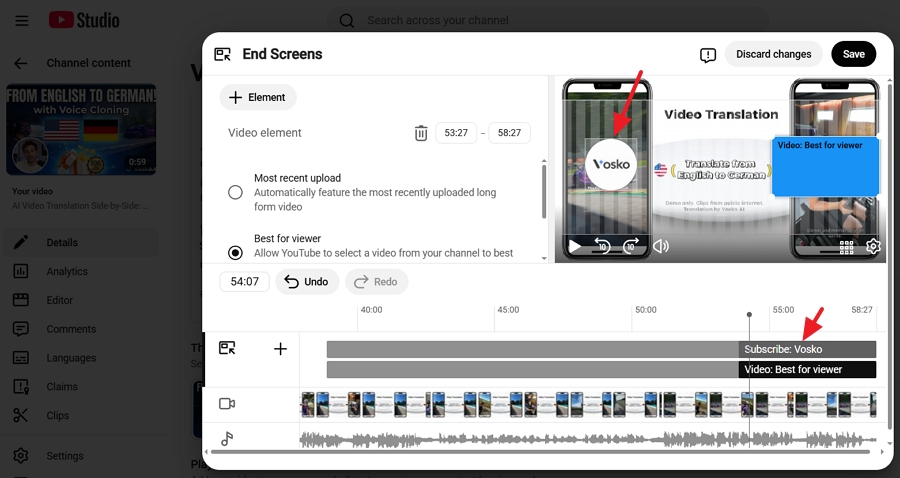
End screens are dynamic elements that appear in the last 5 to 20 seconds of a video. Because of its large size and central placement, the end screen subscribe element is highly visible and incredibly powerful when you explicitly tell viewers to click it.
If you have not used YouTube end screens before, check our guide on how to add chapters to YouTube videos and optimize viewer navigation before configuring your subscribe element.
Once you complete the setup, viewers will see the result shown in the screenshot below when watching your video.
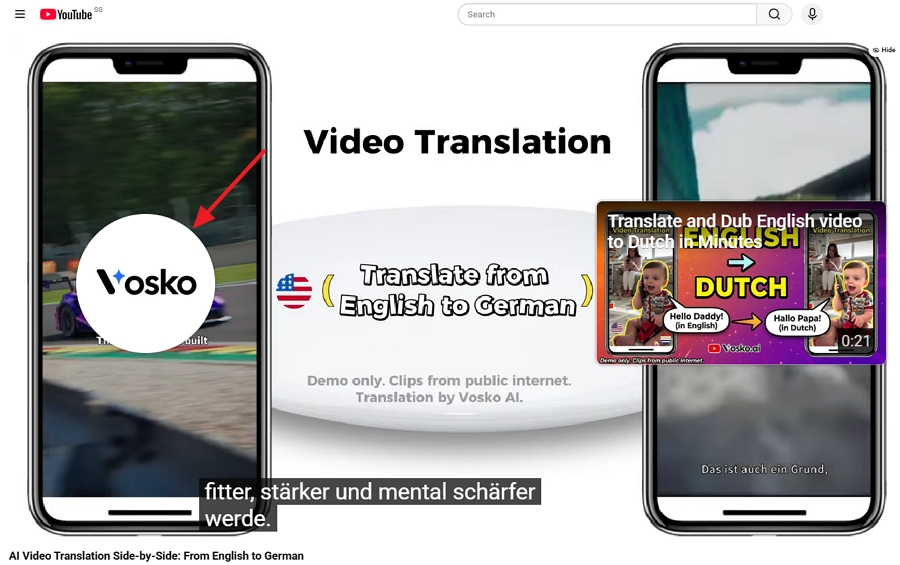
Note: Your video must be at least 25 seconds long to use this feature. If your upload is shorter than 25 seconds, the "End screen" button will be grayed out and unclickable.
Here is the 2026 tested process to add this subscribe element with screenshots.
Step 1. Locate the Video You Want to Edit
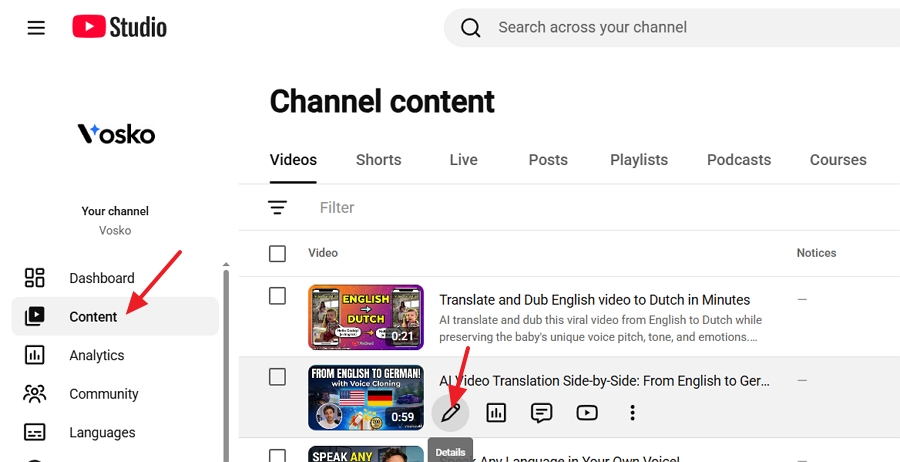
Inside YouTube Studio, click Content on the left menu. Find the video you want to edit and click the pencil icon to open the Details page.
Step 2. Open the End Screen Editor
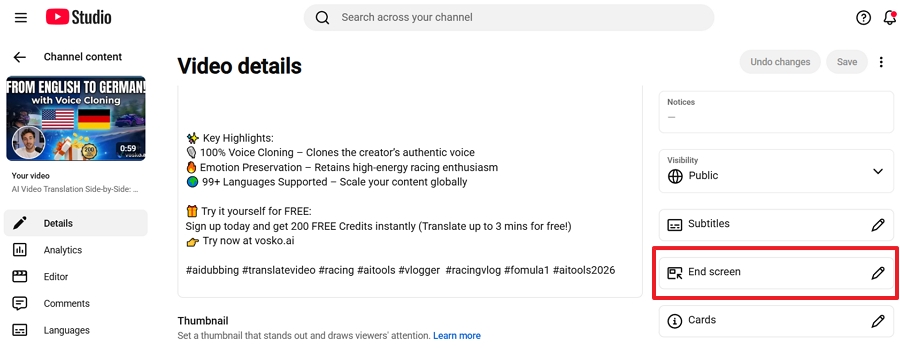
On the right side of the video details page, locate the End screen option.
Step 3. Choose a Subscribe Template
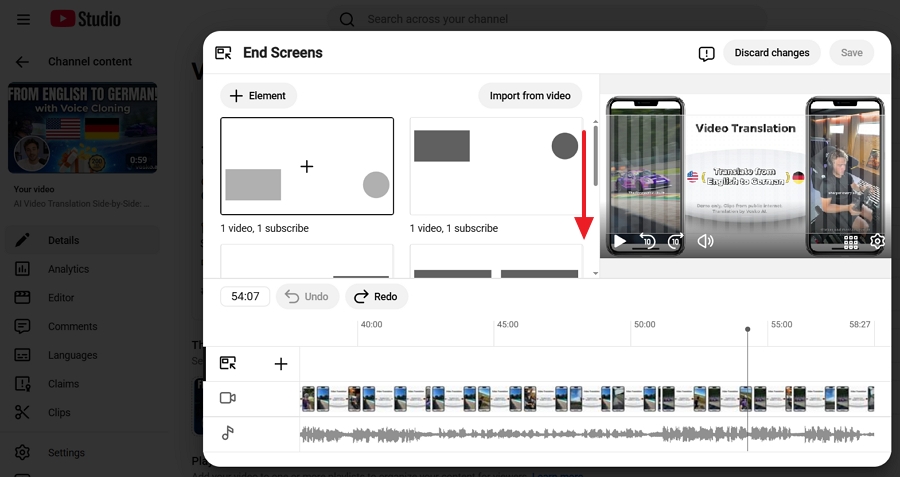
When the end screen editor opens, you do not need to build it from scratch. Scroll down the list of pre-made templates on the screen and select a combination that fits your needs, such as "1 video, 1 subscribe" or "1 video, 1 playlist, 1 subscribe".
Clicking one of these templates will instantly drop the clickable subscribe profile picture onto your video preview.
Step 4. Position and Save
Your channel profile picture will appear on the video preview grid. Drag it to your preferred location so it does not cover your face or important visuals. Adjust the blue timeline bar at the bottom if you want it to appear later in the video. Click Save in the top right corner.
While the end screen captures viewers at the end, setting up an in-video branding watermark provides a persistent, clickable button throughout your video. It is a one-time setup that automatically applies to all your past and future uploads.
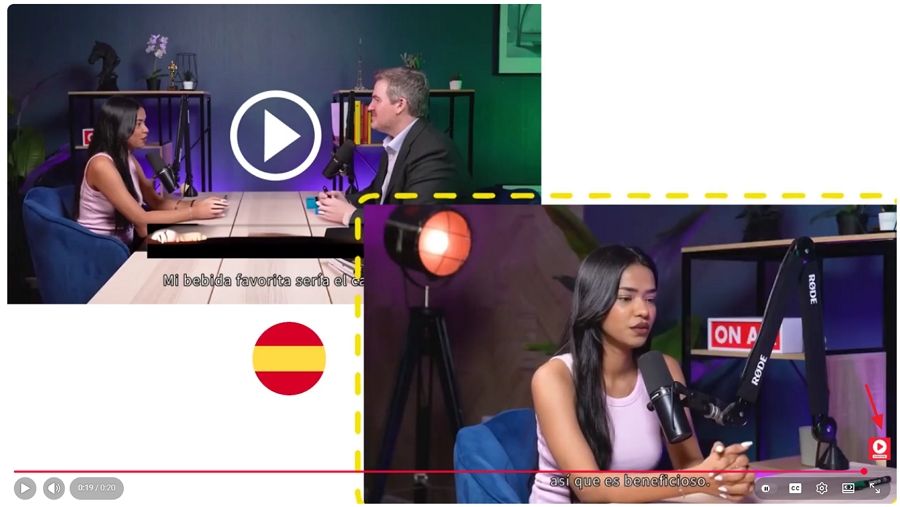
A quick warning from our testing: The watermark appears quite small in the bottom right corner of the player, making it easy for viewers to miss.
Note: According to YouTube, the channel watermark is available in landscape view on computers and mobile devices (not clickable on mobile). Channel watermarks do not show on custom YouTube chromeless players or Adobe Flash.
Once you complete the setup, viewers will see the result shown in the screenshot below when watching your video.
Below are the exact, tested steps to add a subscribe button to YouTube Videos using video watermark feature.
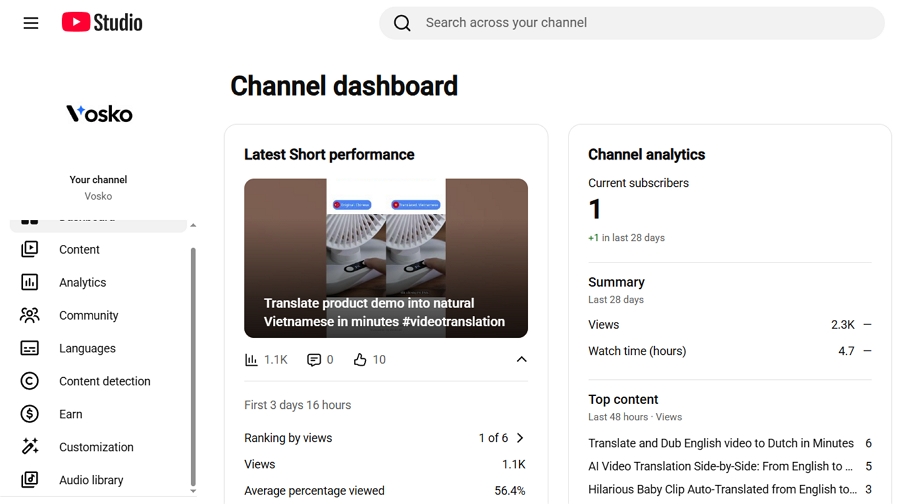
Step 1. Open YouTube Studio
Open YouTube Studio and log into your YouTube account on a desktop browser.
Step 2. Navigate to Customization
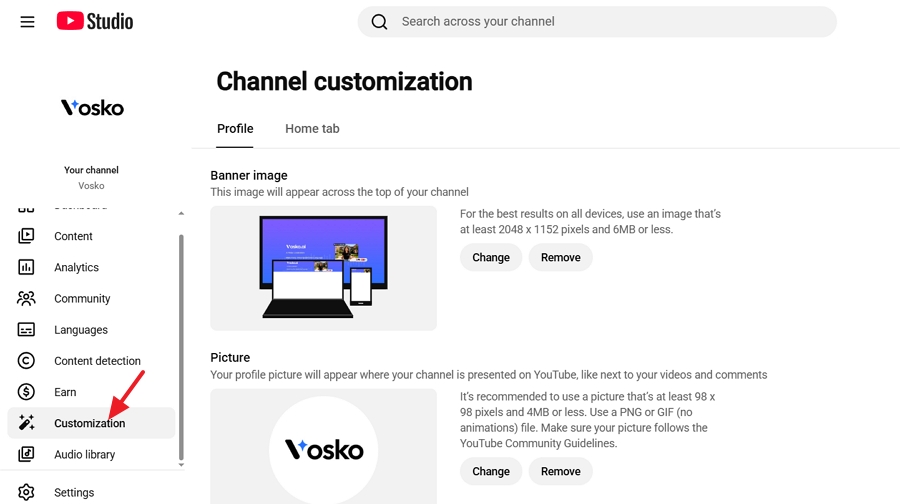
On the left-hand menu sidebar, scroll down and click on Customization.
Step 3. Select the Display Time
Scroll down to the Video watermark section and choose when the button appears on your video. You have three choices:
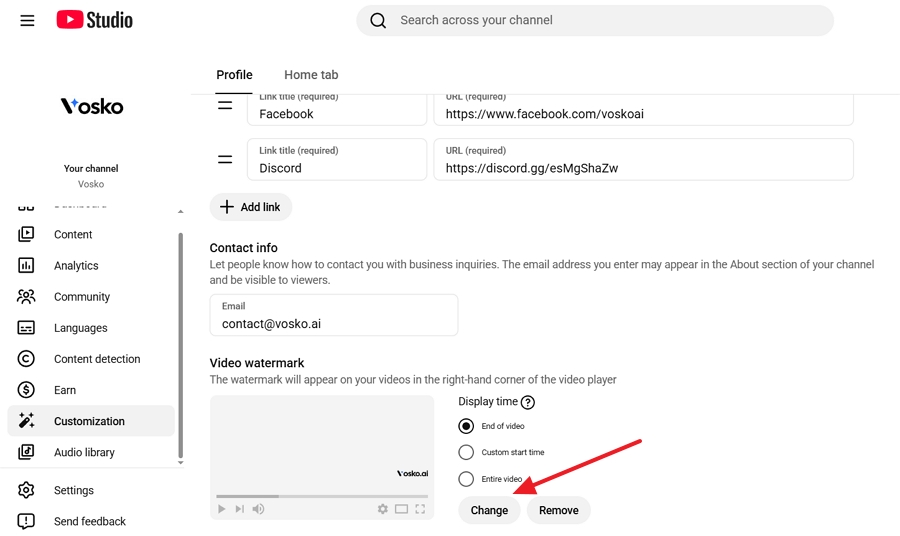
Step 4. Upload Your Video Watermark
Click Upload or Change to upload the Subscribe image. According to Google's official YouTube Help guidelines, your image must meet these strict requirements:
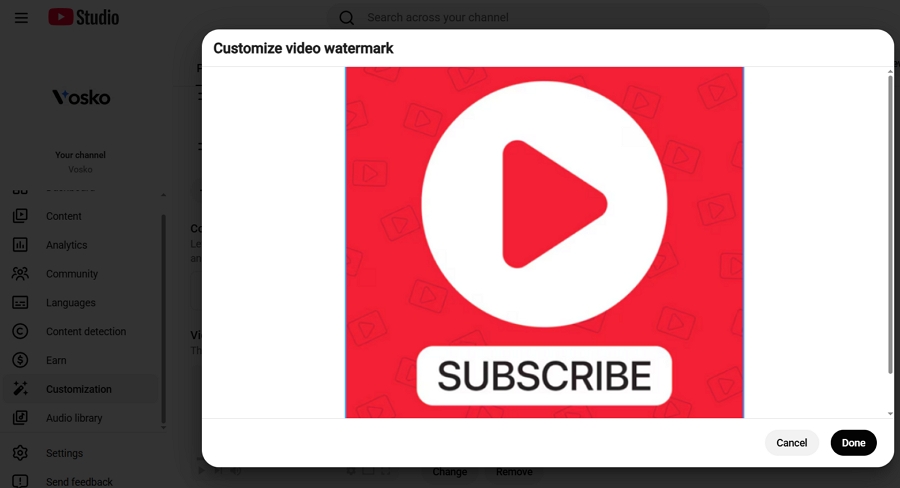
Step 5. Verify the Subscribe Button
Click the Publish button in the upper right corner. Open one of your videos using an incognito window to verify the Subscribe watermark is visible in the bottom right corner and clickable.
You should always give mobile users an immediate text link to subscribe. Since the video watermark is not clickable for mobile, placing a link in your description captures that audience.
Many creators also place timestamps near important sections of the description to improve usability. If you are not using them yet, see our guide on how to add timestamps to YouTube videos.
You can turn your standard channel URL into an automatic subscription prompt. Take your standard channel URL and add ?sub_confirmation=1 to the end of it.
Example: https://www.youtube.com/c/yourchannelname?sub_confirmation=1
Method 1: Add the Link to a Specific Video
If you want to update an existing video, follow this path:
1. Open YouTube Studio and click Content on the left menu.
2. Click the pencil icon on the video you want to edit.
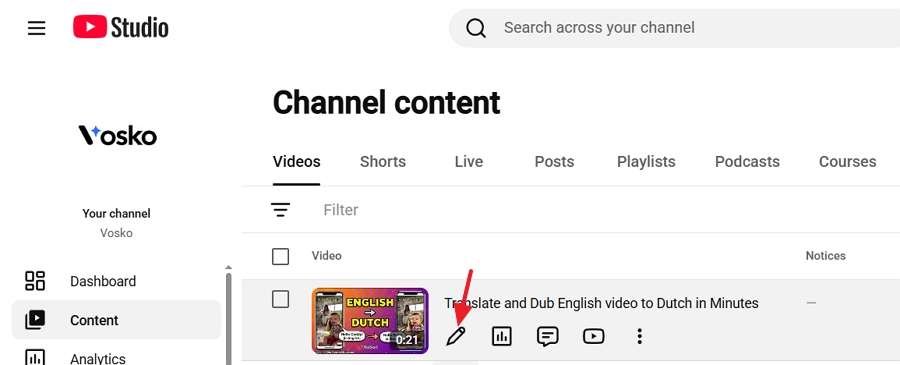
3. Locate the Description box.
4. Type a clear call to action like "Subscribe to my channel:" and paste your confirmation link right next to it. Keep it in the top three lines so it is visible without clicking "Show more."
5. Click Save.
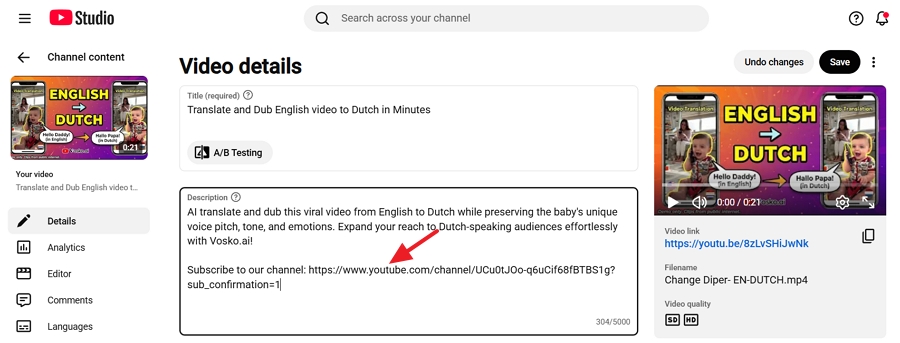
Method 2: Add the Link to All Future Videos Automatically
To save time, you can set this link to automatically appear on every new video you upload.
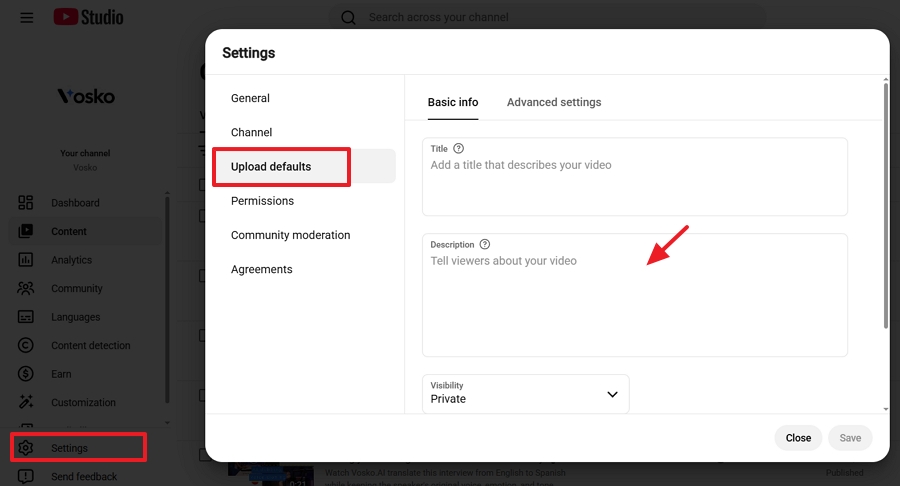
When a viewer clicks this link, YouTube immediately triggers a pop-up box asking them to confirm their subscription. Placing it in your upload defaults ensures it automatically appears on every new video you publish.
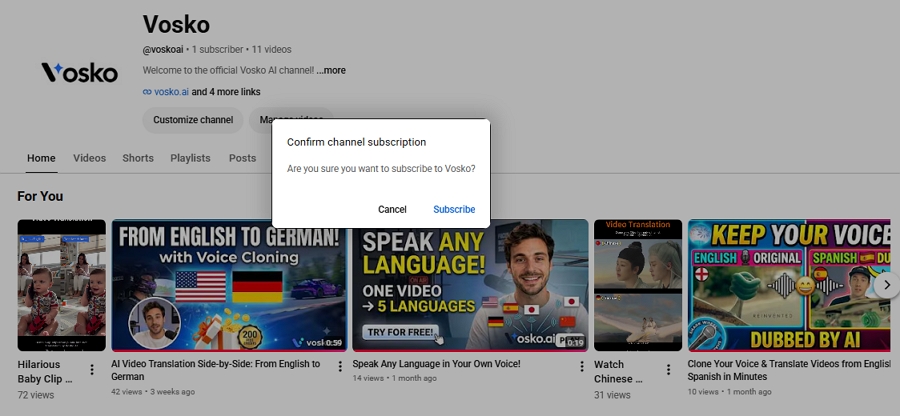
If you run a blog, a company website, or a landing page, you can embed a fully functional YouTube subscribe button directly on your webpage. This allows your website traffic to subscribe to your channel without ever leaving your site.
Follow these tested steps to generate the official Google embed code.
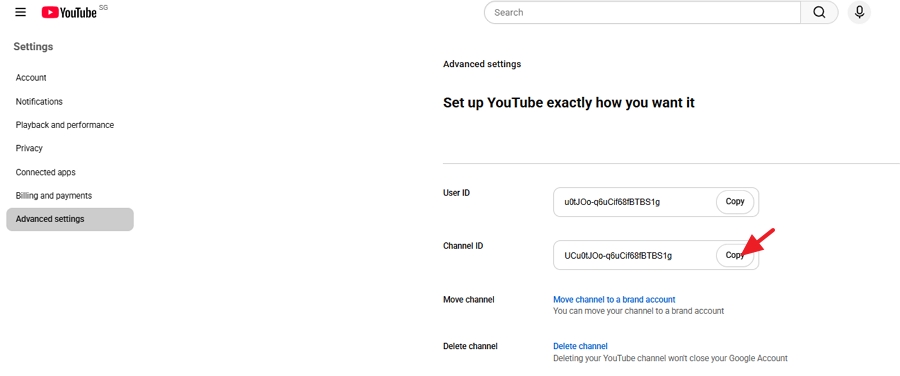
Step 1. Find Your Channel ID
Go to YouTube Advanced settings in the left menu. Copy your Channel ID.
Step 2. Open Google Developers
Go to the YouTube Subscribe Button tool on the Google Developers website.
Step 3. Configure Your Button
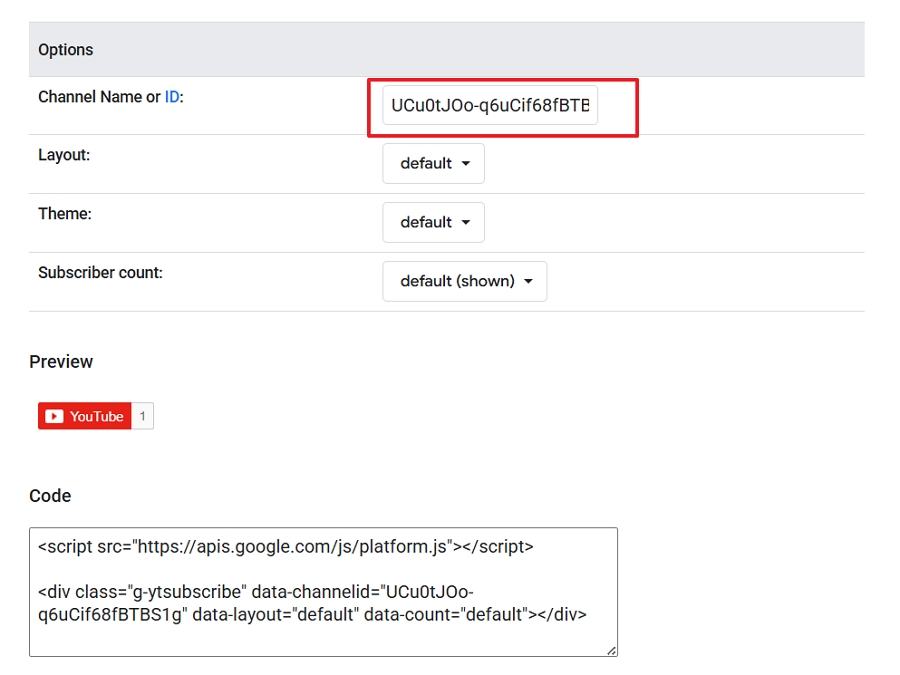
Paste your Channel ID into the configuration box. You can change the layout to "Full" (which shows your channel avatar and subscriber count) and choose a dark or light theme to match your website design.
Step 4. Copy and Embed the Code
The tool will automatically generate a short snippet of HTML code. Copy this code and paste it into the backend of your website (such as an HTML block in WordPress). The official, clickable subscribe button will now display on your site.
You need to know exactly where these buttons actually work because YouTube treats different devices and video formats very differently.
What is the difference between a YouTube branding watermark and an end screen subscribe element?
A branding watermark is a clickable logo in the bottom right corner of your video. An end screen element is a clickable profile picture at the end of the video.
How do I add a clickable subscribe button to my YouTube videos?
Log into YouTube Studio on a desktop, go to Customization, click the Branding tab, and upload a square image under the Video watermark section. Select your display time and click Publish.
What size and file type should I use for a YouTube subscribe button watermark?
Use a square image that is a minimum of 150x150 pixels and under 1MB in size. Use a PNG file with a transparent background for the cleanest look.
Can I add or change a YouTube subscribe button from a phone?
No. You cannot manage the branding watermark through the YouTube Studio mobile app. You must log into YouTube Studio on a desktop browser.
Does the YouTube subscribe button watermark show on Shorts?
No. Branding watermarks and traditional end screens do not display on YouTube Shorts. The Shorts player uses its own native interface for subscriptions.
Why is my YouTube subscribe watermark missing or not clickable?
It usually means you are watching a Short, viewing the video on a mobile device in portrait mode, or you set a custom start time that the video has not reached yet. Ensure you clicked Publish after uploading.
How can I track whether my subscribe button is helping my channel grow?
Open YouTube Studio Analytics, click Advanced Mode, and view the Subscription source report. Look at the "Interactive features" metric to see exactly how many subscribers came from your watermark and end screens.
Take action right now to capture more viewers. Start with the easiest win: create a simple, transparent PNG subscribe graphic, log into the desktop version of YouTube Studio, and apply it as a branding watermark to your entire video library.
Use an incognito browser to test it yourself. Next, update your default upload description to include the auto-subscribe link. Small optimizations reduce friction and lead to long-term channel growth.